
|
Size: 12250
Comment:
|
Size: 12587
Comment:
|
| Deletions are marked like this. | Additions are marked like this. |
| Line 10: | Line 10: |
| [[http://surfer.nmr.mgh.harvard.edu/fswiki/CourseDescription/Remote_Qualify#InstallingOnWindows|Installing on Windows]] <<BR>> [[http://surfer.nmr.mgh.harvard.edu/fswiki/CourseDescription/Remote_Qualify#InstallingOnMac|Installing on Mac]] <<BR>> [[http://surfer.nmr.mgh.harvard.edu/fswiki/CourseDescription/Remote_Qualify#RetrievingTutorialData|Retrieving Tutorial Data]] <<BR>> | [[http://surfer.nmr.mgh.harvard.edu/fswiki/CourseDescription/Remote_Qualify#InstallingOnWindows|Installing on Windows]] <<BR>> [[http://surfer.nmr.mgh.harvard.edu/fswiki/CourseDescription/Remote_Qualify#InstallingOnMac|Installing on Mac]] <<BR>> [[http://surfer.nmr.mgh.harvard.edu/fswiki/CourseDescription/Remote_Qualify#DecompressingtheImage|Decompressing the Image]] <<BR>> [[http://surfer.nmr.mgh.harvard.edu/fswiki/CourseDescription/Remote_Qualify#SettinguptheVirtualMachine|Setting up the Virtual Machine]] <<BR>> [[http://surfer.nmr.mgh.harvard.edu/fswiki/CourseDescription/Remote_Qualify#RetrievingTutorialData|Retrieving Tutorial Data]] <<BR>> |
| Line 16: | Line 16: |
| 1. Navigate to the VirtualBox website, https://www.virtualbox.org/wiki/Downloads, and download the latest version of VirtualBox. | 1. Navigate to the !VirtualBox website, https://www.virtualbox.org/wiki/Downloads, and download the latest version of !VirtualBox. |
| Line 34: | Line 34: |
| <<BR>>7. VirtualBox should automatically launch and display an empty window (containing no virtual machines). | <<BR>>7. !VirtualBox should automatically launch and display an empty window (containing no virtual machines). |
| Line 84: | Line 84: |
| === Decompressing the Image === <<BR>>---- |
|
| Line 87: | Line 92: |
| <<BR>>1. Launch the VirtualBox application on your (host) machine. If you just finished installing VirtualBox for the first time, then you will see no machine images are available to run on the left hand side of the GUI. | <<BR>>1. Launch the !VirtualBox application on your (host) machine. If you just finished installing !VirtualBox for the first time, then you will see no machine images are available to run on the left hand side of the GUI. |
| Line 129: | Line 134: |
| <<BR>>10. If the virtual machine fails to boot contact the FreeSurfer team and stop here. Otherwise, login as the user “developer” in the login menu. Get the password by sending an email request to the FreeSurfer help list. |
<<BR>>10. If the virtual machine fails to boot contact the !FreeSurfer team and stop here. Otherwise, login as the user “developer” in the login menu. Get the password by sending an email request to the !FreeSurfer help list. |
| Line 187: | Line 192: |
| <<BR>>Check the disk where the VirtualBox folder resides has a least another ~25G of free space available. If that is not the case, then you will need to setup a new copy of the VM on a disk partition with more space. Alternately, you can clone your existing VM to another disk partition with more space. (See the VirtualBox documentation on how to clone a VM). | <<BR>>Check the disk where the !VirtualBox folder resides has a least another ~25G of free space available. If that is not the case, then you will need to setup a new copy of the VM on a disk partition with more space. Alternately, you can clone your existing VM to another disk partition with more space. (See the !VirtualBox documentation on how to clone a VM). |
| Line 206: | Line 211: |
| <<BR>>6. Run the test_tutorial_data command to test if your setup can run the tutorial commands. The test may take 20-30 minutes on a typical machine. You will see 80+ FreeView commands run and the FreeView GUI will automatically open and close. Do not manually close the FreeView window or interrupt the test. | <<BR>>6. Run the test_tutorial_data command to test if your setup can run the tutorial commands. The test may take 20-30 minutes on a typical machine. You will see 80+ !FreeView commands run and the FreeView GUI will automatically open and close. Do not manually close the FreeView window or interrupt the test. |
| Line 212: | Line 217: |
| <<BR>>8. Check the test ends by displaying “SUCCESS” If you do not get this result, e.g., the test exits prematurely or exits with an error, then check with the FreeSurfer team. Successful output for the end of the test is shown below. | <<BR>>8. Check the test ends by displaying “SUCCESS” If you do not get this result, e.g., the test exits prematurely or exits with an error, then check with the !FreeSurfer team. Successful output for the end of the test is shown below. |
| Line 215: | Line 220: |
| <<BR>>9. Lastly, run the setup_tutorial_data command again to reset the tutorial data to a clean state. The previously downloaded tutorial data will be used unless the tutorial data has changed since the last download. When the command finishes you should be able to run the tutorial commands from scratch. Run this command to reset the data before day 1 of the FreeSurfer course. Make sure any new terminal window reports “Set environment for tutorial data”. | <<BR>>9. Lastly, run the setup_tutorial_data command again to reset the tutorial data to a clean state. The previously downloaded tutorial data will be used unless the tutorial data has changed since the last download. When the command finishes you should be able to run the tutorial commands from scratch. Run this command to reset the data before day 1 of the !FreeSurfer course. Make sure any new terminal window reports “Set environment for tutorial data”. |
FreeSurfer Course Installation Instructions
Downloading & Installing Virtualbox
The first step in getting ready for the FreeSurfer Course is downloading VirtualBox. It is a virtual machine software, able to easily replicate the environment and user interface of another computer, in this case one with FreeSurfer pre-installed. First, you will need to download the file that contains the Image (more information forthcoming), and then follow the instructions on how to set up the virtual machine. These steps differ for MacOS and Windows, so instructions for both are below. Make sure to set up the Virtual Machine and download the tutorial data as well; instructions on both are below the install instructions.
If you are unable to complete these instructions due to your machine not meeting requirements or other technical issues, you will likely not be able to complete the course on that device, and should contact the course organizers for assistance or to cancel your course registration.
Note: Any computers with ARM-based processors, including M1 and M2 Macs, will not work with VirtualBox.
Table of Contents:
Installing on Windows
Installing on Mac
Decompressing the Image
Setting up the Virtual Machine
Retrieving Tutorial Data
Installing On Windows
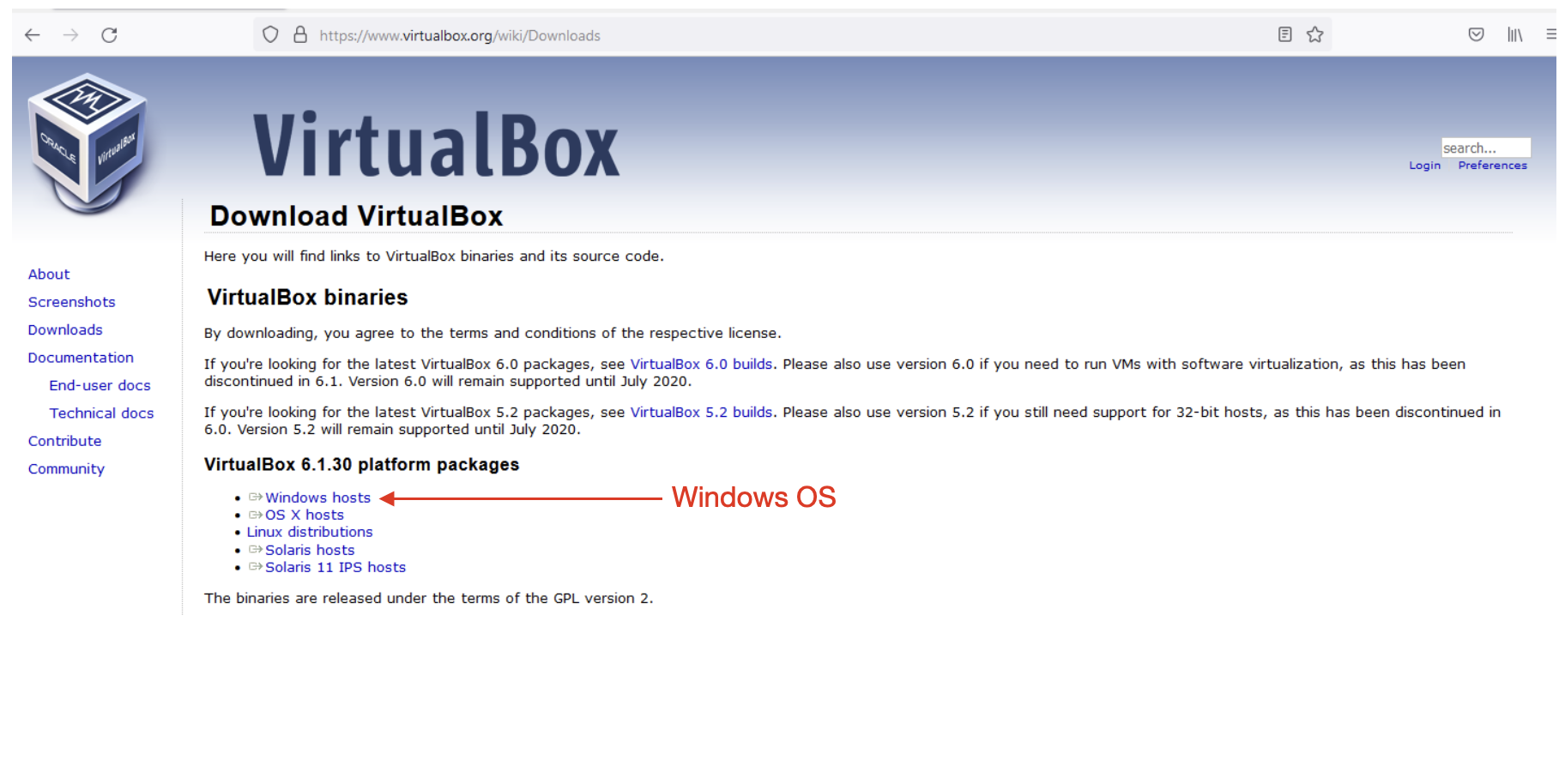
1. Navigate to the VirtualBox website, https://www.virtualbox.org/wiki/Downloads, and download the latest version of VirtualBox.
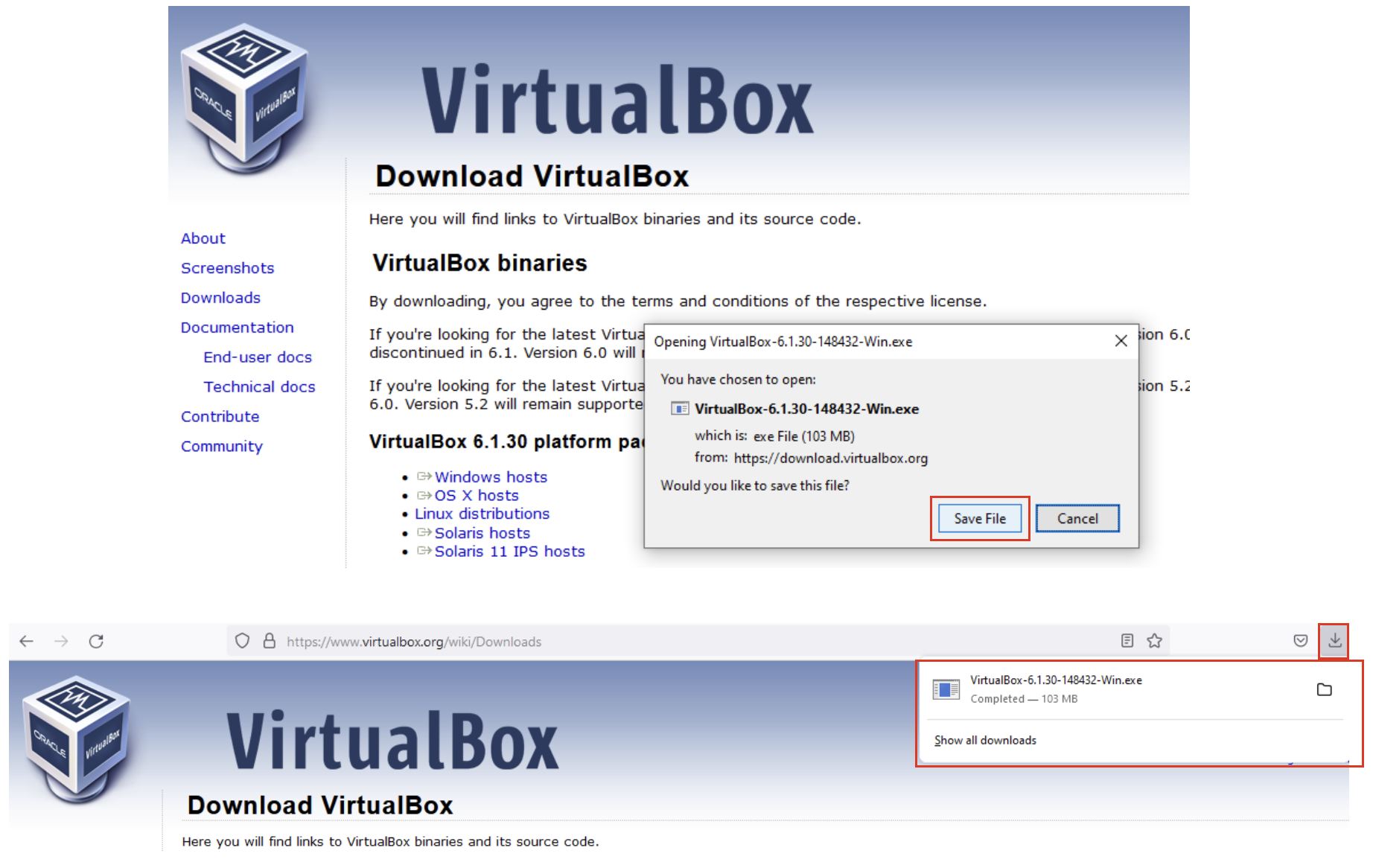
2. Save the installer and wait for the download to finish.
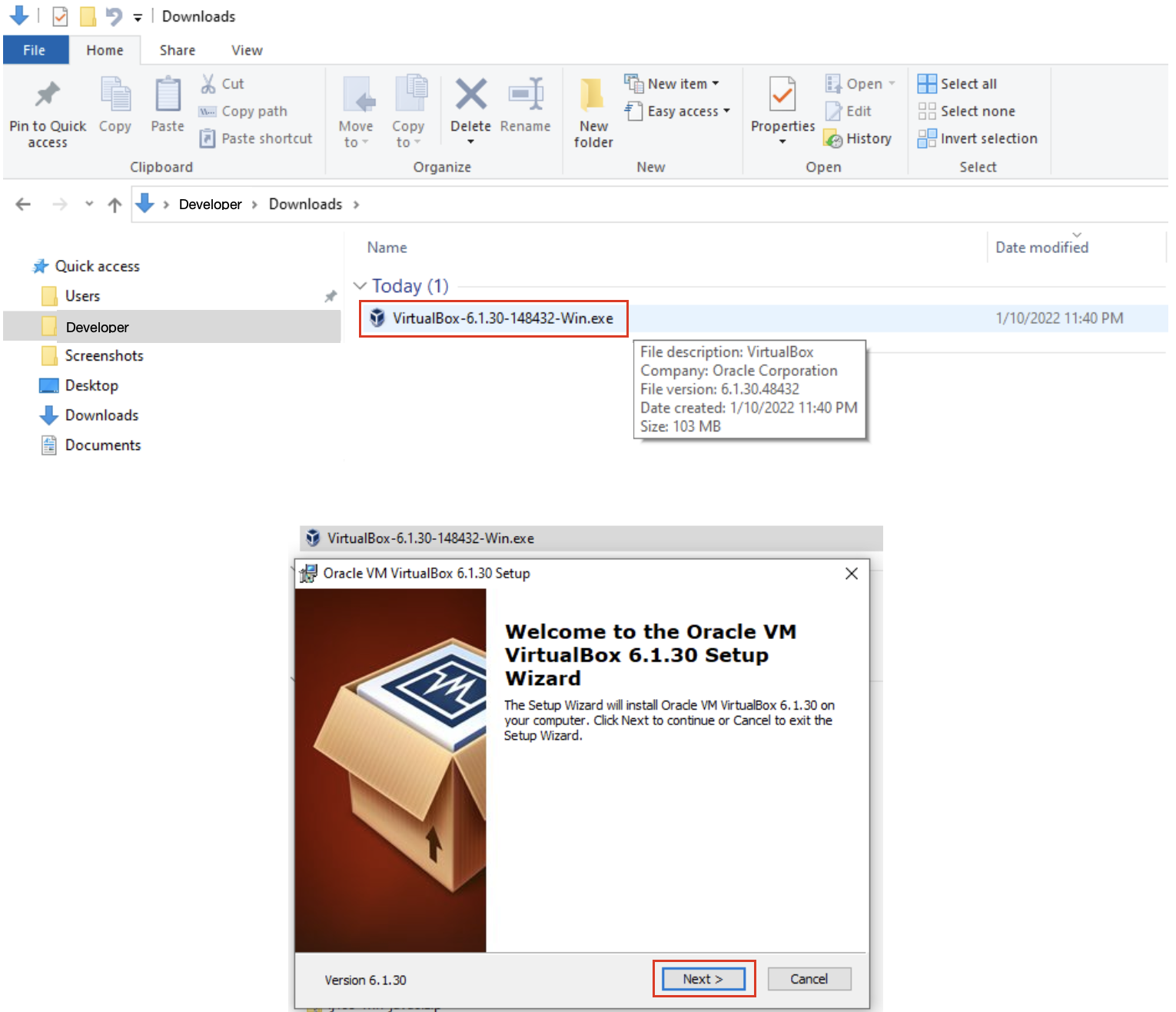
3. Locate the installer in the Downloads folder and double click on it to launch it.
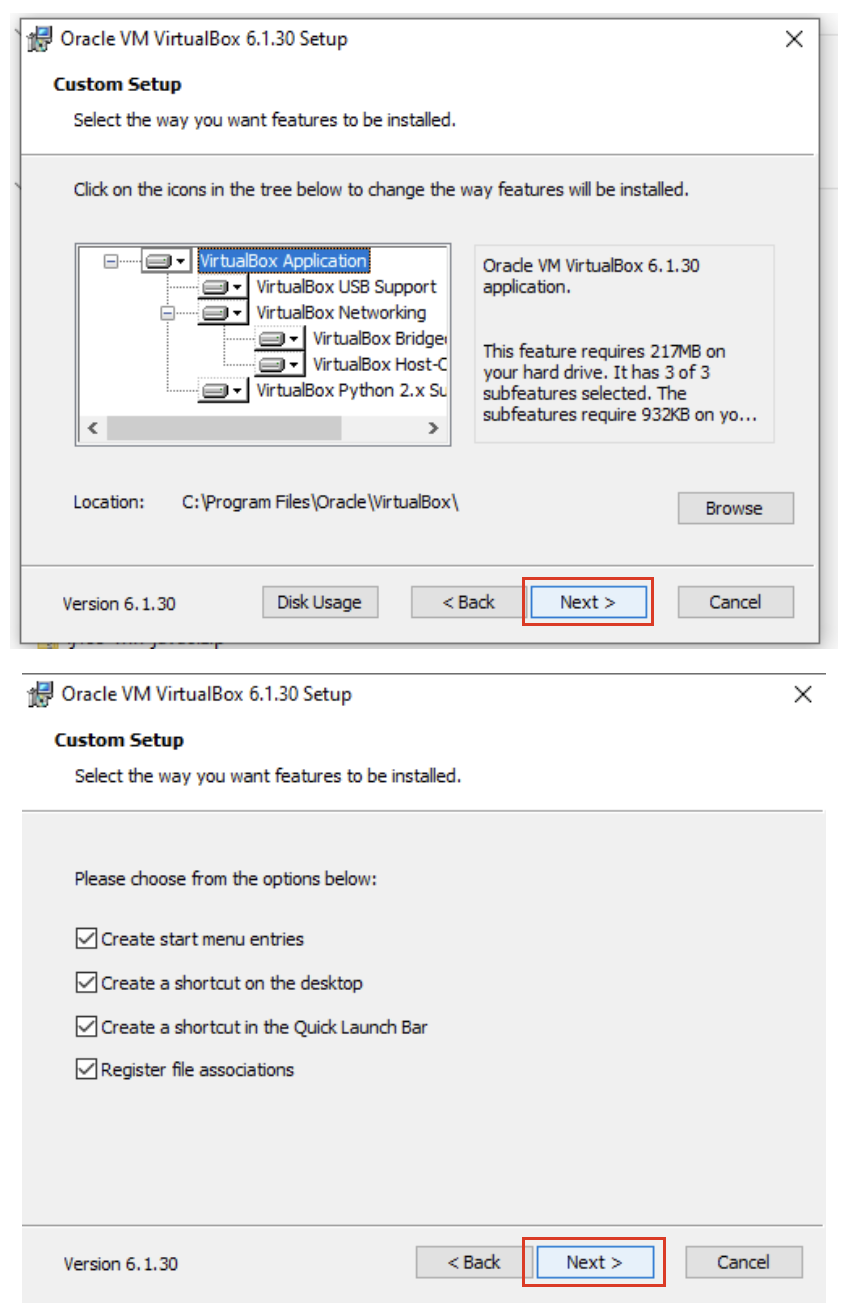
4. Choose to install the default setup/configuration with the default options
5. Allow the network connection to be reset and start the installation.
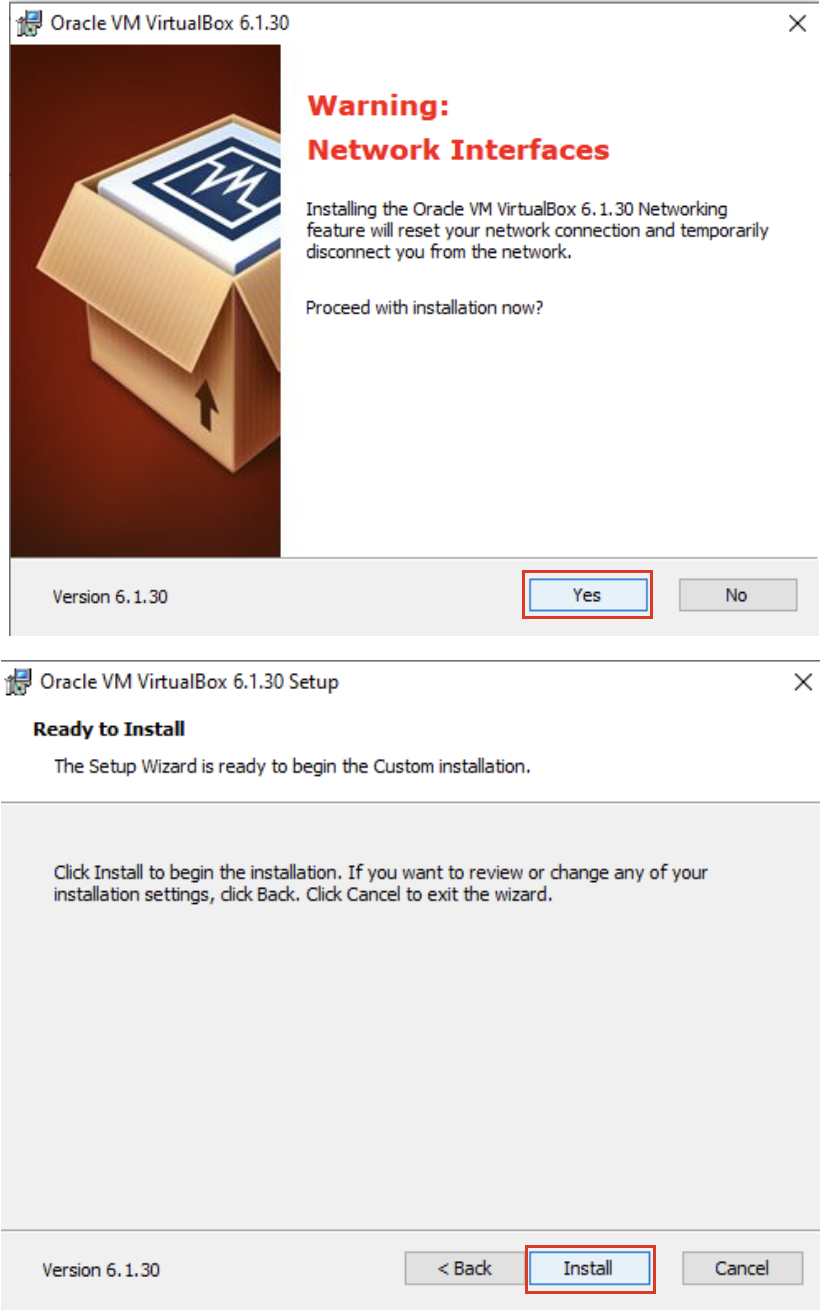
6. Allow the installation to progress and complete. Then click the finish button.
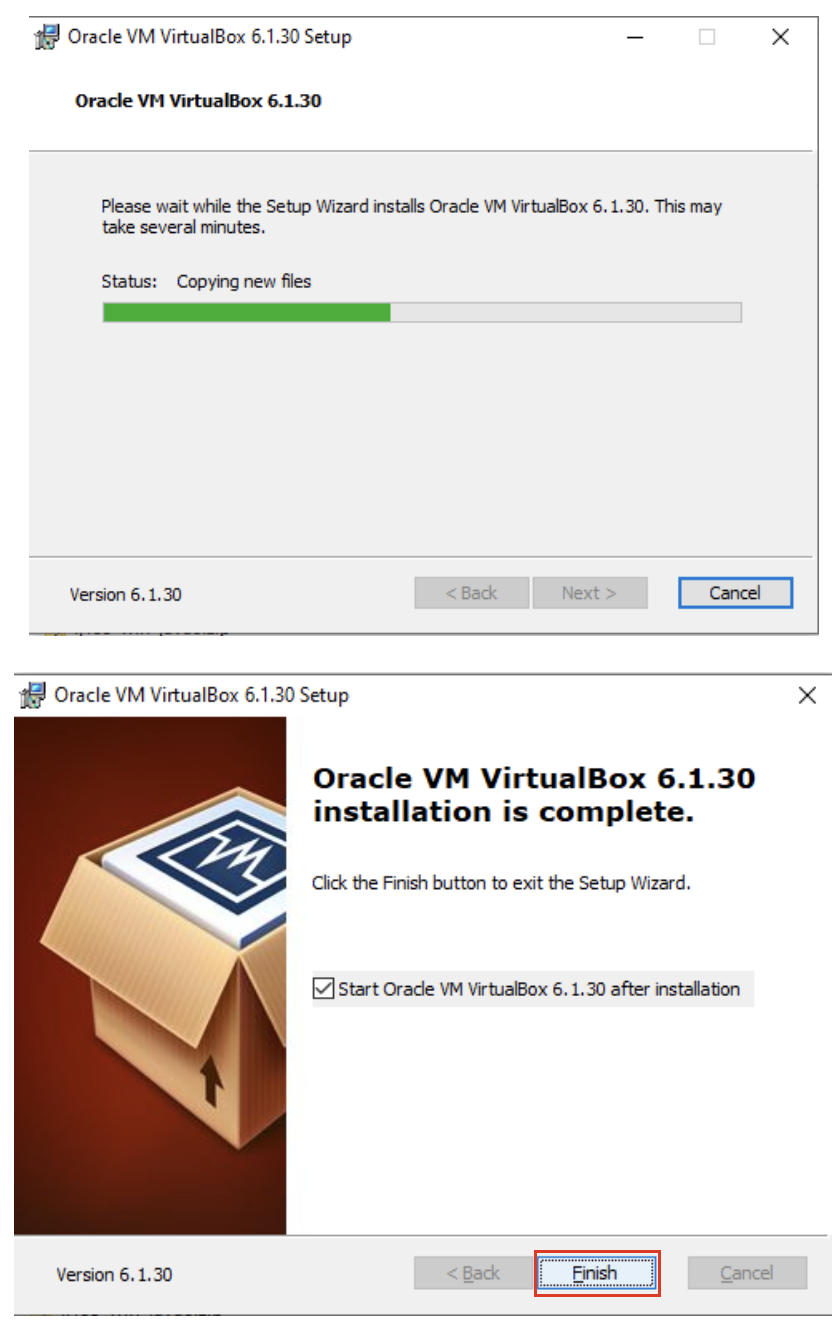
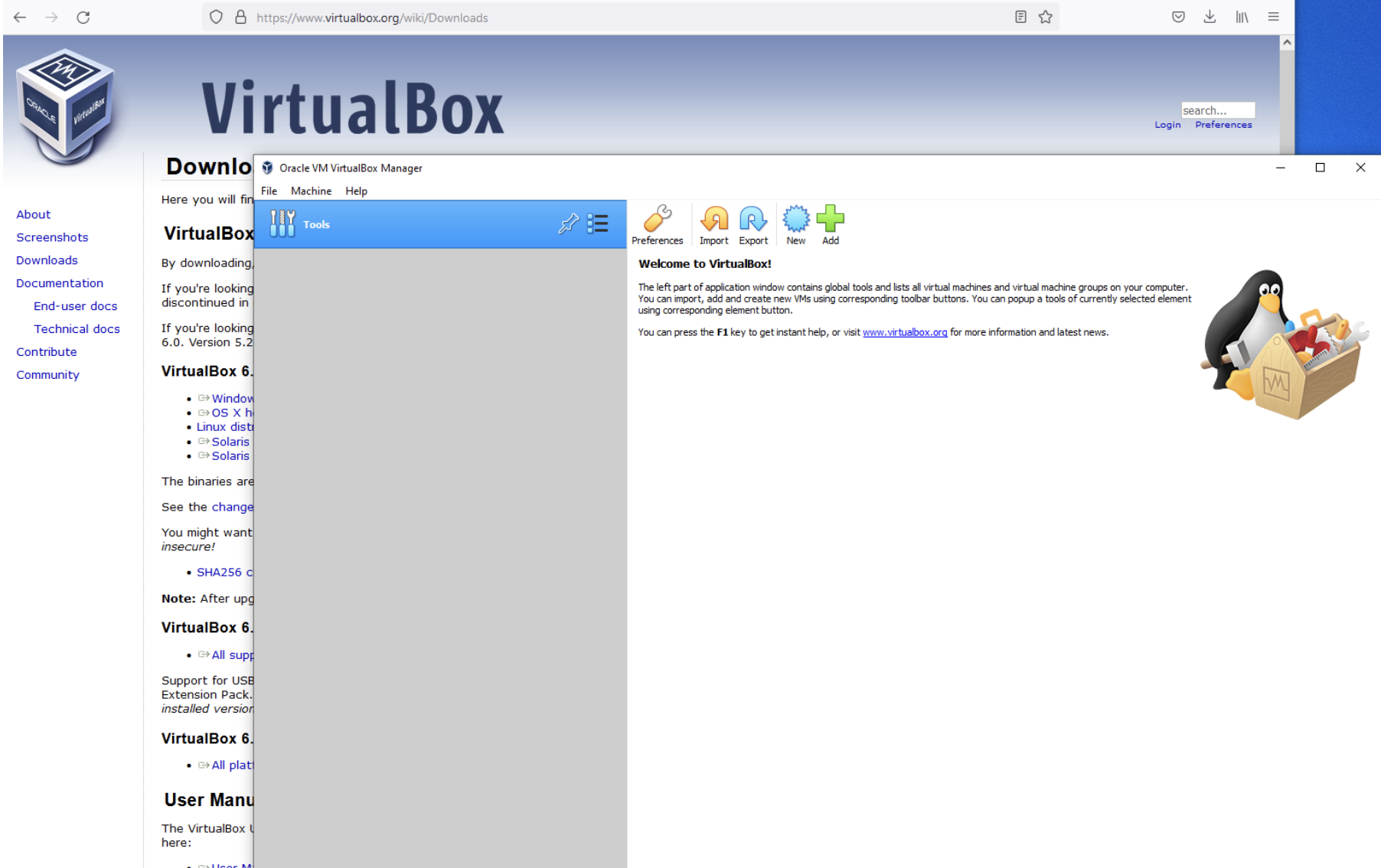
7. VirtualBox should automatically launch and display an empty window (containing no virtual machines).
Installing on Mac
Reminder: Any ARM based computers, including M1 and M2 Macs, will not work with VirtualBox, or our planned course.
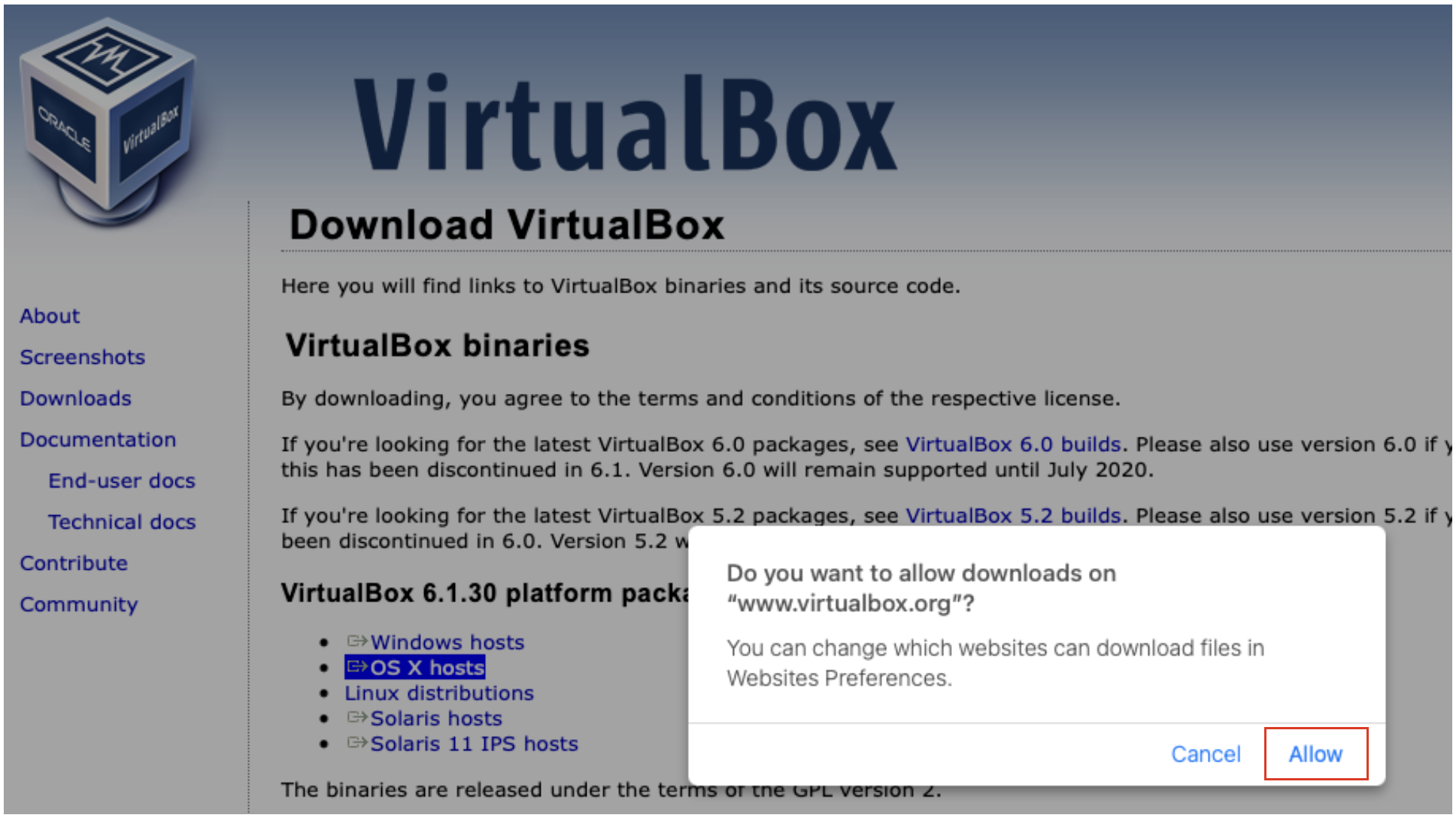
1. Navigate to the VirtualBox website, https://www.virtualbox.org/wiki/Downloads, and download the latest version of VirtualBox.
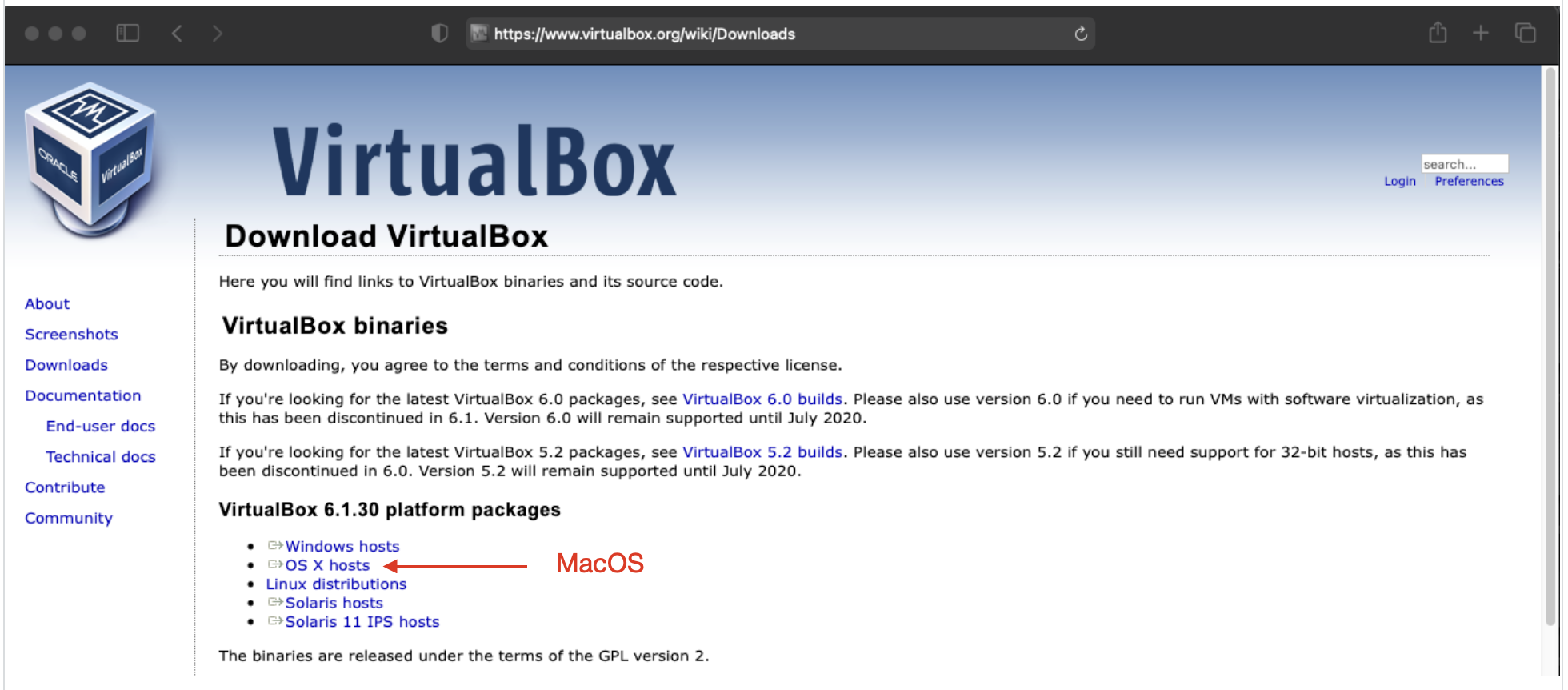
2. Allow downloads from the VirtualBox web site.
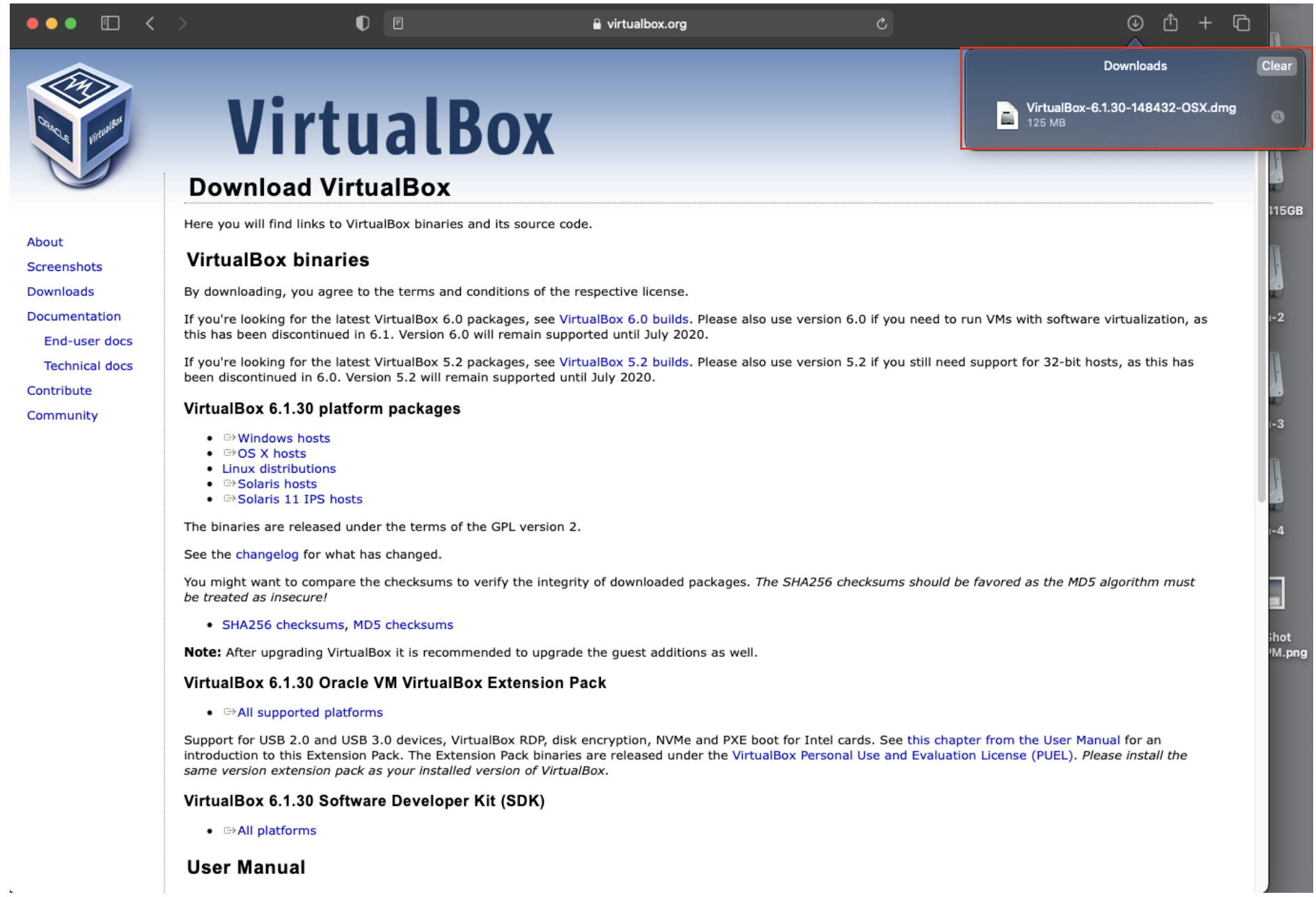
3. Open the download archive when it finishes.
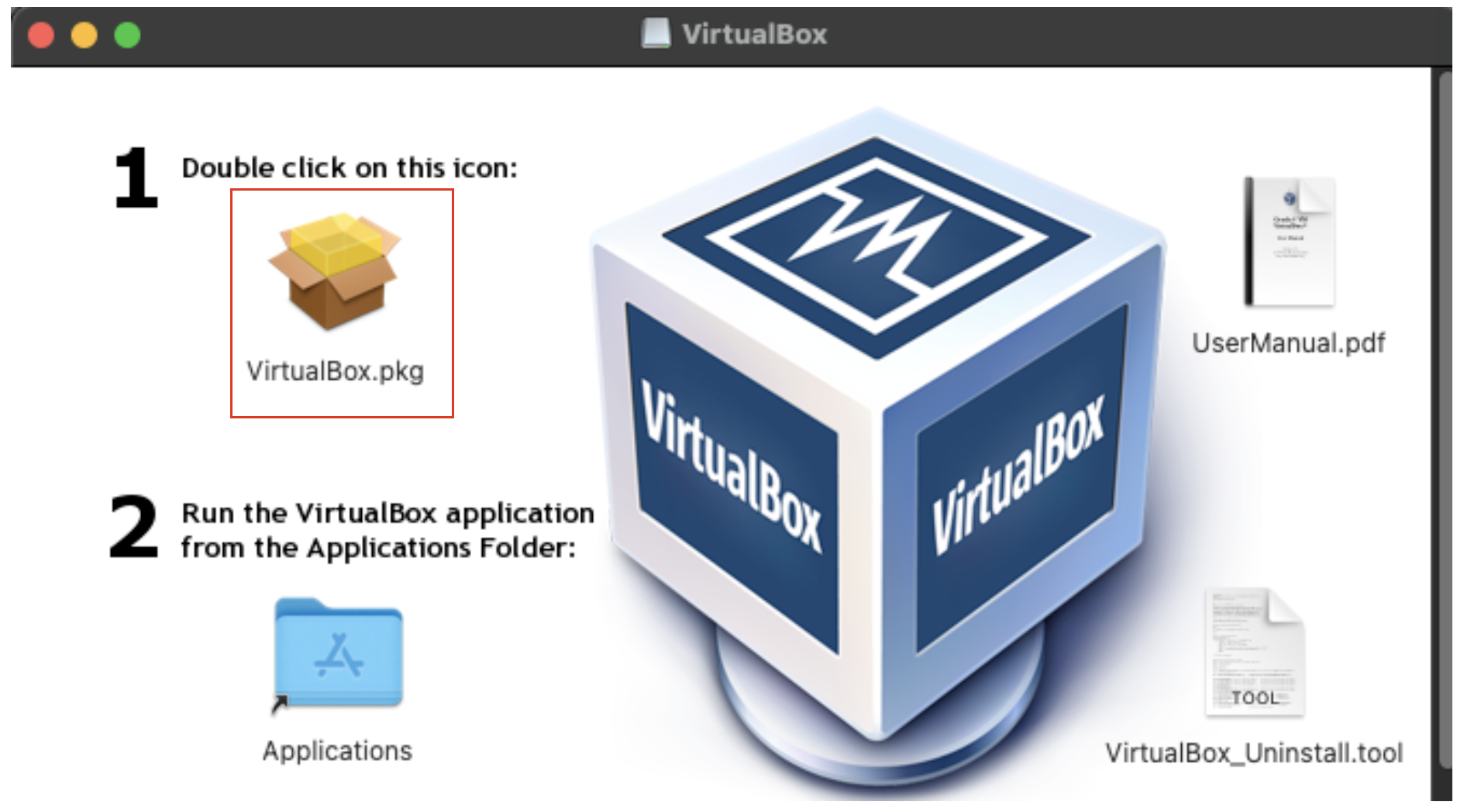
4. Double click on the VirtualBox package installer
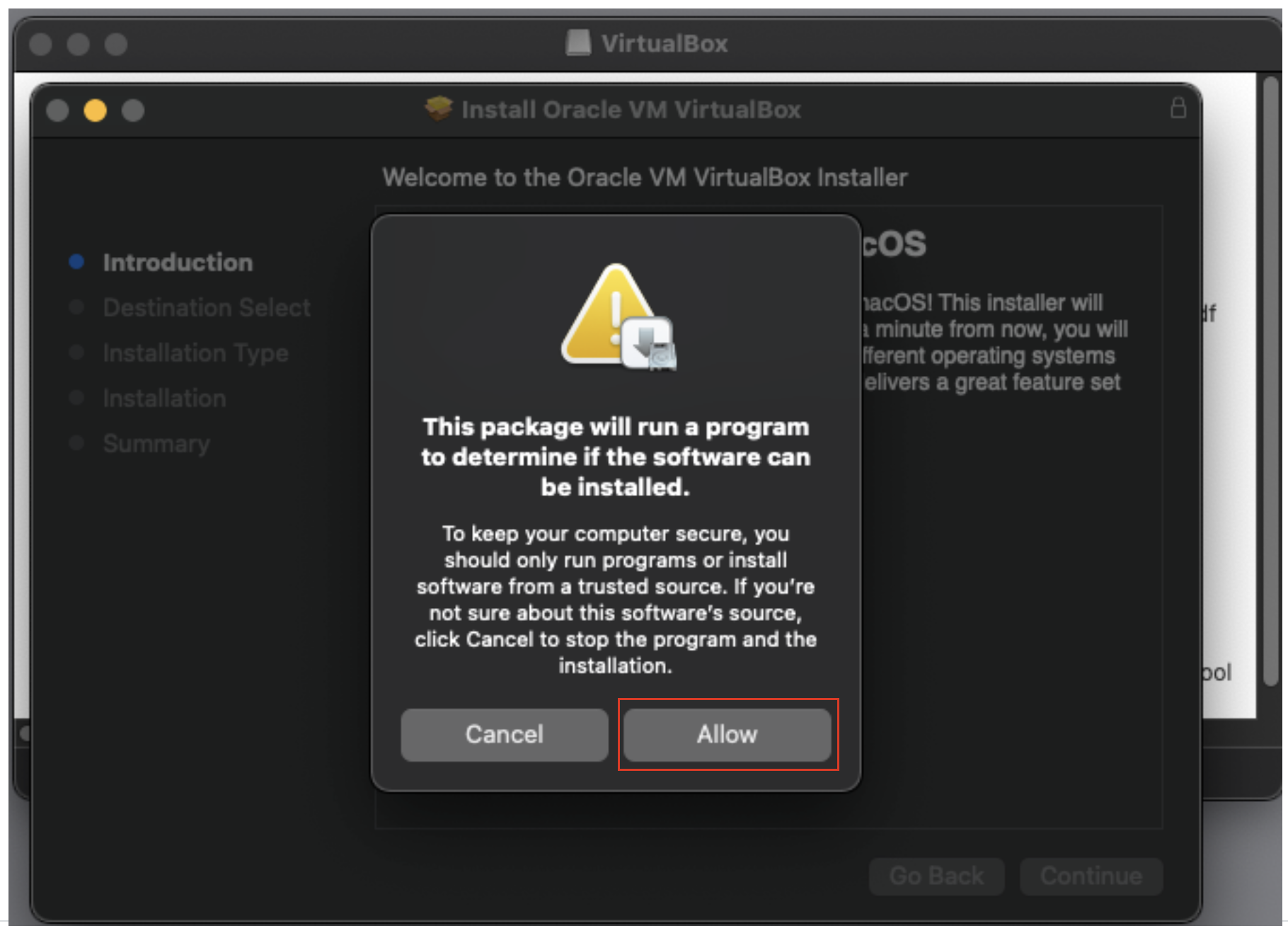
5. Give the installer permission to run scripts.
6. Allow the installer to continue.
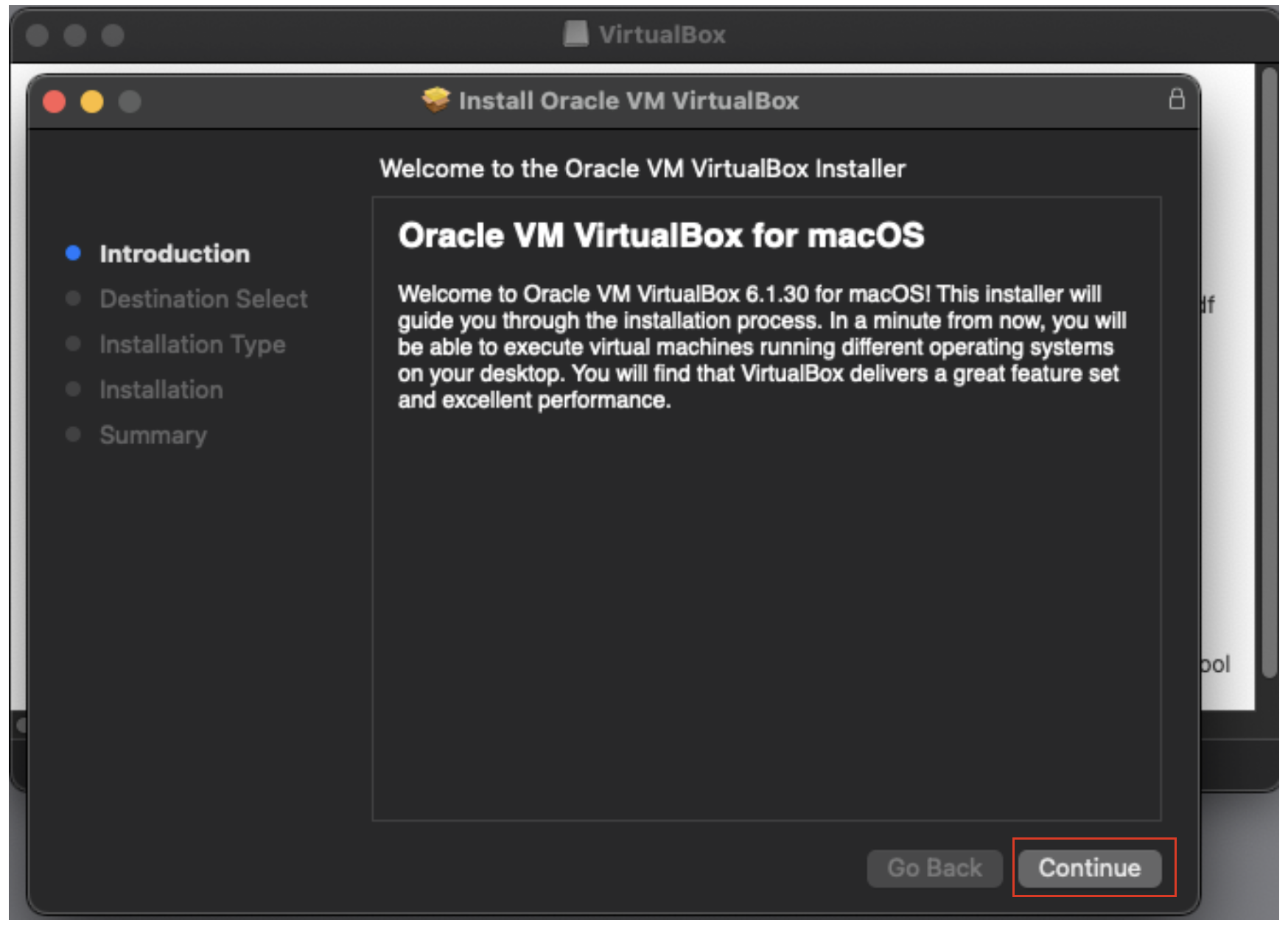
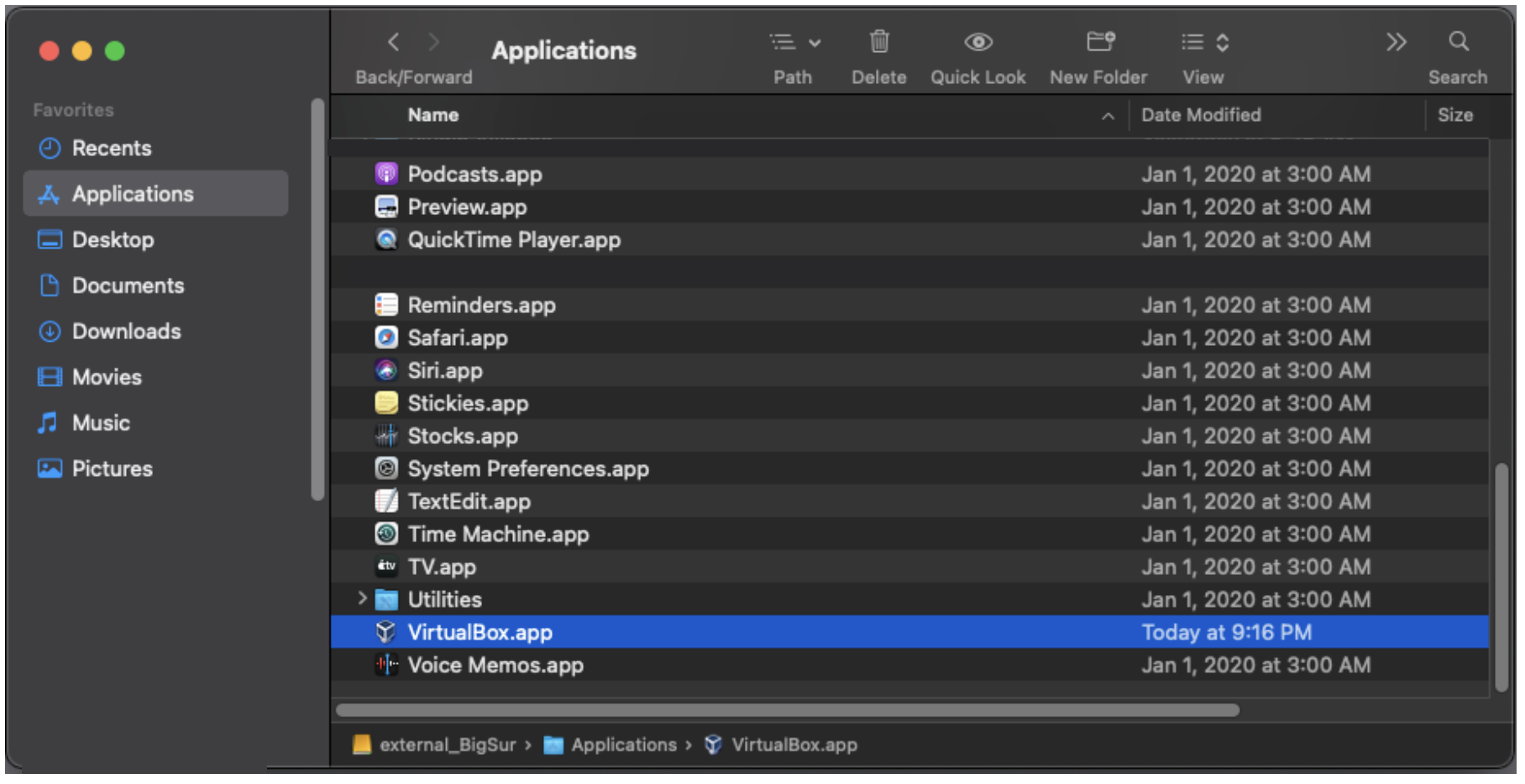
7. Pick a destination for the VirtualBox application. The default install location in the Applications folder on the boot partition should be fine (here an external disk named “external_BigSur)”. Your boot partition will be named differently, e.g., Macintosh HD, etc.
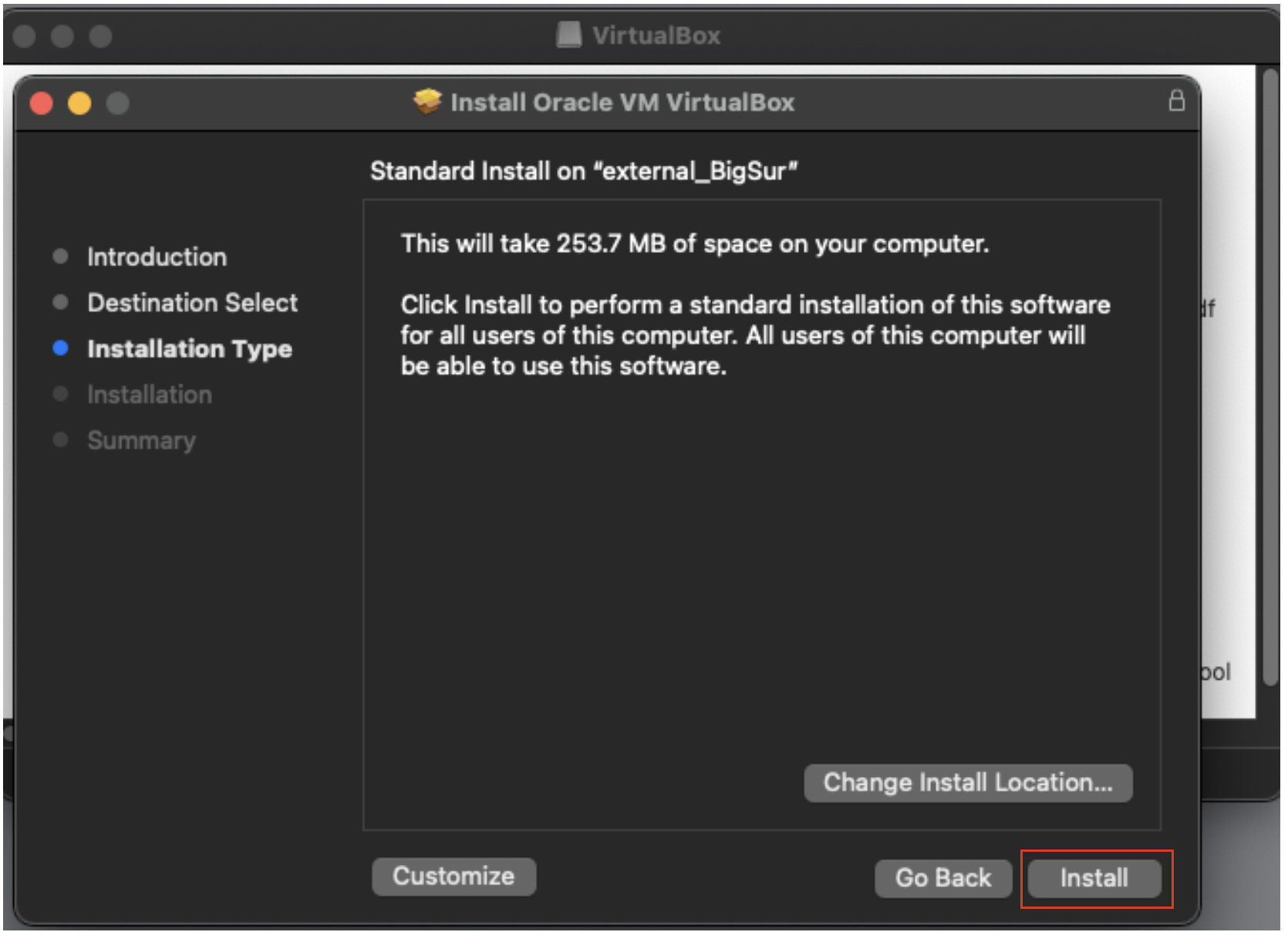
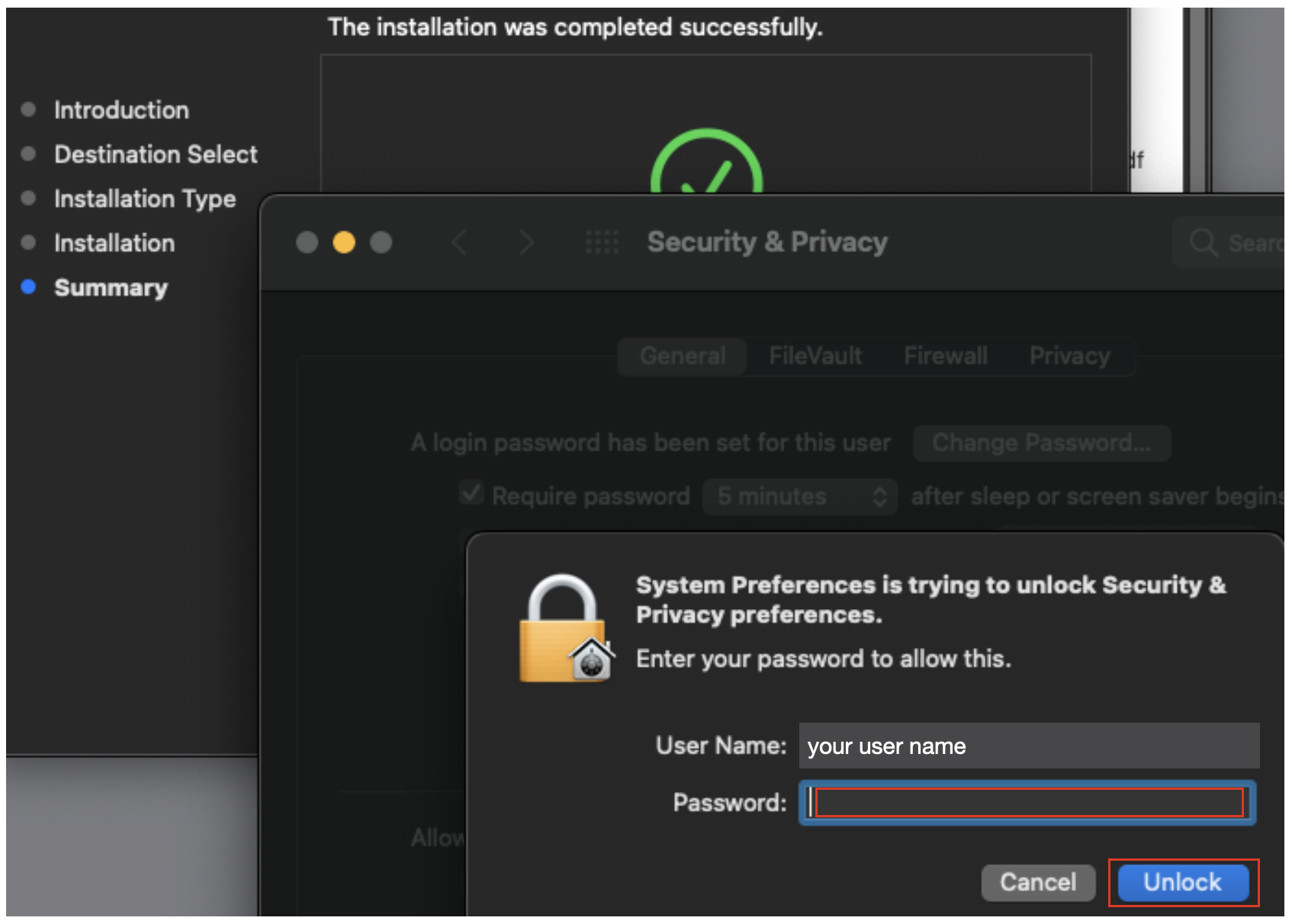
8. Authenticate using your login credentials to allow the installation.
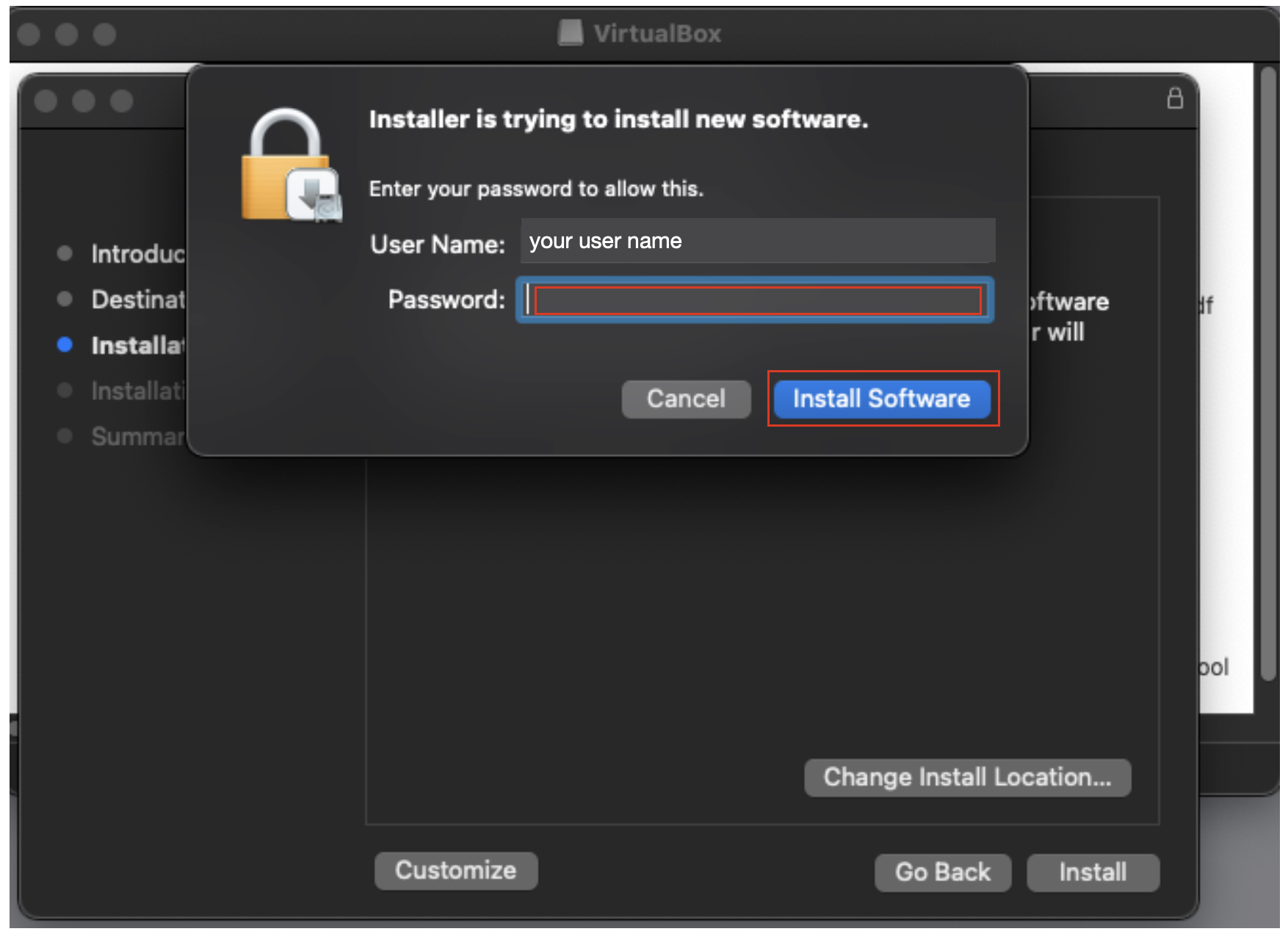
9. VirtualBox will issue a notification that the kernel extension it installed is currently blocked from running. Click OK.
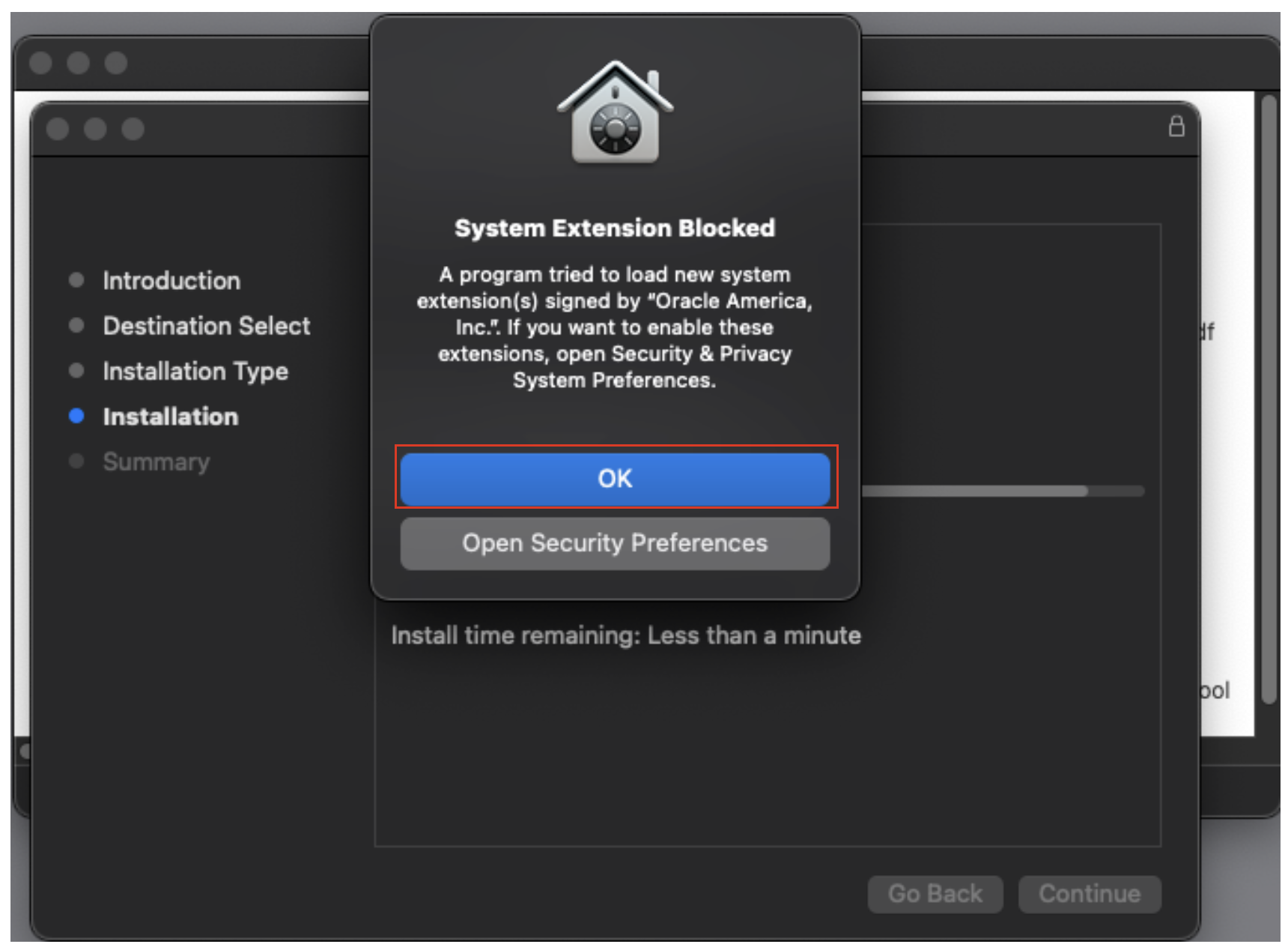
10. After the notification the install completed, go into the system security and privacy settings and authenticate with your login credentials.
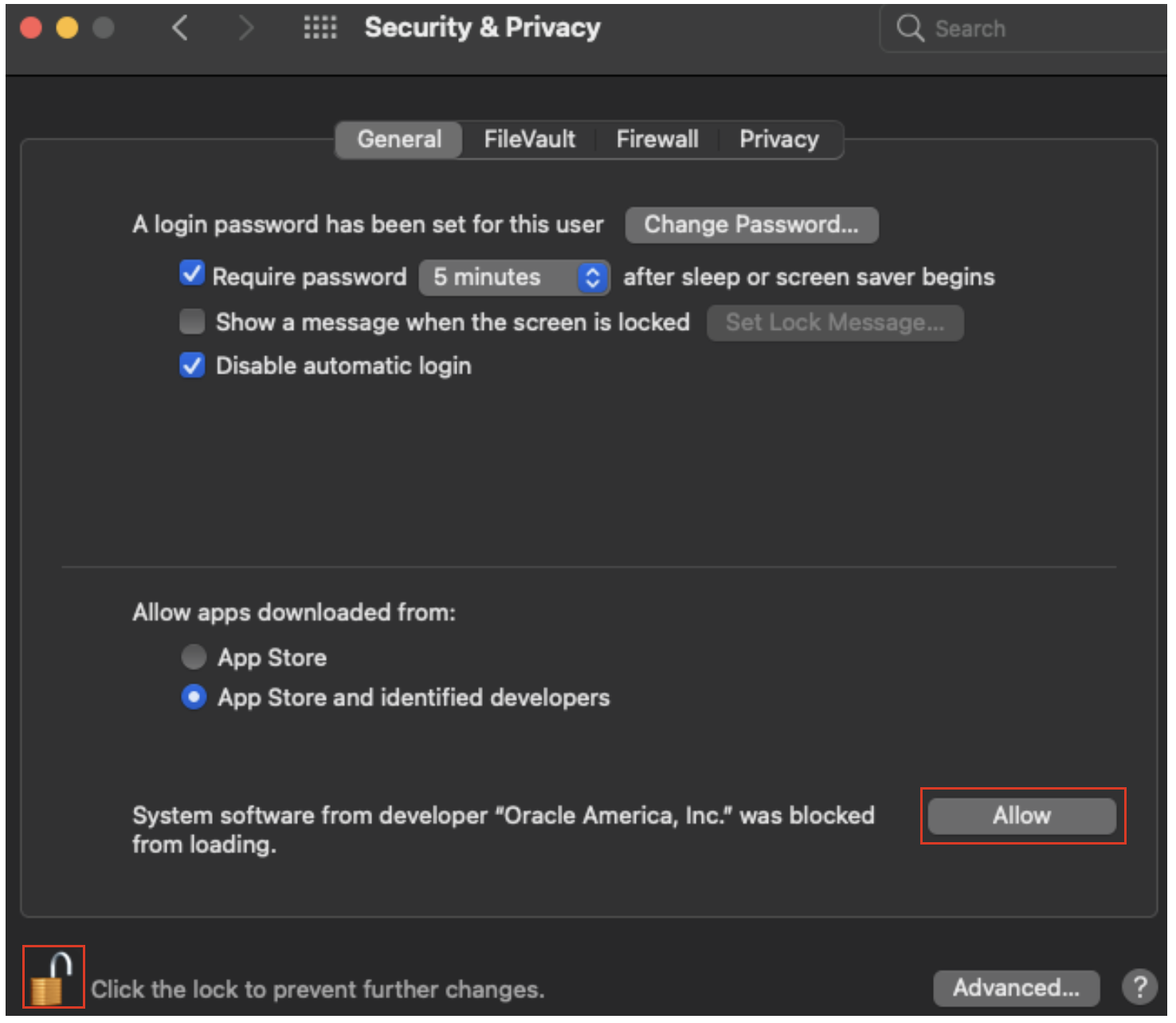
11. With the preferences unlocked, select allow to enable the VirtualBox extension to load.
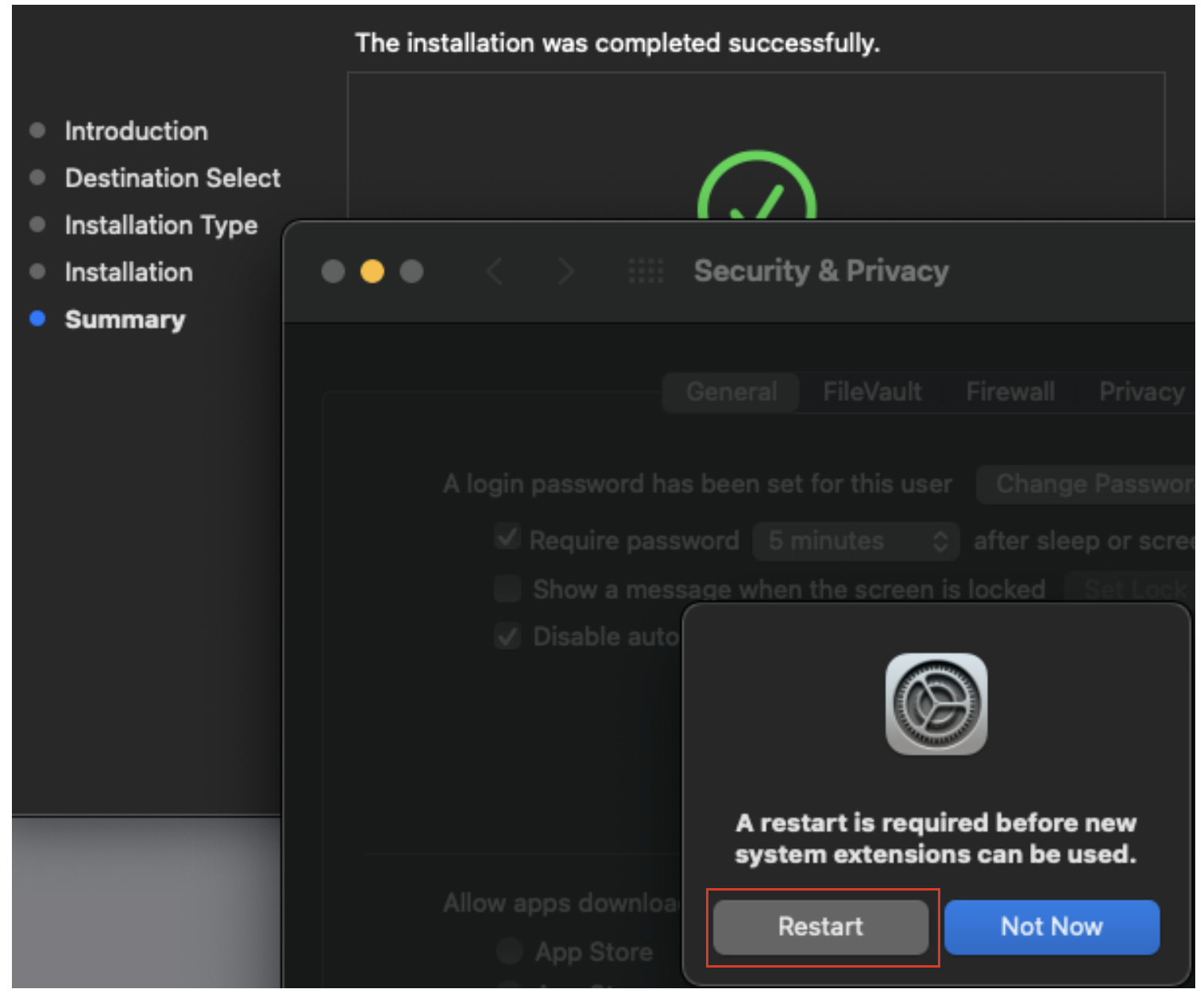
12. YOU SHOULD BE PROMPTED to restart the machine in order for the VirtualBox kernel extension to load and run. Select restart and after the reboot login to your account.
13. Check the VirtualBox application appears in the Applications folder.
Decompressing the Image
Setting up the Virtual Machine
1. Launch the VirtualBox application on your (host) machine. If you just finished installing VirtualBox for the first time, then you will see no machine images are available to run on the left hand side of the GUI.
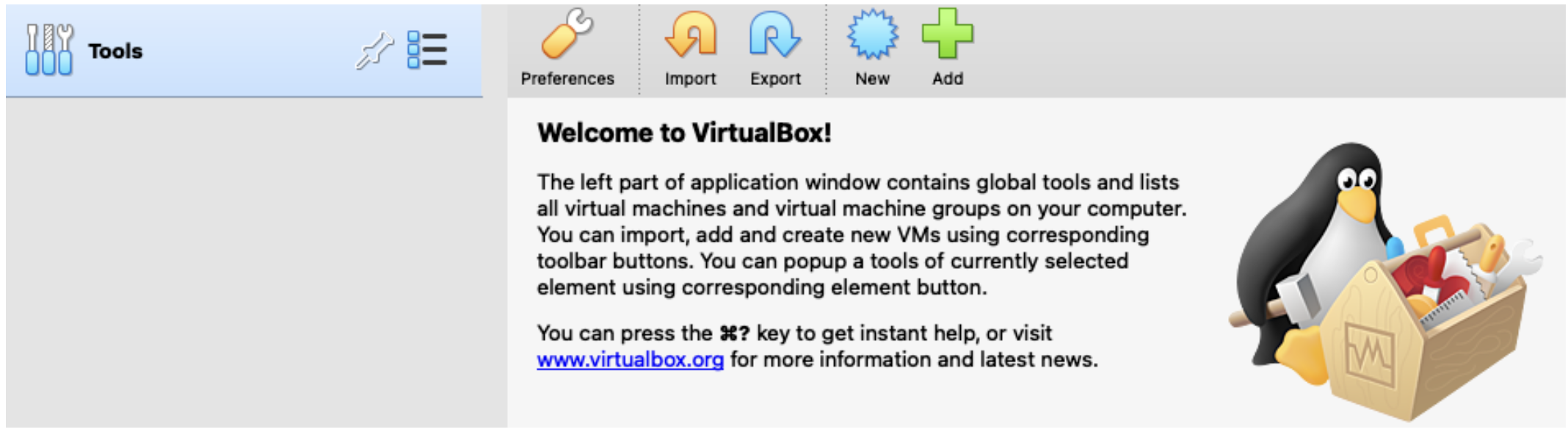
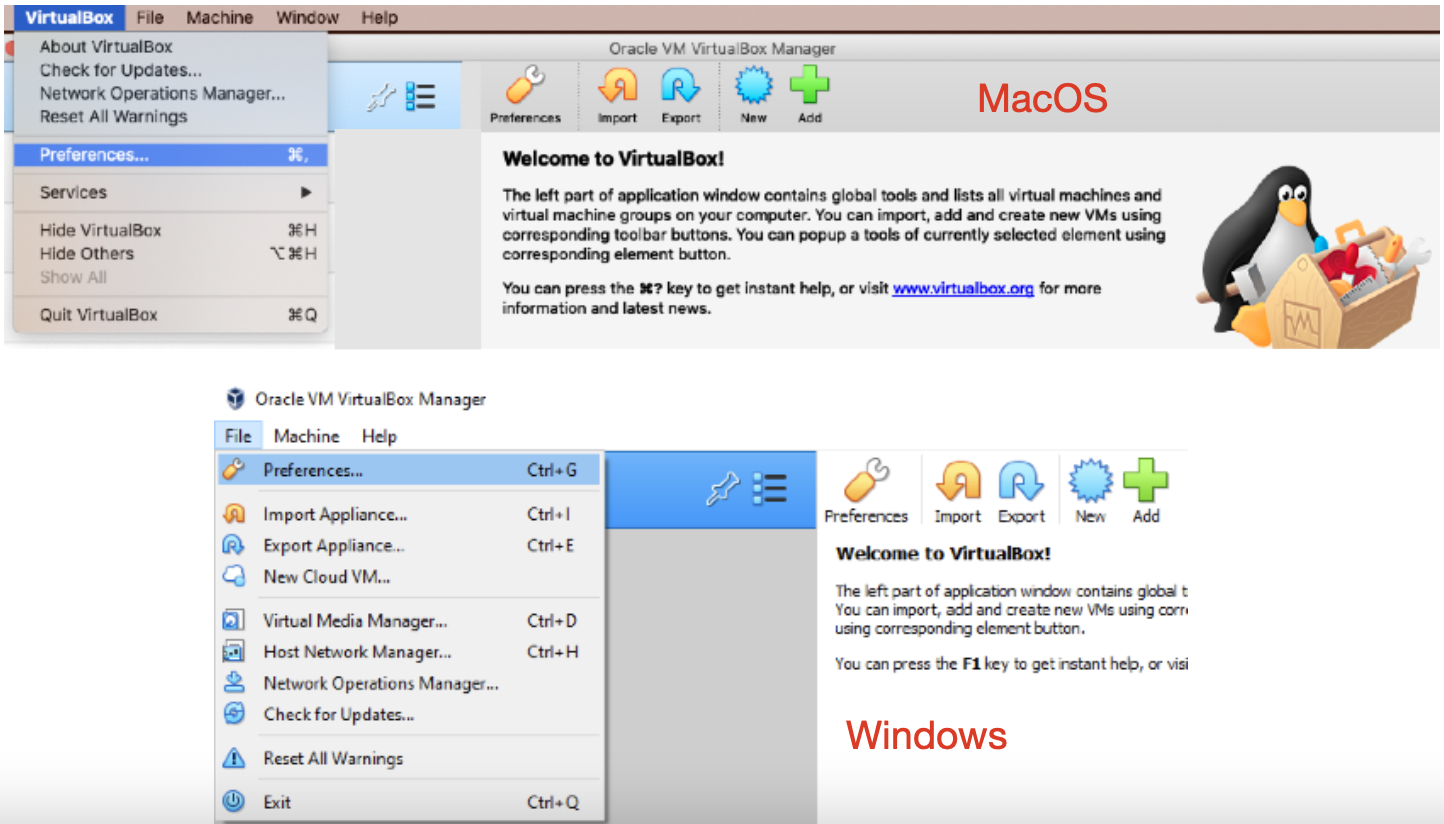
Select “Preferences” from the VirtualBox application pull down menu.
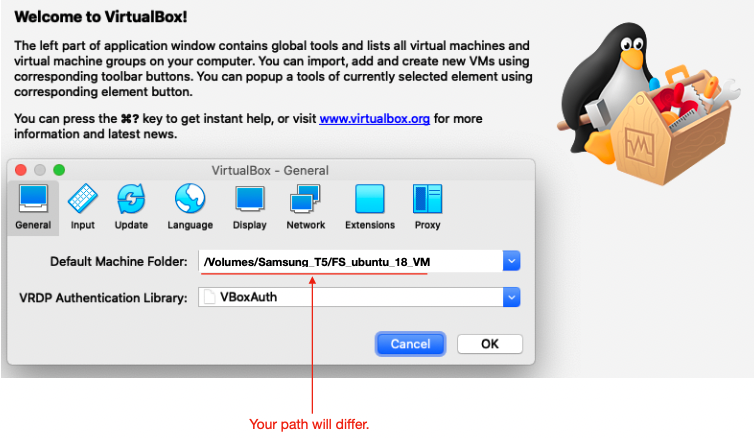
2. Create a DEFAULT MACHINE FOLDER PATH on an (external or internal) drive where you have at least 30G of free disk space for VirtualBox to store the virtual machine. In the example below, the path under /Volumes/... was manually created on a different drive than the boot drive in order to enhance performance. External drives w/o a USB 3.0 or faster connection are not recommended.
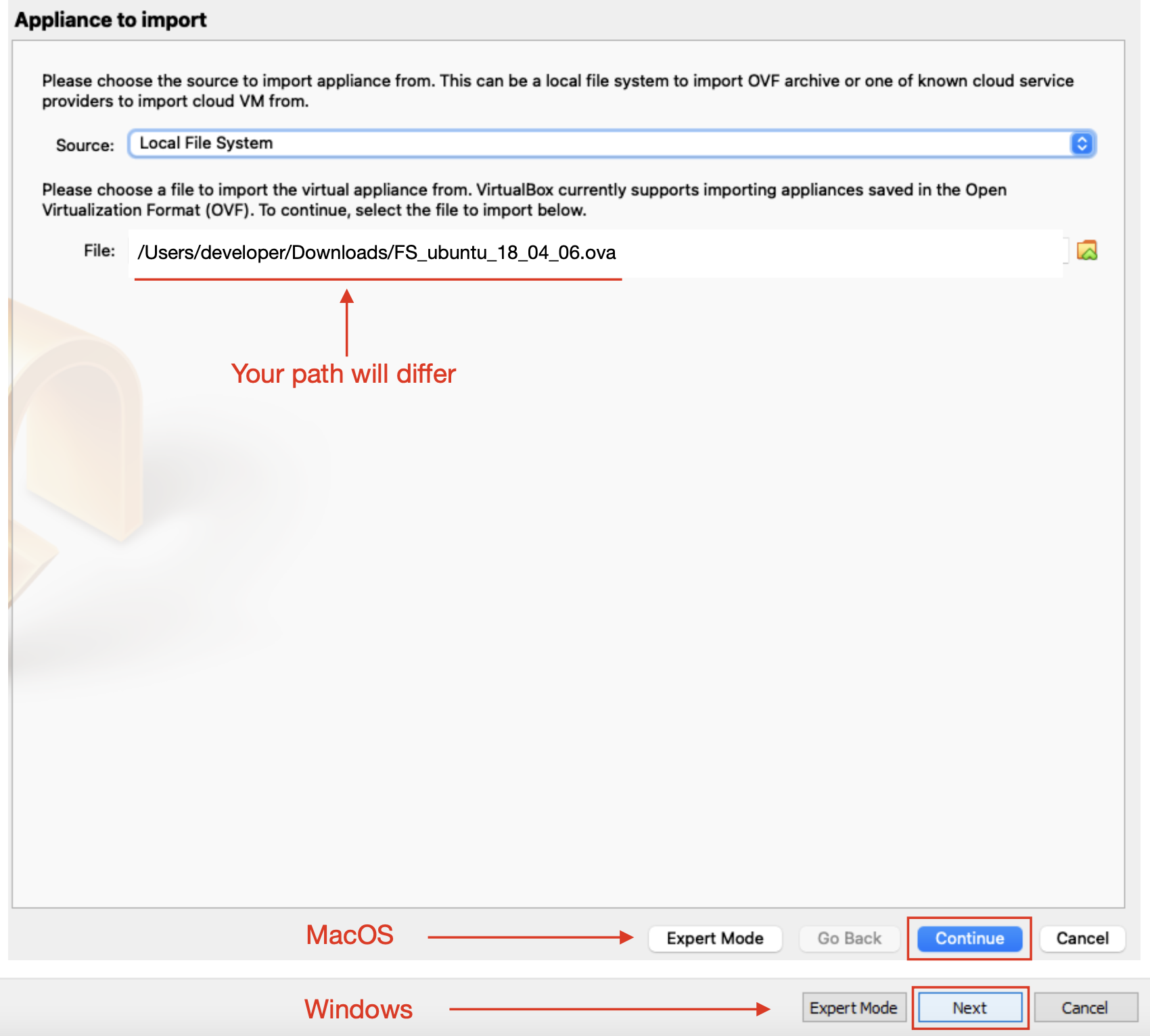
3. An appliance file will be used to create an Ubuntu linux image to run. From the “File” pull down menu select “import appliance”.

See the web page containing this document for the URL to download the virtual appliance file using your web browser. Most browsers are set to download files into your “Downloads” folder. Use the “Choose” icon to navigate to the downloaded file,
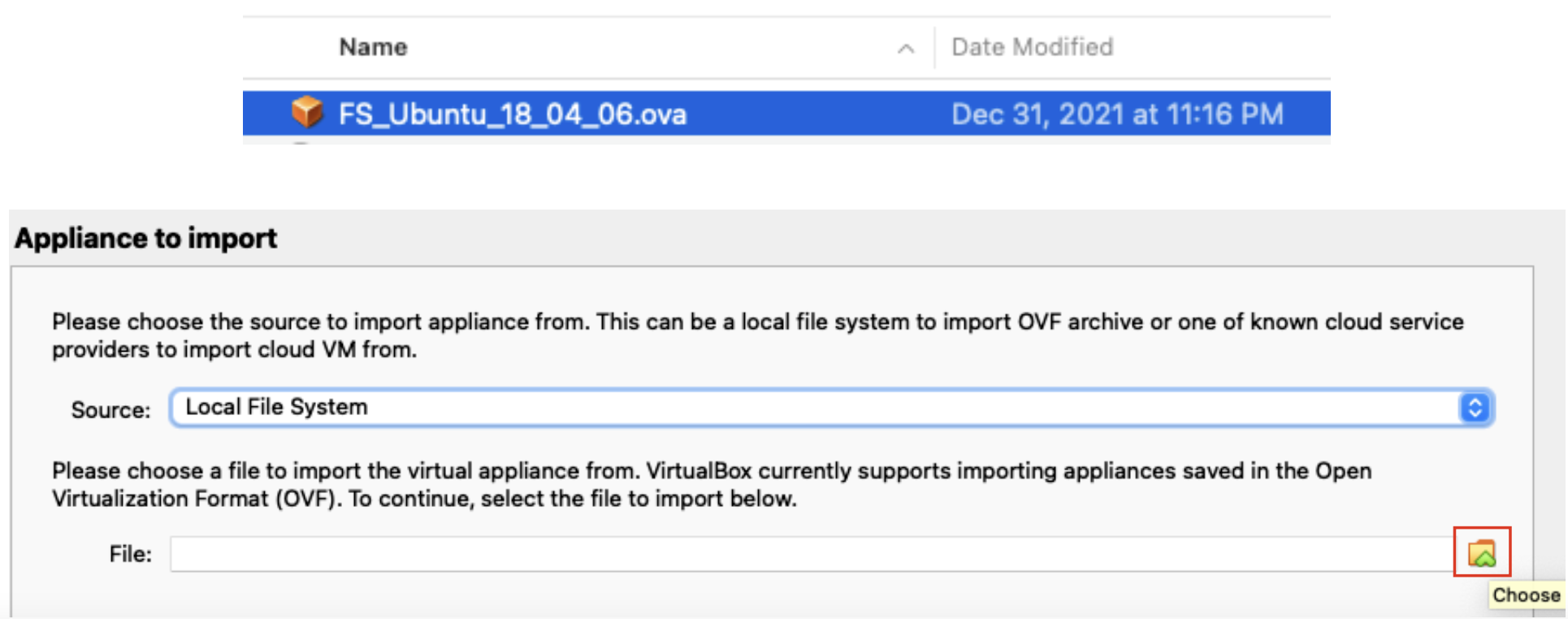
4. Once the path/filename of the appliance file is listed in the “File” field, then select “continue”.
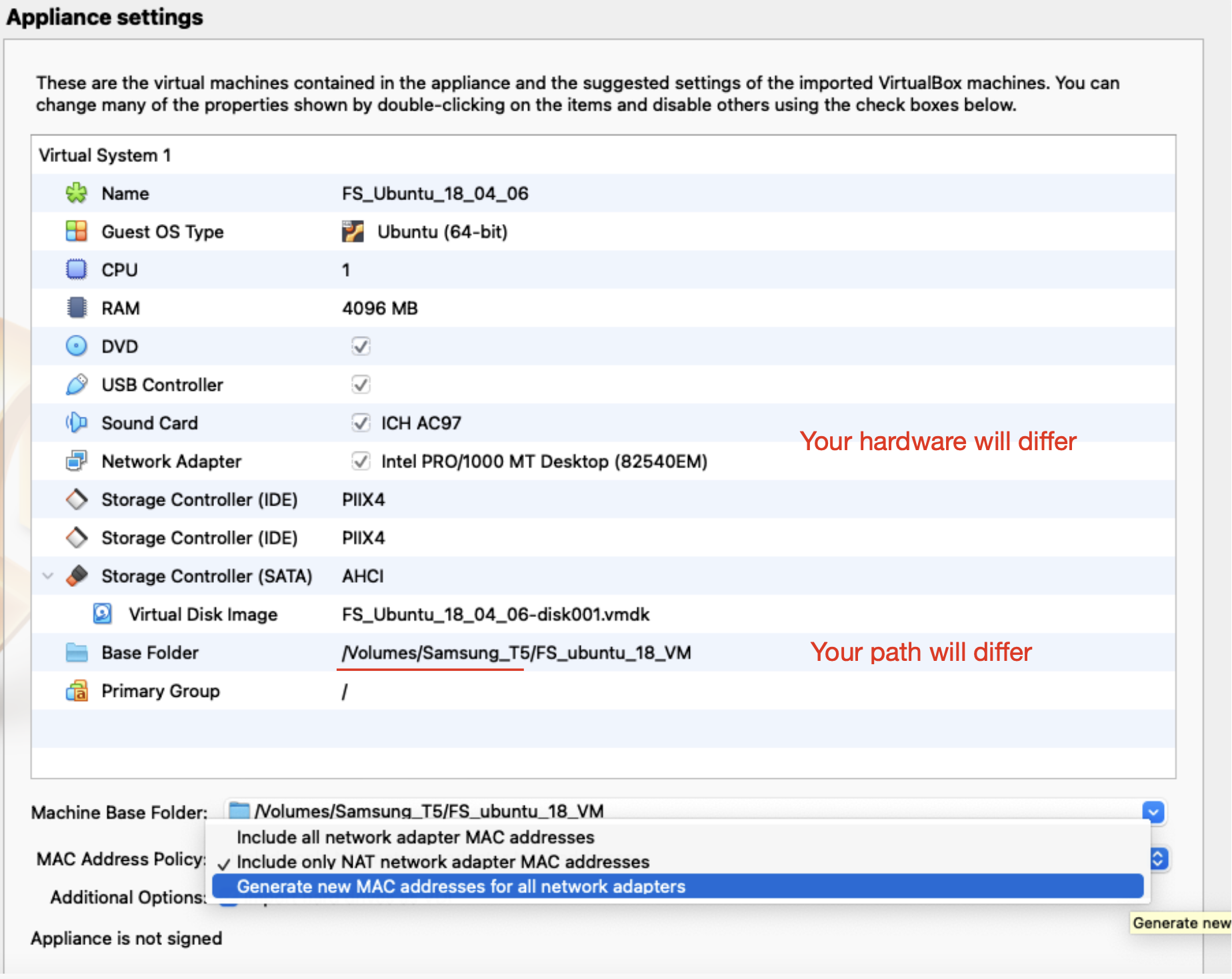
5. You will be presented with a window showing the current settings for the virtual appliance. Change the entry for “MAC address policy” to be “Generate new MAC addresses for all network adapters”.
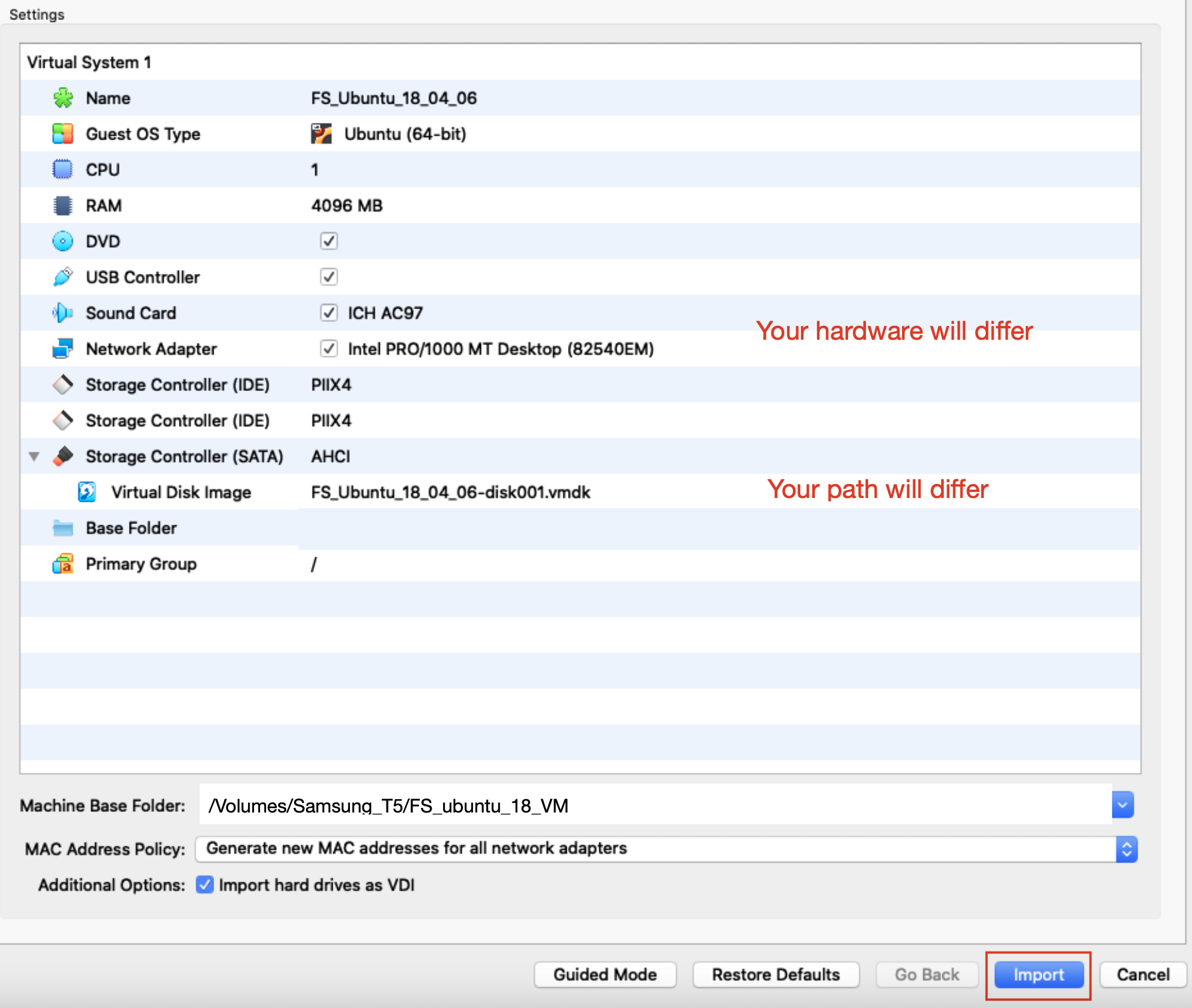
6. Select “Import” to create the virtual machine.
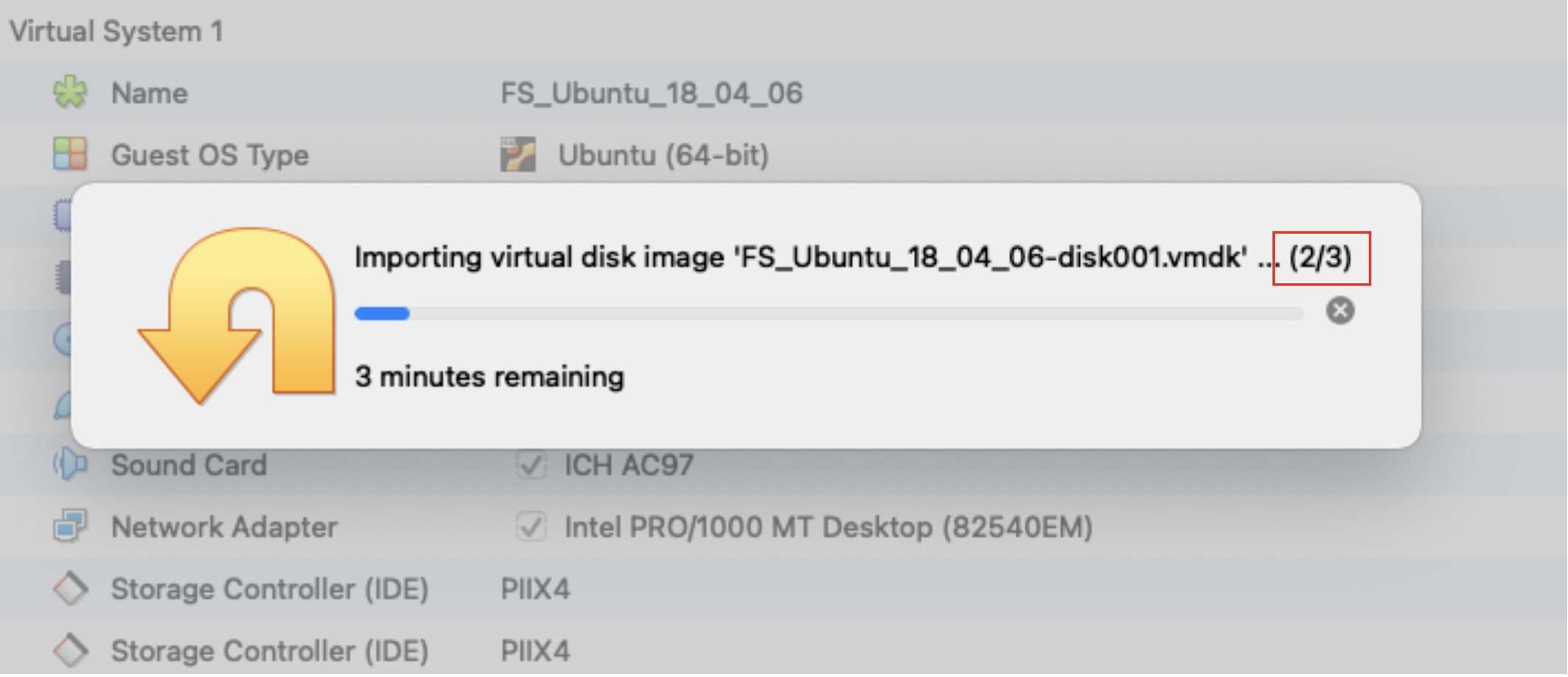
7. Wait for all steps in the import process to finish.
8. There should now be an entry for the virtual machine on the left hand side of the GUI with the current virtual machine configuration displayed on the opposite side.
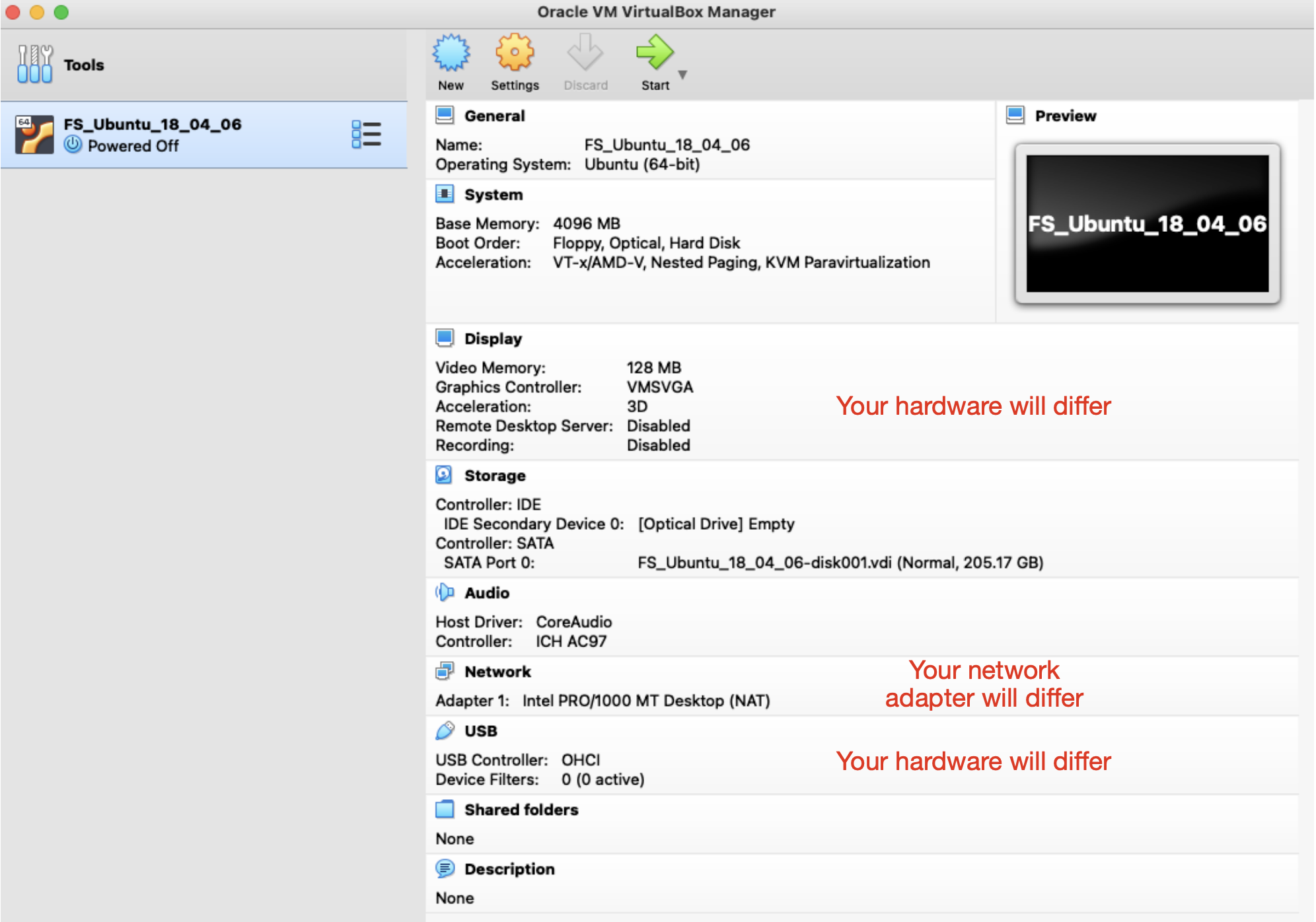
9. Start the virtual machine by clicking on the “Start” icon in the VirtualBox application.

The Ubuntu boot menu should appear with the 1st choice, “Ubuntu”, highlighted. Hit return or wait for it to automatically boot.
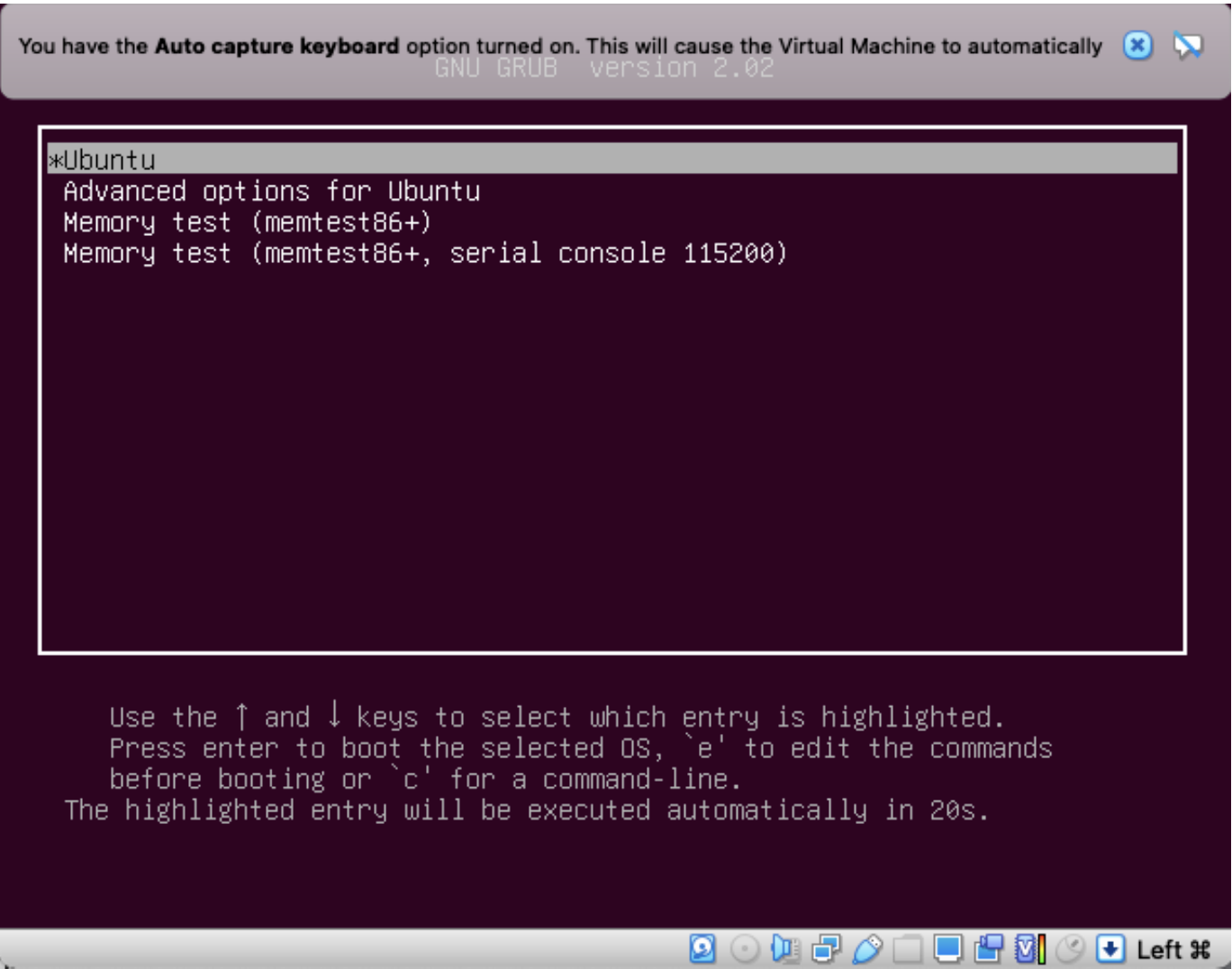
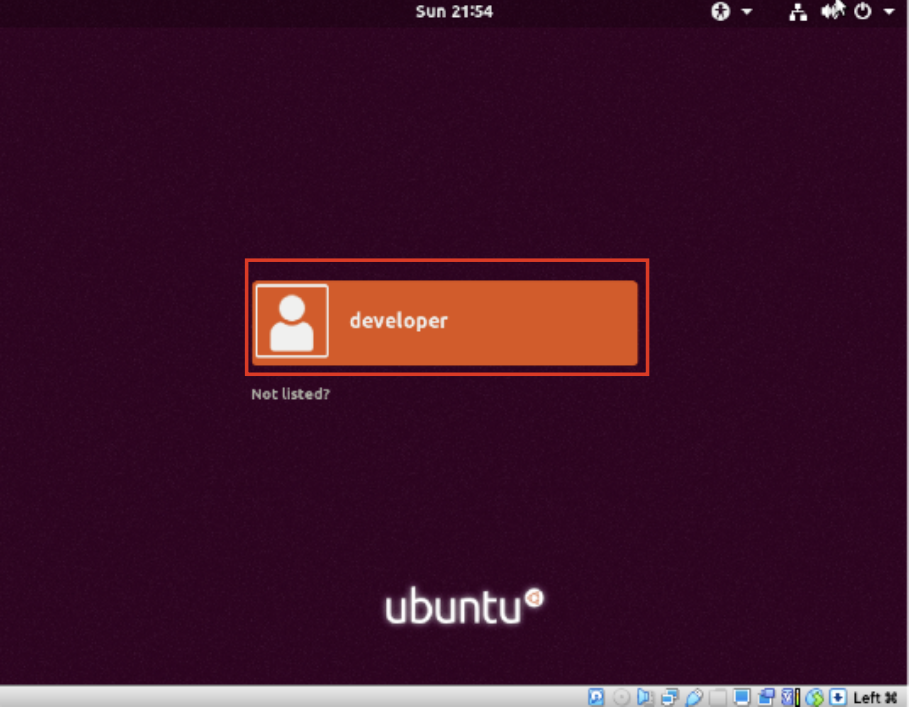
10. If the virtual machine fails to boot contact the FreeSurfer team and stop here. Otherwise, login as the user “developer” in the login menu. Get the password by sending an email request to the FreeSurfer help list.
Enter the password.
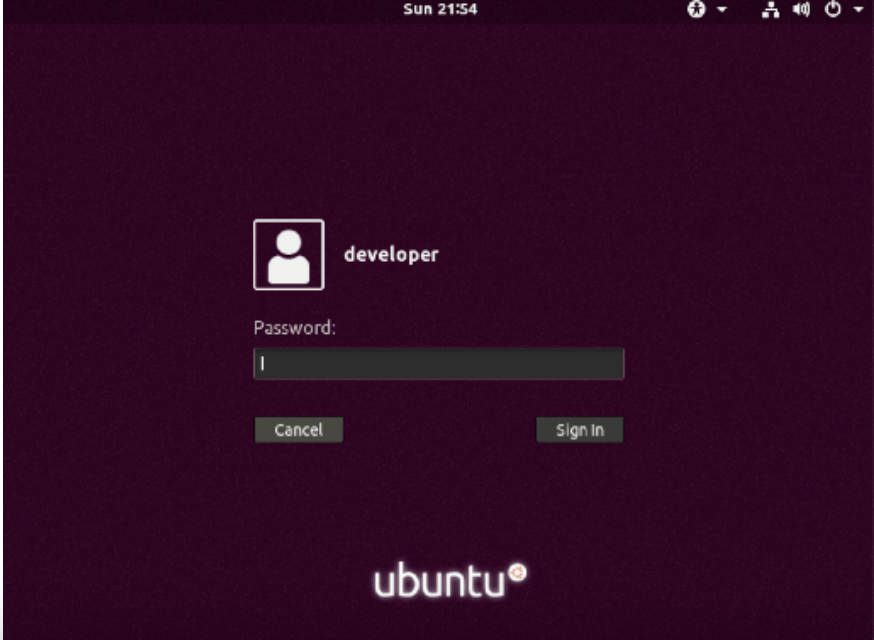
11. A blank desktop should appear after you login.
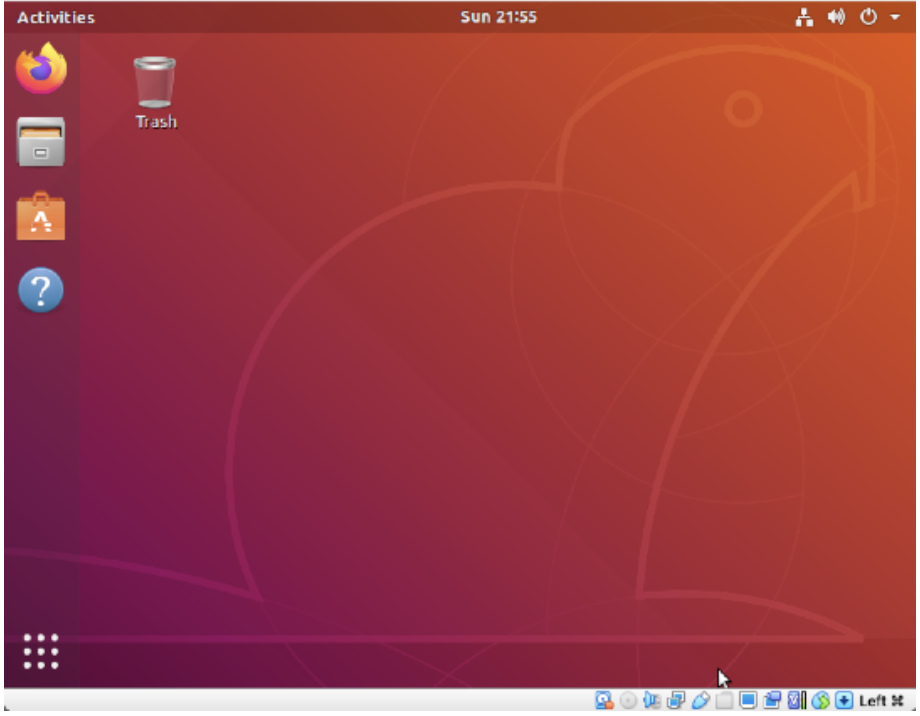
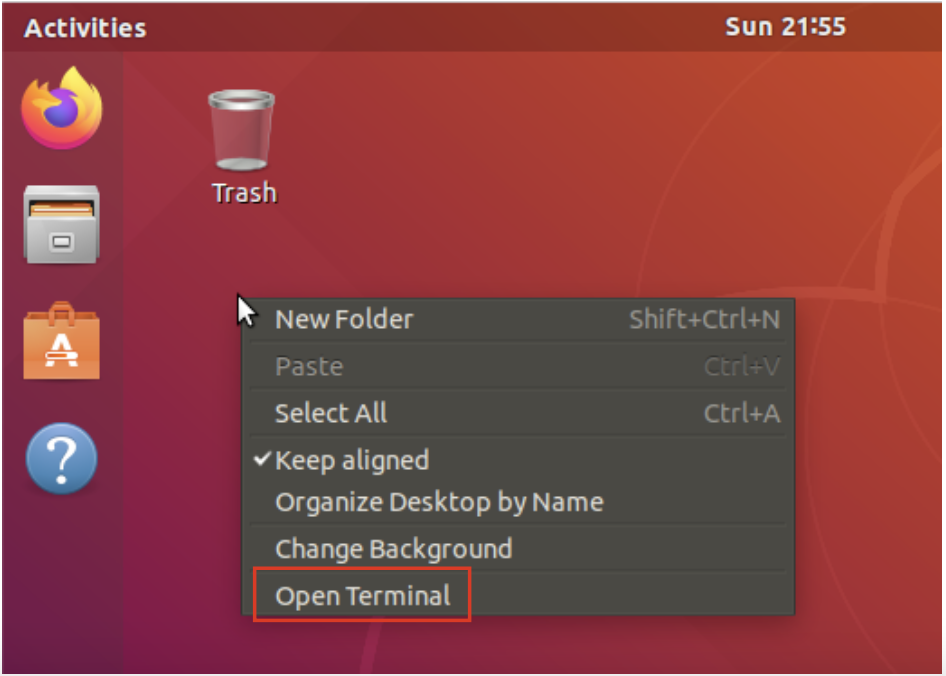
Right click with the mouse on the desktop and select “open Terminal”.
1.

1.
1.
1.
1.
1.
1.
1.
1.
1.
1.
1.
Retrieving Tutorial Data
1. At this point, the Ubuntu virtual machine should run including running the FreeView application from the terminal command line, e.g., display a volume (*.mgz file). Go back and review the previous documentation to setup and run the VM if this is not the case.
The tutorial data download archive needs ~8G of space and the uncompressed data needs ~14G of space. Find the location of the virtual machine folder on the host by right clicking on the entry for the virtual machine in the Virtual Box sidebar. On the Mac select “show in Finder” and on Windows select “show in Explorer”.
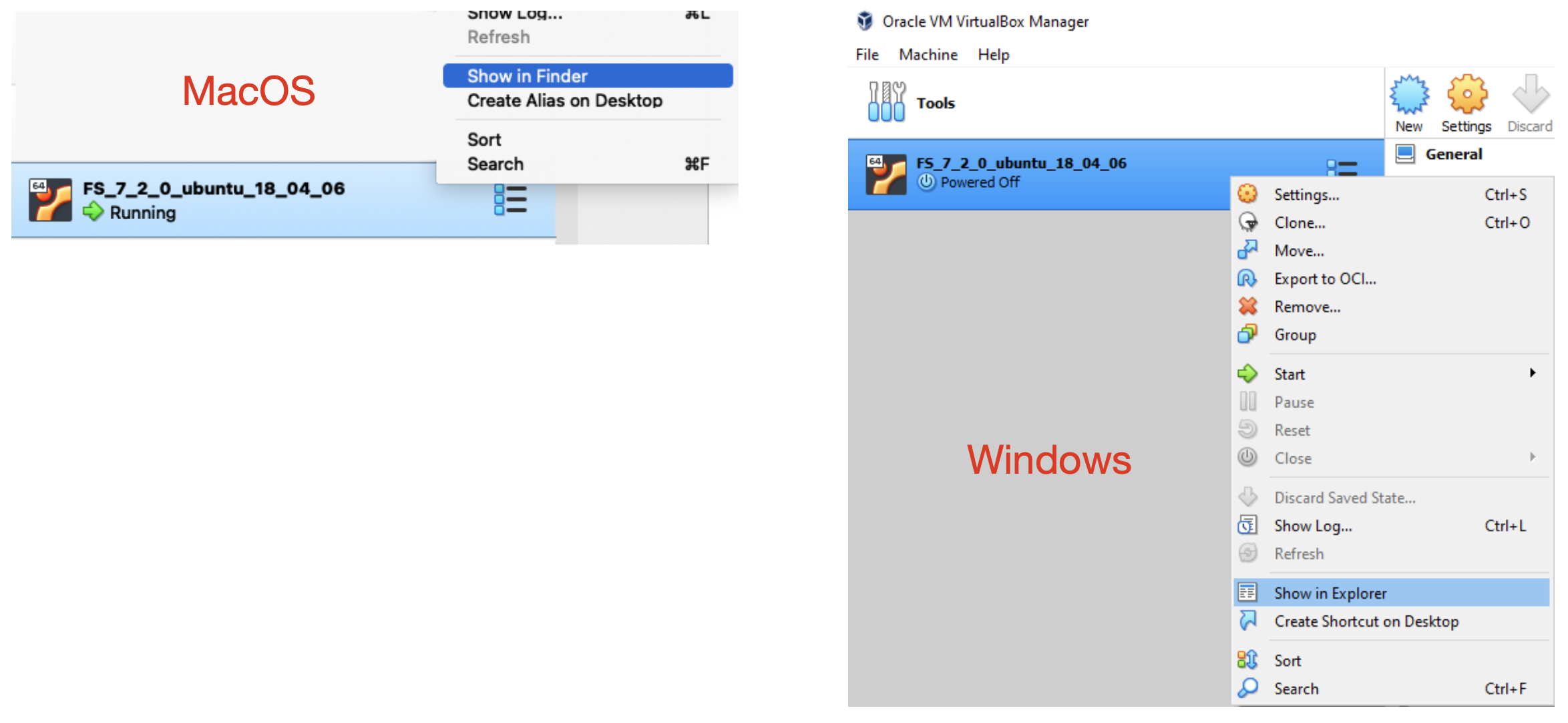
Check the disk where the VirtualBox folder resides has a least another ~25G of free space available. If that is not the case, then you will need to setup a new copy of the VM on a disk partition with more space. Alternately, you can clone your existing VM to another disk partition with more space. (See the VirtualBox documentation on how to clone a VM).
Space permitting, this would be a good time to make a snapshot of the VM. However, you may need an additional ~25G for the first VM snapshot, i.e., the partition would then need ~50G of free space. Do not create snapshots if there is not enough disk space. This is not necessary for the course, but should be done often if important work is being done in then VM and not being otherwise backed up.
2. Open a new terminal window and check there are no reports of a missing license file. Per the instructions in the previous documents, the environment variable FS_LICENSE should point to your license file, e.g., license.txt.
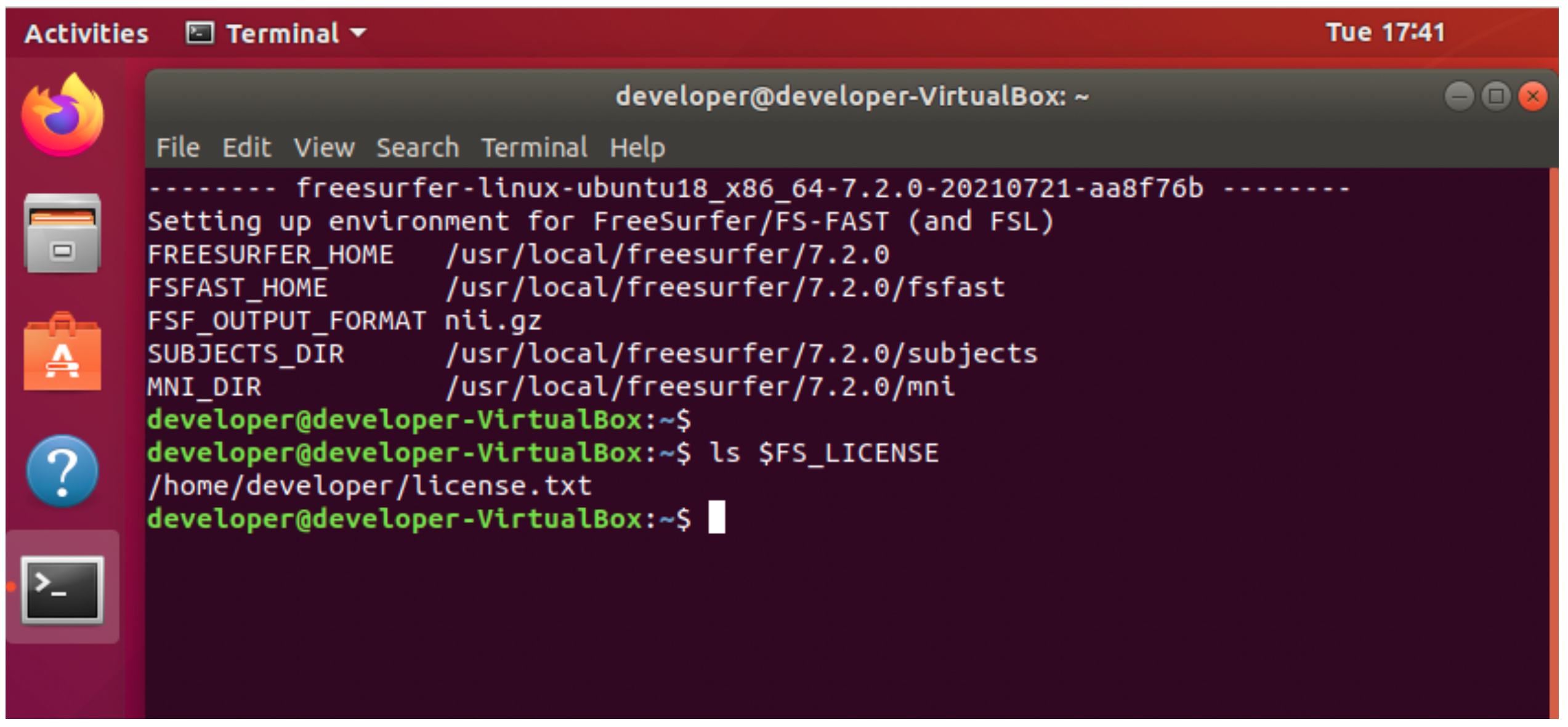
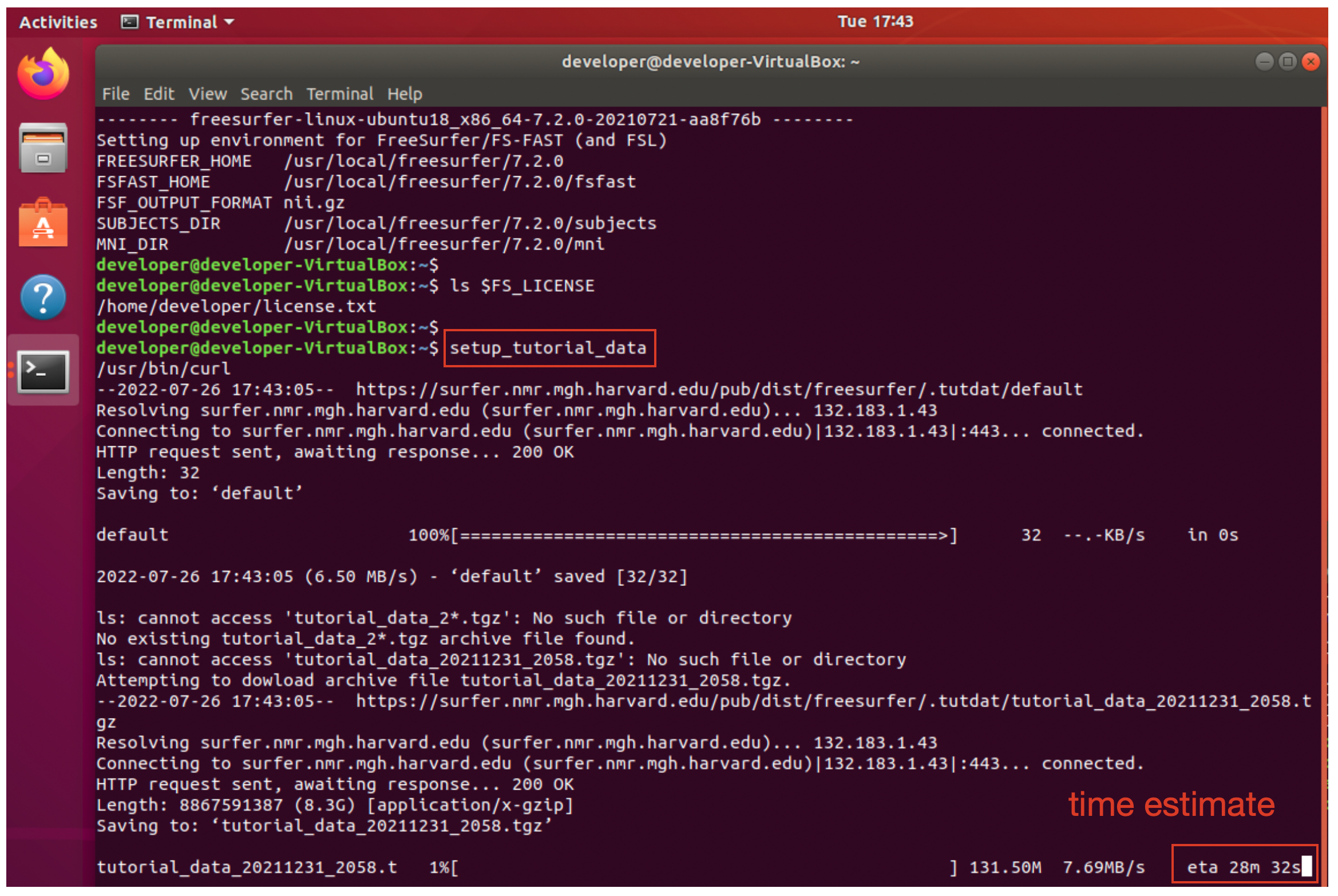
3. Run the setup_tutorial_data command to download and setup the tutorial data for use with the FreeSurfer 7.2.0 release. The download may take 20-30 minutes depending upon your network connection. See the “eta” estimate to the right hand side of the progress bar for the “estimated time of arrival”.
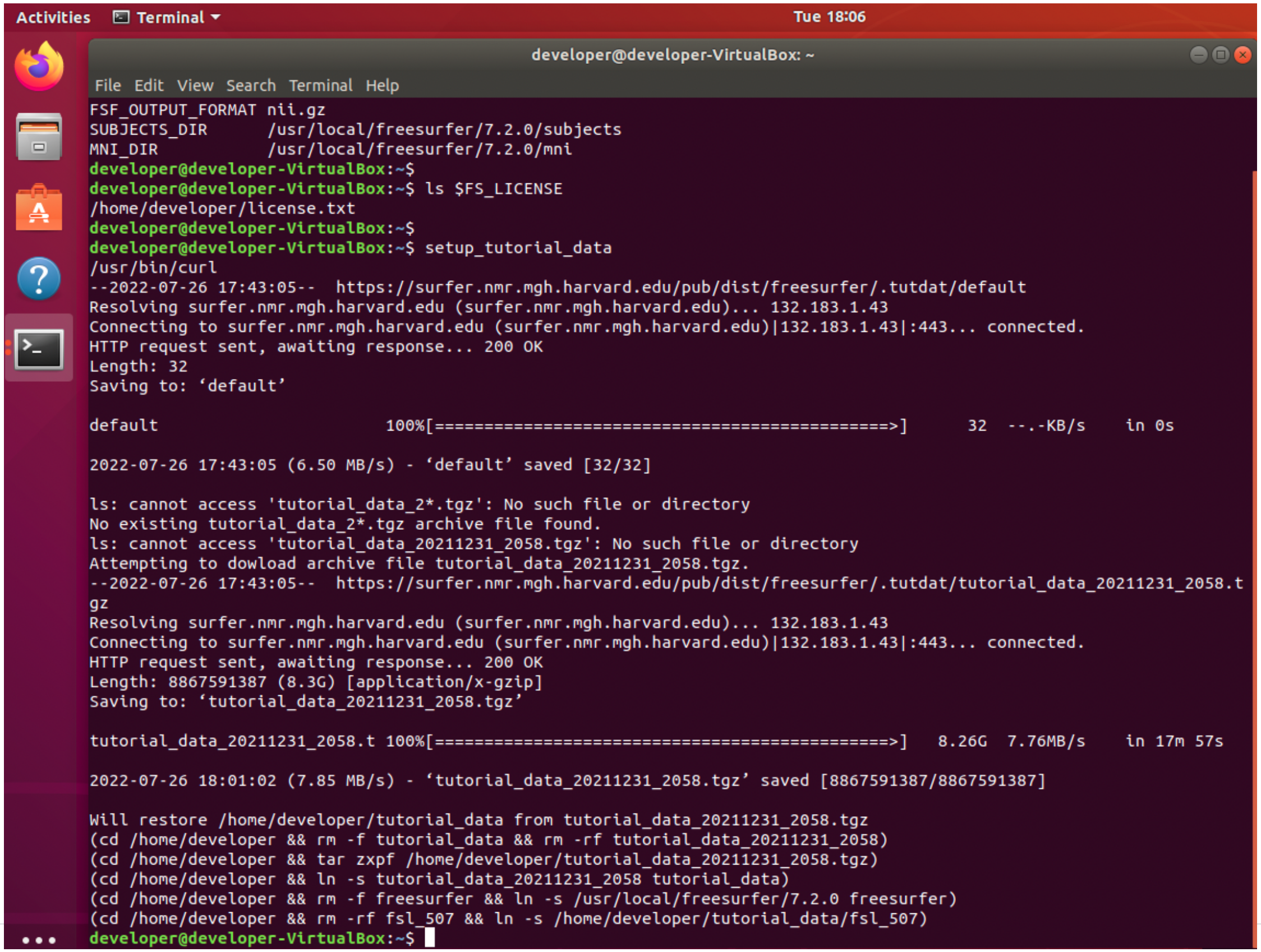
4. Example terminal output is shown below for the completed download of the tutorial data. Note the archive name, tutorial_data_20211231_2058, may be different if the data has changed.
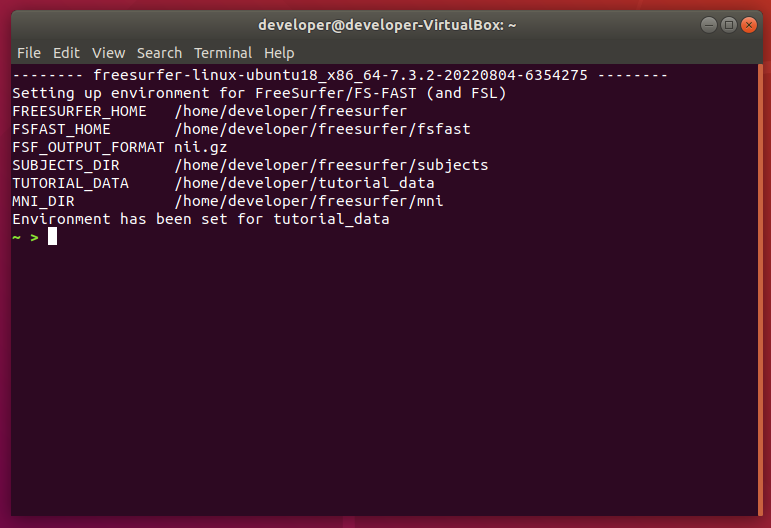
5. Close the current terminal window by clicking on the red X in the upper right hand corner of the toolbar.

Open a new terminal window and check the last line of output is “Set environment for tutorial data”. Stop, do not proceed and check with the FreeSurfer team if this is not the case.
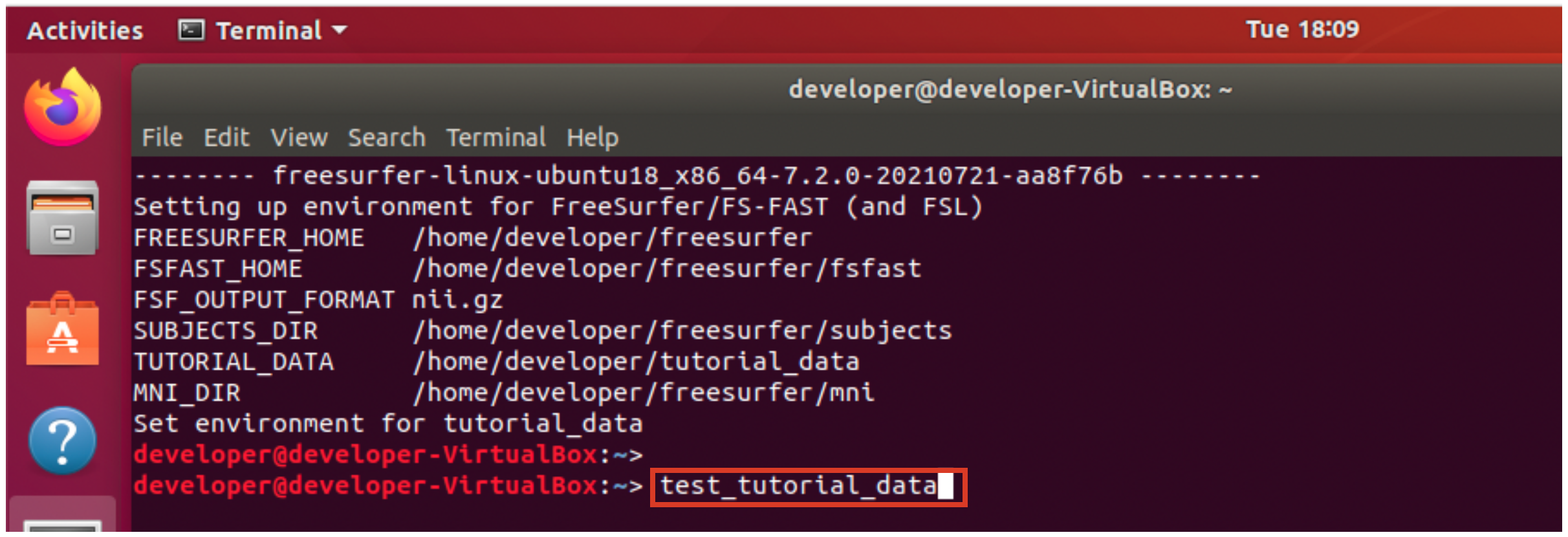
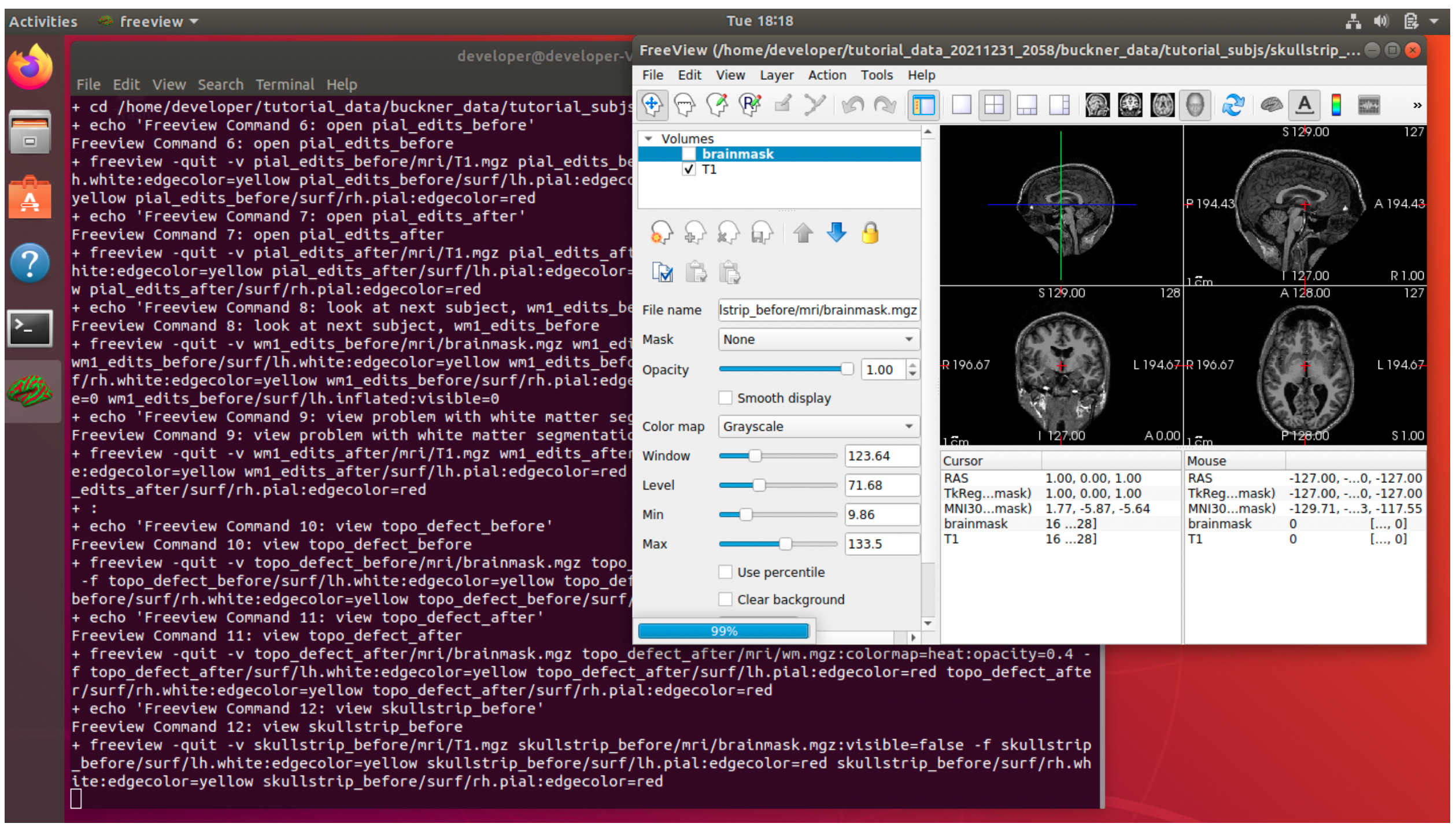
6. Run the test_tutorial_data command to test if your setup can run the tutorial commands. The test may take 20-30 minutes on a typical machine. You will see 80+ FreeView commands run and the FreeView GUI will automatically open and close. Do not manually close the FreeView window or interrupt the test.
7. Example test output while running …
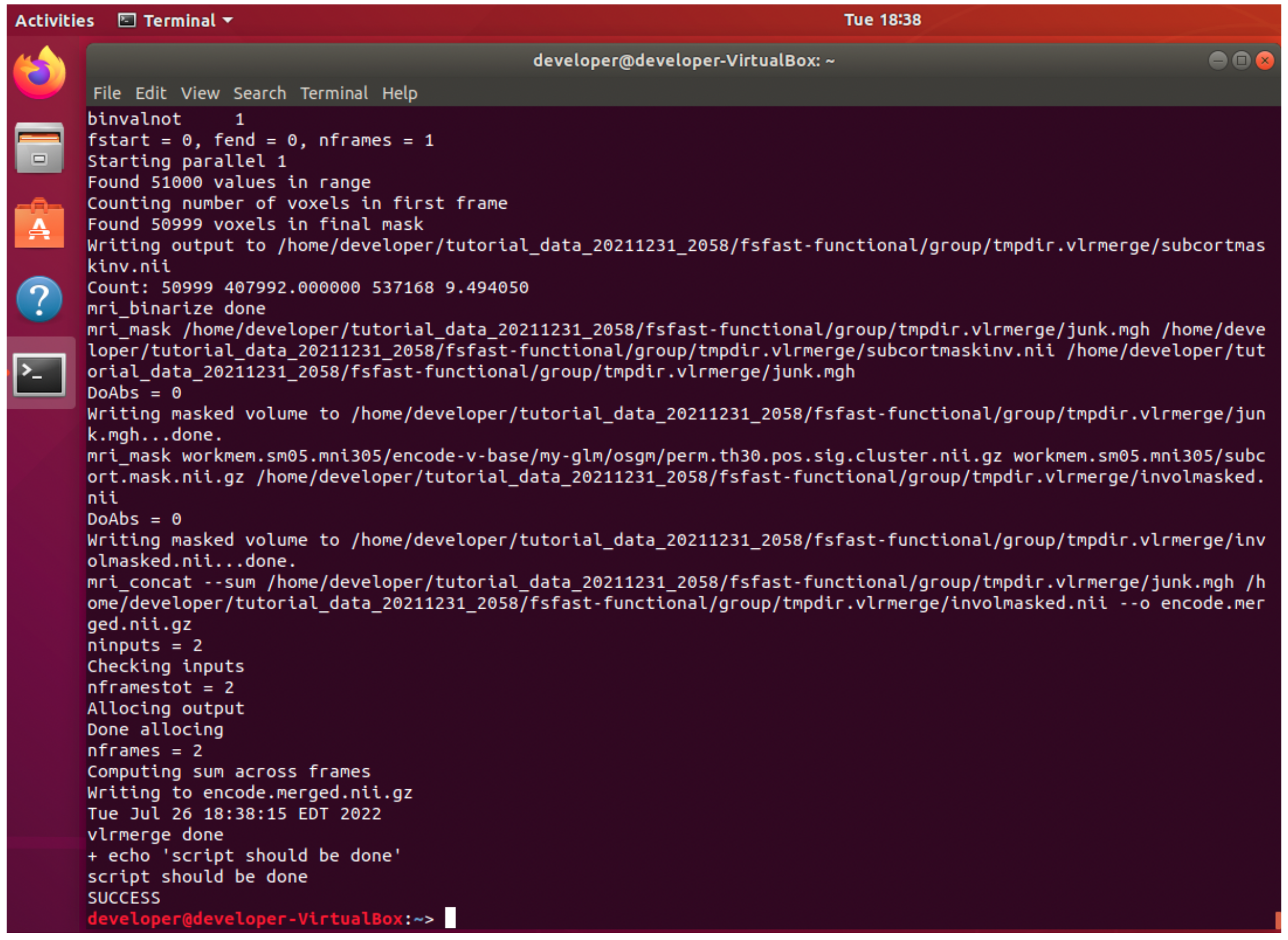
8. Check the test ends by displaying “SUCCESS” If you do not get this result, e.g., the test exits prematurely or exits with an error, then check with the FreeSurfer team. Successful output for the end of the test is shown below.
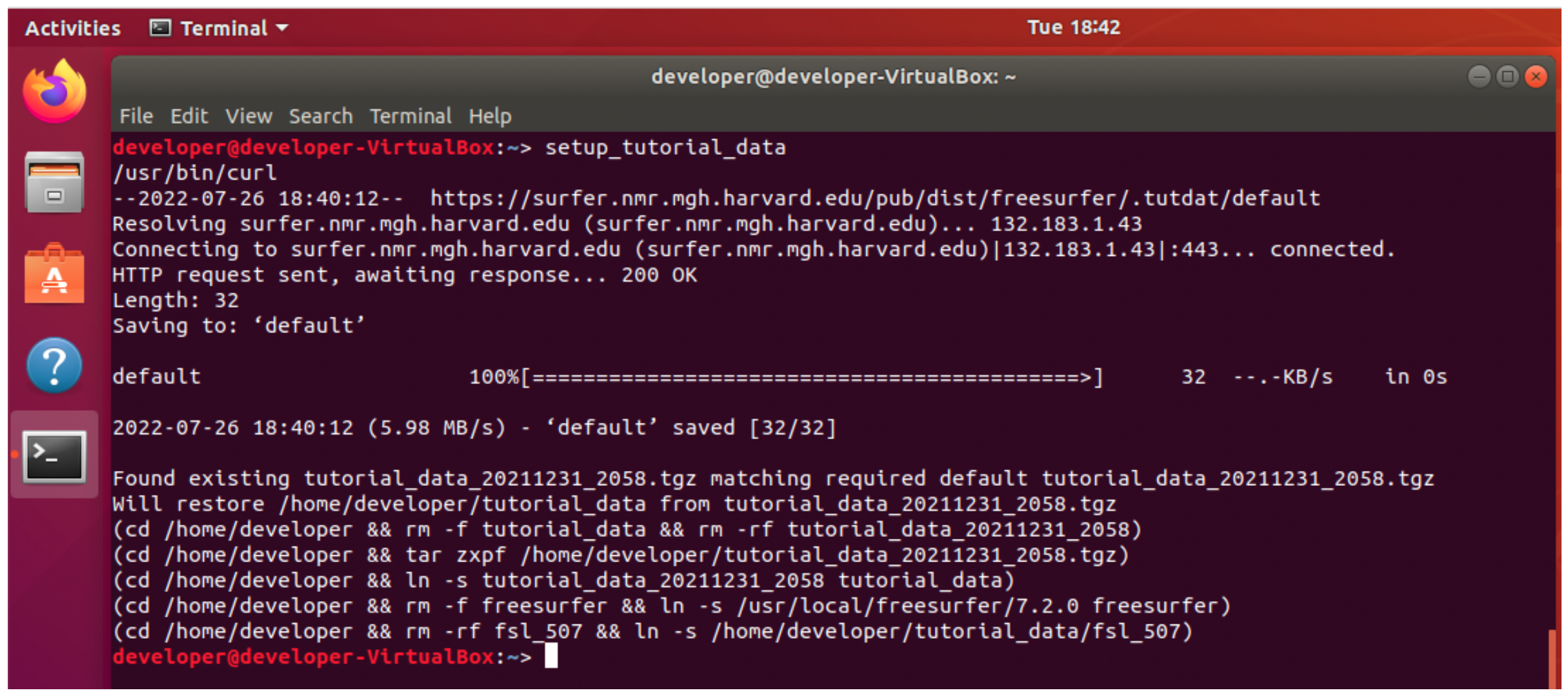
9. Lastly, run the setup_tutorial_data command again to reset the tutorial data to a clean state. The previously downloaded tutorial data will be used unless the tutorial data has changed since the last download. When the command finishes you should be able to run the tutorial commands from scratch. Run this command to reset the data before day 1 of the FreeSurfer course. Make sure any new terminal window reports “Set environment for tutorial data”.
You are now prepared for the course! There are other tutorials here (link pending) if you wish to try out your system before the course or if you wish to go over more material, but this is optional.