
|
Size: 5558
Comment:
|
Size: 6367
Comment:
|
| Deletions are marked like this. | Additions are marked like this. |
| Line 1: | Line 1: |
| [[Introduction to FreeSurfer Output DRAFT]] |
|
| Line 7: | Line 9: |
| In the examples above you looked at data from a subject called “good_output”. For this challenge complete the following tasks for subject “subj_004”. | In the examples above you looked at data from a subject called “good_output”. For this challenge complete the following tasks for subject “004”. |
| Line 13: | Line 15: |
| '' Need a hint? '' . Here is how you opened up a similar volume for the “good_output” subject: {{{ freeview -v good_output/mri/aseg.mgz:colormap=lut }}} . Please note that we were in the $TUTORIAL_DATA/buckner_data/tutorial_subjs directory when we used that command - so {{{ cd }}} there if you'd like to base your command off the above example. |
'' Need a hint? '' . Here is how you opened up a similar volume for the “good_output” subject: {{{ freeview -v good_output/mri/aseg.mgz:colormap=lut }}} . Please note that we were in the $TUTORIAL_DATA/buckner_data/tutorial_subjs directory when we used that command - so {{{ cd }}} there if you'd like to base your command off the above example. |
| Line 18: | Line 21: |
| ||<#000000>freeview -v sub_004/mri/aparc+aseg.mgz:colormap=lut || | ||<#000000> cd $TUTORIAL_DATA/buckner_data/tutorial_subjs || ||<#000000>freeview -v 004/mri/aparc+aseg.mgz:colormap=lut || |
| Line 27: | Line 31: |
| 1. Open subj_004’s lh.pial surface, with the overlay named lh.thickness, set the overlay to display with a threshold of 1,2 | 1. Open 004’s lh.pial surface, with the overlay named lh.thickness, set the overlay to display with a threshold of 1,2 |
| Line 31: | Line 36: |
| '' Need a hint? '' | '' Need a hint? '' |
| Line 34: | Line 40: |
| . Please note that we were in the $TUTORIAL_DATA/buckner_data/tutorial_subjs directory when we used that command - so {{{ cd }}} there if you'd like to base your command off the above example. | . Please note that we were in the $TUTORIAL_DATA/buckner_data/tutorial_subjs directory when we used that command - so {{{ cd }}} there if you'd like to base your command off the above example. |
| Line 37: | Line 44: |
| ||<#000000>freeview -v subj_004/surf/lh.pial:overlay=lh.thickness:overlay_threshold=1,2 --viewport 3d || | ||<#000000> cd $TUTORIAL_DATA/buckner_data/tutorial_subjs || ||<#000000>freeview -f 004/surf/lh.pial:overlay=lh.thickness:overlay_threshold=1,2 --viewport 3d || |
| Line 46: | Line 54: |
| Line 52: | Line 61: |
| * You will need to be in $TUTORIAL_DATA/buckner_data/tutorial_subjs for the command to work, so cd there if needed | |
| Line 54: | Line 64: |
| ||<#000000> cd $TUTORIAL_DATA/buckner_data/tutorial_subjs || | |
| Line 55: | Line 66: |
| Line 63: | Line 76: |
| 1. Set the viewport to 3d view, right click in the viewport and select {{{ Hide All Slices }}} | 1. Set the viewport to 3d view, right click in the viewport and select {{{ Hide All Slices }}} |
| Line 65: | Line 78: |
| 1. Set up the options as in the following picture - you will likely want to create a new directory in your home directory to save the output to. {{attachment:MovieSetup.png}} | 1. Set up the options as in the following picture - you will likely want to create a new directory in your home directory to save the output to. {{attachment:MovieSetup.png||width="600"}} |
| Line 69: | Line 82: |
| * {{{ -delay }}} determines the gap between frames, {{{ *.png }}} selects all png files in the working directory, {{{ brainanim.gif }}} is the output name. | * {{{ -delay }}} determines the gap between frames, {{{ *.png }}} selects all png files in the working directory, {{{ brainanim.gif }}} is the output name. |
| Line 71: | Line 84: |
| {{attachment:brainanim.gif||width=300}} | |
| Line 73: | Line 85: |
| {{attachment:brainanim.gif||width="300"}} | |
| Line 81: | Line 93: |
| Your goal is to take a series of dicom images and set up your terminal variables and recon-all command to process them. | Your goal is to set up your environment variables and assemble the correct recon-all command to process a dicom series. |
| Line 85: | Line 97: |
| Take a look at the directories found there. The {{{ dicoms }}} directory contains a dicom series, and the {{{ work }}} directory is where your recon-all subject output should go. | Take a look at the directories found there. The {{{ dicoms }}} directory contains a dicom series, and the {{{ subjects }}} directory is where your recon-all subject output should go. You will want to use dcmunpack to find the first image of the first T1w_MPR_vNav_4eRMS series, set your SUBJECT_DIR environment variable, then then type out and run your recon-all command (use practice_subject as the subject name). Make sure the command starts without any errors - and if it does cancel the process by pressing ctrl and c on the keyboard (a recon-all can take many hours!). Check in the {{{ work }}} directory to ensure a directory with your subject's name was created (practice_subject), if you see the folder you have completed the challenge! |
| Line 88: | Line 102: |
| Line 89: | Line 104: |
| * You will want to use dcmunpack to find the correct T1 weighted image to provide as input to recon-all * Ensure you set your SUBJECTS_DIR variable to the {{{ work }}} directory |
* It might be tricky to find the path to the subjects directory if you are new to Unix, you can use this: $TUTORIAL_DATA/practice_with_dicoms/subjects |
| Line 92: | Line 106: |
| When you believe everything is setup properly - run the recon-all command. Ensure that it starts without error, then use ctrl+c to cancel it. Check in the {{{ work }}} directory to ensure a directory with your subject's name was created. If you are at a FreeSurfer course there won't be enough time for the recon-all command to complete, but if you are working on your own you are welcome to let the command finish and check out the outputs. |
Want to see the answer? Highlight the lines below ||<#000000> cd $TUTORIAL_DATA/practice_with_dicoms \ || ||<#000000> cd dicoms \ || ||<#000000> dcmunpack -src . -scanonly scan.log || ||<#000000> export SUBJECTS_DIR = $TUTORIAL_DATA/practice_with_dicoms || ||<#000000> recon-all -i MR.1.3.12.2.1107.5.2.43.67026.2019072908432986436303794 -s practice_subject || |
Introduction to FreeSurfer Output DRAFT
Introduction to FreeSurfer Output
Exercise 1
Difficulty: Beginner
Goal: Practice basic Freeview tasks.
In the examples above you looked at data from a subject called “good_output”. For this challenge complete the following tasks for subject “004”.
- Open the subject’s aparc+aseg.mgz volume with a colormap of “lut”.
- Swap the view to sagittal
- Navigate with the arrow keys to find the right putamen
Need a hint?
Here is how you opened up a similar volume for the “good_output” subject: freeview -v good_output/mri/aseg.mgz:colormap=lut
Please note that we were in the $TUTORIAL_DATA/buckner_data/tutorial_subjs directory when we used that command - so cd there if you'd like to base your command off the above example.
Want to know the answer? Click and drag to highlight and reveal the text below.
cd $TUTORIAL_DATA/buckner_data/tutorial_subjs |
freeview -v 004/mri/aparc+aseg.mgz:colormap=lut |
Exercise 2
Difficulty: Beginner
Goal: Practice visualizing data with overlays.
- Open 004’s lh.pial surface, with the overlay named lh.thickness, set the overlay to display with a threshold of 1,2
- Look up vertex 141813
- What is the thickness and label of this vertex?
Need a hint?
Here is how you opened up a similar surface for the good_output subject, with thickness information: freeview -f good_output/surf/lh.inflated:overlay=lh.thickness:overlay_threshold=0.1,3 --viewport 3d
And here is how you opened up a similar surface for the good_output subject with the Desikan-Killany parcellation: freeview -f good_output/surf/lh.pial:annot=aparc.annot
Please note that we were in the $TUTORIAL_DATA/buckner_data/tutorial_subjs directory when we used that command - so cd there if you'd like to base your command off the above example.
Want to know the answer? Click and drag to highlight and reveal the text below.
cd $TUTORIAL_DATA/buckner_data/tutorial_subjs |
freeview -f 004/surf/lh.pial:overlay=lh.thickness:overlay_threshold=1,2 --viewport 3d |
Exercise 3
Difficulty: Beginner
Goal: Practice opening multiple files at a time with FreeView.
- For this challenge start with this terminal command:
freeview -v 004/mri/wm.mgz:colormap=jet 004/mri/brainmask.mgz -f 004/surf/lh.pial:edgecolor=blue 004/surf/lh.white:edgecolor=red
- Right now it only opens the left hemisphere pial and white matter surfaces, alter it to open both for the right hemisphere as well, with colors that match the left hemisphere side.
- Once you have the last command working, rearrange the volume layers in freesurfer so that the wm.mgz is at %20 opacity and the brainmask can be seen underneath it (this can also be done through altering the terminal command - you can choose which way to do so).
- You will need to be in $TUTORIAL_DATA/buckner_data/tutorial_subjs for the command to work, so cd there if needed
Want the solution? Click and drag to highlight and reveal the text below.
cd $TUTORIAL_DATA/buckner_data/tutorial_subjs |
freeview -v 004/mri/brainmask.mgz 004/mri/wm.mgz:colormap=jet:opacity=.2 -f 004/surf/lh.pial:edgecolor=blue 004/surf/lh.white:edgecolor=red 004/surf/rh.pial:edgecolor=blue 004/surf/rh.white:edgecolor=red |
Exercise 4
Difficulty: Intermediate - assumes some comfort with navigating Unix and FreeView
Goal: Export a series of images from FreeView and stitch them together to create a GIF.
- Open up any surface from the tutorial data
Set the viewport to 3d view, right click in the viewport and select Hide All Slices
In the File menu, select Save Movie Frames
Set up the options as in the following picture - you will likely want to create a new directory in your home directory to save the output to.
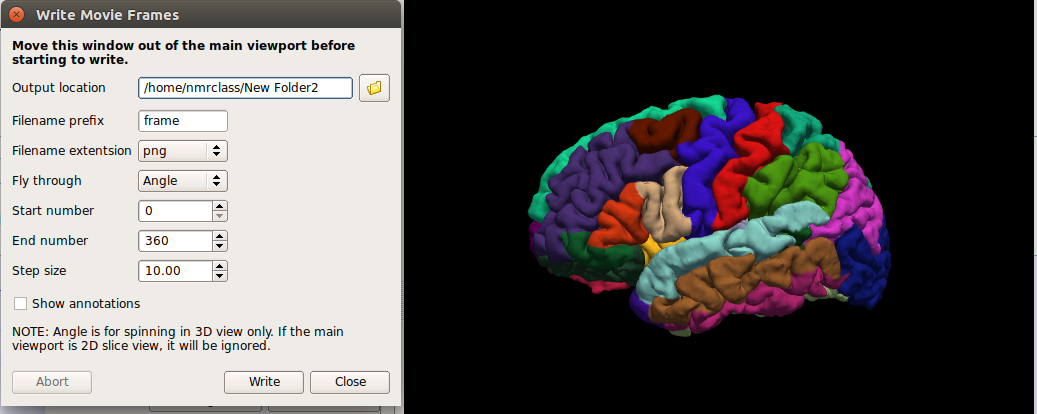
- In a terminal, navigate to the new directory you output the movie data to.
Run this command: convert -delay .1 *.png brainanim.gif
Note: convert is from the ImageMagick library, which is a prerequesite for running FreeView.
-delay determines the gap between frames, *.png selects all png files in the working directory, brainanim.gif is the output name.
To view your GIF, open it with firefox firefox brainanim.gif
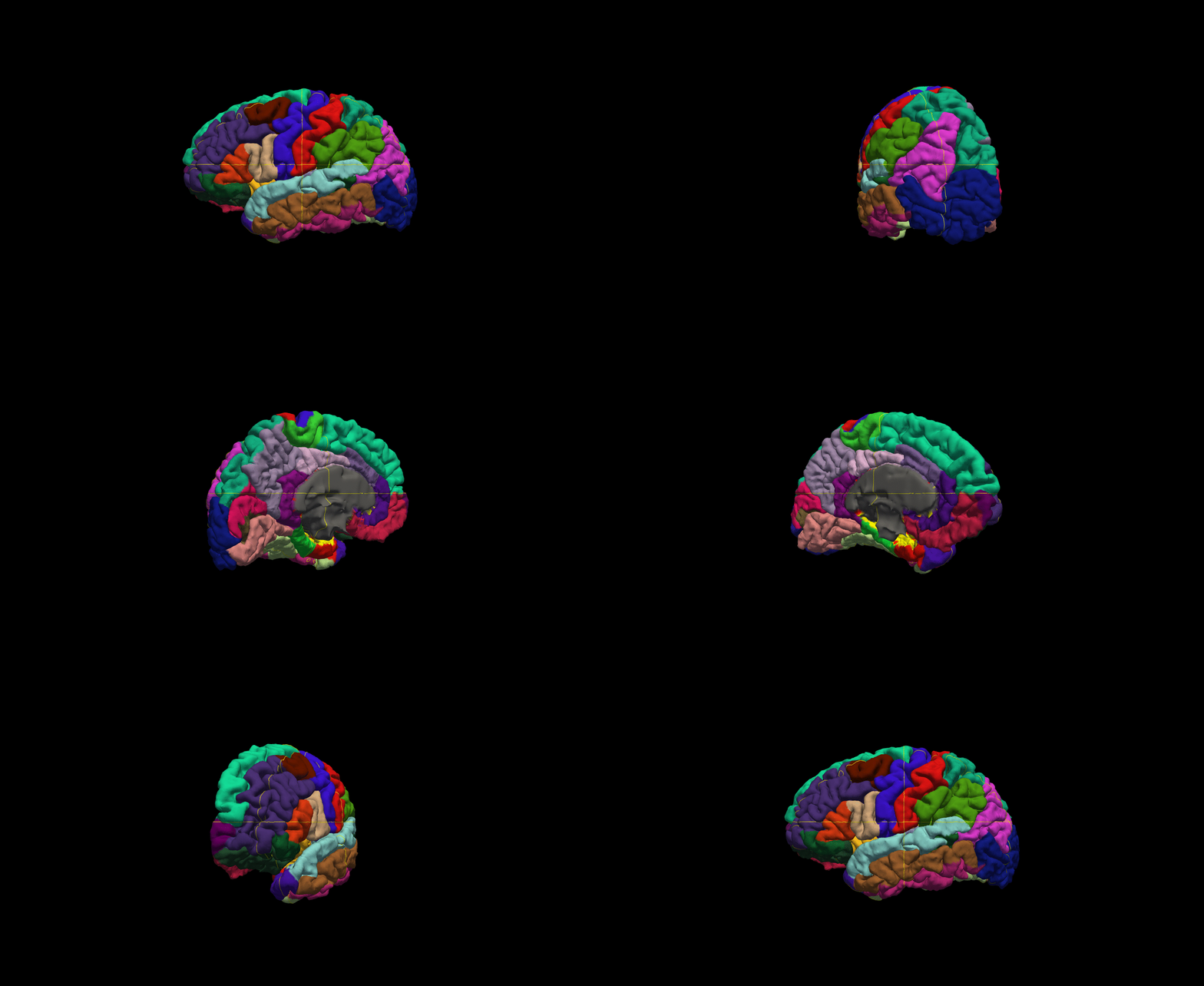
Practice Working With Data
Exercise 1
Difficulty: Beginner
Goal: Prepare a dicom series for the recon-all stream
Your goal is to set up your environment variables and assemble the correct recon-all command to process a dicom series.
To begin navigate to the following directory in your terminal: $TUTORIAL_DATA/practice_with_dicoms
Take a look at the directories found there. The dicoms directory contains a dicom series, and the subjects directory is where your recon-all subject output should go. You will want to use dcmunpack to find the first image of the first T1w_MPR_vNav_4eRMS series, set your SUBJECT_DIR environment variable, then then type out and run your recon-all command (use practice_subject as the subject name). Make sure the command starts without any errors - and if it does cancel the process by pressing ctrl and c on the keyboard (a recon-all can take many hours!).
Check in the work directory to ensure a directory with your subject's name was created (practice_subject), if you see the folder you have completed the challenge!
Hints:
- Follow the tutorial example for guidance
- It might be tricky to find the path to the subjects directory if you are new to Unix, you can use this: $TUTORIAL_DATA/practice_with_dicoms/subjects
Want to see the answer? Highlight the lines below
cd $TUTORIAL_DATA/practice_with_dicoms \ |
cd dicoms \ |
dcmunpack -src . -scanonly scan.log |
export SUBJECTS_DIR = $TUTORIAL_DATA/practice_with_dicoms |
recon-all -i MR.1.3.12.2.1107.5.2.43.67026.2019072908432986436303794 -s practice_subject |