
|
Size: 8227
Comment:
|
Size: 7417
Comment:
|
| Deletions are marked like this. | Additions are marked like this. |
| Line 1: | Line 1: |
| #acl LcnGroup:read,write,delete,revert All: | #acl LcnGroup:read,write,delete,revert All:read <<TableOfContents>> This page describes how one would go about contributing changes to the freesurfer source code repository on github. The official freesurfer github can be found here: https://github.com/freesurfer/freesurfer == Initial Setup == The initial setup for contributing to the freesurfer repository involves the user forking off the freesurfer !GitHub repo, cloning the users fork into a local repository, then adding the freesurfer repository as an upstream remote. This setup is illustrated below, followed by a more detailed description of the steps involved: {{attachment:github_workflow6.jpeg}} 1. Sign up for a [[https://github.com/|github]] account if you don't already have one. When creating an account, you can use any email you want, but developers at the Martinos Center should eventually link their <username>@mgh.harvard.edu email to their !GitHub account. This can be done after the account is created. 2. From your !GitHub account, fork the [[https://github.com/freesurfer/freesurfer|freesurfer project repository]] by clicking on the 'Fork' button near the top right-hand of the page. This creates a copy of the freesurfer code base under your account on the !GitHub server. {{attachment:fork.jpeg}} 3. On your local machine, make a clone of your freesurfer repository (the one you forked): {{{ git clone git@github.com:<git_username>/freesurfer.git }}} 4. Add the main freesurfer repository as a remote to the local clone you already have on your local disk, and set it as the '''upstream''' remote: {{{ git remote add upstream git@github.com:freesurfer/freesurfer.git }}} 5. Type the following command to make sure you have the proper setup: {{{ git remote -v origin git@github.com:zkaufman/freesurfer.git (fetch) origin git@github.com:zkaufman/freesurfer.git (push) upstream git@github.com:freesurfer/freesurfer.git (fetch) upstream git@github.com:freesurfer/freesurfer.git (push) }}} == Committing Changes == To contribute the the freesurfer code base, users should create a new branch off the {{{dev}}} branch, push the branch to their fork ({{{origin}}}), then submit '''Pull requests''' into {{{freesurfer/dev}}} to get those changes into the freesurfer code base. This workflow is illustrated below, followed by a more detailed description of the steps involved: {{attachment:github_workflow5.JPG}} 1. When you start to make changes, the first thing to do is make sure you are in the dev branch and everything is up to date with the upstream repo: {{{ git branch * dev }}} {{{ git pull upstream dev }}} 2. Then create a new branch (off {{{dev}}}) to hold your work and start making changes. Ideally, use a prefix signaling the purpose of the branch: {{{ git checkout -b nf-my-feature }}} * {{{nf-}}} for new features * {{{bf-}}} for bug fixes * {{{rf-}}} for refactoring * {{{doc-}}} for documentations contributions. * {{{test-}}} for test related contributions. 3. Work on this copy on your computer using Git to do the version control. When you're done editing, commit the files to the local branch and push the branch to {{{origin}}} (your personal !GitHub account): {{{ git add <modified_files> git commit -m "Commit message" git push origin nf-my-feature }}} 4. Finally, go to the !GitHub web page of your fork of the freesurfer repo, and click '''Pull request''' to send your changes to the maintainers for review. Make sure you are submitting your newly created branch into the {{{freesurfer/dev}}}. This will send an email to the committers. You can commit new changes to this branch and keep pushing to your remote -- github automagically adds them to your previously opened Pull request. |
| Line 4: | Line 83: |
| This page is provided for !FreeSurfer developers to assist in the CVS -> git transition. This page is not meant to be a comprehensive guide for using git. Git is a feature loaded version control system which at times can be a bit of a hurdle to learn. However, when used in its simplest form, it can be very similar to most all other version control systems, including CVS. Below are many of the basic CVS commands used by !FreeSurfer developers the git equivalent of that command. The following sites are great resources for those who want to dig deeper and and learn more about git and its features. * [[https://www.atlassian.com/git/tutorials/what-is-git|Atlassian]] * [[https://git-scm.com/doc|git-scm]] |
{{attachment:new_pull_request.JPG}} |
| Line 14: | Line 86: |
| == Initial Git Setup == | {{attachment:compare_changes.jpeg}} |
| Line 16: | Line 88: |
| '''''Very first thing to do.''''' Add the following line to your {{{.cshrc}}} or {{{.bashrc}}} file. {{{ ## bash export PATH=/usr/pubsw/packages/git-annex/current/bin:$PATH |
5. Once you have submitted your pull request for the {{{nf-my-feature}}}, it is best practice to switch back into {{{dev}}} and do an update. You are then free to start the process anew (i.e. create a new branch, commit changes, submit pull request): |
| Line 22: | Line 90: |
| ## csh setenv PATH "/usr/pubsw/packages/git-annex/current/bin":"$PATH" }}} |
{{{ git checkout dev git pull upstream dev }}} |
| Line 26: | Line 95: |
| When we start out using git we want to set a few of our configuration settings. We only need to do this one time: {{{ $> cd ~ $> git config --global user.name "Zeke Kaufman" $> git config --global user.email zkaufman@nmr.mgh.harvard.edu $> git config --global color.ui true }}} |
=== Cleanup steps (Optional) === |
| Line 34: | Line 97: |
| For additional git specifics setting: | 6. Once your pull request is accepted (you should get an email), feel free to delete the branch you created: |
| Line 36: | Line 99: |
| [[https://git-scm.com/book/en/v2/Customizing-Git-Git-Configuration|Customizing-Git]] | {{{ git branch -D nf-my-feature }}} |
| Line 38: | Line 103: |
| == Checkout out the main branch == | == Developing == |
| Line 40: | Line 105: |
| When working with CVS, we would checkout out the !FreeSurfer repository using the '''{{{cvs checkout dev}}}''' command. In git we 'clone' repositories. This gives us a local version of the repository which we can work with: | Instructions on how to further work with the freesurfer source code, including building, testing, and adding a binary to the tree, should consult the Freesurfer Developers Guide: |
| Line 42: | Line 107: |
| {{{ ## CVS $> cvs checkout dev |
https://surfer.nmr.mgh.harvard.edu/fswiki/DevelopersGuide_git |
| Line 46: | Line 109: |
| ## git $> git clone /space/freesurfer/repo/freesurfer }}} |
== Data files == |
| Line 50: | Line 111: |
| Or check out a specific branch: | Data files represent a special case for source code repositories and generally speaking data files should not be stored in a source code repo. Rather they should be stored in a separate storage area, reserved for times when retrieval is required (e.g. updating test data, performing local installations, etc). Think of "source code" as files which are made up of text, are required for compilation, and can be easily inspected by the human eye (and diff'ed by the '''diff''' program). Think of "data files" as files stored as binary and not required for compilation. |
| Line 52: | Line 113: |
| {{{ ## CVS $> cvs checkout -r stable6 dev |
A default clone of the repo will only give the user source code. Data files are stored in git annex, exist as broken symlinks by default, and need to be specially requested. To request a datafile, first add the remote repository that stores all the freesurfer data files: |
| Line 56: | Line 115: |
| ## git $> git clone -b stable6 /space/freesurfer/repo/freesurfer }}} |
{{{ (Users outside the Center) git remote add datasrc https://surfer.nmr.mgh.harvard.edu/pub/dist/freesurfer/repo/annex.git git fetch datasrc |
| Line 60: | Line 120: |
| Additional information and examples: | (Users within the Center) git remote add datasrc file:///space/freesurfer/repo/annex.git git fetch datasrc }}} |
| Line 62: | Line 125: |
| [[https://git-scm.com/book/en/v2/Git-Basics-Getting-a-Git-Repository#Cloning-an-Existing-Repository|Cloning-an-Existing-Repository]] | Your list of remote repositories should now look something like this: |
| Line 64: | Line 127: |
| [[https://www.atlassian.com/git/tutorials/setting-up-a-repository/git-clone|Cloning-an-Existing-Repository]] | {{{ git remote -v |
| Line 66: | Line 130: |
| == Daily Workflow == | datasrc https://surfer.nmr.mgh.harvard.edu/pub/dist/freesurfer/repo/annex.git (fetch) datasrc https://surfer.nmr.mgh.harvard.edu/pub/dist/freesurfer/repo/annex.git (push) origin git@github.com:zkaufman/freesurfer.git (fetch) origin git@github.com:zkaufman/freesurfer.git (push) upstream git@github.com:freesurfer/freesurfer.git (fetch) upstream git@github.com:freesurfer/freesurfer.git (push) }}} |
| Line 68: | Line 138: |
| {{attachment:git-image-50.jpeg}} | Then you can just specifically request whatever datafile you need: |
| Line 70: | Line 140: |
| === Updating your code === | {{{ git annex get GEMS2/Testing/test.txt.gz |
| Line 72: | Line 143: |
| In CVS, when we want the most up-to-date version of the code, we issue a '''{{{cvs update}}}''' command. This will update our files to the latest version, restore any missing files, and warn us of any conflicts. The nearest equivalent in git is the '''{{{git pull}}}''' command. This will update our local repository and update all the necessary files to the most recent version. ''It is good practice to always issue a '''{{{git pull}}}''' command before starting to work on any files.'' | ######################################################################## 100.0% (checksum...) ok (recording state in git...) }}} |
| Line 74: | Line 149: |
| {{{ ## CVS $> cvs update |
Or just get everything (Not recommended): |
| Line 78: | Line 151: |
| ## git $> git pull }}} One major difference between '''{{{cvs update}}}''' and '''{{{git pull}}}''' command is that '''{{{git pull}}}''' will not restore any missing files (i.e. files that we deleted locally). In git, if we want to restore locally deleted files, we need to take the additional step of issuing a '''{{{git checkout}}}''' command. For example: {{{ ## CVS $> cvs update cvs update: warning: README was lost U README ## git $> git pull $> git status deleted: README.txt }}} Use the checkout command to restore a deleted file: {{{ $> git checkout README.txt }}} Additional information and examples: [[https://www.atlassian.com/git/tutorials/syncing/git-pull|Git Pull]] === Modified files === Generating diffs between your working copy of the code, and the repository version, is also very similar with git and cvs. For example, say we want to know what files differ: {{{ ## CVS $> cvs update M README ## git $> git status modified: README.txt }}} To view the difference, use the diff command just as you would in CVS: {{{ ## CVS $> cvs diff README Index: README =================================================================== RCS file: /space/repo/1/dev/dev/README,v retrieving revision 1.13 diff -r1.13 README 20a21 > An example line of added text. }}} In git this looks like: {{{ ## git $> git diff README diff --git a/README b/README index 95ec88a..d4686af 100644 --- a/README +++ b/README @@ -18,3 +18,4 @@ +An example line of added text. }}} === View log information === Again, CVS and git are very similar in this regard: {{{ ## CVS $> cvs log README ---------------------------- revision 1.13 date: 2016/04/08 20:27:48; author: nicks; state: Exp; lines: +1 -1 this change requires retesting EVERYTHING ---------------------------- ## git $> git log README commit 7fd91e12ec4e619c18cd11b0a156327322ffbfaf Author: Z K <zkaufman@nmr.mgh.harvard.edu> Date: Tue Apr 12 05:51:13 2016 -0400 this change requires retesting EVERYTHING }}} If we wanted to inspect the difference: {{{ ## CVS $> cvs diff -r 1.12 =================================================================== RCS file: /space/repo/1/dev/dev/README,v retrieving revision 1.12 diff -r1.12 README 1c1 < FreeSurfer © 2011 The General Hospital Corporation (Boston, MA) "MGH" --- > FreeSurfer © 2011-2016 The General Hospital Corporation (Boston, MA) "MGH" ## $> git diff dd623df16051522125419 README diff --git a/README b/README index a4daeb1..95ec88a 100644 --- a/README +++ b/README @@ -1,4 +1,4 @@ -FreeSurfer © 2011 The General Hospital Corporation (Boston, MA) "MGH" +FreeSurfer © 2011-2016 The General Hospital Corporation (Boston, MA) "MGH" }}} |
{{{ git annex get . }}} |
| Line 194: | Line 157: |
| === Commit a change === | ## This page is provided for !FreeSurfer developers to assist in the CVS -> git transition. |
| Line 196: | Line 159: |
| Git and CVS can be virtually identical when it comes to committing changes. The primary difference is that git requires the additional step of pushing to the central repository. This means issuing the '''{{{git push}}}''' command after committing all your changes: | ##This page is not meant to be a comprehensive guide for using git. Git is a feature loaded version control system which at times can be a bit of a hurdle to learn. However, when used in its simplest form, it can be very similar to most all other version control systems, including CVS. Below are many of the basic CVS commands used by !FreeSurfer developers the git equivalent of that command. |
| Line 198: | Line 161: |
| {{{ ## CVS $> git commit -m "Fixed a bug." <file_name> $> git commit -m "More debug information" <file_name> |
##The following sites are great resources for those who want to dig deeper and and learn more about git and its features. |
| Line 203: | Line 163: |
| ## git $> git commit -m "Fixed a bug." <file_name> $> git commit -m "More debug information" <file_name> $> git push ## DON'T FORGET TO DO THIS!! }}} ''Always issue a '''{{{git push}}}''' command after committing all your changes'' Additional information and examples: [[https://www.atlassian.com/git/tutorials/saving-changes|Saving changes]] [[https://git-scm.com/book/en/v2/Git-Basics-Recording-Changes-to-the-Repository|Recording changes to the repository]] === Adding/Removing a file === Adding and removing files in CVS and git is also a very similar operation. Use the '''{{{git rm}}}''' and '''{{{git add}}}''' command in the same way you would use the '''{{{cvs rm}}}''' and '''{{{cvs add}}}''' command. Just remember to commit the change, followed by a '''{{{git push}}}'''. For example, Adding a file: {{{ $> git add <file_name> $> git commit -m "initial add of new file." <file_name> $> git push }}} Removing a file: {{{ $> git rm <file_name> $> git commit -m "Removing obsolete file." <file_name> $> git push }}} Additional information and examples: [[https://www.atlassian.com/git/tutorials/saving-changes/git-add|git-add]] [[https://git-scm.com/book/en/v2/Git-Basics-Recording-Changes-to-the-Repository#Tracking-New-Files|Tracking-New-Files]] === Start working here === ||{{{git annex copy --to origin <file_name>}}}|| Add a data file: ||<|2>'''cvs'''||{{{cvs add <file_name>}}}|| ||{{{cvs commit <file_name>}}}|| ||<|4>'''git'''||{{{git annex add <file_name>}}}|| ||{{{git commit <file_name>}}}|| ||{{{git push}}}|| ||{{{git annex copy --to origin <file_name>}}}|| Remove data file: ||<|3>'''cvs'''||{{{rm <file_name>}}}|| ||{{{cvs rm <file_name>}}}|| ||{{{cvs commit -m "Removing <file_name>" <file_name>}}}|| ||<|2>'''git'''||{{{git rm <file_name>}}}|| ||{{{git commit -m "Removing <file_name>" <file_name>}}}|| Undo 1 commit (before push): ||'''git'''||{{{git reset --soft HEAD~1}}}|| Undo 2 commits: ||'''git'''||{{{git reset --soft HEAD~2}}}|| |
## * [[https://www.atlassian.com/git/tutorials/what-is-git|Atlassian]] ## * [[https://git-scm.com/doc|git-scm]] |
This page describes how one would go about contributing changes to the freesurfer source code repository on github. The official freesurfer github can be found here:
Initial Setup
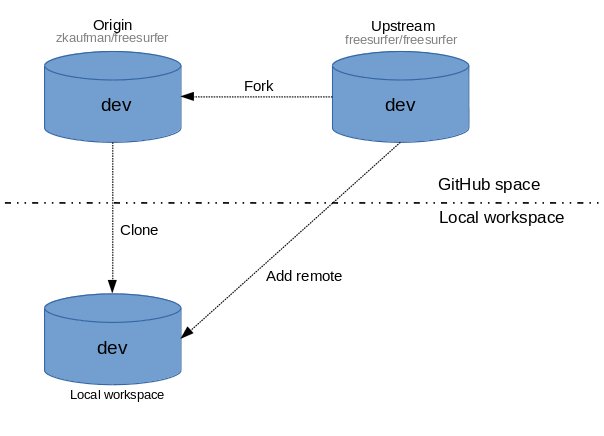
The initial setup for contributing to the freesurfer repository involves the user forking off the freesurfer GitHub repo, cloning the users fork into a local repository, then adding the freesurfer repository as an upstream remote. This setup is illustrated below, followed by a more detailed description of the steps involved:
Sign up for a github account if you don't already have one. When creating an account, you can use any email you want, but developers at the Martinos Center should eventually link their <username>@mgh.harvard.edu email to their GitHub account. This can be done after the account is created.
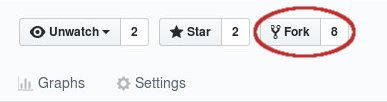
From your GitHub account, fork the freesurfer project repository by clicking on the 'Fork' button near the top right-hand of the page. This creates a copy of the freesurfer code base under your account on the GitHub server.
- On your local machine, make a clone of your freesurfer repository (the one you forked):
git clone git@github.com:<git_username>/freesurfer.git
Add the main freesurfer repository as a remote to the local clone you already have on your local disk, and set it as the upstream remote:
git remote add upstream git@github.com:freesurfer/freesurfer.git
- Type the following command to make sure you have the proper setup:
git remote -v

origin  git@github.com:zkaufman/freesurfer.git (fetch)
origin  git@github.com:zkaufman/freesurfer.git (push)
upstream        git@github.com:freesurfer/freesurfer.git (fetch)
upstream        git@github.com:freesurfer/freesurfer.git (push)
Committing Changes
To contribute the the freesurfer code base, users should create a new branch off the dev branch, push the branch to their fork (origin), then submit Pull requests into freesurfer/dev to get those changes into the freesurfer code base. This workflow is illustrated below, followed by a more detailed description of the steps involved:
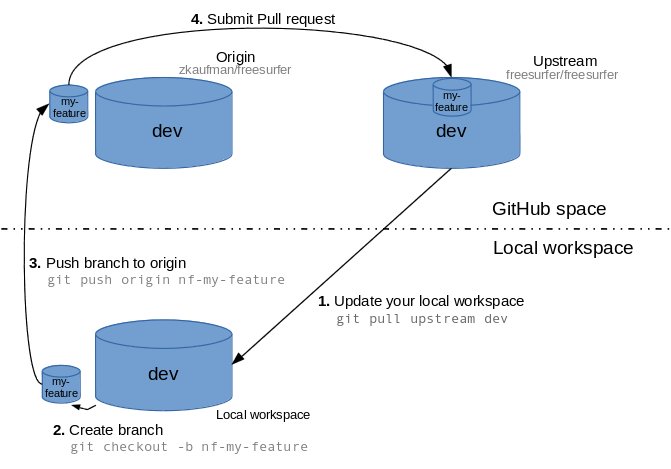
- When you start to make changes, the first thing to do is make sure you are in the dev branch and everything is up to date with the upstream repo:
git branch

* dev
git pull upstream dev
Then create a new branch (off dev) to hold your work and start making changes. Ideally, use a prefix signaling the purpose of the branch:
git checkout -b nf-my-feature
nf- for new features
bf- for bug fixes
rf- for refactoring
doc- for documentations contributions.
test- for test related contributions.
Work on this copy on your computer using Git to do the version control. When you're done editing, commit the files to the local branch and push the branch to origin (your personal GitHub account):
git add <modified_files>
git commit -m "Commit message"
git push origin nf-my-feature
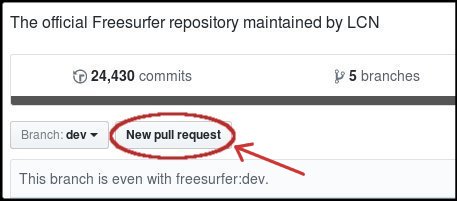
Finally, go to the GitHub web page of your fork of the freesurfer repo, and click Pull request to send your changes to the maintainers for review. Make sure you are submitting your newly created branch into the freesurfer/dev. This will send an email to the committers. You can commit new changes to this branch and keep pushing to your remote -- github automagically adds them to your previously opened Pull request.
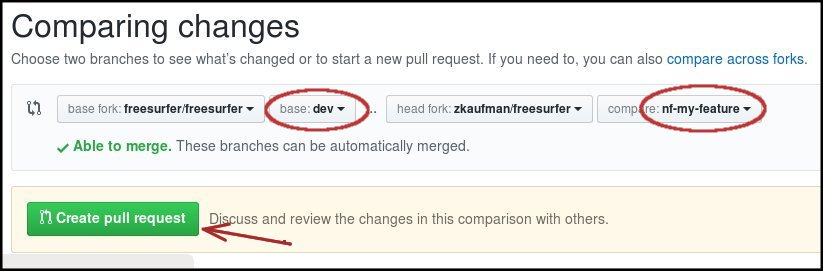
Once you have submitted your pull request for the nf-my-feature, it is best practice to switch back into dev and do an update. You are then free to start the process anew (i.e. create a new branch, commit changes, submit pull request):
git checkout dev
git pull upstream dev
Cleanup steps (Optional)
- Once your pull request is accepted (you should get an email), feel free to delete the branch you created:
git branch -D nf-my-feature
Developing
Instructions on how to further work with the freesurfer source code, including building, testing, and adding a binary to the tree, should consult the Freesurfer Developers Guide:
Data files
Data files represent a special case for source code repositories and generally speaking data files should not be stored in a source code repo. Rather they should be stored in a separate storage area, reserved for times when retrieval is required (e.g. updating test data, performing local installations, etc). Think of "source code" as files which are made up of text, are required for compilation, and can be easily inspected by the human eye (and diff'ed by the diff program). Think of "data files" as files stored as binary and not required for compilation.
A default clone of the repo will only give the user source code. Data files are stored in git annex, exist as broken symlinks by default, and need to be specially requested. To request a datafile, first add the remote repository that stores all the freesurfer data files:
(Users outside the Center)
git remote add datasrc https://surfer.nmr.mgh.harvard.edu/pub/dist/freesurfer/repo/annex.git
git fetch datasrc

(Users within the Center)
git remote add datasrc file:///space/freesurfer/repo/annex.git
git fetch datasrc
Your list of remote repositories should now look something like this:
git remote -v

  datasrc       https://surfer.nmr.mgh.harvard.edu/pub/dist/freesurfer/repo/annex.git (fetch)
  datasrc       https://surfer.nmr.mgh.harvard.edu/pub/dist/freesurfer/repo/annex.git (push)
  origin        git@github.com:zkaufman/freesurfer.git (fetch)
  origin        git@github.com:zkaufman/freesurfer.git (push)
  upstream      git@github.com:freesurfer/freesurfer.git (fetch)
  upstream      git@github.com:freesurfer/freesurfer.git (push)
Then you can just specifically request whatever datafile you need:
git annex get GEMS2/Testing/test.txt.gz

  ########################################################################
  100.0%
    (checksum...) ok
    (recording state in git...)
Or just get everything (Not recommended):
git annex get .