
|
Size: 12059
Comment:
|
Size: 11067
Comment:
|
| Deletions are marked like this. | Additions are marked like this. |
| Line 1: | Line 1: |
| #acl LcnGroup:read,write,delete,revert All:read * Setup github account * Fork freesurfer/freesurfer * clone fork * create branch * push branch * submit pull request ==== Data files ==== |
#acl LcnGroup:read,write,delete,revert All:read <<TableOfContents>> This page is targeted at users who wish to contribute changes to the Freesurfer code base. Members of the public who simply want to clone the repo and build on their home machine, but dont plan on contributing changes, should consult the [[http://surfer.nmr.mgh.harvard.edu/fswiki/freesurfer_linux_developers_page|read-only git repo]]. Lastly, users who just want access to the code can clone directly from the official Freesurfer github page: https://github.com/freesurfer/freesurfer == Initial Setup == The first thing users at the Martinos Center need to do is '''prepend''' the directory {{{/usr/pubsw/packages/git-annex/current/bin}}} to their PATH so that the proper version of git is beeing used. The initial setup for contributing to the Freesurfer repository involves the user forking off the Freesurfer !GitHub repo, cloning the users fork into a local repository, then adding the Freesurfer repository as an upstream remote. This setup is illustrated below, followed by a more detailed description of the steps involved: {{attachment:github_workflow6.jpeg}} 1. Sign up for a [[https://github.com/|github]] account if you don't already have one. Users at the Martinos Center should add their <username>@nmr.mgh.harvard.edu email to their !GitHub account. This can be done during or after account creation. 2. From your !GitHub account, fork the [[https://github.com/freesurfer/freesurfer|Freesurfer project repository]] by clicking on the 'Fork' button near the top right-hand of the page. This creates a copy of the Freesurfer code base under your account on the !GitHub server. {{attachment:fork.jpeg}} 3. On your local machine, make a clone of your Freesurfer repository (the one you forked): {{{ git clone git@github.com:<git_username>/freesurfer.git }}} '''Note:''' If you are seeing an "{{{Permission denied (publickey) fatal: Could not read from remote repository.}}}" error when issuing the git clone command above, it means you have to add your ssh key to your github profile. To add your ssh key to your github profile, copy the contents of ~/.ssh/id_rsa.pub into Profile -> Settings -> SSH and GPG keys -> New SSH key. 4. Add the main Freesurfer repository as a remote to the local clone you already have on your local disk, and set it as the '''upstream''' remote: {{{ cd freesurfer git remote add upstream git://github.com/freesurfer/freesurfer.git }}} 5. Type the following command to make sure you have the proper setup: {{{ git remote -v origin git@github.com:zkaufman/freesurfer.git (fetch) origin git@github.com:zkaufman/freesurfer.git (push) upstream git@github.com:freesurfer/freesurfer.git (fetch) upstream git@github.com:freesurfer/freesurfer.git (push) }}} '''Note:''' If you are seeing an "{{{X11 forwarding request failed}}}" warning when communicating with github, this is caused by a global ssh setting in {{{/etc/ssh/ssh_config}}}. To prevent these forwarding requests to github servers, add the following lines to your {{{~/.ssh/config}}} {{{ Host *github.com ForwardX11 no }}} == Committing Changes == To contribute the the Freesurfer code base, users should 1) Update their code 2) Create a new branch off the {{{dev}}} branch 3) Commit the changes and push the branch to their fork ({{{origin}}}) 4) Submit a '''Pull Request''' into {{{freesurfer/dev}}} to get those changes into the Freesurfer code base. This workflow is illustrated below, followed by a more detailed description of the steps involved: {{attachment:github_workflow5.JPG}} 1. When you start to make changes, the first thing to do is make sure you are in the dev branch and everything is up to date with the upstream repo: {{{ git branch * dev }}} {{{ git pull upstream dev }}} 2. Then create a new branch (off {{{dev}}}) to hold your work and start making changes. Ideally, use a prefix signaling the purpose of the branch: {{{ git checkout -b nf-my-feature }}} * {{{nf-}}} for new features * {{{bf-}}} for bug fixes * {{{rf-}}} for refactoring * {{{doc-}}} for documentations contributions. * {{{test-}}} for test related contributions. 3. Work on this copy on your computer using Git to do the version control. When you're done editing, commit the files to the local branch and push the branch to {{{origin}}} (your personal !GitHub account): {{{ git add <modified_files> git commit -m "Commit message" git push origin nf-my-feature }}} 4. Finally, go to the !GitHub web page of your fork of the Freesurfer repo, and click '''Pull request''' to send your changes to the maintainers for review. Make sure you are submitting your newly created branch into the {{{freesurfer/dev}}}. This will send an email to the committers. You can commit new changes to this branch and keep pushing to your remote -- github automagically adds them to your previously opened Pull request. {{attachment:new_pull_request.JPG}} {{attachment:compare_changes.jpeg}} 5. Once you have submitted your pull request for the {{{nf-my-feature}}}, it is best practice to switch back into {{{dev}}} and do an update. You are then free to start the process anew (i.e. create a new branch, commit changes, submit pull request): {{{ git checkout dev git pull upstream dev }}} === Cleanup steps (Optional) === 6. Once your pull request is accepted (you should get an email), feel free to delete the branch you created: {{{ git branch -D nf-my-feature }}} == Developing == Instructions on how to further work with the Freesurfer source code, including building, testing, and adding a binary to the tree, should consult the Freesurfer Developers Guide: https://surfer.nmr.mgh.harvard.edu/fswiki/DevelopersGuide_git == Data files (optional) == A default clone of the repo will only give the user source code. Data files are stored in git annex, exist as broken symlinks by default, and need to be specially requested. To request a datafile, first add the remote repository that stores all the Freesurfer data files (you only need to this once): ## Data files represent a special case for source code repositories and generally speaking data files should not be stored in a source code repo. Rather they should be stored in a separate storage area, reserved for times when retrieval is required (e.g. updating test data, performing local installations, etc). Think of "source code" as files which are made up of text, are required for compilation, and can be easily inspected by the human eye (and diff'ed by the '''diff''' program). Think of "data files" as files stored as binary and not required for compilation. {{{ (Users outside the Center) git remote add datasrc https://surfer.nmr.mgh.harvard.edu/pub/dist/freesurfer/repo/annex.git git fetch datasrc (Users within the Center) git remote add datasrc file:///space/freesurfer/repo/annex.git git fetch datasrc }}} Your list of remote repositories should now look something like this: {{{ git remote -v datasrc https://surfer.nmr.mgh.harvard.edu/pub/dist/freesurfer/repo/annex.git (fetch) datasrc https://surfer.nmr.mgh.harvard.edu/pub/dist/freesurfer/repo/annex.git (push) origin git@github.com:zkaufman/freesurfer.git (fetch) origin git@github.com:zkaufman/freesurfer.git (push) upstream git@github.com:freesurfer/freesurfer.git (fetch) upstream git@github.com:freesurfer/freesurfer.git (push) }}} Now you can just specifically request whatever datafile you need: {{{ git annex get GEMS2/Testing/test.txt.gz ######################################################################## 100.0% (checksum...) ok (recording state in git...) }}} Or just get everything (Not recommended): {{{ git annex get . }}} For more information on how to work with the data files and git annex in general, see the following page: https://surfer.nmr.mgh.harvard.edu/fswiki/Freesurfer_gitannex == FAQ == * '''Q:''' The github.com page for my fork of freesurfer/freesurfer says "This branch is 3 commits behind freesurfer:dev". How do I update my fork? * '''A:''' A fork will always trail the upstream, so it's very common to be behind in commits, but to update your fork, assuming you have cloned it on your local machine, and have confirmed through {{{git remote -v}}} that your upstream is correct (per instructions above), then do this: |
| Line 20: | Line 177: |
| ## External users. git remote add datasrc https://surfer.nmr.mgh.harvard.edu/pub/dist/freesurfer/repo/freesurfer.git ## Internal users. git remote add datasrc file:///space/freesurfer/repo/freesurfer git fetch datasrc git annex get distribution/average/fsaverage.tar.gz |
git checkout dev git fetch upstream git merge upstream/dev git push origin git pull upstream dev |
| Line 29: | Line 183: |
This page is provided for !FreeSurfer developers to assist in the CVS -> git transition. This page is not meant to be a comprehensive guide for using git. Git is a feature loaded version control system which at times can be a bit of a hurdle to learn. However, when used in its simplest form, it can be very similar to most all other version control systems, including CVS. Below are many of the basic CVS commands used by !FreeSurfer developers the git equivalent of that command. The following sites are great resources for those who want to dig deeper and and learn more about git and its features. * [[https://www.atlassian.com/git/tutorials/what-is-git|Atlassian]] * [[https://git-scm.com/doc|git-scm]] == Initial Git Setup == '''''Very first thing to do.''''' Add the following line to your {{{.cshrc}}} or {{{.bashrc}}} file. |
<<BR>> * '''Q:''' I have a branch, named mybranch, that I haven't worked on in a while. After I run 'git checkout mybranch' to ensure I am working in that branch, how do i found out which files I modified in the past? * '''A:''' {{{git status -s}}} will tell you the files that have changed since the last commit, {{{git diff filename}}} will show the changes for a specific file, {{{gitk}}} is a helpful gui. * '''A2:''' {{{git diff --stat master...}}} will show which files were modified in this branch (assuming that it was created on top of the master branch). Compare to {{{git diff --stat master..}}} (two periods, not three) which will show which files differ from current state of the master branch (which might have progressed forward and was not merged into mybranch in its last "version") <<BR>> * '''Q:''' How can I look at code from older commits? * '''A:''' The short answer is to look at the git log (of commit history) and identify the commit hash you want, then git checkout that hash (and optionally give it a readable name). Here's a step-by-step example, going back to Andre's first commit in 2001: |
| Line 46: | Line 191: |
| ## bash export PATH=/usr/pubsw/packages/git-annex/current/bin:$PATH ## csh setenv PATH "/usr/pubsw/packages/git-annex/current/bin":"$PATH" |
mkdir oldcode cd oldcode git clone https://github.com/freesurfer/freesurfer.git cd freesurfer git log > git.log |
| Line 52: | Line 197: |
When we start out using git we want to set a few of our configuration settings. We only need to do this one time: |
Now look at the git.log file and search for a point in time where you want the code, ex. andre's first commit, and copy the hash string (the long number next to 'commit'). Now we're going to 'get' that version with the following commands, which will modify all the files in your existing tree to match the code from that commit. |
| Line 55: | Line 199: |
| $> git config --global user.name "Zeke Kaufman" $> git config --global user.email zkaufman@nmr.mgh.harvard.edu $> git config --global core.editor <your preferred editor (e.g. emacs, vim, etc)> $> git config --global color.ui true |
git checkout b66f3061610c973ee1e1cab7325a913a481d5cb8 git checkout -b code2001 |
| Line 61: | Line 203: |
| For additional git specifics setting: [[https://git-scm.com/book/en/v2/Customizing-Git-Git-Configuration|Customizing-Git]] == Checkout out the main branch == When working with CVS, we would checkout out the !FreeSurfer repository using the '''{{{cvs checkout dev}}}''' command. In git we 'clone' repositories. This gives us a local version of the repository which we can work with: {{{ ## CVS $> cvs checkout dev }}} {{{ ## git $> git clone file:///space/freesurfer/repo/freesurfer ## The git read-only repo: $> git clone https://surfer.nmr.mgh.harvard.edu/pub/dist/freesurfer/repo/freesurfer.git }}} Or check out a specific branch: {{{ ## CVS $> cvs checkout -r stable6 dev }}} {{{ ## git $> git clone -b stable6 file:///space/freesurfer/repo/freesurfer }}} Additional information and examples: [[https://git-scm.com/book/en/v2/Git-Basics-Getting-a-Git-Repository#Cloning-an-Existing-Repository|Cloning-an-Existing-Repository]] [[https://www.atlassian.com/git/tutorials/setting-up-a-repository/git-clone|Cloning-an-Existing-Repository]] == Daily Workflow == {{attachment:git-image-50.jpeg}} === Updating your code === In CVS, when we want the most up-to-date version of the code, we issue a '''{{{cvs update}}}''' command. This will update our files to the latest version, restore any missing files, and warn us of any conflicts. The nearest equivalent in git is the '''{{{git pull}}}''' command. This will update our local repository and update all the necessary files to the most recent version. ''It is good practice to always issue a '''{{{git pull}}}''' command before starting to work on any files.'' {{{ ## CVS $> cvs update }}} {{{ ## git $> git pull }}} One major difference between '''{{{cvs update}}}''' and '''{{{git pull}}}''' command is that (depending on version/platform specifics) '''{{{git pull}}}''' may not restore missing files (i.e. file deleted locally). In git, if we want to restore locally deleted files, we need to take the additional step of issuing a '''{{{git checkout}}}''' command. For example: {{{ ## CVS $> cvs update cvs update: warning: README was lost U README }}} {{{ ## git $> git pull $> git status deleted: README.txt }}} Use the checkout command to restore a deleted file: {{{ $> git checkout README.txt }}} Additional information and examples: [[https://www.atlassian.com/git/tutorials/syncing/git-pull|Git Pull]] === Modified files === Generating diffs between your working copy of the code, and the repository version, is also very similar with git and cvs. For example, say we want to know what files differ: {{{ ## CVS $> cvs update M README }}} {{{ ## git $> git status modified: README.txt }}} To view the difference, use the diff command just as you would in CVS: {{{ ## CVS $> cvs diff README Index: README =================================================================== RCS file: /space/repo/1/dev/dev/README,v retrieving revision 1.13 diff -r1.13 README 20a21 > An example line of added text. }}} {{{ ## git $> git diff README diff --git a/README b/README index 95ec88a..d4686af 100644 --- a/README +++ b/README @@ -18,3 +18,4 @@ +An example line of added text. }}} === View log information === Again, CVS and git are very similar in this regard: {{{ ## CVS $> cvs log README ---------------------------- revision 1.13 date: 2016/04/08 20:27:48; author: nicks; state: Exp; lines: +1 -1 this change requires retesting EVERYTHING ---------------------------- }}} {{{ ## git $> git log README commit 7fd91e12ec4e619c18cd11b0a156327322ffbfaf Author: Z K <zkaufman@nmr.mgh.harvard.edu> Date: Tue Apr 12 05:51:13 2016 -0400 this change requires retesting EVERYTHING }}} If we wanted to inspect the difference: {{{ ## CVS $> cvs diff -r 1.12 =================================================================== RCS file: /space/repo/1/dev/dev/README,v retrieving revision 1.12 diff -r1.12 README 1c1 < FreeSurfer © 2011 The General Hospital Corporation (Boston, MA) "MGH" --- > FreeSurfer © 2011-2016 The General Hospital Corporation (Boston, MA) "MGH" }}} {{{ ## git $> git diff dd623df16051522125419 README diff --git a/README b/README index a4daeb1..95ec88a 100644 --- a/README +++ b/README @@ -1,4 +1,4 @@ -FreeSurfer © 2011 The General Hospital Corporation (Boston, MA) "MGH" +FreeSurfer © 2011-2016 The General Hospital Corporation (Boston, MA) "MGH" }}} === Commit a change === Git and CVS can be virtually identical when it comes to committing changes. The primary difference is that git requires the additional step of pushing to the central repository. This means issuing the '''{{{git push}}}''' command after committing all your changes: {{{ ## CVS $> cvs commit -m "Fixed a bug." <file_name> }}} {{{ ## git $> git commit -m "Fixed a bug." <file_name> $> git push ## DON'T FORGET TO DO THIS!! }}} ''Always issue a '''{{{git push}}}''' command after committing all your changes'' Additional information and examples: [[https://www.atlassian.com/git/tutorials/saving-changes|Saving changes]] [[https://git-scm.com/book/en/v2/Git-Basics-Recording-Changes-to-the-Repository|Recording changes to the repository]] === Adding/Removing a file === Adding and removing files in CVS and git is also a very similar operation. Use the '''{{{git rm}}}''' and '''{{{git add}}}''' command in the same way you would use the '''{{{cvs rm}}}''' and '''{{{cvs add}}}''' command. Just remember to commit the change, followed by a '''{{{git push}}}'''. For example, Adding a file: {{{ ## CVS $> cvs add <file_name> $> cvs commit -m "initial add of new file." <file_name> }}} {{{ ## git $> git add <file_name> $> git commit -m "initial add of new file." <file_name> $> git push }}} Removing a file: {{{ ## CVS $> cvs rm <file_name> $> cvs commit -m "initial add of new file." <file_name> }}} {{{ ## git $> git rm <file_name> $> git commit -m "Removing obsolete file." <file_name> $> git push }}} Additional information and examples: [[https://www.atlassian.com/git/tutorials/saving-changes/git-add|git-add]] [[https://git-scm.com/book/en/v2/Git-Basics-Recording-Changes-to-the-Repository#Tracking-New-Files|Tracking-New-Files]] === Help! Just reset my repo! === Sometimes our workspace just gets over cluttered with changes we don't actually want. And we just want to get rid of everything and give us exactly what exists in the repository: {{{ ## CVS $> cvs update -C -d }}} {{{ ## git $> git reset --hard origin/master }}} === Data files === Data files represent a special case for source code repositories and generally speaking data files should not be stored in a source code repo. Rather they should be stored in a separate storage area reserved for times when retrieval is required. Like updating test data, or performing local installations. Think of "source code" as files which are made up of text and can be easily inspected by the human eye and diff'ed by the {{{diff}}} program, and data files as files stored as binary and not required for compilation. In the past our CVS repo contain ALL the data files. This caused major bottlenecks, time delays and space requirements for users when they only wanted to view source code. Going forward, the free surfer repo will use the {{{git-annex}}} software for storing data file. A default clone of the repo will only give the user source code. Data files need to be specially requested. Data files stored in git annex will look like this: {{{ $> ls -l testdata.tar.gz testdata.tar.gz@ -> ../.git/annex/objects/73/j9/SHA256E-s108571796--31df343ebab2d0f7f002f1d55c66100e23dc7eeacd4a8ede7723201ad09fd9b7.tar.gz/SHA256E-s108571796--31df343ebab2d0f7f002f1d55c66100e23dc7eeacd4a8ede7723201ad09fd9b7.tar.gz }}} ==== Getting data files ==== {{{ $> git annex get testdata.tar.gz get testdata.tar.gz (from origin...) SHA256E-s108571796--31df343ebab2d0f7f002f1d55c66100e23dc7eeacd4a8ede7723201ad09fd9b7.tar.gz 108,571,796 100% 110.59MB/s 0:00:00 (xfr#1, to-chk=0/1) ok (recording state in git...) }}} ==== Add a data file ==== {{{ ## CVS $> cvs add <file_name> $> cvs commit -m "Initial add." <file_name> }}} {{{ ## git $> git annex add <file_name> $> git commit -m "Initial add." <file_name> $> git push $> git annex copy --to origin <file_name> }}} ==== Remove data file ==== {{{ ## CVS $> cvs rm <file_name> $> cvs commit -m "Removing from repo." <file_name> }}} {{{ ## git $> git rm <file_name> $> git commit -m "Removing from repo." <file_name> $> git push }}} ==== Modifying a data file ==== The {{{git annex get <file_name>}}} will retrieve a data file from the server so that you can access it contents. However, this file remains read-only. If you want to actually modify the data you will need to '''unlock''' it for modification purposes: {{{ $> git annex unlock <file_name> ## Make modifications to <file_name> $> git annex add <file_name> $> git commit -m "Updating test data." <file_name> $> git push $> git annex copy --to origin <file_name> }}} ==== Organizing data files using metadata ==== Data files in the freesurfer repository use metadata tags to help keep the data organized and requirements to a minimum. Currently their are two tags that can be assigned to a datafile, '''makecheck''' and '''makainstall'''. If a data file is required for the {{{make check}}} command, it should get the '''makecheck''' tag. If it is required for the {{{make install}}} command, it should get the '''makeinstall''' tag. For example, to assign a metadata tag: {{{ $> git annex metadata mri_ca_register/testdata.tar.gz -s fstags+=makecheck }}} To get all data files that have a tag: {{{ $> git annex get --metadata fstags=makecheck . }}} To see a list of all files that have a tag: {{{ $> git annex find --metadata fstags=makecheck }}} |
## This page is provided for !Freeurfer developers to assist in the CVS -> git transition. ##This page is not meant to be a comprehensive guide for using git. Git is a feature loaded version control system which at times can be a bit of a hurdle to learn. However, when used in its simplest form, it can be very similar to most all other version control systems, including CVS. Below are many of the basic CVS commands used by !FreeSurfer developers the git equivalent of that command. ##The following sites are great resources for those who want to dig deeper and and learn more about git and its features. ## * [[https://www.atlassian.com/git/tutorials/what-is-git|Atlassian]] ## * [[https://git-scm.com/doc|git-scm]] |
Contents
This page is targeted at users who wish to contribute changes to the Freesurfer code base. Members of the public who simply want to clone the repo and build on their home machine, but dont plan on contributing changes, should consult the read-only git repo. Lastly, users who just want access to the code can clone directly from the official Freesurfer github page:
Initial Setup
The first thing users at the Martinos Center need to do is prepend the directory /usr/pubsw/packages/git-annex/current/bin to their PATH so that the proper version of git is beeing used.
The initial setup for contributing to the Freesurfer repository involves the user forking off the Freesurfer GitHub repo, cloning the users fork into a local repository, then adding the Freesurfer repository as an upstream remote. This setup is illustrated below, followed by a more detailed description of the steps involved:
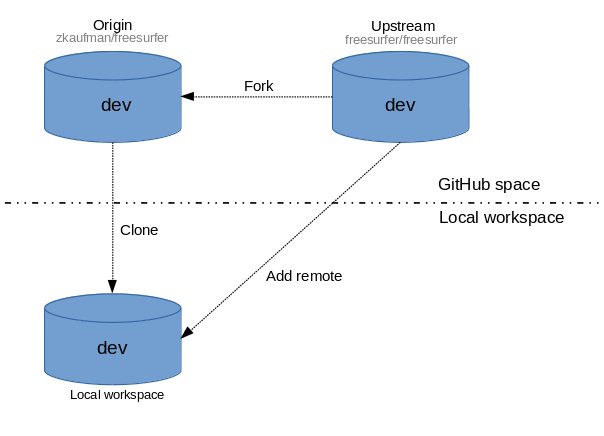
Sign up for a github account if you don't already have one. Users at the Martinos Center should add their <username>@nmr.mgh.harvard.edu email to their GitHub account. This can be done during or after account creation.
From your GitHub account, fork the Freesurfer project repository by clicking on the 'Fork' button near the top right-hand of the page. This creates a copy of the Freesurfer code base under your account on the GitHub server.
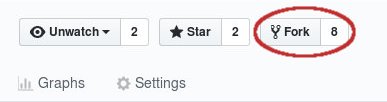
- On your local machine, make a clone of your Freesurfer repository (the one you forked):
git clone git@github.com:<git_username>/freesurfer.git
Note: If you are seeing an "Permission denied (publickey) fatal: Could not read from remote repository." error when issuing the git clone command above, it means you have to add your ssh key to your github profile. To add your ssh key to your github profile, copy the contents of ~/.ssh/id_rsa.pub into Profile -> Settings -> SSH and GPG keys -> New SSH key.
Add the main Freesurfer repository as a remote to the local clone you already have on your local disk, and set it as the upstream remote:
cd freesurfer
git remote add upstream git://github.com/freesurfer/freesurfer.git
- Type the following command to make sure you have the proper setup:
git remote -v

origin  git@github.com:zkaufman/freesurfer.git (fetch)
origin  git@github.com:zkaufman/freesurfer.git (push)
upstream        git@github.com:freesurfer/freesurfer.git (fetch)
upstream        git@github.com:freesurfer/freesurfer.git (push)
Note: If you are seeing an "X11 forwarding request failed" warning when communicating with github, this is caused by a global ssh setting in /etc/ssh/ssh_config. To prevent these forwarding requests to github servers, add the following lines to your ~/.ssh/config
Host *github.com
    ForwardX11 no
Committing Changes
To contribute the the Freesurfer code base, users should 1) Update their code 2) Create a new branch off the dev branch 3) Commit the changes and push the branch to their fork (origin) 4) Submit a Pull Request into freesurfer/dev to get those changes into the Freesurfer code base. This workflow is illustrated below, followed by a more detailed description of the steps involved:
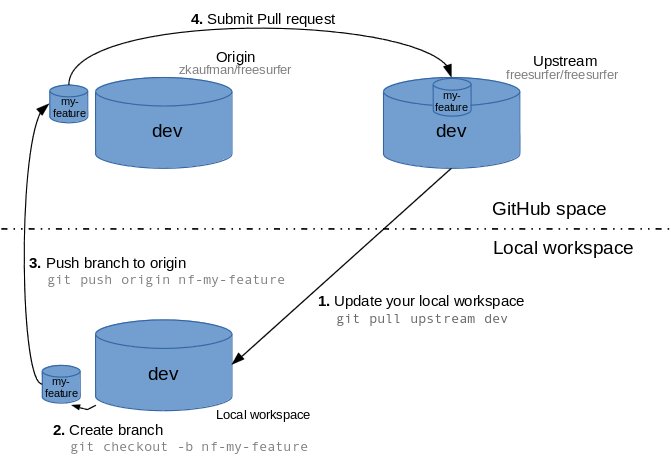
- When you start to make changes, the first thing to do is make sure you are in the dev branch and everything is up to date with the upstream repo:
git branch

* dev
git pull upstream dev
Then create a new branch (off dev) to hold your work and start making changes. Ideally, use a prefix signaling the purpose of the branch:
git checkout -b nf-my-feature
nf- for new features
bf- for bug fixes
rf- for refactoring
doc- for documentations contributions.
test- for test related contributions.
Work on this copy on your computer using Git to do the version control. When you're done editing, commit the files to the local branch and push the branch to origin (your personal GitHub account):
git add <modified_files>
git commit -m "Commit message"
git push origin nf-my-feature
Finally, go to the GitHub web page of your fork of the Freesurfer repo, and click Pull request to send your changes to the maintainers for review. Make sure you are submitting your newly created branch into the freesurfer/dev. This will send an email to the committers. You can commit new changes to this branch and keep pushing to your remote -- github automagically adds them to your previously opened Pull request.
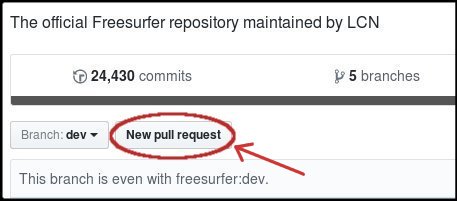
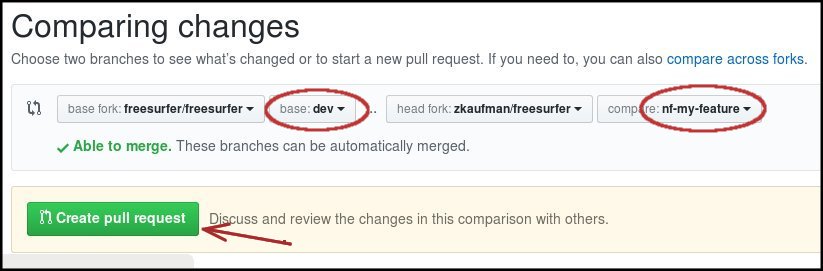
Once you have submitted your pull request for the nf-my-feature, it is best practice to switch back into dev and do an update. You are then free to start the process anew (i.e. create a new branch, commit changes, submit pull request):
git checkout dev
git pull upstream dev
Cleanup steps (Optional)
- Once your pull request is accepted (you should get an email), feel free to delete the branch you created:
git branch -D nf-my-feature
Developing
Instructions on how to further work with the Freesurfer source code, including building, testing, and adding a binary to the tree, should consult the Freesurfer Developers Guide:
Data files (optional)
A default clone of the repo will only give the user source code. Data files are stored in git annex, exist as broken symlinks by default, and need to be specially requested. To request a datafile, first add the remote repository that stores all the Freesurfer data files (you only need to this once):
(Users outside the Center)
git remote add datasrc https://surfer.nmr.mgh.harvard.edu/pub/dist/freesurfer/repo/annex.git
git fetch datasrc

(Users within the Center)
git remote add datasrc file:///space/freesurfer/repo/annex.git
git fetch datasrc
Your list of remote repositories should now look something like this:
git remote -v

  datasrc       https://surfer.nmr.mgh.harvard.edu/pub/dist/freesurfer/repo/annex.git (fetch)
  datasrc       https://surfer.nmr.mgh.harvard.edu/pub/dist/freesurfer/repo/annex.git (push)
  origin        git@github.com:zkaufman/freesurfer.git (fetch)
  origin        git@github.com:zkaufman/freesurfer.git (push)
  upstream      git@github.com:freesurfer/freesurfer.git (fetch)
  upstream      git@github.com:freesurfer/freesurfer.git (push)
Now you can just specifically request whatever datafile you need:
git annex get GEMS2/Testing/test.txt.gz

  ########################################################################
  100.0%
    (checksum...) ok
    (recording state in git...)
Or just get everything (Not recommended):
git annex get .
For more information on how to work with the data files and git annex in general, see the following page:
FAQ
Q: The github.com page for my fork of freesurfer/freesurfer says "This branch is 3 commits behind freesurfer:dev". How do I update my fork?
A: A fork will always trail the upstream, so it's very common to be behind in commits, but to update your fork, assuming you have cloned it on your local machine, and have confirmed through git remote -v that your upstream is correct (per instructions above), then do this:
git checkout dev
git fetch upstream
git merge upstream/dev
git push origin
git pull upstream dev
Q: I have a branch, named mybranch, that I haven't worked on in a while. After I run 'git checkout mybranch' to ensure I am working in that branch, how do i found out which files I modified in the past?
A: git status -s will tell you the files that have changed since the last commit, git diff filename will show the changes for a specific file, gitk is a helpful gui.
A2: git diff --stat master... will show which files were modified in this branch (assuming that it was created on top of the master branch). Compare to git diff --stat master.. (two periods, not three) which will show which files differ from current state of the master branch (which might have progressed forward and was not merged into mybranch in its last "version")
Q: How can I look at code from older commits?
A: The short answer is to look at the git log (of commit history) and identify the commit hash you want, then git checkout that hash (and optionally give it a readable name). Here's a step-by-step example, going back to Andre's first commit in 2001:
mkdir oldcode
cd oldcode
git clone https://github.com/freesurfer/freesurfer.git
cd freesurfer
git log > git.log
Now look at the git.log file and search for a point in time where you want the code, ex. andre's first commit, and copy the hash string (the long number next to 'commit'). Now we're going to 'get' that version with the following commands, which will modify all the files in your existing tree to match the code from that commit.
git checkout b66f3061610c973ee1e1cab7325a913a481d5cb8
git checkout -b code2001