
|
Size: 781
Comment:
|
Size: 3792
Comment:
|
| Deletions are marked like this. | Additions are marked like this. |
| Line 9: | Line 9: |
| {{attachment:fvscreenshot.gif}} Here's a look at the program. In this instance, the user has chosen the 2x2 viewing option, and can see all 3 planes plus 3D together in one window. In this view, when you move the red crosshairs in one window, the other 3 windows also move and adjust along with the crosshairs. The window in which you are working is outlined in red. You can also see the toolbar at the top of the screen, and the control panel on the left. |
|
| Line 11: | Line 15: |
| {{attachment:toolbar.gif}} || {{attachment:NavigatorIcon.gif}} || Navigate Tool || {{attachment:VoxelEditIcon.gif}} || Voxel Edit Tool || || {{attachment:ControlPanelIcon.gif}} || Control Panel On/Off Button || {{attachment:1x1icon.gif}} || 1x1 Screen View || || {{attachment:2x2icon.gif}} || 2x2 Screen View || {{attachment:1x3icon.gif}} || 1x3 Screen View || || {{attachment:1x3horizicon.gif}} || 1x3 Horizontal Screen View || {{attachment:saggital.gif}} || Saggital Volume View || || {{attachment:coronal.gif}} || Coronal Volume View || {{attachment:axial.gif}} || Axial Volume View || || {{attachment:3D.gif}} || 3D Volume View || {{attachment:A.gif}} || Show Coordinate Annotation || || {{attachment:colorbar.gif}} || Show Color Scale Bar || {{attachment:screenshticon.gif}} || Screenshot || |
|
| Line 12: | Line 26: |
| In the control panel on the left you can choose to work with volumes, ROIs, Surfaces and Way Points. Each one has it's own set of controls and options described below. === Volumes === When working with volumes, under '''Color Map''', you can select '''Grayscale''', '''Heat''', '''Jet''', and '''Lookup Table.''' Grayscale, Heat and Jet have the same control panel. ==== Grayscale, Heat, Jet ==== {{attachment:controlpanelgrayscale.gif}} |
|
| Line 13: | Line 32: |
| *Volumes *Grayscale *Heat *Jet *Lookup Table *ROIs *Surfaces *Way Points |
In this panel you can see your volumes listed at the top, in this case flash23. The box next to the volume name is checked, meaning the volume is active for editing and visible in the viewing screen. Below, you can adjust the opacity between 0, completely transparent, and 1, completely opaque. Checking '''Smoothing display''' will smooth the edges of anything you have drawn on the volume.U Underneath this is the Color Map drop down menu where you can choose Grayscale, Heat, Jet or Lookup Table. Using the sliding bars for Window, Level, Min, and Max you can adjust the '''contrast''' of the volume. ==== Lookup Table ==== {{attachment:controlpanelcolor.gif}} In this panel, Lookup Table has been selected as the Color Map. Here too, you can adjust opacity between 0 and 1 with the sliding bar. Below that is a list of different brain regions, and their associated colors. From this menu you can choose which brain region you are going to code or label. This is generally used n the Voxel Edit mode (at which point the '''Drawing Toolbox''' will pop up, described below). === ROIs === picture and explanation of ROIs control panel and buttons here === Surfaces === picture and explanation of Surfaces control panel and buttons here === Way Points === picture and explanation of Way Points control panel and buttons here |
| Line 23: | Line 52: |
| {{attachment:drawingtoolbox.gif}} |
Up to FreeviewGuide |
Back to FreeviewQuickStart |
Continue to FreeviewViewingArea |
Interface
Freeview consists of one window. In this window there is the main viewing area, to the left is the control panel, at the top is the toolbar, at the bottom are the cursor and mouse coordinates, and if you are in the "Voxel Edit" mode, there will be a floating "Drawing" toolbox.
Display Window
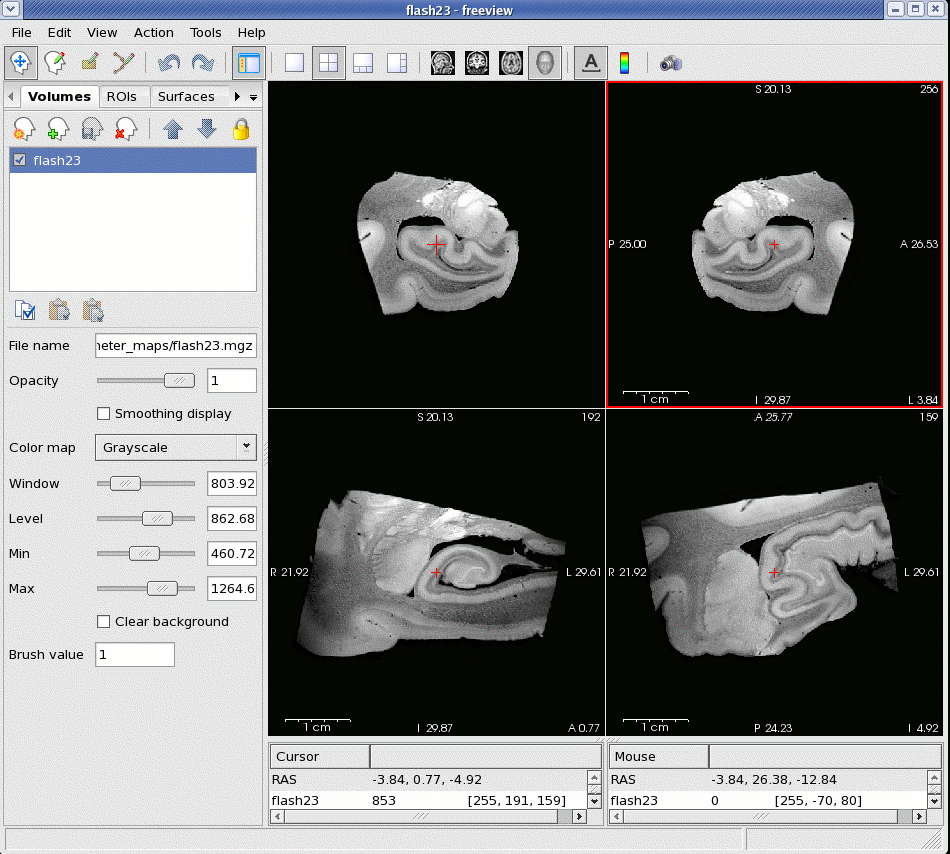
Here's a look at the program. In this instance, the user has chosen the 2x2 viewing option, and can see all 3 planes plus 3D together in one window. In this view, when you move the red crosshairs in one window, the other 3 windows also move and adjust along with the crosshairs. The window in which you are working is outlined in red. You can also see the toolbar at the top of the screen, and the control panel on the left.
Toolbar

|
Navigate Tool |
|
Voxel Edit Tool |
|
Control Panel On/Off Button |
|
1x1 Screen View |
|
2x2 Screen View |
|
1x3 Screen View |
|
1x3 Horizontal Screen View |
|
Saggital Volume View |
|
Coronal Volume View |
|
Axial Volume View |
|
3D Volume View |
|
Show Coordinate Annotation |
|
Show Color Scale Bar |
|
Screenshot |


Control Panel
In the control panel on the left you can choose to work with volumes, ROIs, Surfaces and Way Points. Each one has it's own set of controls and options described below.
Volumes
When working with volumes, under Color Map, you can select Grayscale, Heat, Jet, and Lookup Table. Grayscale, Heat and Jet have the same control panel.
Grayscale, Heat, Jet
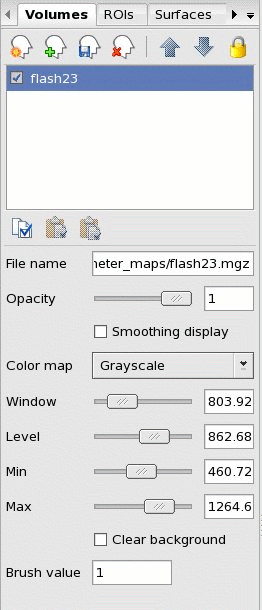
In this panel you can see your volumes listed at the top, in this case flash23. The box next to the volume name is checked, meaning the volume is active for editing and visible in the viewing screen.
Below, you can adjust the opacity between 0, completely transparent, and 1, completely opaque. Checking Smoothing display will smooth the edges of anything you have drawn on the volume.U Underneath this is the Color Map drop down menu where you can choose Grayscale, Heat, Jet or Lookup Table.
Using the sliding bars for Window, Level, Min, and Max you can adjust the contrast of the volume.
Lookup Table
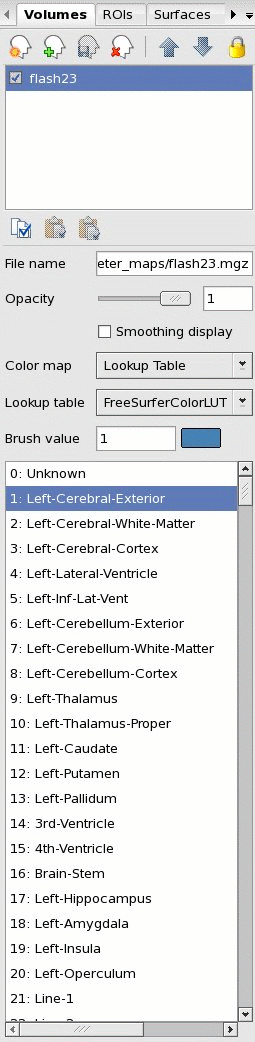
In this panel, Lookup Table has been selected as the Color Map. Here too, you can adjust opacity between 0 and 1 with the sliding bar.
Below that is a list of different brain regions, and their associated colors. From this menu you can choose which brain region you are going to code or label. This is generally used n the Voxel Edit mode (at which point the Drawing Toolbox will pop up, described below).
ROIs
picture and explanation of ROIs control panel and buttons here
Surfaces
picture and explanation of Surfaces control panel and buttons here
Way Points
picture and explanation of Way Points control panel and buttons here
Drawing Toolbox
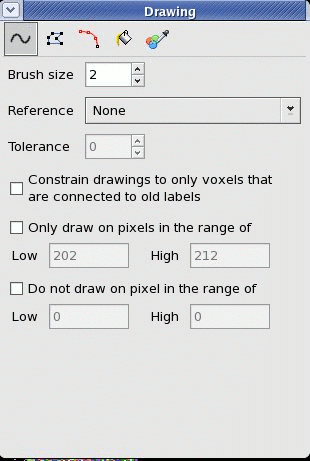
Continue to FreeviewViewingArea for more information |