
|
Size: 18932
Comment: fixed paths in middle of page. were all the same file for some reason.
|
← Revision 118 as of 2023-07-17 02:37:25 ⇥
Size: 22648
Comment:
|
| Deletions are marked like this. | Additions are marked like this. |
| Line 2: | Line 2: |
| [[FsTutorial|Top]] | [[FsTutorial/TraculaOutputs|Previous]] | [[https://surfer.nmr.mgh.harvard.edu/fswiki/Tutorials|Back to list of all tutorials]] | [[FsTutorial|Back to course page]] | [[FsTutorial/TraculaOutputs|Previous]] <<TableOfContents>> |
| Line 5: | Line 7: |
| === Remember... === | == Remember... == |
| Line 9: | Line 11: |
| export SUBJECTS_DIR=$TUTORIAL_DATA/diffusion_recons cd $TUTORIAL_DATA/diffusion_tutorial |
export SUBJECTS_DIR=$TUTORIAL_DATA/tracula_tutorial/fs cd $TUTORIAL_DATA/tracula_tutorial |
| Line 15: | Line 17: |
| * pathstats.overall.txt - This file contains measures averaged over the whole pathway * pathstats.byvoxel.txt - This file contains measures as a function of position along the trajectory of the pathway. For example, the statistics files for the left inferior longitudinal fasciculus (ILF) of subject elmo.2012, showing measures for the entire left ILF or along the left ILF, can be found below. '''Optional:''' use a text editor, such as {{{gedit}}}, or the command {{{open -e}}} on a Mac, to open these files. {{{ $TUTORIAL_DATA/diffusion_tutorial/elmo.2012/dpath/lh.ilf_AS_avg33_mni_bbr/pathstats.overall.txt $TUTORIAL_DATA/diffusion_tutorial/elmo.2012/dpath/lh.ilf_AS_avg33_mni_bbr/pathstats.byvoxel.txt }}} |
* '''pathstats.overall.txt''' - This file contains diffusion measures averaged over the whole pathway. * '''pathstats.byvoxel.txt''' - This file contains diffusion measures averaged at consecutive cross-sections of the pathway, resulting in an along-tract profile of each diffusion measure. This type of analysis is referred to as [[https://pubmed.ncbi.nlm.nih.gov/15906294/|pointwise assessment of streamline tractography attributes]] (PASTA). These are plain text files that you can open with a text editor, such as {{{gedit}}} on Linux, or with the command {{{open -e}}} on a Mac. They are saved in the TRACULA output directory of each individual tract. |
| Line 25: | Line 23: |
| You can view an example of the overall pathway stats by doing: {{{ gedit $TUTORIAL_DATA/diffusion_tutorial/elmo.2012/dpath/lh.ilf_AS_avg33_mni_bbr/pathstats.overall.txt & }}} '''ON MACS, RUN:''' {{{ open -e $TUTORIAL_DATA/diffusion_tutorial/elmo.2012/dpath/lh.ilf_AS_avg33_mni_bbr/pathstats.overall.txt & }}} |
Examine the whole-tract statistics for the left inferior longitudinal fasciculus (ILF) of subject1, by runnning: {{{ cat trc/subject1/dpath/lh.ilf_avg16_syn_bbr/pathstats.overall.txt }}} |
| Line 36: | Line 29: |
| Line 40: | Line 32: |
| # generating_program /usr/local/freesurfer/dev/bin/dmri_pathstats # cvs_version # cmdline /usr/local/freesurfer/dev/bin/dmri_pathstats --intrc /space/freesurfer/subjects/diffusion_tutorial/elmo.2012/dpath/lh.ilf_AS_avg33_mni_bbr --dtbase /space/freesurfer/subjects/diffusion_tutorial/elmo.2012/dmri/dtifit --path lh.ilf --subj elmo.2012 --out /space/freesurfer/subjects/diffusion_tutorial/elmo.2012/dpath/lh.ilf_AS_avg33_mni_bbr/pathstats.overall.txt --outvox /space/freesurfer/subjects/diffusion_tutorial/elmo.2012/dpath/lh.ilf_AS_avg33_mni_bbr/pathstats.byvoxel.txt |
# generating_program /usr/local/freesurfer/7.2.0-beta/bin/dmri_pathstats # cvs_version ayendiki-local # cmdline /usr/local/freesurfer/7.2.0-beta/bin/dmri_pathstats --intrc /space/erebus/1/users/data/trc/subject1/dpath/lh.ilf_avg16_syn_bbr --dtbase /space/erebus/1/users/data/trc/subject1/dmri/dtifit --path lh.ilf --subj subject1 --invox path.ref.txt --out /space/erebus/1/users/data/trc/subject1/dpath/lh.ilf_avg16_syn_bbr/pathstats.overall.txt --outvox /space/erebus/1/users/data/trc/subject1/dpath/lh.ilf_avg16_syn_bbr/pathstats.byvoxel.txt |
| Line 44: | Line 36: |
| # hostname compute-0-29 | # hostname compute-0-124.nmr.mgh.harvard.edu |
| Line 49: | Line 41: |
| # subjectname elmo.2012 | # subjectname subject1 |
| Line 53: | Line 45: |
| Volume 167 Len_Min 29 Len_Max 64 Len_Avg 45.008 Len_Center 37 AD_Avg 0.00131194 AD_Avg_Weight 0.00139891 AD_Avg_Center 0.001268 RD_Avg 0.000686486 RD_Avg_Weight 0.000770628 RD_Avg_Center 0.000635293 MD_Avg 0.00089497 MD_Avg_Weight 0.000980054 MD_Avg_Center 0.000846196 FA_Avg 0.414059 FA_Avg_Weight 0.392266 FA_Avg_Center 0.408256 }}} This text file contains various diffusion measures, averaged over the entire white-matter tract. The measures include: * Number of sample paths in the WM tract * Tract volume (in voxels) * Maximum, minimum and average length of sample paths |
Volume 1996 Len_Min 53 Len_Max 129 Len_Avg 79.9787 Len_Center 89 AD_Avg 0.00120044 AD_Avg_Weight 0.00121209 AD_Avg_Center 0.00123318 RD_Avg 0.000467543 RD_Avg_Weight 0.000458132 RD_Avg_Center 0.000549716 MD_Avg 0.000711842 MD_Avg_Weight 0.000709453 MD_Avg_Center 0.000777538 FA_Avg 0.540167 FA_Avg_Weight 0.553683 FA_Avg_Center 0.477498 }}} This text file contains various diffusion measures, averaged over the entire pathway (in this example, the left ILF). The measures include: * Number of sample paths drawn from the probability distribution of the pathway (Count) * Volume of the probability distribution of the pathway (in voxels) * Maximum, minimum, and average length of the sample paths (in voxels) |
| Line 82: | Line 75: |
| === Converting pathstats.overall.txt files to a table for group analyses === Measures can be extracted from these files to be analyzed further, e.g., for tract-based group analysis. Specifically, the text files can be converted into a table using the command {{{tractstats2table}}} and then used for doing GLM analyses with [[mri_glmfit]] or any other statistical software (SPSS, Excel, Statview etc.) To extract all diffusion measures for the left ILF from subject elmo.2012 into a table, do the following: {{{ tractstats2table --inputs $TUTORIAL_DATA/diffusion_tutorial/elmo.2012/dpath/lh.ilf_AS_avg33_mni_bbr/pathstats.overall.txt --overall --tablefile $TUTORIAL_DATA/diffusion_tutorial/lh.ilf.elmo.2012.All.table }}} * The argument to the {{{--inputs}}} option specifies the input stats file. * The {{{--overall}}} option tells tractstats2table to expect the overall path stats file (stats averaged over the entire left ILF), as opposed to the stats along the trajectory of the tract (which would be specified with the {{{--byvoxel}}} option instead). * The argument to the {{{--tablefile}}} option specifies the output file. |
=== Combining pathstats.overall.txt files for group analyses === Measures can be extracted from these files and concatenated across subjects, ''e.g.,'' for group analysis. Specifically, the text files can be converted into a table using the command {{{tractstats2table}}} and then used for doing GLM analyses with [[mri_glmfit]] or any other statistical software (SPSS, Excel, Statview etc.) Before using {{{tractstats2table}}}, you have to create a text file that lists the full path to the {{{pathstats.overall.txt}}} files from all subjects that you want to include in your analysis. For example, if you wanted to analyze whole-tract measures from the left ILF of 3 subjects, you would create a text file that looks like the following: {{{ $TUTORIAL_DATA/diffusion_tutorial/trc/subject1/dpath/lh.ilf_avg16_syn_bbr/pathstats.overall.txt $TUTORIAL_DATA/diffusion_tutorial/trc/subject2/dpath/lh.ilf_avg16_syn_bbr/pathstats.overall.txt $TUTORIAL_DATA/diffusion_tutorial/trc/subject3/dpath/lh.ilf_avg16_syn_bbr/pathstats.overall.txt }}} Create a text file called {{{lh.ilf.list}}} using the command below. Copy and paste the list above into this file, then save the file and exit the editor. {{{ gedit lh.ilf.list & }}} '''ON MACS, RUN:''' {{{ open -e lh.ilf.list & }}} The following command will use this list to create a table with the diffusion measures from all the subjects listed above: {{{ tractstats2table --load-pathstats-from-file lh.ilf.list --overall --tablefile lh.ilf.All.table }}} * The argument to the {{{--load-pathstats-from-file}}} option specifies the text file that contains the list of all the statistics files that will be combined. |
| Line 95: | Line 102: |
{{{ gedit $TUTORIAL_DATA/diffusion_tutorial/lh.ilf.elmo.2012.All.table & }}} |
{{{ gedit lh.ilf.All.table & }}} |
| Line 102: | Line 109: |
| open -e $TUTORIAL_DATA/diffusion_tutorial/lh.ilf.elmo.2012.All.table & }}} For a group analysis, {{{tractstats2table}}} can be used to combine the diffusion measures in {{{pathstats.overall.txt}}} from multiple subjects into a single table, which can then be used for analysis with [[mri_glmfit]] or any other statistical software. To do this, you will have to create a text file that lists the full path to every subject's {{{pathstats.overall.txt}}} file. An example of such a list for all 3 tutorial subjects is shown below. {{{ $TUTORIAL_DATA/diffusion_tutorial/elmo.2005/dpath/lh.ilf_AS_avg33_mni_bbr/pathstats.overall.txt $TUTORIAL_DATA/diffusion_tutorial/elmo.2008/dpath/lh.ilf_AS_avg33_mni_bbr/pathstats.overall.txt $TUTORIAL_DATA/diffusion_tutorial/elmo.2012/dpath/lh.ilf_AS_avg33_mni_bbr/pathstats.overall.txt }}} Create a text file using the command below. Copy and paste this list into it, and save the file. {{{ gedit $TUTORIAL_DATA/diffusion_tutorial/lh.ilf.list & }}} '''ON MACS, RUN:''' {{{ open -e $TUTORIAL_DATA/diffusion_tutorial/lh.ilf.list & }}} The following command will use this list to create a table with the diffusion measures from all the files listed above: {{{ tractstats2table --load-pathstats-from-file $TUTORIAL_DATA/diffusion_tutorial/lh.ilf.list --overall --tablefile $TUTORIAL_DATA/diffusion_tutorial/lh.ilf.All.table }}} * The argument to the {{{--load-pathstats-from-file}}} option specifies the text file that contains the list of all the statistics files that will be loaded. Take a look at the resulting table file: {{{ gedit $TUTORIAL_DATA/diffusion_tutorial/lh.ilf.All.table & }}} '''ON MACS, RUN:''' {{{ open -e $TUTORIAL_DATA/diffusion_tutorial/lh.ilf.All.table & }}} Instead of extracting all measures included in the tract statistics files, we may be interested only in a few specific measures. For example, to extract only the average FA for each subject, do the following: {{{ tractstats2table --load-pathstats-from-file $TUTORIAL_DATA/diffusion_tutorial/lh.ilf.list --overall --only-measures FA_Avg --tablefile $TUTORIAL_DATA/diffusion_tutorial/lh.ilf.FA_Avg.table |
open -e h.ilf.All.table & }}} Instead of extracting all measures included in the {{{pathstats.overall.txt}}} files, we are usually interested only in a few specific measures. For example, to extract only the average FA for each subject, do the following: {{{ tractstats2table --load-pathstats-from-file $lh.ilf.list --overall --only-measures FA_Avg --tablefile lh.ilf.FA_Avg.table |
| Line 147: | Line 118: |
| '''OPTIONAL:''' You can look at these tables in !OpenOffice (or any other spreadsheet program). For example, to open the file {{{lh.ilf.All.table}}} in !OpenOffice, do the following : {{{ oocalc $TUTORIAL_DATA/diffusion_tutorial/lh.ilf.All.table }}} From here, you could use these stats tables to run a group analysis on the tracts. == Anisotropy and diffusivity along the trajectory of a pathway == Now take a look at the stats as a function of position along the trajectory of the same tract: {{{ gedit $TUTORIAL_DATA/diffusion_tutorial/elmo.2012/dpath/lh.ilf_AS_avg33_mni_bbr/pathstats.byvoxel.txt & }}} '''ON MACS, RUN:''' {{{ open -e $TUTORIAL_DATA/diffusion_tutorial/elmo.2012/dpath/lh.ilf_AS_avg33_mni_bbr/pathstats.byvoxel.txt & }}} It will look like this: |
'''OPTIONAL:''' You can look at these tables in !OpenOffice (or any other spreadsheet program). For example, to open the file {{{lh.ilf.FA_Avg.table}}} in !OpenOffice, do the following : {{{ localc lh.ilf.FA_Avg.table }}} You can then use these stats tables as input to [[mri_glmfit]], to run perform group analysis. === Fitting a general linear model to whole-tract measures === In this scenario, we are treating each tract as a single region of interest, so we have one value of the measure of interest (''e.g.,'' average FA) for each tract. In this sense, performing statistics on the average FA of the left ILF is similar to performing statistics, ''e.g.,'' the volume of the thalamus or the average thickness of the superior frontal cortex. You can do this as follows: {{{ mri_glmfit --table lh.ilf.FA_Avg.table \ --fsgd age-sex.fsgd dods \ --C age-slope-female-v-male.mtx \ --o lh.ilf.FA_Avg.glmdir }}} * '''--table:''' Any stats table created by {{{tractstats2table}}} * '''--fsgd:''' A !FreeSurfer group descriptor (FSGD) file, which contains a list of all subjects and all continuous or discrete variables (''e.g.'', sex, age, motion, ''etc.'') that you want to include in the model. Alternatively, '''--X''' can be used to specify the design matrix instead of an FSGD file. For more information on how to set up the FSGD file, see the '''Design Matrix/FSGD File''' section of the [[FsTutorial/GroupAnalysis#GeneralLinearModel.28GLM.29DODSSetup|FreeSurfer group analysis tutorial]]. * '''--C:''' A contrast matrix that defines the hypothesis that you want to test, ''e.g.,'' a difference in the slope of average FA vs. age between female and male subjects. For more information on how to set up the contrast matrix, see the '''Contrasts''' section of the [[FsTutorial/GroupAnalysis#GeneralLinearModel.28GLM.29DODSSetup|FreeSurfer group analysis tutorial]]. * '''--o:''' The name of the output directory where the results of the statistical analysis will be saved. For more information on the files that {{{mri_glmfit}}} saves in its output directory, see the '''GLM Analysis''' section of the [[FsTutorial/GroupAnalysis#GLMAnalysis.28mriglmfit.29|FreeSurfer group analysis tutorial]]. == Anisotropy and diffusivity averaged at cross-sections along a pathway == Now examine the along-tract (PASTA) statistics for the right uncinate fasciculus (UF), by running: {{{ cat trc/subject1/dpath/rh.uf_avg16_syn_bbr/pathstats.byvoxel.txt }}} |
| Line 170: | Line 148: |
| # generating_program /usr/local/freesurfer/dev/bin/dmri_pathstats # cvs_version # cmdline /usr/local/freesurfer/dev/bin/dmri_pathstats --intrc /space/freesurfer/subjects/diffusion_tutorial/elmo.2012/dpath/lh.ilf_AS_avg33_mni_bbr --dtbase /space/freesurfer/subjects/diffusion_tutorial/elmo.2012/dmri/dtifit --path lh.ilf --subj elmo.2012 --out /space/freesurfer/subjects/diffusion_tutorial/elmo.2012/dpath/lh.ilf_AS_avg33_mni_bbr/pathstats.overall.txt --outvox /space/freesurfer/subjects/diffusion_tutorial/elmo.2012/dpath/lh.ilf_AS_avg33_mni_bbr/pathstats.byvoxel.txt |
# generating_program /usr/local/freesurfer/7.2.0-beta/bin/dmri_pathstats # cvs_version ayendiki-local # cmdline /usr/local/freesurfer/7.2.0-beta/bin/dmri_pathstats --intrc /space/erebus/1/users/data/trc/subject1/dpath/rh.uf_avg16_syn_bbr --dtbase /space/erebus/1/users/data/trc/subject1/dmri/dtifit --path rh.uf --subj subject1 --invox path.ref.txt --out /space/erebus/1/users/data/trc/BANDA001/dpath/rh.uf_avg16_syn_bbr/pathstats.overall.txt --outvox /space/erebus/1/users/data/trc/subject1/dpath/rh.uf_avg16_syn_bbr/pathstats.byvoxel.txt |
| Line 174: | Line 152: |
| # hostname compute-0-29 | # hostname compute-0-124.nmr.mgh.harvard.edu |
| Line 179: | Line 157: |
| # subjectname elmo.2012 # pathwayname lh.ilf |
# subjectname subject1 # pathwayname rh.uf |
| Line 184: | Line 162: |
| 86 71 16 0.00124639 0.000810355 0.000955702 0.296343 0.00124166 0.000683586 0.000869599 0.375502 86 72 15 0.000758499 0.000690337 0.000713058 0.0665528 0.00120352 0.000674202 0.00085063 0.365702 85 72 14 0.000819579 0.000601256 0.00067403 0.196614 0.00111348 0.000618912 0.00078378 0.353662 84 72 13 0.000970979 0.00067094 0.000770953 0.227346 0.00115739 0.000679319 0.000838683 0.329086 84 71 13 0.0010519 0.000845654 0.000914402 0.174291 0.00117946 0.000675255 0.000843332 0.342993 84 70 13 0.00122524 0.00075747 0.000913395 0.295734 0.00127004 0.000700568 0.00089039 0.368428 84 69 13 0.0013762 0.000607907 0.000864005 0.475513 0.00130121 0.000666051 0.000877759 0.405086 83 68 14 0.00117165 0.000572571 0.000772264 0.433612 0.00127088 0.000631783 0.000844803 0.427719 83 67 14 0.00122987 0.000573616 0.000792367 0.452554 0.00123866 0.000625767 0.000830053 0.422219 83 66 14 0.00120132 0.000599483 0.000800095 0.411401 0.00118774 0.00062832 0.000814796 0.408966 83 65 14 0.00130532 0.000741545 0.000929471 0.341101 0.00117765 0.000649599 0.000825623 0.38951 83 64 15 0.00113069 0.000744614 0.000873306 0.303024 0.00124994 0.000716112 0.000894054 0.35574 83 63 15 0.00145392 0.000843014 0.00104665 0.338389 0.00160184 0.000956015 0.00117128 0.342898 83 62 15 0.00150758 0.000704525 0.000972208 0.454268 0.00184354 0.00110231 0.0013494 0.361096 82 61 15 0.00168556 0.000719335 0.00104141 0.500387 0.00187725 0.00105482 0.00132898 0.413339 82 60 16 0.00149165 0.000655993 0.000934546 0.482961 0.00174103 0.000915708 0.00119082 0.459582 82 59 16 0.00178469 0.000676534 0.00104592 0.547817 0.00181009 0.000942766 0.00123188 0.47797 82 58 16 0.00187731 0.000555021 0.000995783 0.650825 0.00176598 0.000879462 0.00117498 0.482668 82 57 17 0.00136583 0.000342585 0.000683666 0.706805 0.00183719 0.00101521 0.00128919 0.444575 82 56 17 0.00149454 0.000361014 0.000738857 0.718399 0.00172875 0.000879471 0.00116258 0.466697 82 55 17 0.00164246 0.000404404 0.000817091 0.714028 0.00143606 0.000654734 0.000915172 0.485324 81 54 17 0.00110069 0.000505138 0.000703656 0.462108 0.00123971 0.000546461 0.000777551 0.491684 81 53 18 0.00149581 0.000503958 0.000834577 0.601599 0.00138836 0.000547033 0.000827479 0.539068 81 52 18 0.00130913 0.000454745 0.00073954 0.597531 0.00133457 0.000539894 0.000804789 0.533393 81 51 18 0.00131507 0.000631822 0.000859572 0.448947 0.00131177 0.000606845 0.000841826 0.469117 81 50 18 0.00135444 0.000747886 0.000950069 0.362522 0.00129975 0.000659834 0.000873148 0.416883 81 49 18 0.00120955 0.000643043 0.000831879 0.404422 0.00126551 0.00064144 0.000849466 0.418424 80 48 19 0.00140649 0.000619495 0.000881827 0.476057 0.00134196 0.000607405 0.000852266 0.47251 80 47 19 0.00124703 0.00054436 0.000778584 0.493392 0.00129913 0.000595745 0.000830194 0.470203 80 46 19 0.00123713 0.000562425 0.000787325 0.473597 0.00131166 0.000608192 0.000842689 0.465411 80 45 19 0.00131702 0.000638351 0.000864576 0.436198 0.00131184 0.000638683 0.000863079 0.443722 79 44 20 0.000961184 0.000655564 0.000757438 0.251941 0.00120554 0.000691043 0.000862543 0.349984 79 43 20 0.00104516 0.000760429 0.000855339 0.211843 0.00118236 0.000713172 0.000869568 0.323664 79 42 20 0.0010671 0.000695726 0.000819518 0.290868 0.00118518 0.000688767 0.000854257 0.347132 79 41 20 0.000951325 0.000643122 0.000745857 0.290616 0.00115072 0.000662836 0.000825473 0.352023 80 40 20 0.00111846 0.000771887 0.00088741 0.232294 0.00118544 0.000701789 0.000863008 0.328079 81 40 20 0.000989299 0.000649715 0.00076291 0.283576 0.00114976 0.000669422 0.000829546 0.343642 # pathway end }}} |
63 114 16 0.000903693 0.00073526 0.000791404 0.128285 0.00106562 0.000548642 0.000720969 0.419023 62 114 17 0.000997801 0.00061554 0.000742961 0.292562 0.00106592 0.000548794 0.00072117 0.418772 62 113 18 0.000979601 0.000629353 0.000746102 0.27799 0.00109077 0.000540408 0.000723864 0.436669 63 112 18 0.00092282 0.000642831 0.000736161 0.268556 0.00110944 0.0005337 0.000725612 0.450405 63 111 18 0.000874507 0.000687739 0.000749995 0.161811 0.00112578 0.000534306 0.000731465 0.455462 ... 49 81 14 0.00117395 0.000526631 0.000742404 0.471764 0.00117598 0.000556707 0.00076313 0.442443 49 82 13 0.000971424 0.000614876 0.000733725 0.328818 0.00116098 0.000564635 0.000763416 0.429103 49 82 13 0.000971424 0.000614876 0.000733725 0.328818 0.00116098 0.000564635 0.000763416 0.429103 49 83 12 0.00113972 0.000584445 0.000769535 0.41186 0.00113818 0.000577262 0.000764234 0.408795 49 84 12 0.00130902 0.000540453 0.000796644 0.511488 0.00112725 0.000584374 0.000765331 0.39815 # pathway end}}} |
| Line 225: | Line 177: |
| Points are always ordered in the following way: * CST : Brainstem -> Motor cortex * UNC : Temporal -> Orbitofrontal * ILF : Temporal -> Occipital * ATR : Frontal cortex -> Thalamus * CCG : Posterior -> Anterior * CAB : Posterior -> Anterior * SLFP : Frontal -> Parietal * SLFT : Frontal -> Temporal * F-MAJOR/MINOR : Left -> Right === Converting pathstats.byvoxel.txt files to a table for group analyses === The pathstats.byvoxel.txt files will generally not contain the same number of positions (rows) for each subject because the tracts are reconstructed in each subject's native diffusion space and not in a template space. Thus they are not ready for performing group analyses yet. To combine these files from multiple subjects, interpolating the anisotropy and diffusivity values at corresponding positions along the tract for all subjects, run the following: {{{ trac-all -stat -c $TUTORIAL_DATA/diffusion_tutorial/dmrirc.tutorial }}} This will create a directory named {{{stats}}} under the main TRACULA output directory and save one table per tract per diffusion measure. In these tables, each row is a different position along the trajectory of the tract and each column is a different subject. To examine the table of average FA along the left ILF, do the following: {{{ gedit $TUTORIAL_DATA/diffusion_tutorial/stats/lh.ilf_AS.avg33_mni_bbr.FA_Avg.txt & }}} |
Points are ordered according to the following convention (see also [[https://dmri.mgh.harvard.edu/tract-atlas/|along-tract plots]]): * For pathways with a right-left orientation: * If the pathway is inter-hemispheric: From right to left * If the pathway is intra-hemispheric: From medial to lateral * For pathways with an anterior-posterior orientation: From anterior to posterior * For pathways with a superior-inferior orientation: From superior to inferior === Combining pathstats.byvoxel.txt files for group analyses === You can combine the '''pathstats.byvoxel.txt''' files from multiple subjects, to use as input for along-tract group analysis, by running the following: {{{ trac-all -stat -c $TUTORIAL_DATA/tracula_tutorial/dmrirc.tutorial }}} This will create a directory named {{{stats}}} under the main TRACULA output directory. For each tract and each diffusion measure, TRACULA saves the table of concatenated along-tract profiles both as a text file, where each row is a different position along the tract and each column is a different subject, and as a NIfTI volume. For group analyses, you can either pass the NIfTI table to [[mri_glmfit]] (see below), or import the text table to the statistical analysis package of your choice. To examine the text table of average RD values along the right UF, do the following: {{{ gedit trc/stats/rh.uf.avg16_syn_bbr.RD_Avg.txt & }}} |
| Line 251: | Line 198: |
{{{ open -e $TUTORIAL_DATA/diffusion_tutorial/stats/lh.ilf_AS.avg33_mni_bbr.FA_Avg.txt & }}} |
{{{ open -e trc/stats/rh.uf.avg16_syn_bbr.RD_Avg.txt & }}} |
| Line 256: | Line 203: |
{{{ elmo.2005 elmo.2008 elmo.2012 NaN 0.335817 NaN 0.373068 0.35773 0.263802 0.37555 0.372835 0.280039 0.389334 0.373771 0.304207 0.403752 0.36399 0.340167 0.418984 0.363519 0.333422 0.433291 0.378936 0.356918 0.441835 0.397896 0.355258 0.432407 0.398355 0.356802 0.428443 0.399408 0.381642 0.428464 0.406425 0.410158 0.417515 0.415535 0.428911 |
{{{ subject1 subject2 subject3 0.000548642 0.000544788 0.000524961 0.000548794 0.00054724 0.000523532 0.000540408 0.000537787 0.000512756 0.0005337 0.000529497 0.000508355 0.000534306 0.000529497 0.000508355 0.000527594 0.000523291 0.000504756 0.000522767 0.000519212 0.000509367 0.000521042 0.000511412 0.000506172 0.000505337 0.000515574 0.000511211 0.000484886 0.000515537 0.000513693 |
| Line 273: | Line 217: |
| The first row tells you the subject name for the corresponding column of FA values. Note that for some data sets, there will be some NaN ("not a number") values in the beginning or end of the tract, because the tract has a slightly different length for each data set and the endings will not always correspond. For the purposes of a statistical analysis, you can ignore the endings, use only the data points that are not NaN, or pool together the data points from the first few or last few positions. From here, you could use these stats tables to run a group analysis on the tracts. '''Note:''' In addition to the above tables, the {{{stats}}} directory will also contain a log file for each pathway. You can examine the log file, which contains the full output of the {{{trac-all -stat}}} command, to see if any pathways were flagged as outliers. If this happens, there will be a line in the log file with {{{"Found outlier path:"}}} and the name of the subject. These are paths that were found to differ excessively from those of the other subjects. You can check this information to find out if the reconstruction of this tract failed for any subjects. For example, you can examine the log file for the left ILF by doing: {{{ gedit $TUTORIAL_DATA/diffusion_tutorial/stats/lh.ilf_AS.avg33_mni_bbr.log & }}} '''ON MACS, RUN:''' {{{ open -e $TUTORIAL_DATA/diffusion_tutorial/stats/lh.ilf_AS.avg33_mni_bbr.log & }}} === Visualizing results from statistical analyses along each pathway === The {{{trac-all -stat}}} command will also produce average paths in template space (MNI or CVS, depending on what was specified for the inter-subject registration method). These paths can be used to visualize the outputs of statistical analyses along each of the 18 tracts. Note that these average paths are only produced for visualization purposes and their existence does not imply that a voxel-based analysis was performed in template space in these coordinates. (Remember that TRACULA performs both the tractography and the extraction of anisotropy and diffusivity measures in the native diffusion space of each subject.) To view all 18 mean paths in the space of the MNI template, run the following: {{{ freeview -v $FSLDIR/data/standard/MNI152_T1_1mm_brain.nii.gz \ -w $TUTORIAL_DATA/diffusion_tutorial/stats/*.path.mean.txt }}} You should see something like this in the 3D view: {{attachment:path.waypts.jpg}} Let's say that you have performed a statistical analysis on your subjects in your statistical software of choice. If you save the p-values corresponding to each position along a tract to a simple text file, you can now display these p-values as a heat map on the corresponding mean path. (It is assumed that the number of p-values in your text file is equal to the number of points on the mean path, which is the same as the number of rows of values in the group tables produced by {{{trac-all -stat.}}} If not, display may be problematic.) To display the p-values from your hypothetical analysis on one of the mean paths, do the following: * Select the mean path of your choice on the panel in the top left of the freeview window. * From the {{{Spline color}}} menu, choose {{{Heatscale}}}. * From the {{{Scalar map}}} menu, choose {{{Load...}}} and select the text file that contains the p-values from your statistical analysis. * To hide the waypoints, which show up as small spheres, increase the {{{Spline radius}}} so that it is greater than the {{{Radius}}} of the waypoints. (In the example below, we have set the {{{Spline radius}}} to 2, while the {{{Radius}}} of the waypoints is 1.) * Set the {{{Min,}}} {{{Mid,}}} and {{{Max}}} of the heatscale to threshold the p-values as you wish. You can do this for as many of the tracts as you have performed statistical analyses on. The end result will look something like this in the 3D view: {{attachment:path.waypts.p.jpg}} [[FsTutorial/Diffusion|Top]] | [[FsTutorial/TraculaOutputs|Previous]] |
The first row tells you the subject names for the corresponding columns of along-tract RD values. To examine the NIfTI table of average RD values along the right UF, do the following: {{{ mri_info trc/stats/rh.uf.avg16_syn_bbr.FA_Avg.nii.gz & }}} From the output of [[mri_info]], you can see that the size of the first dimension of this volume is the number of points along the tract (here 72), and the size of the last dimension is the number of subjects (here 3). The voxel sizes show the distance between consecutive position along the tract where the diffusion measures are sampled. {{{ type: nii dimensions: 72 x 1 x 1 x 3 voxel sizes: 1.500000, 1.500000, 1.500000 type: FLOAT (3) ... }}} === Fitting a general linear model to along-tract measures === In this scenario, we have a series of values for the measure of interest (''e.g.,'' the RD) along each tract. Performing statistics on the values that RD takes at different points along the right UF is similar to performing statistics, ''e.g.,'' on the values that cortical thickness takes along the cortical surface, in the sense that we have to account for the multiple comparisons. The main difference here is that, whereas surface-based analyses are done in 2D, along-tract analyses are done in 1D (because we are looking at a series of cross-sections of the tract) and involve far fewer comparisons. First, you can fit a general linear model (GLM) at each point along the tract, and obtain uncorrected statistics, as follows: {{{ mri_glmfit --y trc/stats/rh.uf.avg16_syn_bbr.RD_Avg.nii.gz \ --fsgd age-sex.fsgd dods \ --C age-slope-female-v-male.mtx \ --o rh.uf.RD_Avg.glmdir --save-eres }}} * '''--y:''' Any of the along-tract stats volumes produced by {{{trac-all --stat}}}. * '''--fsgd:''' A !FreeSurfer group descriptor (FSGD) file, which contains a list of all subjects and all continuous or discrete variables (''e.g.'', sex, age, motion, ''etc.'') that you want to include in the model. Alternatively, '''--X''' can be used to specify the design matrix instead of an FSGD file. For more information on how to set up the FSGD file, see the '''Design Matrix/FSGD File''' section of the [[FsTutorial/GroupAnalysis#GeneralLinearModel.28GLM.29DODSSetup|FreeSurfer group analysis tutorial]]. * '''--C:''' A contrast matrix that defines the hypothesis that you want to test, ''e.g.,'' a difference in the slope of average RD vs. age between female and male subjects. For more information on how to set up the contrast matrix, see the '''Contrasts''' section of the [[FsTutorial/GroupAnalysis#GeneralLinearModel.28GLM.29DODSSetup|FreeSurfer group analysis tutorial]]. * '''--o:''' The name of the output directory where the results of the statistical analysis will be saved. For more information on the files that {{{mri_glmfit}}} saves in its output directory, see the '''GLM Analysis''' section of the [[FsTutorial/GroupAnalysis#GLMAnalysis.28mriglmfit.29|FreeSurfer group analysis tutorial]]. * '''Pro tip:''' By default, {{{mri_glmfit}}} saves any of its outputs that are volumes in {{{.mgh}}} format. You can change this behavior by using, ''e.g.,'' '''--mgz''' or '''--nii''' or '''--nii.gz'''. If you want to convert any of these volumes to a text file (''e.g.,'' to read the p-values along the tract into your own script for further processing), you can use, for example, '''mri_convert --ascii sig.mgh sig.txt'''. After running {{{mri_glmfit}}}, you can perform cluster-wise correction for multiple comparisons on its outputs as follows: {{{ mri_glmfit-sim --glmdir rh.uf.RD_Avg.glmdir \ --cwp .05 \ --perm 1000 1.3 pos }}} * '''--glmdir:''' The output directory of the {{{mri_glmfit}}} command above * '''--cwp''' {{{thresh}}}: The ''cluster-wise threshold'' for statistical significance. In the example above, we are keeping only clusters that have cluster-wise p-values < 0.05. To keep all clusters, set this to .999. * '''--perm''' {{{niter thresh sign}}}: Settings for permutation simulation. In the example above, we are running 1000 iterations, we are using a ''cluster-forming threshold'' of 1.3 (meaning -log10(p) = 1.3), and we are testing for a positive contrast (the sign can be: pos, neg, abs). For more information on {{{mri_glmfit-sim}}} and its outputs, see the '''Clusterwise Correction for Multiple Comparisons''' section of the [[FsTutorial/GroupAnalysis#ClusterwiseCorrectionforMultipleComparisons|FreeSurfer group analysis tutorial]]. In the previous example, the output files will be named {{{perm.th13.pos.sig.*}}}, ''e.g.,'' the list of significant clusters will be in a file called {{{perm.th13.pos.sig.cluster.summary}}}. === Visualizing results from statistical analyses along a pathway === By default, TRACULA uses the mean of its manually annotated training streamlines to determine the positions along each of the 42 pathways where diffusion measures will be projected. These mean streamlines are saved in template space (the template that is the target of the inter-subject registration) and mapped to each individual subject after the individual subject's pathways are reconstructed, to extract the along-tract measures. Note that these mean paths are only used to determine how each pathway will be sliced up into into cross-sections where along-tract measures will be averaged, and to ensure an equal number of cross-sections for all subjects. To view all 42 mean paths in template space, run the following: {{{ freeview -v $FREESURFER_HOME/trctrain/hcp/MGH35_HCP_FA_template.nii.gz \ -t $FREESURFER_HOME/trctrain/hcp/syn/*.mean.trk }}} You should see something like this in the 3D view: {{attachment:mean.paths.png}} In addition, a subset of the training streamlines from each pathway have been saved in a .trk file in template space, which can be used to overlay the outputs of along-tract statistical analysis and visualize them in freeview. Let's assume that you have used [[mri_glmfit]] to perform along-tract statistical analysis of the average radial diffusivity (RD) along the left and right uncinate fasciculus (UF), and that you saved the outputs in the directories {{{trc/stats/glmdir.lh.uf.RD_Avg}}} and {{{trc/stats/glmdir.rh.uf.RD_Avg}}}. You can embed any of the *.mgh statistical maps that were output by [[mri_glmfit]] into the template .trk files for left and right UF using the '''dmri_trk2trk''' command. This will allow you to then visualize these statistical maps along the tracts in freeview. For example, let's embed the {{{sig.mgh}}} and {{{z.mgh}}} maps from the analysis of average RD along the left UF into the template .trk file for the left UF: {{{ dmri_trk2trk --in $FREESURFER_HOME/trctrain/hcp/syn/lh.uf.display.trk \ --out trc/stats/lh.uf.overlay.trk \ --over trc/stats/lh.uf.RD_Avg.glmdir/contrast1/sig.mgh \ trc/stats/lh.uf.RD_Avg.glmdir/contrast1/z.mgh }}} Next, we'll do the same for the right UF: {{{ dmri_trk2trk --in $FREESURFER_HOME/trctrain/hcp/syn/rh.uf.display.trk \ --out trc/stats/rh.uf.overlay.trk \ --over trc/stats/rh.uf.RD_Avg.glmdir/contrast1/sig.mgh \ trc/stats/rh.uf.RD_Avg.glmdir/contrast1/z.mgh }}} We will now display the .trk files that we created over the template brain: {{{ freeview -v $FREESURFER_HOME/trctrain/hcp/MGH35_HCP_FA_template.nii.gz \ -t trc/stats/lh.uf.overlay.trk trc/stats/rh.uf.overlay.trk }}} When we first open freeview, the streamlines from the .trk files are displayed in their usual directional colormap (so they are green, as the UF runs mostly anterior-posterior): {{attachment:lh.uf.rh.uf.dir.png}} However, because we embeded the values of the along-tract statistical maps in these .trk files, we can now choose to use one of those statistical maps as the colormap for the corresponding tract. * Select one of the .trk files (lh.uf or rh.uf) from the panel in the top left of the freeview window. * From the {{{Color code}}} menu on the left, choose {{{Scalar}}}. * From the {{{Scalar}}} menu, you can select either of the two statistical maps that you embeded in this .trk file: {{{sig.mgh}}} or {{{z.mgh}}} * From the {{{Color}}} menu, you can select the colormap for the statistical map. By default, it is set to {{{Heatscale}}} and you can change the {{{Min}}} and {{{Max}}} of the heatscale from the sliders below. * Click on the colorbar button on the top bar of the freeview window to display a colorbar for this heatscale. Repeat this for both the left and right UF. The end result will look something like this in the 3D view: {{attachment:lh.uf.rh.uf.sig.png}} ##== Anatomical stats at the cortical endpoints of a pathway == ## ##{{{ ##asegstats2table --inputs trc/subject*/dpath/rh.uf_avg16_syn_bbr/endpt1.surf.stats \ ## --meas ThickAvg \ ## --skip \ ## --output rh.uf.endpt1.thickness.txt ##}}} -------- = Summary = By the end of this page, you should know how to: * Extract statistics (anisotropy and diffusivity measures), either averaged over an entire white-matter pathway, or averaged at different positions along a pathway * Combine statistics into tables for group analysis * Perform whole-tract and along-tract statistical analysis * Visualize the outputs of along-tract statistical analysis in freeview ---- == Quiz == You can test your knowledge of this tutorial by [[https://forms.gle/ThENqfuVoVtnm1aT9|clicking here]] for a quiz! ----- [[https://surfer.nmr.mgh.harvard.edu/fswiki/Tutorials|Back to list of all tutorials]] | [[FsTutorial|Back to course page]] | [[FsTutorial/TraculaOutputs|Previous]] |
Back to list of all tutorials | Back to course page | Previous
Contents
Tract statistics
Remember...
For each new terminal that you open, you must do:
export SUBJECTS_DIR=$TUTORIAL_DATA/tracula_tutorial/fs cd $TUTORIAL_DATA/tracula_tutorial
This section of the tutorial will teach you how to extract statistics on anisotropy and diffusivity measures for the white-matter pathways reconstructed by TRACULA. There are two types of statistics files that are created for each white-matter pathway:
pathstats.overall.txt - This file contains diffusion measures averaged over the whole pathway.
pathstats.byvoxel.txt - This file contains diffusion measures averaged at consecutive cross-sections of the pathway, resulting in an along-tract profile of each diffusion measure. This type of analysis is referred to as pointwise assessment of streamline tractography attributes (PASTA).
These are plain text files that you can open with a text editor, such as gedit on Linux, or with the command open -e on a Mac. They are saved in the TRACULA output directory of each individual tract.
Anisotropy and diffusivity averaged over an entire pathway
Examine the whole-tract statistics for the left inferior longitudinal fasciculus (ILF) of subject1, by runnning:
cat trc/subject1/dpath/lh.ilf_avg16_syn_bbr/pathstats.overall.txt
This file will look like this:
# Title Pathway Statistics
#
# generating_program /usr/local/freesurfer/7.2.0-beta/bin/dmri_pathstats
# cvs_version ayendiki-local
# cmdline /usr/local/freesurfer/7.2.0-beta/bin/dmri_pathstats --intrc /space/erebus/1/users/data/trc/subject1/dpath/lh.ilf_avg16_syn_bbr --dtbase /space/erebus/1/users/data/trc/subject1/dmri/dtifit --path lh.ilf --subj subject1 --invox path.ref.txt --out /space/erebus/1/users/data/trc/subject1/dpath/lh.ilf_avg16_syn_bbr/pathstats.overall.txt --outvox /space/erebus/1/users/data/trc/subject1/dpath/lh.ilf_avg16_syn_bbr/pathstats.byvoxel.txt
# sysname Linux
# hostname compute-0-124.nmr.mgh.harvard.edu
# machine x86_64
# user ayendiki
# anatomy_type pathway
#
# subjectname subject1
# pathwayname lh.ilf
#
Count 1500
Volume 1996
Len_Min 53
Len_Max 129
Len_Avg 79.9787
Len_Center 89
AD_Avg 0.00120044
AD_Avg_Weight 0.00121209
AD_Avg_Center 0.00123318
RD_Avg 0.000467543
RD_Avg_Weight 0.000458132
RD_Avg_Center 0.000549716
MD_Avg 0.000711842
MD_Avg_Weight 0.000709453
MD_Avg_Center 0.000777538
FA_Avg 0.540167
FA_Avg_Weight 0.553683
FA_Avg_Center 0.477498
This text file contains various diffusion measures, averaged over the entire pathway (in this example, the left ILF). The measures include:
- Number of sample paths drawn from the probability distribution of the pathway (Count)
- Volume of the probability distribution of the pathway (in voxels)
- Maximum, minimum, and average length of the sample paths (in voxels)
- Length of the highest-probability (a.k.a. maximum a posteriori) path
- Axial diffusivity (average over the entire support of the path distribution, weighted average over the entire support of the path distribution, and average over highest-probability path only)
- Radial diffusivity (as above)
- Mean diffusivity (as above)
- Fractional anisotropy (as above)
Combining pathstats.overall.txt files for group analyses
Measures can be extracted from these files and concatenated across subjects, e.g., for group analysis. Specifically, the text files can be converted into a table using the command tractstats2table and then used for doing GLM analyses with mri_glmfit or any other statistical software (SPSS, Excel, Statview etc.)
Before using tractstats2table, you have to create a text file that lists the full path to the pathstats.overall.txt files from all subjects that you want to include in your analysis. For example, if you wanted to analyze whole-tract measures from the left ILF of 3 subjects, you would create a text file that looks like the following:
$TUTORIAL_DATA/diffusion_tutorial/trc/subject1/dpath/lh.ilf_avg16_syn_bbr/pathstats.overall.txt
$TUTORIAL_DATA/diffusion_tutorial/trc/subject2/dpath/lh.ilf_avg16_syn_bbr/pathstats.overall.txt
$TUTORIAL_DATA/diffusion_tutorial/trc/subject3/dpath/lh.ilf_avg16_syn_bbr/pathstats.overall.txt
Create a text file called lh.ilf.list using the command below. Copy and paste the list above into this file, then save the file and exit the editor.
gedit lh.ilf.list &
ON MACS, RUN:
open -e lh.ilf.list &
The following command will use this list to create a table with the diffusion measures from all the subjects listed above:
tractstats2table --load-pathstats-from-file lh.ilf.list --overall --tablefile lh.ilf.All.table
The argument to the --load-pathstats-from-file option specifies the text file that contains the list of all the statistics files that will be combined.
Take a look at the resulting table file:
gedit lh.ilf.All.table &
ON MACS, RUN:
open -e h.ilf.All.table &
Instead of extracting all measures included in the pathstats.overall.txt files, we are usually interested only in a few specific measures. For example, to extract only the average FA for each subject, do the following:
tractstats2table --load-pathstats-from-file $lh.ilf.list --overall --only-measures FA_Avg --tablefile lh.ilf.FA_Avg.table
The argument to the --only-measures option specifies which measure we want to extract from the statistics files. Instead of FA_Avg, this could be the name of any of the measures included in pathstats.overall.txt.
OPTIONAL: You can look at these tables in OpenOffice (or any other spreadsheet program). For example, to open the file lh.ilf.FA_Avg.table in OpenOffice, do the following :
localc lh.ilf.FA_Avg.table
You can then use these stats tables as input to mri_glmfit, to run perform group analysis.
Fitting a general linear model to whole-tract measures
In this scenario, we are treating each tract as a single region of interest, so we have one value of the measure of interest (e.g., average FA) for each tract. In this sense, performing statistics on the average FA of the left ILF is similar to performing statistics, e.g., the volume of the thalamus or the average thickness of the superior frontal cortex. You can do this as follows:
mri_glmfit --table lh.ilf.FA_Avg.table \
           --fsgd age-sex.fsgd dods \
           --C age-slope-female-v-male.mtx \
           --o lh.ilf.FA_Avg.glmdir
--table: Any stats table created by tractstats2table
--fsgd: A FreeSurfer group descriptor (FSGD) file, which contains a list of all subjects and all continuous or discrete variables (e.g., sex, age, motion, etc.) that you want to include in the model. Alternatively, --X can be used to specify the design matrix instead of an FSGD file. For more information on how to set up the FSGD file, see the Design Matrix/FSGD File section of the FreeSurfer group analysis tutorial.
--C: A contrast matrix that defines the hypothesis that you want to test, e.g., a difference in the slope of average FA vs. age between female and male subjects. For more information on how to set up the contrast matrix, see the Contrasts section of the FreeSurfer group analysis tutorial.
--o: The name of the output directory where the results of the statistical analysis will be saved. For more information on the files that mri_glmfit saves in its output directory, see the GLM Analysis section of the FreeSurfer group analysis tutorial.
Anisotropy and diffusivity averaged at cross-sections along a pathway
Now examine the along-tract (PASTA) statistics for the right uncinate fasciculus (UF), by running:
cat trc/subject1/dpath/rh.uf_avg16_syn_bbr/pathstats.byvoxel.txt
# Title Pathway Statistics
#
# generating_program /usr/local/freesurfer/7.2.0-beta/bin/dmri_pathstats
# cvs_version ayendiki-local
# cmdline /usr/local/freesurfer/7.2.0-beta/bin/dmri_pathstats --intrc /space/erebus/1/users/data/trc/subject1/dpath/rh.uf_avg16_syn_bbr --dtbase /space/erebus/1/users/data/trc/subject1/dmri/dtifit --path rh.uf --subj subject1 --invox path.ref.txt --out /space/erebus/1/users/data/trc/BANDA001/dpath/rh.uf_avg16_syn_bbr/pathstats.overall.txt --outvox /space/erebus/1/users/data/trc/subject1/dpath/rh.uf_avg16_syn_bbr/pathstats.byvoxel.txt
# sysname Linux
# hostname compute-0-124.nmr.mgh.harvard.edu
# machine x86_64
# user ayendiki
# anatomy_type pathway
#
# subjectname subject1
# pathwayname rh.uf
#
# pathway start
x y z AD RD MD FA AD_Avg RD_Avg MD_Avg FA_Avg
63 114 16 0.000903693 0.00073526 0.000791404 0.128285 0.00106562 0.000548642 0.000720969 0.419023
62 114 17 0.000997801 0.00061554 0.000742961 0.292562 0.00106592 0.000548794 0.00072117 0.418772
62 113 18 0.000979601 0.000629353 0.000746102 0.27799 0.00109077 0.000540408 0.000723864 0.436669
63 112 18 0.00092282 0.000642831 0.000736161 0.268556 0.00110944 0.0005337 0.000725612 0.450405
63 111 18 0.000874507 0.000687739 0.000749995 0.161811 0.00112578 0.000534306 0.000731465 0.455462
...
49 81 14 0.00117395 0.000526631 0.000742404 0.471764 0.00117598 0.000556707 0.00076313 0.442443
49 82 13 0.000971424 0.000614876 0.000733725 0.328818 0.00116098 0.000564635 0.000763416 0.429103
49 82 13 0.000971424 0.000614876 0.000733725 0.328818 0.00116098 0.000564635 0.000763416 0.429103
49 83 12 0.00113972 0.000584445 0.000769535 0.41186 0.00113818 0.000577262 0.000764234 0.408795
49 84 12 0.00130902 0.000540453 0.000796644 0.511488 0.00112725 0.000584374 0.000765331 0.39815
# pathway end
This text file contains various diffusion measures, one row for each position along the trajectory of the path. The first three entries in each row are the x, y, z coordinates in native diffusion space. The next four entries are the axial diffusivity, radial diffusivity, mean diffusivity, and fractional anisotropy at that position on the maximum a posteriori path. The last four entries are the axial diffusivity, radial diffusivity, mean diffusivity, and fractional anisotropy at the same position, averaged over all sampled paths.
Points are ordered according to the following convention (see also along-tract plots):
- For pathways with a right-left orientation:
- If the pathway is inter-hemispheric: From right to left
- If the pathway is intra-hemispheric: From medial to lateral
- For pathways with an anterior-posterior orientation: From anterior to posterior
- For pathways with a superior-inferior orientation: From superior to inferior
Combining pathstats.byvoxel.txt files for group analyses
You can combine the pathstats.byvoxel.txt files from multiple subjects, to use as input for along-tract group analysis, by running the following:
trac-all -stat -c $TUTORIAL_DATA/tracula_tutorial/dmrirc.tutorial
This will create a directory named stats under the main TRACULA output directory. For each tract and each diffusion measure, TRACULA saves the table of concatenated along-tract profiles both as a text file, where each row is a different position along the tract and each column is a different subject, and as a NIfTI volume. For group analyses, you can either pass the NIfTI table to mri_glmfit (see below), or import the text table to the statistical analysis package of your choice.
To examine the text table of average RD values along the right UF, do the following:
gedit trc/stats/rh.uf.avg16_syn_bbr.RD_Avg.txt &
ON MACS, RUN:
open -e trc/stats/rh.uf.avg16_syn_bbr.RD_Avg.txt &
The contents of this file will look like this:
subject1 subject2 subject3
0.000548642 0.000544788 0.000524961
0.000548794 0.00054724 0.000523532
0.000540408 0.000537787 0.000512756
0.0005337 0.000529497 0.000508355
0.000534306 0.000529497 0.000508355
0.000527594 0.000523291 0.000504756
0.000522767 0.000519212 0.000509367
0.000521042 0.000511412 0.000506172
0.000505337 0.000515574 0.000511211
0.000484886 0.000515537 0.000513693
...
The first row tells you the subject names for the corresponding columns of along-tract RD values.
To examine the NIfTI table of average RD values along the right UF, do the following:
mri_info trc/stats/rh.uf.avg16_syn_bbr.FA_Avg.nii.gz &
From the output of mri_info, you can see that the size of the first dimension of this volume is the number of points along the tract (here 72), and the size of the last dimension is the number of subjects (here 3). The voxel sizes show the distance between consecutive position along the tract where the diffusion measures are sampled.
          type: nii
    dimensions: 72 x 1 x 1 x 3
   voxel sizes: 1.500000, 1.500000, 1.500000
          type: FLOAT (3)
...
Fitting a general linear model to along-tract measures
In this scenario, we have a series of values for the measure of interest (e.g., the RD) along each tract. Performing statistics on the values that RD takes at different points along the right UF is similar to performing statistics, e.g., on the values that cortical thickness takes along the cortical surface, in the sense that we have to account for the multiple comparisons. The main difference here is that, whereas surface-based analyses are done in 2D, along-tract analyses are done in 1D (because we are looking at a series of cross-sections of the tract) and involve far fewer comparisons.
First, you can fit a general linear model (GLM) at each point along the tract, and obtain uncorrected statistics, as follows:
mri_glmfit --y trc/stats/rh.uf.avg16_syn_bbr.RD_Avg.nii.gz \
           --fsgd age-sex.fsgd dods \
           --C age-slope-female-v-male.mtx \
           --o rh.uf.RD_Avg.glmdir --save-eres
--y: Any of the along-tract stats volumes produced by trac-all --stat.
--fsgd: A FreeSurfer group descriptor (FSGD) file, which contains a list of all subjects and all continuous or discrete variables (e.g., sex, age, motion, etc.) that you want to include in the model. Alternatively, --X can be used to specify the design matrix instead of an FSGD file. For more information on how to set up the FSGD file, see the Design Matrix/FSGD File section of the FreeSurfer group analysis tutorial.
--C: A contrast matrix that defines the hypothesis that you want to test, e.g., a difference in the slope of average RD vs. age between female and male subjects. For more information on how to set up the contrast matrix, see the Contrasts section of the FreeSurfer group analysis tutorial.
--o: The name of the output directory where the results of the statistical analysis will be saved. For more information on the files that mri_glmfit saves in its output directory, see the GLM Analysis section of the FreeSurfer group analysis tutorial.
Pro tip: By default, mri_glmfit saves any of its outputs that are volumes in .mgh format. You can change this behavior by using, e.g., --mgz or --nii or --nii.gz. If you want to convert any of these volumes to a text file (e.g., to read the p-values along the tract into your own script for further processing), you can use, for example, mri_convert --ascii sig.mgh sig.txt.
After running mri_glmfit, you can perform cluster-wise correction for multiple comparisons on its outputs as follows:
mri_glmfit-sim --glmdir rh.uf.RD_Avg.glmdir \
               --cwp .05 \
               --perm 1000 1.3 pos
--glmdir: The output directory of the mri_glmfit command above
--cwp thresh: The cluster-wise threshold for statistical significance. In the example above, we are keeping only clusters that have cluster-wise p-values < 0.05. To keep all clusters, set this to .999.
--perm niter thresh sign: Settings for permutation simulation. In the example above, we are running 1000 iterations, we are using a cluster-forming threshold of 1.3 (meaning -log10(p) = 1.3), and we are testing for a positive contrast (the sign can be: pos, neg, abs).
For more information on mri_glmfit-sim and its outputs, see the Clusterwise Correction for Multiple Comparisons section of the FreeSurfer group analysis tutorial. In the previous example, the output files will be named perm.th13.pos.sig.*, e.g., the list of significant clusters will be in a file called perm.th13.pos.sig.cluster.summary.
Visualizing results from statistical analyses along a pathway
By default, TRACULA uses the mean of its manually annotated training streamlines to determine the positions along each of the 42 pathways where diffusion measures will be projected. These mean streamlines are saved in template space (the template that is the target of the inter-subject registration) and mapped to each individual subject after the individual subject's pathways are reconstructed, to extract the along-tract measures. Note that these mean paths are only used to determine how each pathway will be sliced up into into cross-sections where along-tract measures will be averaged, and to ensure an equal number of cross-sections for all subjects.
To view all 42 mean paths in template space, run the following:
freeview -v $FREESURFER_HOME/trctrain/hcp/MGH35_HCP_FA_template.nii.gz \
         -t $FREESURFER_HOME/trctrain/hcp/syn/*.mean.trk
You should see something like this in the 3D view:
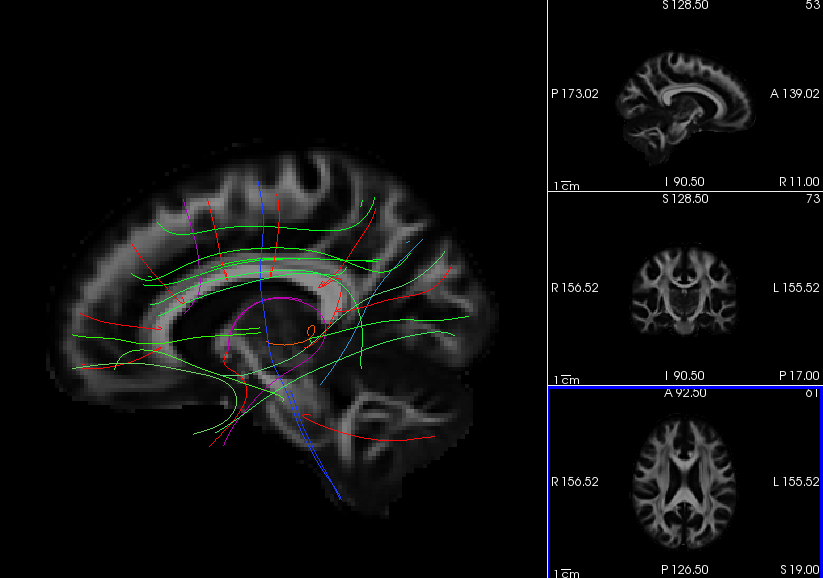
In addition, a subset of the training streamlines from each pathway have been saved in a .trk file in template space, which can be used to overlay the outputs of along-tract statistical analysis and visualize them in freeview.
Let's assume that you have used mri_glmfit to perform along-tract statistical analysis of the average radial diffusivity (RD) along the left and right uncinate fasciculus (UF), and that you saved the outputs in the directories trc/stats/glmdir.lh.uf.RD_Avg and trc/stats/glmdir.rh.uf.RD_Avg. You can embed any of the *.mgh statistical maps that were output by mri_glmfit into the template .trk files for left and right UF using the dmri_trk2trk command. This will allow you to then visualize these statistical maps along the tracts in freeview.
For example, let's embed the sig.mgh and z.mgh maps from the analysis of average RD along the left UF into the template .trk file for the left UF:
dmri_trk2trk --in $FREESURFER_HOME/trctrain/hcp/syn/lh.uf.display.trk \
             --out trc/stats/lh.uf.overlay.trk \
             --over trc/stats/lh.uf.RD_Avg.glmdir/contrast1/sig.mgh \
                    trc/stats/lh.uf.RD_Avg.glmdir/contrast1/z.mgh
Next, we'll do the same for the right UF:
dmri_trk2trk --in $FREESURFER_HOME/trctrain/hcp/syn/rh.uf.display.trk \
             --out trc/stats/rh.uf.overlay.trk \
             --over trc/stats/rh.uf.RD_Avg.glmdir/contrast1/sig.mgh \
                    trc/stats/rh.uf.RD_Avg.glmdir/contrast1/z.mgh
We will now display the .trk files that we created over the template brain:
freeview -v $FREESURFER_HOME/trctrain/hcp/MGH35_HCP_FA_template.nii.gz \
         -t trc/stats/lh.uf.overlay.trk trc/stats/rh.uf.overlay.trk
When we first open freeview, the streamlines from the .trk files are displayed in their usual directional colormap (so they are green, as the UF runs mostly anterior-posterior):
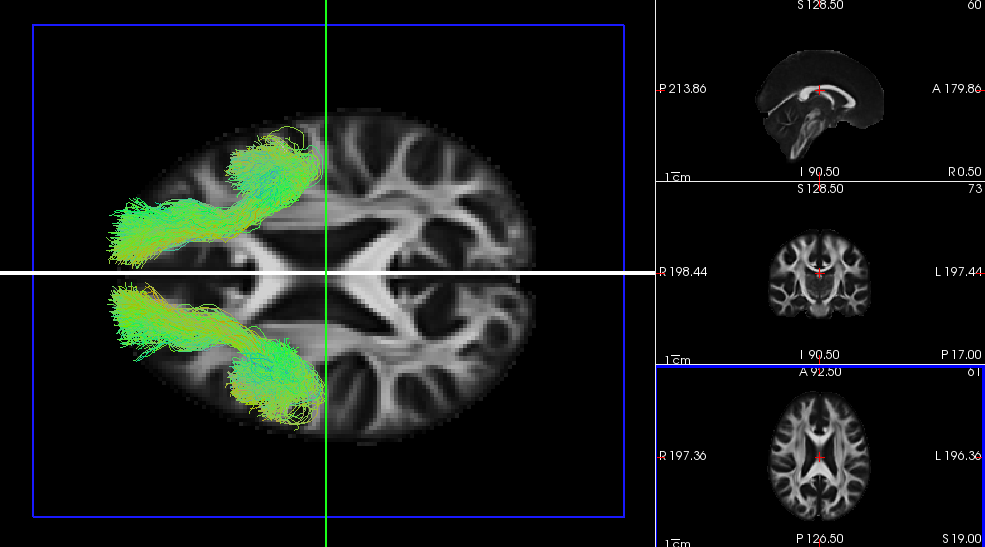
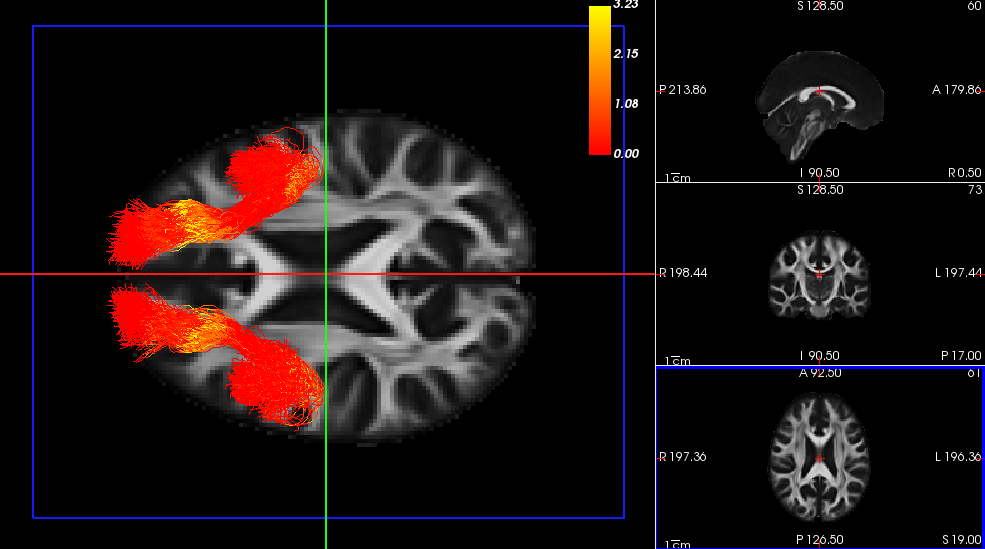
However, because we embeded the values of the along-tract statistical maps in these .trk files, we can now choose to use one of those statistical maps as the colormap for the corresponding tract.
- Select one of the .trk files (lh.uf or rh.uf) from the panel in the top left of the freeview window.
From the Color code menu on the left, choose Scalar.
From the Scalar menu, you can select either of the two statistical maps that you embeded in this .trk file: sig.mgh or z.mgh
From the Color menu, you can select the colormap for the statistical map. By default, it is set to Heatscale and you can change the Min and Max of the heatscale from the sliders below.
- Click on the colorbar button on the top bar of the freeview window to display a colorbar for this heatscale.
Repeat this for both the left and right UF. The end result will look something like this in the 3D view:
Summary
By the end of this page, you should know how to:
- Extract statistics (anisotropy and diffusivity measures), either averaged over an entire white-matter pathway, or averaged at different positions along a pathway
- Combine statistics into tables for group analysis
- Perform whole-tract and along-tract statistical analysis
- Visualize the outputs of along-tract statistical analysis in freeview
Quiz
You can test your knowledge of this tutorial by clicking here for a quiz!
Back to list of all tutorials | Back to course page | Previous