
|
Size: 5454
Comment:
|
Size: 3414
Comment:
|
| Deletions are marked like this. | Additions are marked like this. |
| Line 1: | Line 1: |
| #acl WikiGroup:read,write,delete,revert All:read |
#acl LcnGroup:read,write,delete,revert All:read |
| Line 6: | Line 5: |
| A Virtual Disk Image is copy of an operating system (called Guest Operating System ) which can run in your machine (called Host Operating System). Usually, the Guest OS is customized with custom programs installed on top of it. Virtualization software enables one to test another OS without the need for physically installing it in the disk or it enables one to execute certain programs which are available only for the guest OSes. | |
| Line 7: | Line 7: |
| A Virtual Disk Image is copy of an operating system ( called Guest Operating System ) which can run in your machine (called Host Operating System). Usually, the Guest OS is customized with custom programs installed on top of it. This customized Guest OS is basically a disk image. A virtualization software enables you to seamlessly boot the disk image ( customized Guest OS ) in the Host OS. This system enables one to test another OS without the need for physically installing it in the disk or it enables one to execute certain programs which are available only for the guest OSes. As an example, the FreeSurfer disk image provided [[ftp://surfer.nmr.mgh.harvard.edu/pub/dist/freesurfer/5.1.0/freesurfer-Virtualbox-linux-x86-stable-pub-v5.1.0-full.vdi|here]] has the entire FreeSurfer v5.1.0 on top of a Xubuntu Linux distribution. ( Xubuntu is a lightweight Ubuntu distribution ). So, to boot this disk image up and execute it, you need a virtualization software for your platform. In this tutorial, we use [[http://www.virtualbox.org/|VirtualBox]]. In effect, * Host OS - your OS. ( for example, Windows ) * Virtualization Software - Virtualbox ( for Windows if your Host OS is Windows ) * Guest OS - Xubuntu 9.10 ( customized because it has FreeSurfer v5.1.0 already installed ) == Download and Install VirtualBox == Depending on your platform, the relevant !VirtualBox binary is found [[http://www.virtualbox.org/wiki/Downloads|here]]. Installing it usually is just a matter of double-clicking the installer and following the steps. '''Note:''' Make sure you have 'virtualization enabled' in the BIOS settings of your machine. You will encounter a 'VT-x' error later when trying to launch the vm if this is not enabled. |
test |
| Line 24: | Line 11: |
| ==== Download the disk image ==== First the disk image is downloaded from [[ftp://surfer.nmr.mgh.harvard.edu/pub/dist/freesurfer/5.1.0/freesurfer-Virtualbox-linux-x86-stable-pub-v5.1.0-full.vdi|here]]. It is saved to a meaningful location which cannot be deleted by accident. Like `C://Program Files/VirtualBoxImages` for Windows, `/home/<username>/VirtualBoxImages/` for Linux-es, `/Users/<username>/VirtualBoxImages` for Macs. |
* Download and install [[http://www.virtualbox.org/wiki/Downloads|VirtualBox]]. Installing it usually is just a matter of double-clicking the installer and following the steps. * Download the [[ftp://surfer.nmr.mgh.harvard.edu/pub/dist/freesurfer/5.3.0/freesurfer-Virtualbox-linux-x86-stable-pub-v5.3-full.vdi.gz|FreeSurfer disk image]]. Save it to a meaningful location (e.g. ~Username/VirtualBoxImages) and unzip the file once the download is complete. |
| Line 28: | Line 17: |
| !VirtualBox Software is run. It looks like this. | Start the !VirtualBox Software. It should look like the image below (The left part of the window is empty because we haven't created any virtual machine). |
| Line 30: | Line 19: |
| {{attachment:1.png}} | {{attachment:VirtualBoxInstall1.png}} |
| Line 32: | Line 21: |
| The left part of the window is empty because we haven't created any virtual machine. | Click '''New''' on the top left and use the following settings: |
| Line 34: | Line 23: |
| ==== Adding the downloaded hard disk image ==== From the main menu, select the '''Virtual Media Manager''' option under the "File" menu. It should look like below. |
Name: '''Freesurfer5.3'''<<BR>> Type: '''Linux'''<<BR>> Version: '''Red Hat (64 bit)'''<<BR>> |
| Line 37: | Line 27: |
| {{attachment:4.png}} | {{attachment:VirtualBoxInstall2.png}} |
| Line 39: | Line 29: |
| Click on "Add". This should bring up a file dialog where you'll navigate to where you saved the disk image and select it and click "Open". After which you'd see the name of the disk image in the Hard Disks tab. Like following.. | Click on '''Next'''. This should bring up a slider where you'll allot the amount of memory to the virtual machine. In the case we recommend 4Gigs of RAM. |
| Line 41: | Line 31: |
| {{attachment:5.png}} | {{attachment:VirtualBoxInstall3.png}} |
| Line 43: | Line 33: |
| Click "OK" to end the wizard. | Click on '''Next'''. This should bring up a dialog box. Select '''Use an existing virtual hard drive file''' and click to folder icon to navigate to the !FreeSurfer disk image you downloaded from above. |
| Line 45: | Line 35: |
| ==== Creating a New Virtual Machine ==== You are back in the main screen. Click on "New" and click on "Continue". In the next screen, !VirtualBox asks for the name of the virtual machine and the Type of OS and the version. Type should be `Linux` and Version should be `Ubuntu`. You can type any name but it should look like this. Click "Continue". |
{{attachment:VirtualBoxInstall4.png}} |
| Line 48: | Line 37: |
| {{attachment:2.png}} | Click on '''Create'''. You are back in the main screen. |
| Line 50: | Line 39: |
| {{attachment:VirtualBoxInstall5.png}} | |
| Line 51: | Line 41: |
| !VirtualBox asks the amount of base memory you want to allocate. Make sure it's not too low and tending somewhere near the upper limit. If you have 8 GB of memory, allocate atleast 2 GB. | Click on '''Start'''. The virtual machine should start up after clicking '''OK''' to the various messages you'll be presented with a desktop which looks like below. |
| Line 53: | Line 43: |
| {{attachment:3.png}} | {{attachment:VirtualBoxInstall6.png}} |
| Line 55: | Line 45: |
| '''''NOTE:''' If you recieve the following error:'' '''''Failed to open a session for the virtual machine Fusion Middleware.''''' ''You will need to make sure you have 'virtualization enabled' in the BIOS settings of your machine. Follow the directions [[http://luiscberrocal.wordpress.com/2013/06/03/error-on-virtualbox-vt-x-features-locked-or-unavailable-in-msr-verr_vmx_msr_locked_or_disabled|on this page]].'' | |
| Line 56: | Line 47: |
| In the resulting "Virtual Hard Disk" page, enable '''Boot Hard Disk''' and select the '''Use existing hard disk''' option. It should've already selected the virtual hard disk you added in the "Adding the Downloaded Hard Disk Image" step. If not, select that. | To start !FreeSurfer click the '''Terminal''' icon on the desktop. To test the installation type |
| Line 58: | Line 49: |
| {{attachment:6.png}} | {{{ tksurfer bert lh inflated -annotation aparc }}} |
| Line 60: | Line 53: |
| Click on "Continue" after which you'll be presented with a Summary. After verifying the information. Click on "Done". {{attachment:7.png}} ==== Running the virtual machine ==== Your !VirtualBox app should look like this now {{attachment:8.png}} Click on the green arrow '''Start''' to start the virtual machine. As you can see in the following screenshot, Xubuntu is booting up. {{attachment:9.png}} You'll be presented with a desktop which looks like below. Don't worry about installing software updates right away, but you can do so if you want to. ( Please see the "Notes" below ). {{attachment:10.png}} If you open up Xterm, you'd see the !FreeSurfer environment starting up. Test the installation to your heart's content. Here I've given `tksurfer bert lh inflated -annotation aparc` just to see `tksurfer` works. {{attachment:11.png}} |
{{attachment:VirtualBoxInstall7.png}} |
| Line 84: | Line 56: |
| Line 88: | Line 59: |
| Line 90: | Line 60: |
Guest additions enable one to do cool stuff like running the Guest OS in full screen, have a common clipboard etc. To do this, click on '''Devices''' in your main menu and then click on '''Install Guest Additions'''. Follow the instructions in the booted up FSv5.0.0 image. |
Guest additions enable one to do cool stuff like running the Guest OS in full screen, have a common clipboard etc. To do this, click on '''Devices''' in your main menu and then click on '''Install Guest Additions''' and Follow the instructions. |
| Line 94: | Line 63: |
| Line 96: | Line 64: |
== Authors == Krish Subramaniam Help from:Nick Schmansky, Pedro Paulo de Magalhaes Oliveira Junior |
Contents
What is a Virtual Disk Image?
A Virtual Disk Image is copy of an operating system (called Guest Operating System ) which can run in your machine (called Host Operating System). Usually, the Guest OS is customized with custom programs installed on top of it. Virtualization software enables one to test another OS without the need for physically installing it in the disk or it enables one to execute certain programs which are available only for the guest OSes.
test
How to get the FreeSurfer Disk Image Running?
Download and install VirtualBox. Installing it usually is just a matter of double-clicking the installer and following the steps.
Download the FreeSurfer disk image. Save it to a meaningful location (e.g. ~Username/VirtualBoxImages) and unzip the file once the download is complete.
Running the VirtualBox for the first time
Start the VirtualBox Software. It should look like the image below (The left part of the window is empty because we haven't created any virtual machine).
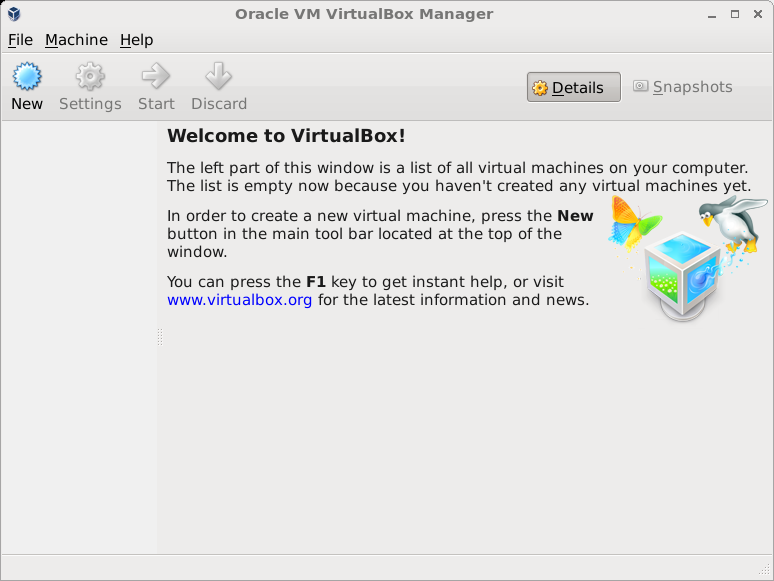
Click New on the top left and use the following settings:
Name: Freesurfer5.3
Type: Linux
Version: Red Hat (64 bit)
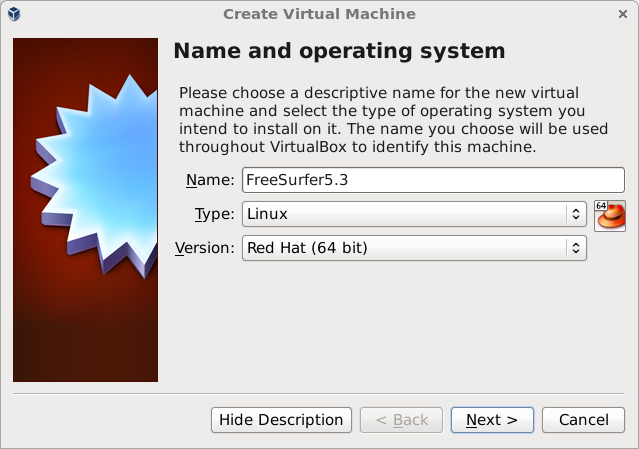
Click on Next. This should bring up a slider where you'll allot the amount of memory to the virtual machine. In the case we recommend 4Gigs of RAM.
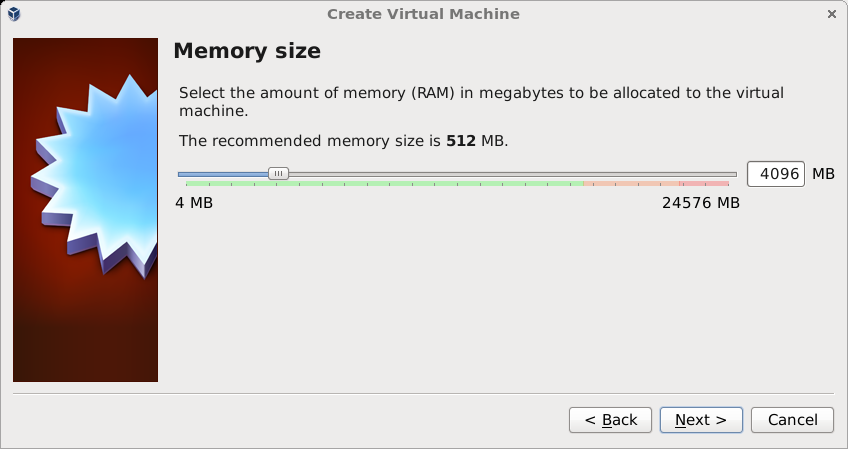
Click on Next. This should bring up a dialog box. Select Use an existing virtual hard drive file and click to folder icon to navigate to the FreeSurfer disk image you downloaded from above.
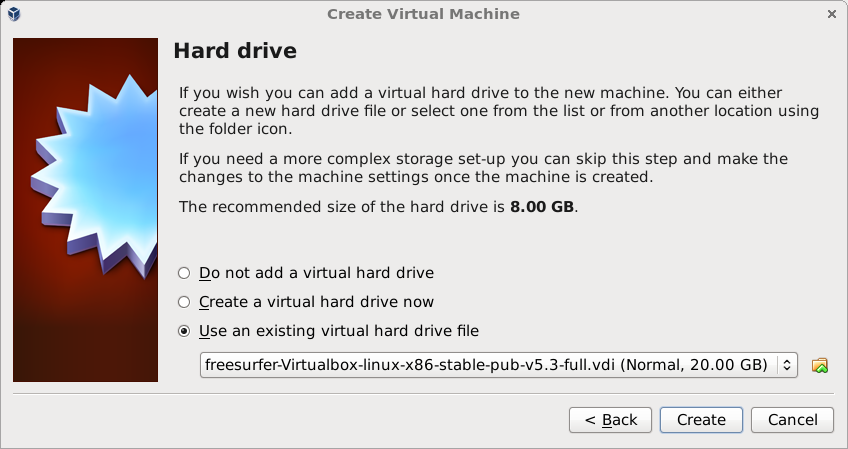
Click on Create. You are back in the main screen.
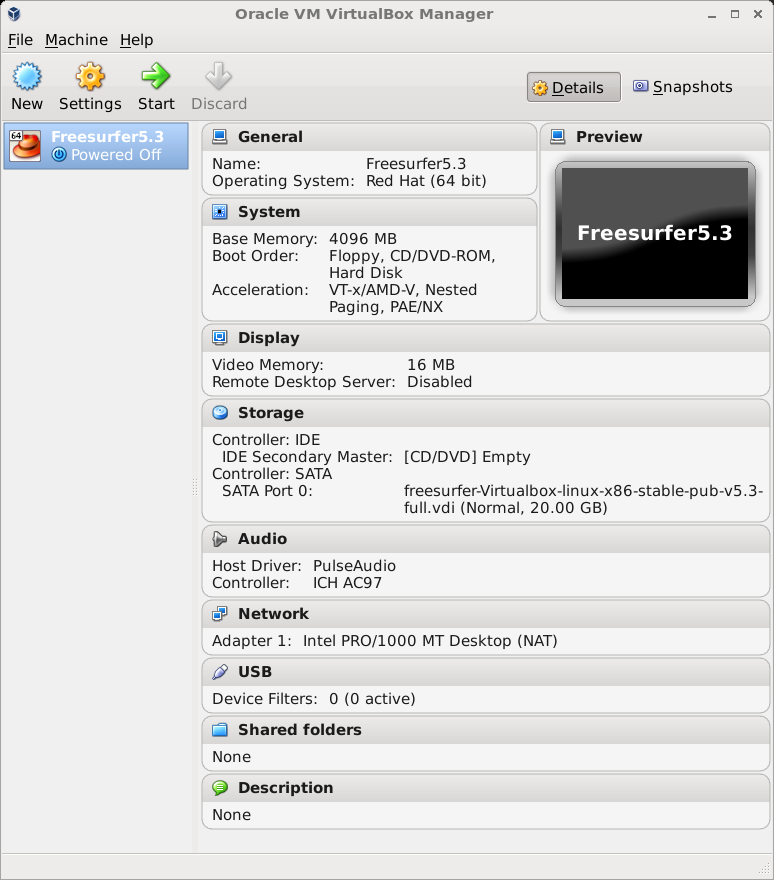
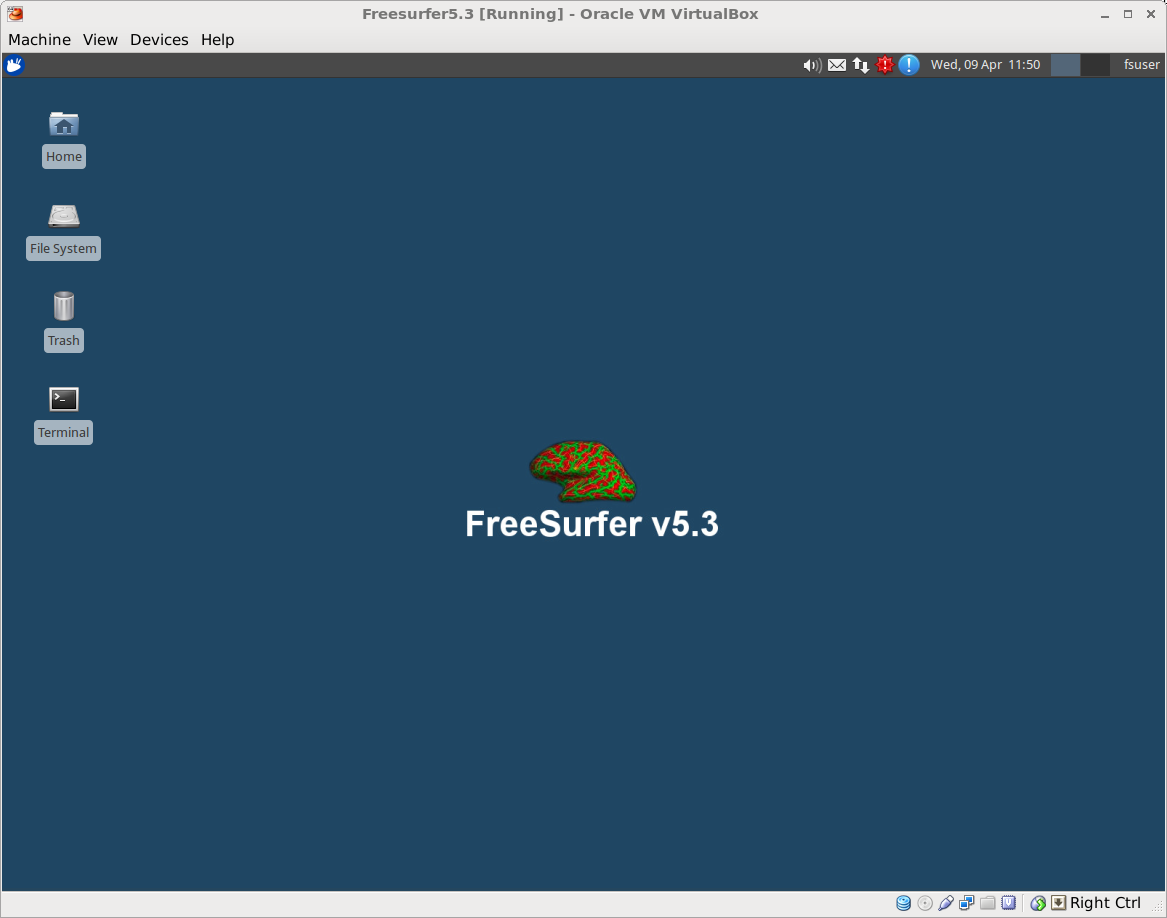
Click on Start. The virtual machine should start up after clicking OK to the various messages you'll be presented with a desktop which looks like below.
NOTE: If you recieve the following error: Failed to open a session for the virtual machine Fusion Middleware. You will need to make sure you have 'virtualization enabled' in the BIOS settings of your machine. Follow the directions on this page.
To start FreeSurfer click the Terminal icon on the desktop. To test the installation type
tksurfer bert lh inflated -annotation aparc

Notes
For the FreeSurfer disk image, the password to sudo commands / root account is simply freesurfer.
Advanced Steps ( Recommended )
Installing the Guest Additions
Guest additions enable one to do cool stuff like running the Guest OS in full screen, have a common clipboard etc. To do this, click on Devices in your main menu and then click on Install Guest Additions and Follow the instructions.
Sharing drives
Not yet written.