
|
Size: 856
Comment:
|
Size: 1767
Comment:
|
| Deletions are marked like this. | Additions are marked like this. |
| Line 3: | Line 3: |
| The X11 that is installed with Snow Leopard seems to cause display problems in tksurfer. Specifically, the display looks like a 256 color image, like this: | The X11 that is installed with Snow Leopard seems to cause display problems in tksurfer. Specifically, the display looks like this: |
| Line 6: | Line 6: |
| The fix for this is to install the latest XQuartz, v2.6.0 or later, for Snow Leopard. Prior to doing that, the existing X11 install should be moved, so that you can revert to it if needed, open a Terminal and type: | The fix for this is to install the latest XQuartz, v2.6.1 or later, for Snow Leopard. Prior to doing that, the existing X11 install should be removed. Open a Terminal and type: |
| Line 8: | Line 8: |
| cd /usr sudo mv X11 X11-old |
sudo rm -rf /System/Library/Launch*/org.x.* /Applications/Utilities/X11.app /etc/*paths.d/X11 sudo mv /usr/X11 /usr/X11-original-install sudo pkgutil --forget com.apple.pkg.X11DocumentationLeo sudo pkgutil --forget com.apple.pkg.X11User sudo pkgutil --forget com.apple.pkg.X11SDKLeo sudo pkgutil --forget org.x.X11.pkg |
| Line 17: | Line 21: |
| sudo ln -s X11 X11R6 | |
| Line 19: | Line 24: |
| Now tksurfer should display surfaces properly. | Now tksurfer should display surfaces properly. However, there is one more step to perform. The first time you try tksurfer, it will seem to hang. In Finder, you need to goto Applications->Utilities and open XQuartz. Upon opening, then tksurfer should finish opening. After this one time operation of opening XQuartz, then tksurfer seems to open correctly from the Terminal after that w/o having to explicitly open XQuartz. --------------------------------------------------------- If you run into a problem where libXp.6.dynlib cannot be found, you might try doing this: {{{ cd /usr/X11/lib sudo ln -s /usr/X11-original-install/libXp.6.dylib ##sudo ln -s libXext.6.dylib libXp.6.dylib }}} |
Mac OS Snow Leopard tksurfer display problem
The X11 that is installed with Snow Leopard seems to cause display problems in tksurfer. Specifically, the display looks like this: 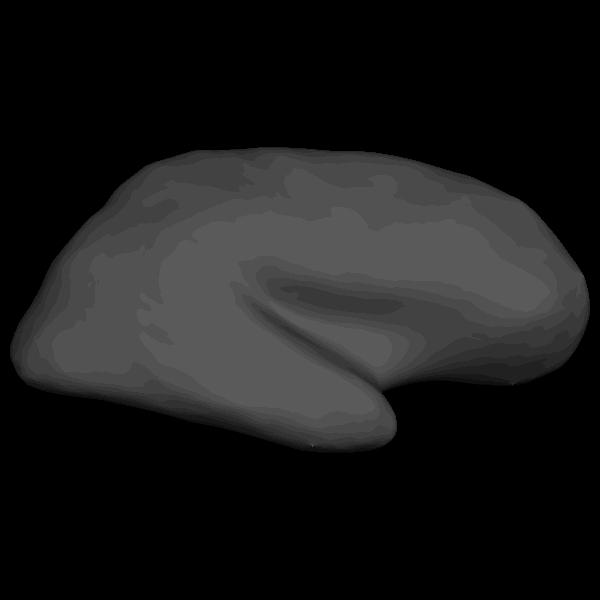
The fix for this is to install the latest XQuartz, v2.6.1 or later, for Snow Leopard. Prior to doing that, the existing X11 install should be removed. Open a Terminal and type:
sudo rm -rf /System/Library/Launch*/org.x.* /Applications/Utilities/X11.app /etc/*paths.d/X11 sudo mv /usr/X11 /usr/X11-original-install sudo pkgutil --forget com.apple.pkg.X11DocumentationLeo sudo pkgutil --forget com.apple.pkg.X11User sudo pkgutil --forget com.apple.pkg.X11SDKLeo sudo pkgutil --forget org.x.X11.pkg
Now, get XQuartz for Snow Leopard. Once you've downloaded and installed the dmg file, it will be installed in the /opt/X11 directory. So to complete the installation, open a Terminal and type:
cd /usr
sudo ln -s /opt/X11
sudo ln -s X11 X11R6
Now tksurfer should display surfaces properly. However, there is one more step to perform. The first time you try tksurfer, it will seem to hang. In Finder, you need to goto Applications->Utilities and open XQuartz. Upon opening, then tksurfer should finish opening. After this one time operation of opening XQuartz, then tksurfer seems to open correctly from the Terminal after that w/o having to explicitly open XQuartz.
If you run into a problem where libXp.6.dynlib cannot be found, you might try doing this:
cd /usr/X11/lib
sudo ln -s /usr/X11-original-install/libXp.6.dylib
##sudo ln -s libXext.6.dylib libXp.6.dylib