|
Size: 2000
Comment:
|
Size: 4126
Comment:
|
| Deletions are marked like this. | Additions are marked like this. |
| Line 1: | Line 1: |
| == FreeSurfer VitrualBox VM Image == '''System Requirements:'''<<BR>> Tested running on hosts: Windows 10, Mac OS 11.6 (Intel Mac) with VirtualBox 6.1.30. <<BR>> 12-16 GB of free RAM for the VM apart from the RAM already in use by the host OS and running applications. <<BR>> Host Graphics card: 3D graphics card with its own graphics memory & accelerated OpenGL drivers. <<BR>> Host Disk Space: ~8G for virtual image download (compressed *.ova file), ~30G for expanded VM image. <<BR>> Host: A working network connection. |
== FreeSurfer VitrualBox VM Images == '''System Requirements:'''<<BR>> Tested running on hosts: Windows 10, Mac OS 11.6 (Intel Mac) with VirtualBox 6.1.30. <<BR>> VM: minimum of 8 GB free RAM from the host, i.e., apart from RAM already in use by the host OS and other applications. <<BR>> VM: minimum of 2 CPU's/cores from the host. <<BR>> Host Graphics card: 3D graphics card with its own graphics memory & accelerated OpenGL drivers. <<BR>> Host Disk Space: ~8GB for virtual image download (compressed *.ova file), ~30G for expanded VM image. <<BR>> Host: A working network connection. |
| Line 4: | Line 4: |
| '''Suggested User Background:'''<<BR>> Some familiarity with downloading files through a browser, e.g., firefox, or using commands such as wget, curl from the linux terminal. <<BR>> Some familiarity with the linux terminal running bash shell including removing, copying, editing files and setting/unsetting environment variables. <<BR>> Some familiarity with simple bash commands/scripting as found in the shell initialization file. | '''Suggested Experience Level:'''<<BR>> Some familiarity with downloading files, e.g., via a web browser or using commands such as wget, curl from the linux terminal. <<BR>> Some familiarity with the linux terminal running bash shell including removing, copying, editing files and setting/unsetting environment variables. <<BR>> Some familiarity with simple bash commands/scripting, e.g., as found in the shell initialization file. |
| Line 6: | Line 6: |
| '''1st time install of VirtualBox on Windows OS:''' | '''VirtualBox install on Windows OS host:''' [[https://drive.google.com/file/d/1vbJxFUx1qiEnC2Z0nDaOtaz8_Cira9FX/view?usp=sharing|Vbox_Windows_install.pdf]]<<BR>> '''VirtualBox install on Mac OS host:''' [[https://drive.google.com/file/d/11HfpKIaJ5kUhT17o6jY4Xm-rG740OiKj/view?usp=sharing|Vbox_MacOS_install.pdf]] |
| Line 8: | Line 9: |
| [[https://drive.google.com/file/d/1vbJxFUx1qiEnC2Z0nDaOtaz8_Cira9FX/view?usp=sharing|Vbox_Windows_install.pdf]] | '''Setup and Run the Virtual Image''' |
| Line 10: | Line 11: |
| '''1st time install of VirtualBox on Mac OS:''' | Once VirtualBox is installed on your host machine, you can download a 7zip file containing an image with Freesurfer and its shell environment pre-installed. The currently available images are: |
| Line 12: | Line 13: |
| [[https://drive.google.com/file/d/11HfpKIaJ5kUhT17o6jY4Xm-rG740OiKj/view?usp=sharing|Vbox_MacOS_install.pdf]] | '''Freesurfer 7.2.0 release''' in Ubuntu 18.04.06: [[https://drive.google.com/file/d/1RDIkvyt-KPGnK84fXt1q-taqHySXoCem/view?usp=sharing|FS_7_2_0_Ubuntu_18_04_06.ova.7z]] |
| Line 14: | Line 15: |
| '''Once VirtualBox is installed, download the virtual machine image:''' | '''Decryption of the 7zip file requires a pass code which you can obtain by sending an email to the freesurfer mail list.''' Once you have received the pass code, you can right click on the FS_7_2_0_Ubuntu_18_04_06.ova.7z file and see what options you have under the choices for "Open with". If your current program choices cannot open a 7zip file and/or accept a pass code, then try one of the following utilities: |
| Line 16: | Line 17: |
| [[https://drive.google.com/file/d/1ZUhsx0HKfTjtp2o9lHUHr4TK90m-5qBt/view?usp=sharing|FS_Ubuntu_18_04_06.ova]] | '''For decryption on Windows''' try the free version of [[https://www.win-rar.com/start.html?&L=0|WinRAR]] to expand the 7zip file. <<BR>> '''For decryption on MacOS''' try the free [[https://macpaw.com/the-unarchiver|Unarchiver]] to expand the 7zip file. <<BR>> '''For decryption on linux''' try the package manager programs, e.g., yum, dnf, apt, to download and install a 7z or 7za binary. <<BR>> |
| Line 18: | Line 21: |
| '''Setup and run the virtual image:''' <<BR>> Note that the GUI images are taken from the VirtualBox GUI as pictured on the MacOS host, but the menu options are the same for Windows and Linux hosts. | Decrypting and expanding the FS_7_2_0_Ubuntu_18_04_06.ova.7z will generate a new file without the .7z extension, i.e., FS_7_2_0_Ubuntu_18_04_06.ova will be created. This is the file to import directly into VirtualBox. If the archive program creates the FS_7_2_0_Ubuntu_18_04_06.ova file inside a parent subdirectory with the same name as the file, then rename the subdirectory to be something different. Be aware that some archive programs may delete the original 7zip file. |
| Line 20: | Line 23: |
| [[https://drive.google.com/file/d/159f-7OBx3yNpDKgeSBH4v10O7A0ktVAQ/view?usp=sharing|Vbox_load_image.pdf]] | '''Screenshots to setup the VM were taken from VirtualBox running on MacOS and Windows''', but apart from some variations in the GUI on different hosts, the menus options are the same on MacOS, Windows and Linux. Please refer to the document: [[https://drive.google.com/file/d/159f-7OBx3yNpDKgeSBH4v10O7A0ktVAQ/view?usp=sharing|Vbox_load_image.pdf]] See this post about how to [[https://www.zachpfeffer.com/single-post/2017/10/12/share-a-directory-between-ubuntu-on-virtualbox-and-windows|share a subdirectory from Windows]] inside the Ubuntu VM. <<BR>> This document describes how to access (share) an external drive plugged into the Windows machine in the Ubuntu VM:<<BR>> [[https://drive.google.com/file/d/1pB8drKX_R78Eis3Lw8xqvBqpcUYd7iZ7/view?usp=sharing|Vbox_Windows_mount_external_drive.pdf]] '''Example screenshot of VM up and running:''' |
FreeSurfer VitrualBox VM Images
System Requirements:
Tested running on hosts: Windows 10, Mac OS 11.6 (Intel Mac) with VirtualBox 6.1.30.
VM: minimum of 8 GB free RAM from the host, i.e., apart from RAM already in use by the host OS and other applications.
VM: minimum of 2 CPU's/cores from the host.
Host Graphics card: 3D graphics card with its own graphics memory & accelerated OpenGL drivers.
Host Disk Space: ~8GB for virtual image download (compressed *.ova file), ~30G for expanded VM image.
Host: A working network connection.
Suggested Experience Level:
Some familiarity with downloading files, e.g., via a web browser or using commands such as wget, curl from the linux terminal.
Some familiarity with the linux terminal running bash shell including removing, copying, editing files and setting/unsetting environment variables.
Some familiarity with simple bash commands/scripting, e.g., as found in the shell initialization file.
VirtualBox install on Windows OS host: Vbox_Windows_install.pdf
VirtualBox install on Mac OS host: Vbox_MacOS_install.pdf
Setup and Run the Virtual Image
Once VirtualBox is installed on your host machine, you can download a 7zip file containing an image with Freesurfer and its shell environment pre-installed. The currently available images are:
Freesurfer 7.2.0 release in Ubuntu 18.04.06: FS_7_2_0_Ubuntu_18_04_06.ova.7z
Decryption of the 7zip file requires a pass code which you can obtain by sending an email to the freesurfer mail list. Once you have received the pass code, you can right click on the FS_7_2_0_Ubuntu_18_04_06.ova.7z file and see what options you have under the choices for "Open with". If your current program choices cannot open a 7zip file and/or accept a pass code, then try one of the following utilities:
For decryption on Windows try the free version of WinRAR to expand the 7zip file.
For decryption on MacOS try the free Unarchiver to expand the 7zip file.
For decryption on linux try the package manager programs, e.g., yum, dnf, apt, to download and install a 7z or 7za binary.
Decrypting and expanding the FS_7_2_0_Ubuntu_18_04_06.ova.7z will generate a new file without the .7z extension, i.e., FS_7_2_0_Ubuntu_18_04_06.ova will be created. This is the file to import directly into VirtualBox. If the archive program creates the FS_7_2_0_Ubuntu_18_04_06.ova file inside a parent subdirectory with the same name as the file, then rename the subdirectory to be something different. Be aware that some archive programs may delete the original 7zip file.
Screenshots to setup the VM were taken from VirtualBox running on MacOS and Windows, but apart from some variations in the GUI on different hosts, the menus options are the same on MacOS, Windows and Linux. Please refer to the document: Vbox_load_image.pdf
See this post about how to share a subdirectory from Windows inside the Ubuntu VM.
This document describes how to access (share) an external drive plugged into the Windows machine in the Ubuntu VM:<<BR>> Vbox_Windows_mount_external_drive.pdf
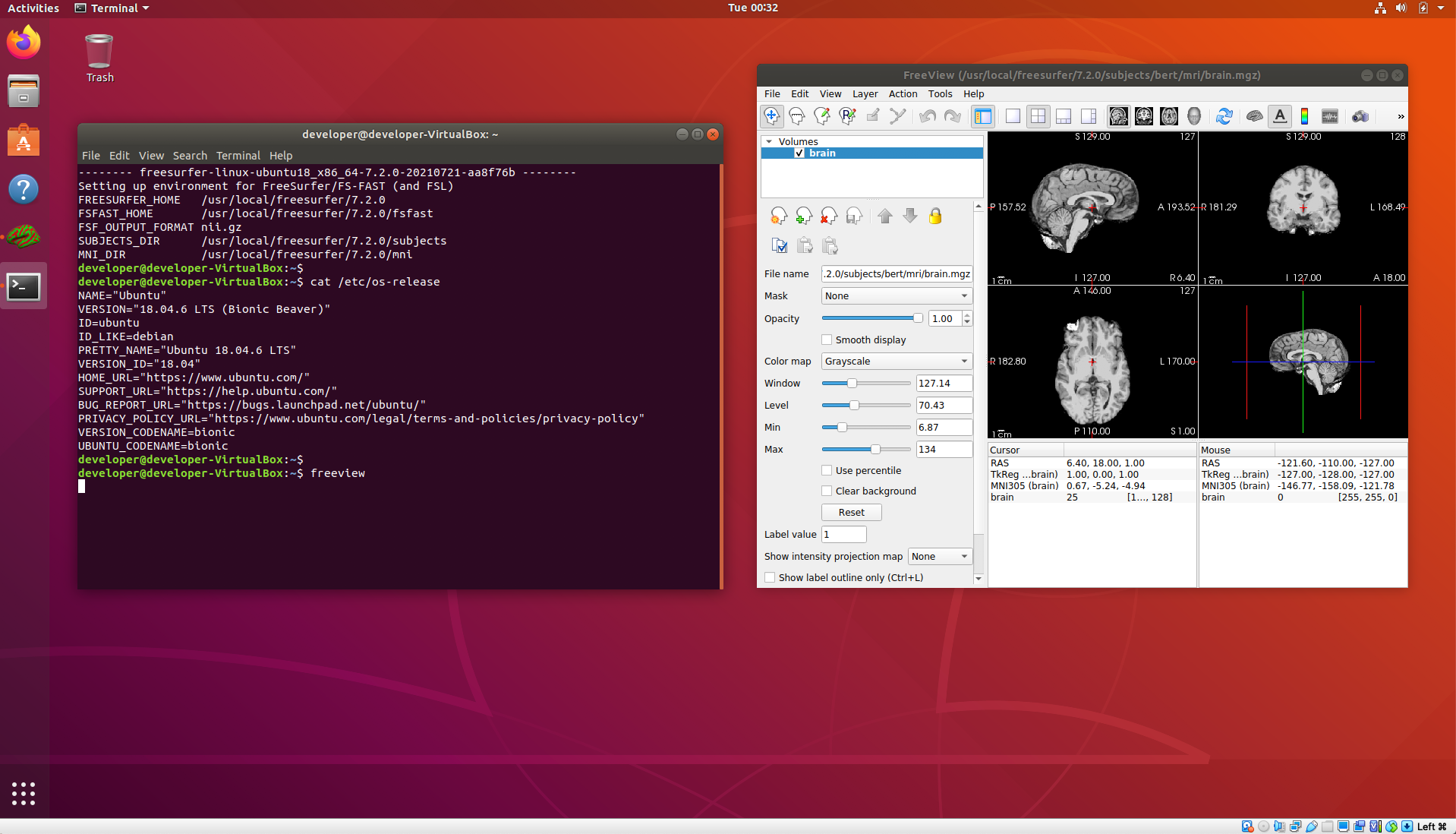
Example screenshot of VM up and running:
Once the VM starts and you have added your Freesurfer license file, you can start a terminal and it should come up with the environment set to run the 7.2.0 release.