
|
Size: 4907
Comment:
|
← Revision 31 as of 2016-09-01 17:55:56 ⇥
Size: 7725
Comment:
|
| Deletions are marked like this. | Additions are marked like this. |
| Line 2: | Line 2: |
| [[https://surfer.nmr.mgh.harvard.edu/fswiki/Tutorials|Back to list of all tutorials]] | [[FsTutorial|Back to course page]] | [[FsFastTutorialV5.1|FS-FAST Tutorial Homepage]] | [[FsFastTutorialV5.1/TutorialData|Previous (Tutorial Data)]] | [[FsFastTutorialV5.1/FsFastPreProc|Next (Preprocessing)]] | |
| Line 3: | Line 4: |
| [[FreeSurferWiki|top]] | [[Tutorials|previous]] [[FsFastTutorialV5.1| FSFAST Tutorail Top]] | = Understanding the FS-FAST Directory Structure = The purpose of this tutorial is to make you familiar with the structure that the data need to be in order to use FS-FAST. You may want to consult the slides from the [[http://surfer.nmr.mgh.harvard.edu/pub/docs/fsfast.april2011.pdf|Intro FSFAST talk]]. |
| Line 5: | Line 7: |
| Understanding the FS-FAST Directory Structure | <<TableOfContents>> |
| Line 7: | Line 9: |
| The purpose of this tutorial is to make you familiar with the structure that the data need to be in order to use FS-FAST.To start, cd into the tutorial directory and type 'ls' to see what's there: | {{attachment:fsfast.dirstruct.jpg|alt text|width="500 height=1000"}} = The Project Directory = To start, cd into the tutorial directory and type 'ls' to see what's there: |
| Line 10: | Line 15: |
| cd $FSFTUTDIR | cd $TUTORIAL_DATA/fsfast-functional |
| Line 13: | Line 18: |
| This is the Project Directory. You will run most of the FSFAST commands from the Project Directory. You will see 18 folders with names like "sess09". These are the 18 subjects. There are some other files and folders there but don't worry about them right now. | |
| Line 14: | Line 20: |
| = The 'Session' Folder = All of these sessions have been analyzed with the exception of sess01.noproc. This session is what the directory structure should look like immediately prior to beginning analysis. This includes: |
|
| Line 15: | Line 23: |
| There will be 18 sessions of data. All of these sessions have been analyzed with the exception of sess01.noproc. This session is what the directory structure should look like immediately prior to beginning analysis. This includes: |
* Directory structure * Raw data * subjectname file * Paradigm files for each run |
| Line 18: | Line 28: |
| * Directory structure * Raw data * subjectname file * Paradigm files for each run |
The directory structure and raw data are usually created by "unpacking" the data with the FreeSurfer dcmunpack or unpacksdcmdir programs, but it could also be done by hand. The subjectname file and paradigm files must be added manually. |
| Line 23: | Line 30: |
| The directory structure and raw data are usually created by "unpacking" the data with the FreeSurfer dcmunpack or unpacksdcmdir programs, but it could also be done by hand. The subjectname file and paradigm files must be added manually. == The 'Session' Folder == The folder/directory where all the data for a session are stored is called the 'session' or the 'sessid'. There may be more than one session for a given subject (eg, in a longitudinal analysis). Go into the sess01.noproc folder and run 'ls': |
The folder/directory where all the data for a session are stored is called the 'session' or the 'sessid'. There may be more than one session for a given subject (eg, in a longitudinal analysis). Go into the sess01.noproc folder and run 'ls': |
| Line 36: | Line 33: |
| cd $FSFTUTDIR/sess01.noproc | cd $TUTORIAL_DATA/fsfast-functional/sess01.noproc |
| Line 39: | Line 36: |
| You will see see a file and two folders: | |
| Line 40: | Line 38: |
| You will see see a file called 'subjectname' and two folders called 'bold' and 'rest' (these are "Functional Subdirectories" (FSDs)). |
* subjectname * bold * rest (bold and rest are "Functional Subdirectories" (FSDs)). |
| Line 43: | Line 42: |
| == The 'subjectname' File == subjectname is a text file with the name of the FreeSurfer subject as found in $SUBJECTS_DIR (ie, the location of the anatomical analysis). |
= The SUBJECTS_DIR and 'subjectname' File = The anatomical analysis data for this tutorial is found in a separate directory than the functional data. You will need to setup the SUBJECTS_DIR variable to point to this: |
| Line 49: | Line 46: |
| View the contents of the text file (with 'cat', 'more', 'less', 'gedit', or 'emacs') and verify that this subject is in the $SUBJECTS_DIR. |
export SUBJECTS_DIR=$TUTORIAL_DATA/fsfast-tutorial.subjects |
| Line 53: | Line 48: |
| Recall that your current directory is the functional data directory. subjectname is a text file with the name of the FreeSurfer subject as found in $SUBJECTS_DIR (ie, the location of the anatomical analysis). View the contents of the subjectname file: | |
| Line 54: | Line 50: |
| NOTE: it is important that the anatomical data and the functional data be from the same subject. The contents of the subjectname file is the only link! Make sure that it is right! After preprocessing, this can be checked by examining the quality of the registration (the BBR cost). == Functional Subdirectories (FSDs) == |
{{{ cat subjectname }}} Verify that this subject is in the $SUBJECTS_DIR: |
| Line 60: | Line 55: |
| The other two directories (bold and rest) are 'functional subdirectories' (FSDs) and contain functional data. If you |
{{{ ls $SUBJECTS_DIR }}} NOTE: it is important that the anatomical data and the functional data be from the same subject. The contents of the subjectname file is the only link! Make sure that it is right! After preprocessing, this can be checked by examining the quality of the registration (the BBR cost). = Functional Subdirectories (FSDs) = The other two directories (bold and rest) are 'functional subdirectories' (FSDs) and contain functional data. If you |
| Line 65: | Line 66: |
| you will see '001'. If you | you will see '001'. If you |
| Line 69: | Line 71: |
| you will see '001 002 003 004'. Each of these is a 'run' of fMRI data, ie, all the data collected from a start and stop of the scanner. |
you will see '001 002 003 004'. Each of these is a 'run' of fMRI data, ie, all the data collected from a start and stop of the scanner. |
| Line 72: | Line 73: |
| === Raw Data === | == Raw Data == Go into the first run of the bold directory: |
| Line 74: | Line 76: |
| Go into the first run of the bold directory: | |
| Line 79: | Line 80: |
| You will see 'f.nii.gz wmfir.par workmem.par'. The raw data is stored in f.nii.gz (compressed NIFTI) and is directly converted from the DICOM file; the others are paradigm files. Examine f.nii.gz file with mri_info: |
You will see 'f.nii.gz wmfir.par workmem.par'. The raw data is stored in f.nii.gz (compressed NIFTI) and is directly converted from the DICOM file; the others are paradigm files. Examine f.nii.gz file with mri_info: |
| Line 88: | Line 86: |
| The first command results in '64 64 30 142'. This is the dimension of the functional data. Since it is functional, it has 4 dimensions: 3 spatial and one temporal (ie, 64 rows, 64 cols, 30 slices, and 142 time points or TRs or frames). | |
| Line 89: | Line 88: |
| The first command results in '64 64 30 142'. This is the dimension of the functional data. Since it is functional, it has 4 dimensions: 3 spatial and one temporal (ie, 64 rows, 64 cols, 30 slices, and 142 time points or TRs or frames). The second command results in '3.438 3.437 5.000 2000.000'. This is the resolution of the data, ie, each voxel is 3.438mm by 3.437mm by 5.000mm and the TR is 2000ms (2 sec). |
The second command results in '3.438 3.437 5.000 2000.000'. This is the resolution of the data, ie, each voxel is 3.438mm by 3.437mm by 5.000mm and the TR is 2000ms (2 sec). |
| Line 99: | Line 91: |
| Line 104: | Line 97: |
| == Paradigm Files == The workmem.par and wmfir.par files are [[FsFastParadigmFile|paradigm files]]. They are text files that you create that indicate the stimulus schedule (ie, which stimulus was presented when). |
|
| Line 105: | Line 100: |
| === Paradigm Files === | Examine the contents of [[WorkmemPar|workmem.par]]: |
| Line 107: | Line 102: |
| The workmem.par and wmfir.par files are [[FsFastParadigmFile|paradigm files]]. They are text files that you create that indicate the stimulus schedule (ie, which stimulus was presented when). |
{{{ cat workmem.par }}} Each row indicates a stimulus presentation. You will see that each row has 5 columns. The columns are: |
| Line 110: | Line 107: |
| View workmem.par. Each row indicates a stimulus presentation. You will see that each row has 5 columns. The columns are: * Stimulus Onset Time (sec) * Numeric Stimulus Identifier * Stimulus Duration (sec) * Weight (usually 1) * Text Stimulus Identifier (redundant with Numeric Stimulus Identifier) |
1. Stimulus Onset Time (sec) 1. Numeric Stimulus Identifier 1. Stimulus Duration (sec) 1. Weight (usually 1) 1. Text Stimulus Identifier (redundant with Numeric Stimulus Identifier) |
| Line 119: | Line 113: |
| The Stimulus Onset Time is the onset relative to the acquisition time of first time point in f.nii.gz. The Numeric and Text Stimulus Identifiers indicate which stimulus was presented. The Stimulus Duration is the amount of time the stimulus was presented. The Weight allows each presentation to have its own weight in a parametric modulation analysis; here each presentation is weighted equally (weight=1). |
The Stimulus Onset Time is the onset relative to the acquisition time of first time point in f.nii.gz. The Numeric and Text Stimulus Identifiers indicate which stimulus was presented. The Stimulus Duration is the amount of time the stimulus was presented. The Weight allows each presentation to have its own weight in a [[FsFastParametricModulation|parametric modulation analysis]]; here each presentation is weighted equally (weight=1). |
| Line 126: | Line 115: |
| In this case, there are 5 event types: | In this case, there are 5 event types for the Working Memory paradigm (see data description) |
| Line 128: | Line 117: |
| * Encode - encode phase * EDistrator - emotional distractor * EProbe - probe after emotional distractor * NDistrator - neutral distractor * NProbe - probe after neutral distractor |
1. Encode - encode phase 1. EDistrator - emotional distractor 1. NDistrator - neutral distractor 1. EProbe - probe after emotional distractor 1. NProbe - probe after neutral distractor |
| Line 134: | Line 123: |
| Note two things: (1) Not all the time is taken up, and (2) Baseline/Fixation is not explicitly represented. By default, any time not covered by stimulation is assumed to be baseline. |
Note two things: (1) Not all the time is taken up (eg, 0-22sec), and (2) Baseline/Fixation is not explicitly represented. By default, any time not covered by stimulation is assumed to be baseline. |
| Line 138: | Line 125: |
| * What time was the third Encode presented? * What time was the last Neutral Distractor presented? * Is this timing for all runs the same? |
= Specifying Multiple Sessions to Analyze (SessID Files) = It is often the case that one wants to analyze a set of subjects as a group. For example: * Processing multiple sessions with one command-line * Running different sets of sessions in parallel * Grouping sessions together for group analysis This can be done with something called a Session ID ('sessid') file. There is a Session ID file called 'sessidlist' in the Project Directory: {{{ cd $TUTORIAL_DATA/fsfast-functional cat sessidlist }}} This is just a list of all the sessions in the project. You can have multiple Session ID files and they can be called anything. When running FSFAST commands, sessions to analyze can be specified explicitly with a '-s sessid' argument or with a Session ID file with '-sf sessidfile'. The Sess ID file can be named anything. = Study Questions = * What is the difference between the Project Directory and a Session? [[FsFastTutorialV5.1/StudyAnswers#ProjVSess|Answer]] * What gets stored in a Run directory? [[FsFastTutorialV5.1/StudyAnswers#RunDef|Answer]] * True or False: the subjectname file goes in the FSD? [[FsFastTutorialV5.1/StudyAnswers#SubjectNameFile|Answer]] * What does the first column of the paradigm file tell you? [[FsFastTutorialV5.1/StudyAnswers#ParFirstCol|Answer]] * How is the functional FreeSurfer analysis linked to the antomical FreeSurfer analysis? [[FsFastTutorialV5.1/StudyAnswers#LinkToFsAnat|Answer]] * Why is a directory structure useful? [[FsFastTutorialV5.1/StudyAnswers#WhyDirStruct|Answer]] [[https://surfer.nmr.mgh.harvard.edu/fswiki/Tutorials|Back to list of all tutorials]] | [[FsTutorial|Back to course page]] | [[FsFastTutorialV5.1/TutorialData|Previous (Tutorial Data)]] | [[FsFastTutorialV5.1/FsFastPreProc|Next (Preprocessing)]] |
Back to list of all tutorials | Back to course page | FS-FAST Tutorial Homepage | Previous (Tutorial Data) | Next (Preprocessing)
1. Understanding the FS-FAST Directory Structure
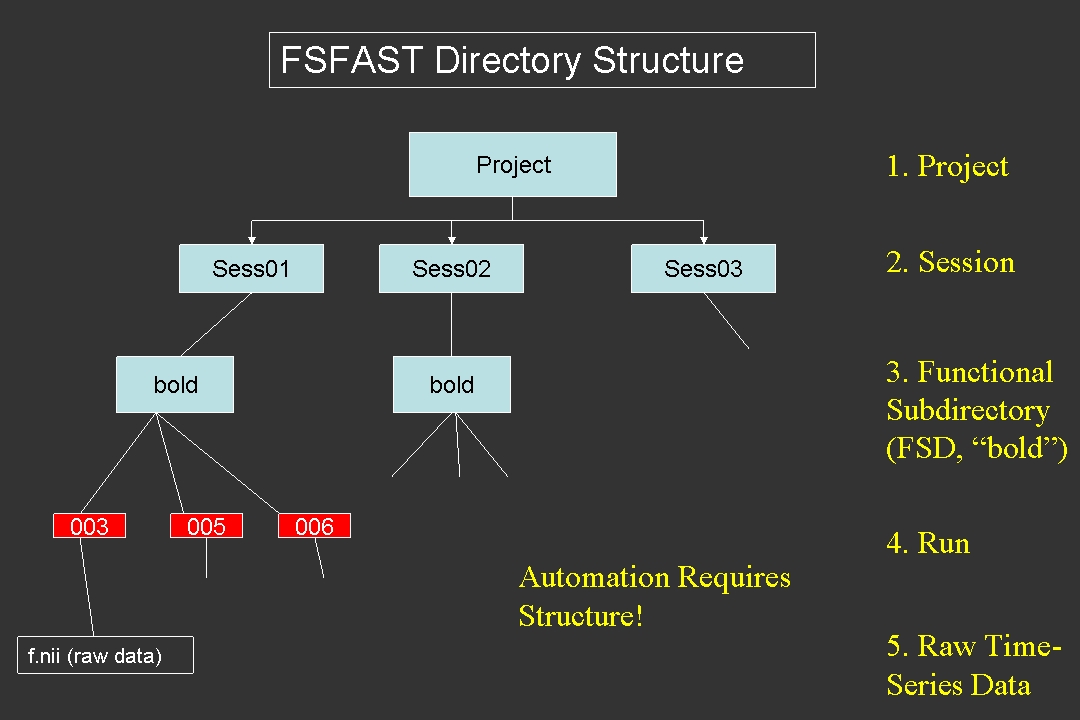
The purpose of this tutorial is to make you familiar with the structure that the data need to be in order to use FS-FAST. You may want to consult the slides from the Intro FSFAST talk.
Contents
2. The Project Directory
To start, cd into the tutorial directory and type 'ls' to see what's there:
cd $TUTORIAL_DATA/fsfast-functional
ls
This is the Project Directory. You will run most of the FSFAST commands from the Project Directory. You will see 18 folders with names like "sess09". These are the 18 subjects. There are some other files and folders there but don't worry about them right now.
3. The 'Session' Folder
All of these sessions have been analyzed with the exception of sess01.noproc. This session is what the directory structure should look like immediately prior to beginning analysis. This includes:
- Directory structure
- Raw data
- subjectname file
- Paradigm files for each run
The directory structure and raw data are usually created by "unpacking" the data with the FreeSurfer dcmunpack or unpacksdcmdir programs, but it could also be done by hand. The subjectname file and paradigm files must be added manually.
The folder/directory where all the data for a session are stored is called the 'session' or the 'sessid'. There may be more than one session for a given subject (eg, in a longitudinal analysis). Go into the sess01.noproc folder and run 'ls':
cd $TUTORIAL_DATA/fsfast-functional/sess01.noproc
ls
You will see see a file and two folders:
- subjectname
- bold
- rest (bold and rest are "Functional Subdirectories" (FSDs)).
4. The SUBJECTS_DIR and 'subjectname' File
The anatomical analysis data for this tutorial is found in a separate directory than the functional data. You will need to setup the SUBJECTS_DIR variable to point to this:
export SUBJECTS_DIR=$TUTORIAL_DATA/fsfast-tutorial.subjects
Recall that your current directory is the functional data directory. subjectname is a text file with the name of the FreeSurfer subject as found in $SUBJECTS_DIR (ie, the location of the anatomical analysis). View the contents of the subjectname file:
cat subjectname
Verify that this subject is in the $SUBJECTS_DIR:
ls $SUBJECTS_DIR
NOTE: it is important that the anatomical data and the functional data be from the same subject. The contents of the subjectname file is the only link! Make sure that it is right! After preprocessing, this can be checked by examining the quality of the registration (the BBR cost).
5. Functional Subdirectories (FSDs)
The other two directories (bold and rest) are 'functional subdirectories' (FSDs) and contain functional data. If you
ls rest
you will see '001'. If you
ls bold
you will see '001 002 003 004'. Each of these is a 'run' of fMRI data, ie, all the data collected from a start and stop of the scanner.
5.1. Raw Data
Go into the first run of the bold directory:
cd bold/001
ls
You will see 'f.nii.gz wmfir.par workmem.par'. The raw data is stored in f.nii.gz (compressed NIFTI) and is directly converted from the DICOM file; the others are paradigm files. Examine f.nii.gz file with mri_info:
mri_info --dim f.nii.gz
mri_info --res f.nii.gz
The first command results in '64 64 30 142'. This is the dimension of the functional data. Since it is functional, it has 4 dimensions: 3 spatial and one temporal (ie, 64 rows, 64 cols, 30 slices, and 142 time points or TRs or frames).
The second command results in '3.438 3.437 5.000 2000.000'. This is the resolution of the data, ie, each voxel is 3.438mm by 3.437mm by 5.000mm and the TR is 2000ms (2 sec).
View the functional data with:
tkmedit -f f.nii.gz -t f.nii.gz
Click on a point to view the waveform at that point.
5.2. Paradigm Files
The workmem.par and wmfir.par files are paradigm files. They are text files that you create that indicate the stimulus schedule (ie, which stimulus was presented when).
Examine the contents of workmem.par:
cat workmem.par
Each row indicates a stimulus presentation. You will see that each row has 5 columns. The columns are:
- Stimulus Onset Time (sec)
- Numeric Stimulus Identifier
- Stimulus Duration (sec)
- Weight (usually 1)
- Text Stimulus Identifier (redundant with Numeric Stimulus Identifier)
The Stimulus Onset Time is the onset relative to the acquisition time of first time point in f.nii.gz. The Numeric and Text Stimulus Identifiers indicate which stimulus was presented. The Stimulus Duration is the amount of time the stimulus was presented. The Weight allows each presentation to have its own weight in a parametric modulation analysis; here each presentation is weighted equally (weight=1).
In this case, there are 5 event types for the Working Memory paradigm (see data description)
- Encode - encode phase
- EDistrator - emotional distractor
- NDistrator - neutral distractor
- EProbe - probe after emotional distractor
- NProbe - probe after neutral distractor
Note two things: (1) Not all the time is taken up (eg, 0-22sec), and (2) Baseline/Fixation is not explicitly represented. By default, any time not covered by stimulation is assumed to be baseline.
6. Specifying Multiple Sessions to Analyze (SessID Files)
It is often the case that one wants to analyze a set of subjects as a group. For example:
- Processing multiple sessions with one command-line
- Running different sets of sessions in parallel
- Grouping sessions together for group analysis
This can be done with something called a Session ID ('sessid') file. There is a Session ID file called 'sessidlist' in the Project Directory:
cd $TUTORIAL_DATA/fsfast-functional
cat sessidlist
This is just a list of all the sessions in the project. You can have multiple Session ID files and they can be called anything.
When running FSFAST commands, sessions to analyze can be specified explicitly with a '-s sessid' argument or with a Session ID file with '-sf sessidfile'. The Sess ID file can be named anything.
7. Study Questions
What is the difference between the Project Directory and a Session? Answer
What gets stored in a Run directory? Answer
True or False: the subjectname file goes in the FSD? Answer
What does the first column of the paradigm file tell you? Answer
How is the functional FreeSurfer analysis linked to the antomical FreeSurfer analysis? Answer
Why is a directory structure useful? Answer
Back to list of all tutorials | Back to course page | Previous (Tutorial Data) | Next (Preprocessing)