
|
Size: 20816
Comment:
|
Size: 23407
Comment: Included more information about the Destrieux atlas, and which atlas is the default.
|
| Deletions are marked like this. | Additions are marked like this. |
| Line 1: | Line 1: |
| Describe FsTutorial/AnatomicalROI_freeview here. [[FsTutorial|top]] | [[FsTutorial|previous]] = Anatomical ROI analysis = |
#pragma section-numbers 1 [[Tutorials|Back to list of all tutorials]] [[FsTutorial|Back to course page]] ---- {{{#!html <h1>Anatomical ROI analysis</h1> }}} |
| Line 6: | Line 12: |
| '''<<TableOfContents>>''' | '''<<TableOfContents(2)>>''' -------- |
| Line 10: | Line 19: |
| {{{ setenv SUBJECTS_DIR $TUTORIAL_DATA/buckner_data/tutorial_subjs/group_analysis_tutorial |
{{{ export SUBJECTS_DIR=$TUTORIAL_DATA/buckner_data/tutorial_subjs/group_analysis_tutorial |
| Line 14: | Line 24: |
| ''To copy: Highlight the command in the box above, right click and select copy (or use keyboard shortcut Ctrl+c), then use the middle button of your mouse to click inside the terminal window (this will paste the command). Press enter to run the command.'' These two commands set the SUBJECTS_DIR variable to the directory where the data is stored and then navigates into this directory. You can now skip ahead to the tutorial (below the gray line). |
''To copy: Highlight the command in the box above, right click and select copy (or use keyboard shortcut Ctrl+c), then use the middle button of your mouse to click inside the terminal window (this will paste the command). Press enter to run the command.'' These two commands set the SUBJECTS_DIR variable to the directory where the data is stored and then navigates into this directory. You can now skip ahead to the tutorial (below the gray line). |
| Line 18: | Line 28: |
| {{{ tcsh source your_freesurfer_dir/SetUpFreeSurfer.csh setenv SUBJECTS_DIR $TUTORIAL_DATA/buckner_data/tutorial_subjs/group_analysis_tutorial |
{{{ <source_freesurfer> export TUTORIAL_DATA=<path_to_your_tutorial_data> export SUBJECTS_DIR=$TUTORIAL_DATA/buckner_data/tutorial_subjs/group_analysis_tutorial |
| Line 24: | Line 35: |
| Notice the command to open tcsh. If you are already running the tcsh command shell, then the 'tcsh' command is not necessary. If you are not using the tutorial data you should set your {{{SUBJECTS_DIR}}} to the directory in which the recon(s) of the subject(s) you will use for this tutorial are located. | If you are not using the tutorial data you should set your {{{SUBJECTS_DIR}}} to the directory in which the recon(s) of the subject(s) you will use for this tutorial are located. |
| Line 27: | Line 39: |
| In this exercise, you will examine a segmentation, parcellation, and color lookup table to understand how they are related. Open the subject in tkmedit using the following command: |
In this exercise, you will examine a segmentation, parcellation, and color lookup table to understand how they are related. Open the subject in freeview using the following command and select 'coronal' view at the top menu bar: {{{ freeview -v 004/mri/orig.mgz \ 004/mri/aparc+aseg.mgz:colormap=lut:opacity=0.4 \ -f 004/surf/lh.white:annot=aparc.annot }}} |
| Line 30: | Line 47: |
| {{{ freeview -v 004/mri/orig.mgz 004/mri/aparc+aseg.mgz:colormap=lut:opacity=0.4 }}} |
'''NOTE''': The backslash allows you to copy and paste multiple lines of code as one command. We use this throughout the tutorials to display the commands in a more easy-to-read manner, while still allowing you to copy and paste. Whenever you are typing in your own commands, instead of copying and pasting a command written out across multiple lines, a backslash is not necessary. |
| Line 34: | Line 50: |
| Open another terminal to load the subject in tksurfer, using the following command. ---- {{{ setenv SUBJECTS_DIR $TUTORIAL_DATA/buckner_data/tutorial_subjs/group_analysis_tutorial cd $SUBJECTS_DIR tksurfer 004 lh inflated -annot aparc.annot }}} ---- Finally, run the following command to display the contents of LUT (in ''another'' new terminal window) ---- |
The above command opens the orig and aparc+aseg segmentation volume (aparc+aseg.mgz) as well as the cortical surface parcellation (aparc.annot) on the white surface in the left hemisphere. Note that the default parcellation uses the Deskian/Killiany atlas. There is also the option to use the [[CorticalParcellation|Destrieux atlas parcellation]], where the surface is parcellated into more anatomical regions than the Deskian/Killiany atlas. {{attachment:good_output_4.png||height="696",width="885"}} {{attachment:annot_surf.jpg||height="696",width="885"}} '''Note:''' The aparc+aseg.mgz file shows the parcellated cortical ribbon at the same time as the segmented subcortical structures. The "colormap=lut" tells freeview to display the aparc+aseg.mgz file with colors according to the look up table. The aparc+aseg.mgz uses the Desikan-Killiany atlas. To see the Destrieux atlas, you would load fsaverage/mri/aparc.a2009s+aseg.mgz Run the following command in a '''new terminal window''' to display the contents of the LUT (Look Up Table): |
| Line 47: | Line 63: |
| ---- You can hit the 'Page Up' and 'Page Down' buttons to see the rest of the file. Or click [[FsTutorial/AnatomicalROI/FreeSurferColorLUT|here]] to view the contents of the file. (To exit the less command, hit the 'q' button.) Things to do -- Navigating between freeview and LUT: 1. Click on a point on the image loaded in freeview. 1. See the structure name next to 'aparc+aseg' in the cursor section in the text area below the freeview. For example, it may say ctx-lh-precentral. 1. Look at the number listed immediately after the 'aparc+aseg'. For example, it may say 1024. 1. Find that value in the LUT, which you have opened using the command mentioned above. 1. Verify that it is the same structure as listed in freeview. Things to do -- Navigating between tksurfer, freeview and LUT: 1. Click on a point in tksurfer in the superior temporal gyrus. If you don't know it's location, you can hover over the different areas to see their label underneath the Mouse section of the Tools window. 1. Note that the name displayed in the tksurfer Tools window does not have lh or rh in it. This is because you loaded only one hemisphere. 1. In tksurfer, click on the Save Point button {{attachment:icon_cursor_save.gif}} 1. In freeview, click on Goto Point button {{attachment:gotopoint.jpeg}} , which takes the cursor to the ROI. Zoom in to see the cursor. 1. Verify the structure name in the freeview Cursor window below the viewing area. Note that it DOES have an lh or rh in it. 1. The aparc+aseg.mgz value should be 1030. 1. In FreeSurferColorLUT.txt, verify that 1030 is ctx-lh-superiortemporal You can close freeview and tksurfer once you are done. To get out of the less command, type 'q' for quit. |
You can hit the 'Page Up' and 'Page Down' buttons on your keyboard to scroll through the text file. Or click [[FsTutorial/AnatomicalROI/FreeSurferColorLUT|here]] to view the contents of the file. (To exit the less command, hit 'q' on your keyboard.) Things to do -- Navigating between freeview and the LUT: 1. Choose the coronal view and click on a cortical structure in the brain. 1. See the structure name next to 'aparc+aseg' in the Cursor section below the main viewing window. For example, it may say ctx-lh-precentral. Notice which hemisphere is specified. 1. Look at the number listed immediately after the 'aparc+aseg'. For example, it may say 1024. 1. Find that value in the LUT, which you have opened using the command mentioned above. 1. Verify that it is the same structure you chose in freeview. 1. Do the same with a subcortical structure of your choice. You can close freeview once you are done. To get out of the less command, type 'q' for quit and hit enter. -------- |
| Line 65: | Line 78: |
| This section gives the details of commands to load an existing label file in text editor, freeview, and tksurfer. To map a label, such as the lh.BA45.label, from the fsaverage subject to a target subject, run |
To accurately map a manually drawn or pre-existing label of a region of interest to several subjects in your study, you should first register your label to or draw your label on fsaverage (a template to which all subjects run with !FreeSurfer have been registered to) and then use the {{{mri_label2label}}} command to map the label to individual subjects. An example of the command you would use is illustrated below using the !FreeSurfer-generated lh.BA45.label (Brodmann area 45, part of Broca's area involved in language). Please run: |
| Line 77: | Line 90: |
| Although we used an existing label for the example above, you could draw a new label on fsaverage and map that to all your subjects so that it will appear in the same cortical region. To take a look at the contents of that newly created label file, run: ---- {{{ less 004/label/lh.BA45.label }}} ---- To load the label in freeview, first load the subject you want to work on, in tkmedit. ---- |
For more information about this command, type "mri_label2label --help" inside your terminal. '''Important flags:''' * --srcsubject (the source subject) * --srclabel (the input label file from source subject) * --trgsubject (target subject you are mapping the label to) * --trglabel (output label file on target subject) * --regmethod (specify if you want the registration to occur on the surface or in the volume) Our target subject in this example was 004. You can now view the label on this subject in freeview. First load the subject: |
| Line 88: | Line 105: |
| ---- Then on the menu bar to the left of the viewing window, click on the 'ROIs' tab and then go to "Load ROI'{{attachment:loadroi.jpeg}} --> lh.BA45.label''' and hit 'Open'. The label is visible in coronal slice 153. {{attachment:BAlabel.jpg}} This label can be edited when the 'ROI edit'{{attachment:roiedit.jpeg}} button is chosen. Click with your left mouse button to add voxels. Hold down the shift key while using your left mouse button to delete from the label. If this was your own subject, you would want to make sure you save your edits by clicking on the 'Save ROI' button but it's not necessary for this tutorial. To load the label in tksurfer, first load the subject (in another terminal window). ---- {{{ tksurfer 004 lh inflated }}} ---- On the menu bar at the top of tksurfer tools window, go to '''File --> Label --> Load Label --> Browse --> lh.BA45.label''' {{attachment:BAlabel_tksurfer.jpg}} Information on how to create and edit labels in tksurfer can be found on [[https://surfer.nmr.mgh.harvard.edu/fswiki/tksurfer_labeledit|this wiki]]. You don't have to do this for the tutorial, but please feel free to take a look if you are interested. |
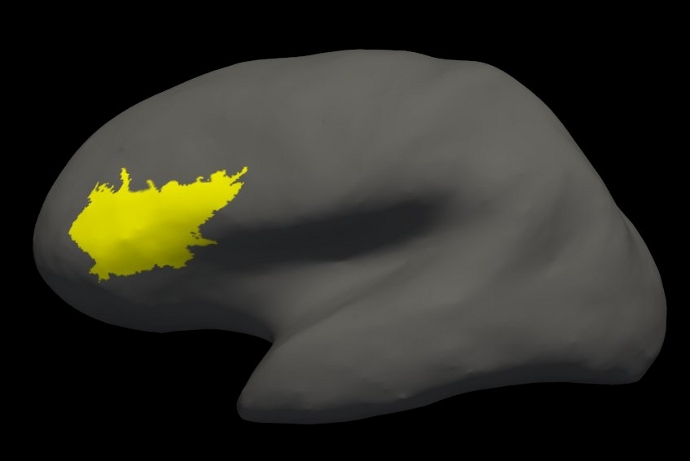
Then on the menu bar click '''File > Load ROI {{attachment:loadroi.jpeg}} '''choose''' lh.BA45.label''' and hit 'Open'. The label is visible in coronal slice 153. To jump to that slice, double click on the coordinates [127,127,128] next to where it says 'orig' in the Cursor window pane. The last number is the slice number. Change it to 153 and hit enter. <<BR>><<BR>> {{attachment:BAlabel.jpg||height="474",width="434"}} ##<<BR>><<BR>> If you were dissatisfied with the mapping, you could potentially edit the label on individual subjects using the 'ROI edit' {{attachment:roiedit.jpeg}} button. ##Click with your left mouse button to add voxels. Hold down the shift key while using your left mouse button to delete from the label. If this was your own subject, you would ##want to make sure you save your edits by clicking on the 'Save ROI' button but it's not necessary for this tutorial. ##<<BR>><<BR>> If you have manually edited the label you might need to use the --paint flag with mri_label2label in order to map it to the surface later on. (THIS NEEDS TO BE TESTED) To view the label on the surface, first load the the subject's inflated surface in freeview (in another terminal window) using the command below. At the top menu bar, select the 3D view. <<BR>>'' '' {{{ freeview -f 004/surf/lh.inflated }}} On the left menu, click on the drop down menu next to 'Curvature' and select 'Off'. Next to 'Label', select 'Load'. In the window that pops up, navigate to the label directory if it is not already in it and select '''lh.BA45.label'''. Hit 'OK'. The label loaded on the inflated surface will look like this: {{attachment:roi_surf_label.jpeg||height="347"}} '''Note''': If you want to use a pre-existing label and register it to fsaverage, be aware that this might involve two instances of resampling and the results might not be as accurate as they would be if you drew the label on fsaverage. Please contact the !FreeSurfer team to get more details on this process if you have any concerns. You can close freeview once you are done. -------- |
| Line 102: | Line 124: |
| During the normal FreeSurfer processing stream, via the recon-all script some statistical output files are generated. They are kept in each subjects' {{{stats/}}} subdirectory and are generated for the subcortical segmentation (aseg) and the cortical parcellation (aparc). These tables include information on each labeled region for the individual subject. | During the !FreeSurfer processing stream, via the recon-all script, some statistical output files are generated. They are kept in each subjects' {{{stats/}}} subdirectory and are generated for the subcortical segmentation (aseg) and the cortical parcellation (aparc). These tables include information on each labeled region for the individual subject. You can view these output files via the terminal or a text editor. |
| Line 105: | Line 128: |
| ---- | |
| Line 110: | Line 133: |
| ---- | |
| Line 112: | Line 134: |
| The next section of this file defines the column headers, field name, and units for the rest of the table. We can expect to see the ''Segmentation Id'', ''Number of Voxels'', ''Volume'', ''Structure Name'', ''Intensity normMean'', ''Intensity normStdDev'', ''Intensity normMin'', ''Intensity normMax'', and ''Intensity normRange'' for each entry in the table.<<BR>> The remainder of the table shows this information for all the structures that are labeled in the aseg. |
The next section of this file defines the column headers, field name, and units for the rest of the table. We can expect to see the ''Segmentation Id'', ''Number of Voxels'', ''Volume'', ''Structure Name'', ''Intensity normMean'', ''Intensity normStdDev'', ''Intensity normMin'', ''Intensity normMax'', and ''Intensity normRange'' for each entry in the table. The "''norm''" stats are extracted for each segmented structure from $SUBJECTS_DIR/004/mri/norm.mgz.<<BR>> The remainder of the table shows this information for all the structures that are labeled in the aseg. (Remember, press 'q' if you want to quit the 'less' command). |
| Line 119: | Line 143: |
| # cvs_version $Id: mri_segstats.c,v 1.69.2.1 2010/07/26 16:19:29 greve Exp $ # cmdline mri_segstats --seg mri/aseg.mgz --sum stats/aseg.stats --pv mri/norm.mgz --empty --excludeid 0 --excl-ctxgmwm --supratent --subcortgray --in mri/norm.mgz --in-intensity-name norm --in-intensity-units MR --etiv --surf-wm-vol --surf-ctx-vol --totalgray --ctab /autofs/cluster/freesurfer/test/subjects/x86_64/buckner_data/group_study_fs5.0.0/freesurfer-Linux-centos4_x86_64-stable-pub-v5.0.0/ASegStatsLUT.txt --subject 004 |
# cvs_version $Id: mri_segstats.c,v 1.75.2.2 2011/04/27 22:18:58 nicks Exp $ # cmdline mri_segstats --seg mri/aseg.mgz --sum stats/aseg.stats --pv mri/norm.mgz --empty --excludeid 0 --excl-ctxgmwm --supratent --subcortgray --in mri/norm.mgz --in-intensity-name norm --in-intensity-units MR --etiv --surf-wm-vol --surf-ctx-vol --totalgray --ctab /usr/local/freesurfer/stable5_1_0/ASegStatsLUT.txt --subject 004 |
| Line 122: | Line 146: |
| # hostname compute-0-85.local | # hostname compute-0-36.local |
| Line 124: | Line 148: |
| # user nicks | # user khoa |
| Line 127: | Line 151: |
| # SUBJECTS_DIR /autofs/cluster/freesurfer/test/subjects/x86_64/buckner_data/group_study_fs5.0.0 | # SUBJECTS_DIR /autofs/cluster/freesurfer/test/subjects/x86_64/buckner_data/group_study_fs5.1.0 |
| Line 129: | Line 153: |
| # Measure lhCortex, lhCortexVol, Left hemisphere cortical gray matter volume, 244507.719492, mm^3 # Measure rhCortex, rhCortexVol, Right hemisphere cortical gray matter volume, 249102.710448, mm^3 # Measure Cortex, CortexVol, Total cortical gray matter volume, 493610.429940, mm^3 # Measure lhCorticalWhiteMatter, lhCorticalWhiteMatterVol, Left hemisphere cortical white matter volume, 260412.984375, mm^3 # Measure rhCorticalWhiteMatter, rhCorticalWhiteMatterVol, Right hemisphere cortical white matter volume, 256990.187500, mm^3 # Measure CorticalWhiteMatter, CorticalWhiteMatterVol, Total cortical white matter volume, 517403.171875, mm^3 # Measure SubCortGray, SubCortGrayVol, Subcortical gray matter volume, 183995.000000, mm^3 # Measure TotalGray, TotalGrayVol, Total gray matter volume, 677605.429940, mm^3 # Measure SupraTentorial, SupraTentorialVol, Supratentorial volume, 1189372.762911, mm^3 # Measure IntraCranialVol, ICV, Intracranial Volume, 1792580.562856, mm^3 |
# Measure lhCortex, lhCortexVol, Left hemisphere cortical gray matter volume, 243583.395631, mm^3 # Measure rhCortex, rhCortexVol, Right hemisphere cortical gray matter volume, 245552.725775, mm^3 # Measure Cortex, CortexVol, Total cortical gray matter volume, 489136.121407, mm^3 # Measure lhCorticalWhiteMatter, lhCorticalWhiteMatterVol, Left hemisphere cortical white matter volume, 257212.437500, mm^3 # Measure rhCorticalWhiteMatter, rhCorticalWhiteMatterVol, Right hemisphere cortical white matter volume, 254883.390625, mm^3 # Measure CorticalWhiteMatter, CorticalWhiteMatterVol, Total cortical white matter volume, 512095.828125, mm^3 # Measure SubCortGray, SubCortGrayVol, Subcortical gray matter volume, 180840.000000, mm^3 # Measure TotalGray, TotalGrayVol, Total gray matter volume, 669976.121407, mm^3 # Measure SupraTentorial, SupraTentorialVol, Supratentorial volume, 1181347.254146, mm^3 # Measure IntraCranialVol, ICV, Intracranial Volume, 1792908.998979, mm^3 |
| Line 140: | Line 164: |
| # SegVolFileTimeStamp 2010/08/12 21:00:31 # ColorTable /autofs/cluster/freesurfer/test/subjects/x86_64/buckner_data/group_study_fs5.0.0/freesurfer-Linux-centos4_x86_64-stable-pub-v5.0.0/ASegStatsLUT.txt # ColorTableTimeStamp 2010/08/11 23:17:47 |
# SegVolFileTimeStamp 2011/05/18 20:50:12 # ColorTable /usr/local/freesurfer/stable5_1_0/ASegStatsLUT.txt # ColorTableTimeStamp 2011/05/14 14:56:11 |
| Line 144: | Line 168: |
| # InVolFileTimeStamp 2010/08/12 16:27:10 | # InVolFileTimeStamp 2011/05/18 13:09:34 |
| Line 147: | Line 171: |
| # PVVolFileTimeStamp 2010/08/12 16:27:10 | # PVVolFileTimeStamp 2011/05/18 13:09:34 |
| Line 151: | Line 175: |
| - - - |
|
| Line 169: | Line 190: |
| - - - |
# TableCol 6 ColHeader normMean # TableCol 6 FieldName Intensity normMean # TableCol 6 Units MR # TableCol 7 ColHeader normStdDev # TableCol 7 FieldName Itensity normStdDev # TableCol 7 Units MR # TableCol 8 ColHeader normMin # TableCol 8 FieldName Intensity normMin # TableCol 8 Units MR # TableCol 9 ColHeader normMax # TableCol 9 FieldName Intensity normMax # TableCol 9 Units MR # TableCol 10 ColHeader normRange # TableCol 10 FieldName Intensity normRange # TableCol 10 Units MR # NRows 45 # NTableCols 10 |
| Line 173: | Line 208: |
| 1 4 31149 31149.0 Left-Lateral-Ventricle 21.2596 10.2600 6.0000 84.0000 78.0000 2 5 1360 1360.0 Left-Inf-Lat-Vent 37.3251 12.8335 12.0000 83.0000 71.0000 3 7 12845 12845.0 Left-Cerebellum-White-Matter 87.6037 7.6264 40.0000 124.0000 84.0000 4 8 48371 48371.0 Left-Cerebellum-Cortex 60.9231 9.6107 19.0000 107.0000 88.0000 5 10 7197 7197.0 Left-Thalamus-Proper 85.0192 11.4083 21.0000 118.0000 97.0000 6 11 5829 5829.0 Left-Caudate 71.9549 11.1561 28.0000 109.0000 81.0000 7 12 8389 8389.0 Left-Putamen 77.1418 9.1256 26.0000 107.0000 81.0000 - |
1 4 31490 31490.0 Left-Lateral-Ventricle 13.5672 11.0434 0.0000 79.0000 79.0000 2 5 1416 1416.0 Left-Inf-Lat-Vent 32.9812 14.4618 4.0000 87.0000 83.0000 3 7 13623 13623.0 Left-Cerebellum-White-Matter 88.0573 8.7477 41.0000 123.0000 82.0000 4 8 46105 46105.0 Left-Cerebellum-Cortex 58.5936 9.9359 16.0000 100.0000 84.0000 5 10 6951 6951.0 Left-Thalamus-Proper 83.1834 11.8098 16.0000 121.0000 105.0000 6 11 5942 5942.0 Left-Caudate 67.7429 12.2442 22.0000 99.0000 77.0000 7 12 8828 8828.0 Left-Putamen 74.2015 10.0100 21.0000 107.0000 86.0000 |
| Line 186: | Line 220: |
| ---- | |
| Line 191: | Line 225: |
| ---- At the head of the text file there will be information about the command that was run, the version used, the user who ran it and a time stamp. Following this there is information about the volume of the entire brain. This shows the number of vertices in the cortex {{{(NumVert)}}}, and the surface area of the cortex {{{(SurfArea)}}}. This part of the file also tells us that the lh.aparc.annot is being used as the annotation file {{{(AnnotationFile ../label/lh.aparc.annot)}}}.<<BR>> The next section of this file defines the column headers, field name, and units for the rest of the table. We can expect to see the ''Structure Name'', ''Number of Vertices'', ''Surface Area'', ''Gray Matter Volume'', ''Average Thickness'', ''Thickness !StDev'', ''Integrated Rectified Mean Curvature'', ''Integrated Rectified Gaussian Curvature'', ''Folding Index'' and ''Intrinsic Curvature Index'' for each entry in the table.<<BR>> The remainder of the table shows this information for all the structures that are labeled in the aparc. |
This file takes the same format as the aseg.stats. The measures at the top show the number of vertices in the cortex {{{(NumVert)}}} and the surface area of the cortex {{{(SurfArea)}}}. This part of the file also tells us that the lh.aparc.annot is being used as the annotation file {{{(AnnotationFile ../label/lh.aparc.annot)}}}.<<BR>> The next section of this file defines the column headers, field name, and units for the rest of the table. We can expect to see the ''Structure Name'', ''Number of Vertices'', ''Surface Area'', ''Gray Matter Volume'', ''Average Thickness'', ''Thickness !StDev'', ''Integrated Rectified Mean Curvature'', ''Integrated Rectified Gaussian Curvature'', ''Folding Index'' and ''Intrinsic Curvature Index'' for each entry in the table.<<BR>> The remainder of the table shows this information for all the structures that are labeled in the aparc. (Again 'q' will exit 'less'). |
| Line 199: | Line 234: |
| # CreationTime 2010/08/13-05:08:41-GMT | # CreationTime 2011/10/21-15:36:36-GMT |
| Line 201: | Line 236: |
| # cvs_version $Id: mris_anatomical_stats.c,v 1.68 2010/05/28 20:36:45 nicks Exp $ # mrisurf.c-cvs_version $Id: mrisurf.c,v 1.678 2010/05/28 21:22:21 rpwang Exp $ |
# cvs_version $Id: mris_anatomical_stats.c,v 1.72 2011/03/02 00:04:26 nicks Exp $ # mrisurf.c-cvs_version $Id: mrisurf.c,v 1.693.2.2 2011/04/27 19:21:05 nicks Exp $ |
| Line 205: | Line 240: |
| # hostname compute-0-85.local | # hostname compute-0-36.local |
| Line 207: | Line 242: |
| # user nicks | # user khoa |
| Line 209: | Line 244: |
| # SUBJECTS_DIR /autofs/cluster/freesurfer/test/subjects/x86_64/buckner_data/group_study_fs5.0.0 | # SUBJECTS_DIR /autofs/cluster/freesurfer/test/subjects/x86_64/buckner_data/group_study_fs5.1.0 |
| Line 214: | Line 249: |
| # AnnotationFileTimeStamp 2010/08/13 01:08:34 # Measure Cortex, NumVert, Number of Vertices, 142825, unitless # Measure Cortex, SurfArea, Surface Area, 95354.8, mm^2 # Measure Cortex, MeanThickness, Mean Thickness, 2.31065, mm - - - |
# AnnotationFileTimeStamp 2011/10/21 11:22:04 # Measure Cortex, NumVert, Number of Vertices, 139655, unitless # Measure Cortex, WhiteSurfArea, White Surface Total Area, 94794.7, mm^2 # Measure Cortex, MeanThickness, Mean Thickness, 2.31382, mm # NTableCols 10 |
| Line 236: | Line 269: |
| - - - |
# TableCol 6 ColHeader ThickStd # TableCol 6 FieldName Thickness StdDev # TableCol 6 Units mm # TableCol 7 ColHeader MeanCurv # TableCol 7 FieldName Integrated Rectified Mean Curvature # TableCol 7 Units mm^-1 # TableCol 8 ColHeader GausCurv # TableCol 8 FieldName Integrated Rectified Gaussian Curvature # TableCol 8 Units mm^-2 # TableCol 9 ColHeader FoldInd # TableCol 9 FieldName Folding Index # TableCol 9 Units unitless # TableCol 10 ColHeader CurvInd # TableCol 10 FieldName Intrinsic Curvature Index # TableCol 10 Units unitless |
| Line 240: | Line 285: |
| bankssts 1630 1133 2693 2.331 0.489 0.137 0.042 19 2.9 caudalanteriorcingulate 1248 805 2396 2.657 0.674 0.171 0.105 37 4.5 caudalmiddlefrontal 3336 2205 6275 2.528 0.562 0.142 0.059 42 7.6 cuneus 2513 1597 3129 1.806 0.423 0.174 0.119 128 8.5 entorhinal 566 403 1837 3.268 0.679 0.139 0.067 8 1.6 - - - }}} |
bankssts 1519 1044 2415 2.257 0.498 0.137 0.046 19 2.9 caudalanteriorcingulate 1296 855 2535 2.713 0.741 0.163 0.074 29 3.5 caudalmiddlefrontal 3322 2216 6445 2.578 0.561 0.142 0.056 42 7.7 cuneus 2467 1593 2996 1.742 0.393 0.173 0.081 49 8.0 entorhinal 558 408 1936 3.268 0.935 0.138 0.052 6 1.2 - - - }}} -------- |
| Line 250: | Line 296: |
| This section will run you through using the stats directory in the subjects to perform group stats of certain structures that may be of interest to your study. The following commands will help you combine the data of the subjects you are analyzing into one table that will be easily read into a spreadsheet program. We have considered 6 subjects as examples (004, 021, 040, 067, 080, 092) in the following sections. Set your SUBJECTS_DIR to the path where you have your subjects to be analyzed. ---- {{{ setenv SUBJECTS_DIR $TUTORIAL_DATA/buckner_data/tutorial_subjs/group_analysis_tutorial |
This section will run you through using the stats directory of the subjects to perform group stats of certain structures that may be of interest to your study. The following commands will help you combine the data of the subjects you are analyzing into one table that will be easily read into a spreadsheet program. We have considered 6 subjects as examples (004, 021, 040, 067, 080, 092) in the following sections. Set your SUBJECTS_DIR to the path where you have your subjects to be analyzed. {{{ export SUBJECTS_DIR=$TUTORIAL_DATA/buckner_data/tutorial_subjs/group_analysis_tutorial |
| Line 257: | Line 302: |
| ---- | |
| Line 259: | Line 303: |
| This section explains how to create a table of segmentation volumes using the 6 subjects mentioned above. ---- |
This section explains how to create a table of segmentation volumes using the 6 subjects mentioned above. '' '' |
| Line 266: | Line 310: |
| ---- where 11, 17 and 18 correspond to the segmentation label of left caudate, left hippocampus and left amygdala respectively. (You can create a table with all of the labels, not just these three, by omitting the --segno part.) Click [[FsTutorial/AnatomicalROI/FreeSurferColorLUT|here]] if you would like to view the list of labels and their corresponding ID numbers again. The file {{{aseg.vol.table}}} is your output - a text file consisting of the subjects mentioned in the command above and the values for the structures requested. The information in this text file is formatted so it can be easily imported into a spreadsheet program (often used as input for many statistical analysis programs). If you do the {{{ls}}} command, you should see that the text file {{{aseg.vol.table}}} has been created. To see what the file looks like, do: ---- |
##--no-vol-extras, this flag creates a table with just the stats of the structures you mention and nothing additional. Only available in dev as of (23 October 2014) where 11, 17 and 18 correspond to the segmentation label of left caudate, left hippocampus and left amygdala respectively. (You can create a table with all of the labels, not just these three, by omitting the --segno part.) Click [[FsTutorial/AnatomicalROI/FreeSurferColorLUT|here]] if you would like to view the list of labels and their corresponding ID numbers again. The file {{{aseg.vol.table}}} is your output - a text file consisting of the subjects mentioned in the command above and the values for the structures requested along with the measures in the header. The information in this text file is formatted so it can be easily imported into a spreadsheet program (often used as input for many statistical analysis programs). If you do the {{{ls}}} command, you should see that the text file {{{aseg.vol.table}}} has been created. To see what the file looks like, do: |
| Line 274: | Line 318: |
| ---- To to load the resulting table into a spreadsheet, run: ---- {{{ gnumeric aseg.vol.table }}} ---- '''Note:''' the ''gnumeric'' command is meant to be run on a Linux machine. Mac users could install !OpenOffice 3.0 to open the table in a spreadsheet and run the command ---- {{{ /Applications/OpenOffice.org.app/Contents/MacOS/scalc aseg.vol.table }}} ---- In the table, the first cell is ''volume'' indicating that the measure is a volume in mm3. In addition to segmentations, you can also get IntraCranialVol (ICV) and BrainSegVol into the table. About the subject IDs, you'll notice that in the examples we've considered here, each subject is a 3 digit number. Therefore ''gnumeric'' thinks it is a number and removes leading 0s. This is a gnumeric issue but probably it would not happen if subject names had characters in them instead of integers. |
(press 'q' to exit). To see what the file looks like, you can open it with gedit or any other text editing or spreadsheet application: {{{ gedit aseg.vol.table }}} '''Note:''' Mac users should run {{{ open -e aseg.vol.table }}} ##can install !OpenOffice 3.0 to open the table in a spreadsheet and run the command. ##{{{ ##/Applications/OpenOffice.app/Contents/MacOS/scalc aseg.vol.table ##}}} In the table, the first cell is ''volume'' indicating that the measure is a volume in mm3 for all of the cells to the right. The subject IDs can be found below '''volume''' (seen as 4, 21, 40, 67, 80, 92). You'll notice that in the examples we've considered here for asegstats2table, each subject is a 3 digit number (004, 021 etc). |
| Line 290: | Line 335: |
| Purpose of this section is to demonstrate how you can change what measure you collect for your spreadsheet from volume to mean intensity using the ''asegstats2table'' command. ---- |
The purpose of this section is to demonstrate how you can change what measure you collect for your spreadsheet from volume to mean intensity using the ''asegstats2table'' command. |
| Line 299: | Line 344: |
| ---- Things to do: 1. You can load the table into a spreadsheet as explained in the previous section. 1. Refer to the file ''FreeSurferColorLUT.txt'' for the segmentation labels and the corresponding subcortical structures. ---- {{{ less $FREESURFER_HOME/FreeSurferColorLUT.txt }}} ---- For tutorial purposes, click [[FsTutorial/AnatomicalROI/FreeSurferColorLUT|here]] to view the contents of the file. |
You can load the table into a spreadsheet as explained in the previous section or view aseg.mean-intensity.table with a text editor, like gedit. |
| Line 310: | Line 347: |
| The purpose of this section is to show how you can change which segmentation atlas you get stats from (and thus which structures): ---- |
The purpose of this section is to show how you can change which segmentation atlas you get stats from (and thus which structures): '' '' |
| Line 319: | Line 356: |
| ---- Things to do: 1. You can load the table into a spreadsheet. 1. Refer to the file ''FreeSurferColorLUT.txt'' for the segmentation labels and the corresponding subcortical structures. ---- {{{ less $FREESURFER_HOME/FreeSurferColorLUT.txt }}} ---- For tutorial purposes, click [[FsTutorial/AnatomicalROI/FreeSurferColorLUT|here]] to view the contents of the file |
This prints out stats on the white matter parcellation. |
| Line 330: | Line 359: |
| This section explains how to create a table of the surface area of each cortical parcellation in the Desikan atlas (surface area is the default measure). ---- |
This section demonstrates how to create a table of the surface area of each cortical parcellation in the Desikan atlas (surface area is the default measure). |
| Line 337: | Line 366: |
| ---- You can now load the resulting table into a spreadsheet. |
Feel free to take a look at those results. |
| Line 340: | Line 369: |
| The purpose of this section is to show how to change the summary measure and the parcellation atlas. ---- |
The purpose of this section is to show how to change the summary measure (in this case, to thickness) and the parcellation atlas (to Destrieux's atlas). |
| Line 349: | Line 378: |
| You can now load the resulting table into a spreadsheet. Remember, for more information on individual flags or how to use these commands, you can run: {{{ aparcstats2table --help asegstats2table --help }}} |
|
| Line 350: | Line 388: |
| You can now load the resulting table into a spreadsheet. | [[Tutorials|Back to list of all tutorials]] [[FsTutorial|Back to course page]] |
Anatomical ROI analysis
This tutorial gives a brief introduction to anatomical ROI analysis which includes working with label files, extracting ROI measures from the anatomical data, group statistics etc.
1. Preparations
1.1. If You're at an Organized Course
If you are taking one of the formally organized courses, everything has been set up for you on the provided laptop. The only thing you will need to do is run the following commands in every new terminal window (aka shell) you open throughout this tutorial. Copy and paste the commands below to get started:
export SUBJECTS_DIR=$TUTORIAL_DATA/buckner_data/tutorial_subjs/group_analysis_tutorial
cd $SUBJECTS_DIR
To copy: Highlight the command in the box above, right click and select copy (or use keyboard shortcut Ctrl+c), then use the middle button of your mouse to click inside the terminal window (this will paste the command). Press enter to run the command. These two commands set the SUBJECTS_DIR variable to the directory where the data is stored and then navigates into this directory. You can now skip ahead to the tutorial (below the gray line).
1.2. If You're not at an Organized Course
If you are NOT taking one of the formally organized courses, then to follow this exercise exactly be sure you've downloaded the tutorial data set before you begin. If you choose not to download the data set you can follow these instructions on your own data, but you will have to substitute your own specific paths and subject names. These are the commands that you need to run before getting started:
<source_freesurfer>
export TUTORIAL_DATA=<path_to_your_tutorial_data>
export SUBJECTS_DIR=$TUTORIAL_DATA/buckner_data/tutorial_subjs/group_analysis_tutorial
cd $SUBJECTS_DIR
If you are not using the tutorial data you should set your SUBJECTS_DIR to the directory in which the recon(s) of the subject(s) you will use for this tutorial are located.
2. Relationship between segmentation, parcellation and LookUp Table (LUT)
In this exercise, you will examine a segmentation, parcellation, and color lookup table to understand how they are related. Open the subject in freeview using the following command and select 'coronal' view at the top menu bar:
freeview -v 004/mri/orig.mgz \
004/mri/aparc+aseg.mgz:colormap=lut:opacity=0.4 \
-f 004/surf/lh.white:annot=aparc.annot
NOTE: The backslash allows you to copy and paste multiple lines of code as one command. We use this throughout the tutorials to display the commands in a more easy-to-read manner, while still allowing you to copy and paste. Whenever you are typing in your own commands, instead of copying and pasting a command written out across multiple lines, a backslash is not necessary.
The above command opens the orig and aparc+aseg segmentation volume (aparc+aseg.mgz) as well as the cortical surface parcellation (aparc.annot) on the white surface in the left hemisphere.
Note that the default parcellation uses the Deskian/Killiany atlas. There is also the option to use the Destrieux atlas parcellation, where the surface is parcellated into more anatomical regions than the Deskian/Killiany atlas.
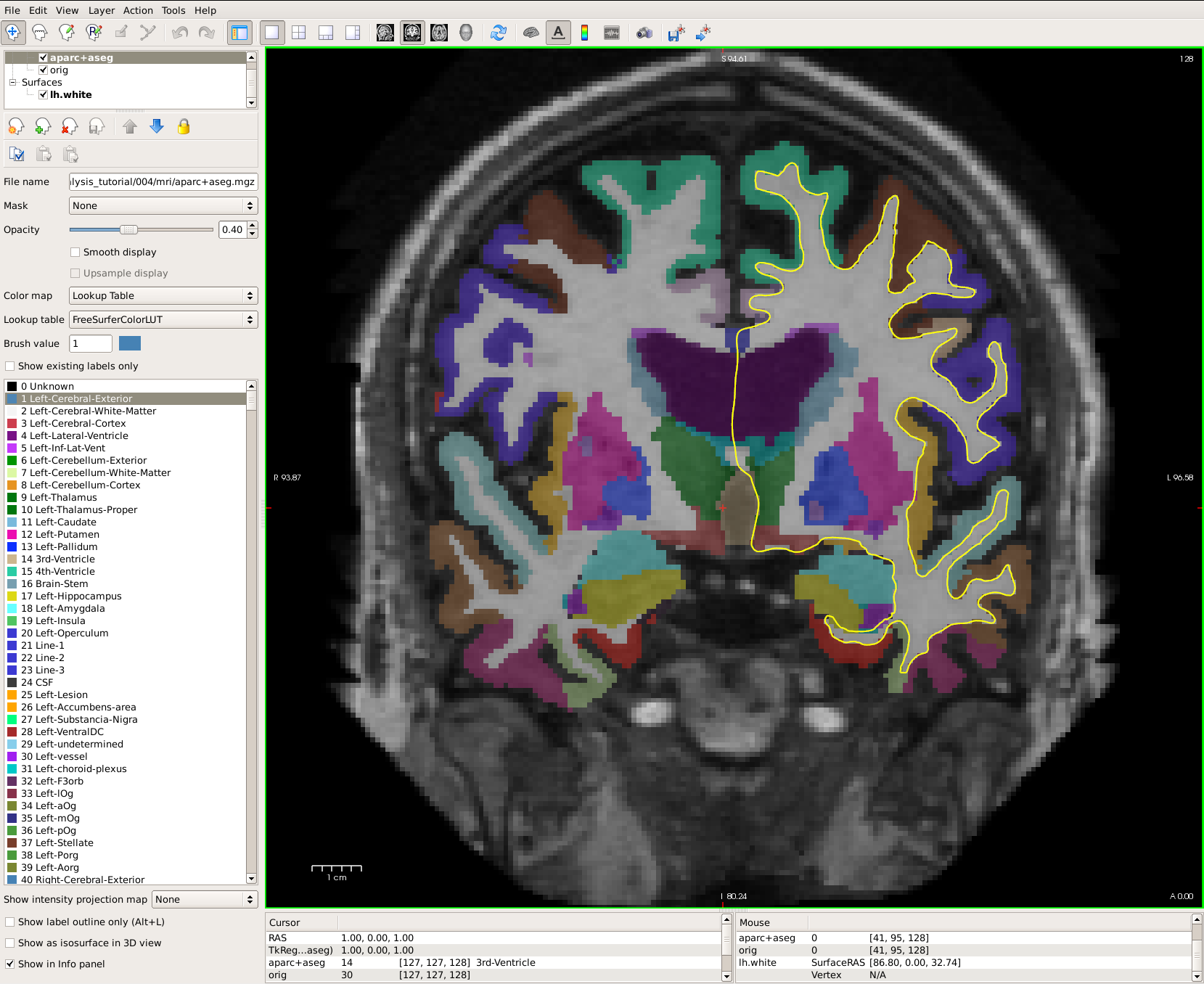
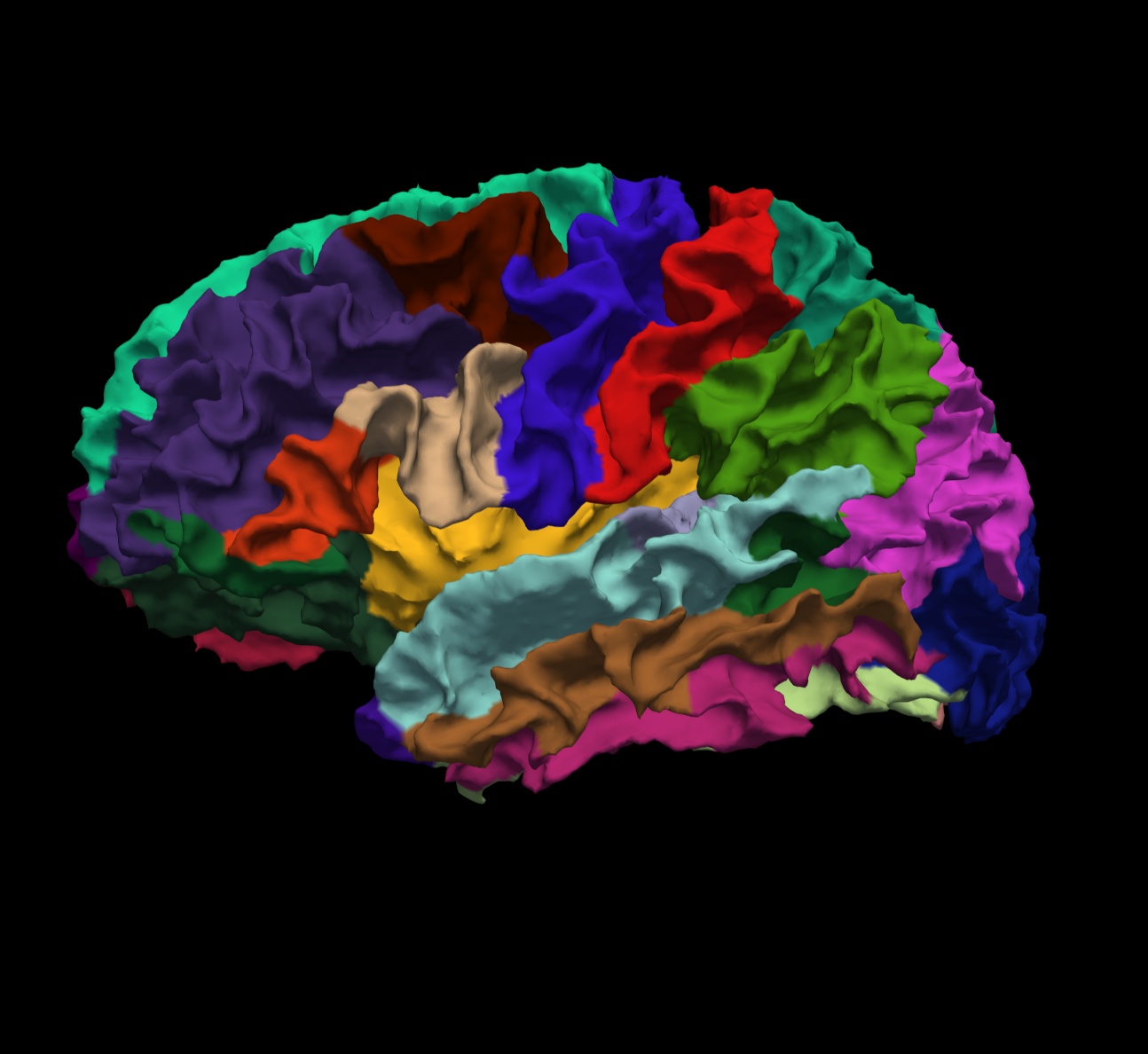
Note: The aparc+aseg.mgz file shows the parcellated cortical ribbon at the same time as the segmented subcortical structures. The "colormap=lut" tells freeview to display the aparc+aseg.mgz file with colors according to the look up table. The aparc+aseg.mgz uses the Desikan-Killiany atlas. To see the Destrieux atlas, you would load fsaverage/mri/aparc.a2009s+aseg.mgz
Run the following command in a new terminal window to display the contents of the LUT (Look Up Table):
less $FREESURFER_HOME/FreeSurferColorLUT.txt
You can hit the 'Page Up' and 'Page Down' buttons on your keyboard to scroll through the text file. Or click here to view the contents of the file. (To exit the less command, hit 'q' on your keyboard.)
Things to do -- Navigating between freeview and the LUT:
- Choose the coronal view and click on a cortical structure in the brain.
- See the structure name next to 'aparc+aseg' in the Cursor section below the main viewing window. For example, it may say ctx-lh-precentral. Notice which hemisphere is specified.
- Look at the number listed immediately after the 'aparc+aseg'. For example, it may say 1024.
- Find that value in the LUT, which you have opened using the command mentioned above.
- Verify that it is the same structure you chose in freeview.
- Do the same with a subcortical structure of your choice.
You can close freeview once you are done. To get out of the less command, type 'q' for quit and hit enter.
3. Label files
To accurately map a manually drawn or pre-existing label of a region of interest to several subjects in your study, you should first register your label to or draw your label on fsaverage (a template to which all subjects run with FreeSurfer have been registered to) and then use the mri_label2label command to map the label to individual subjects. An example of the command you would use is illustrated below using the FreeSurfer-generated lh.BA45.label (Brodmann area 45, part of Broca's area involved in language). Please run:
cd $SUBJECTS_DIR
mri_label2label \
  --srcsubject fsaverage \
  --srclabel fsaverage/label/lh.BA45.label \
  --trgsubject 004 \
  --trglabel 004/label/lh.BA45.label \
  --hemi lh \
  --regmethod surface
For more information about this command, type "mri_label2label --help" inside your terminal.
Important flags:
- --srcsubject (the source subject)
- --srclabel (the input label file from source subject)
- --trgsubject (target subject you are mapping the label to)
- --trglabel (output label file on target subject)
- --regmethod (specify if you want the registration to occur on the surface or in the volume)
Our target subject in this example was 004. You can now view the label on this subject in freeview. First load the subject:
freeview -v 004/mri/orig.mgz
Then on the menu bar click File > Load ROI  choose lh.BA45.label and hit 'Open'. The label is visible in coronal slice 153. To jump to that slice, double click on the coordinates [127,127,128] next to where it says 'orig' in the Cursor window pane. The last number is the slice number. Change it to 153 and hit enter.
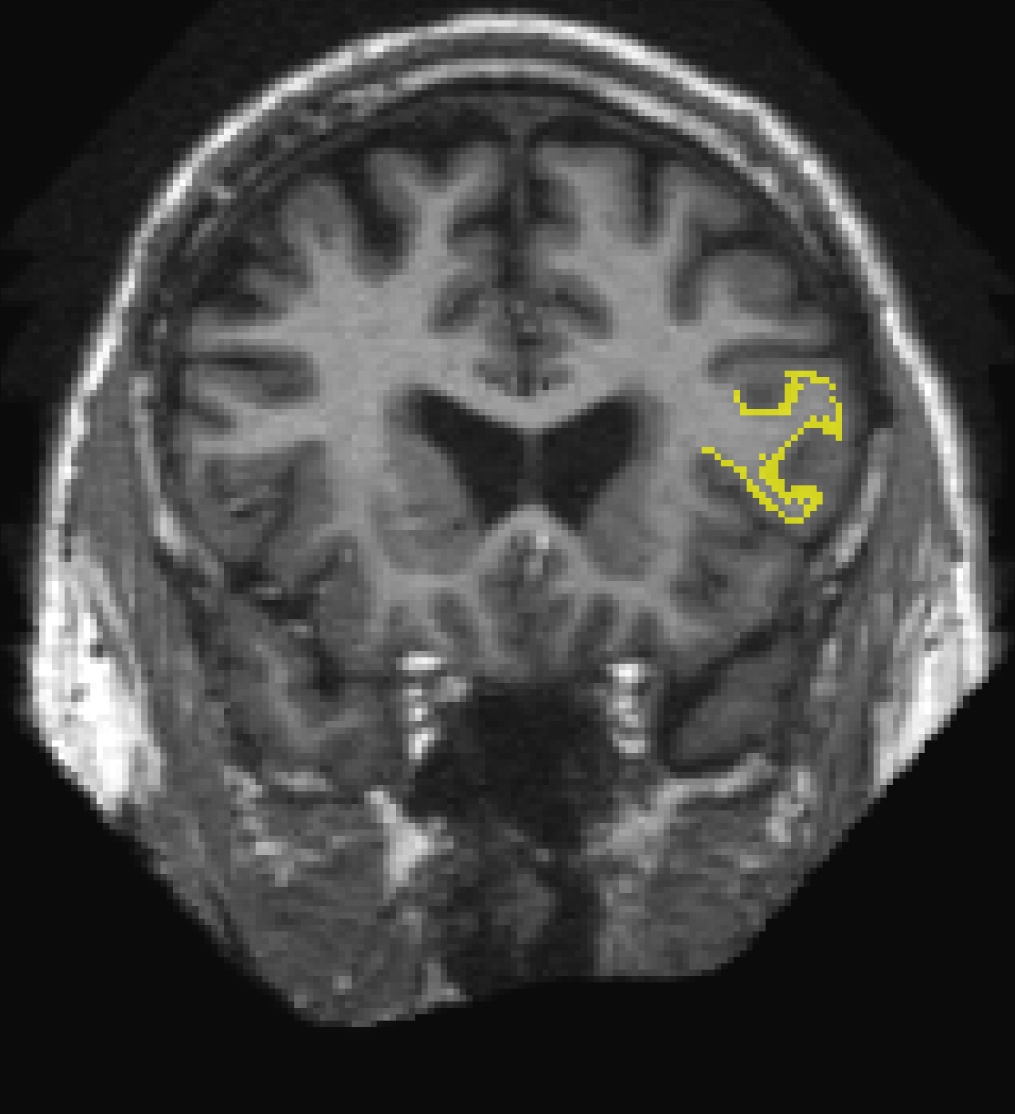
To view the label on the surface, first load the the subject's inflated surface in freeview (in another terminal window) using the command below. At the top menu bar, select the 3D view.
freeview -f 004/surf/lh.inflated
On the left menu, click on the drop down menu next to 'Curvature' and select 'Off'. Next to 'Label', select 'Load'. In the window that pops up, navigate to the label directory if it is not already in it and select lh.BA45.label. Hit 'OK'. The label loaded on the inflated surface will look like this:
Note: If you want to use a pre-existing label and register it to fsaverage, be aware that this might involve two instances of resampling and the results might not be as accurate as they would be if you drew the label on fsaverage. Please contact the FreeSurfer team to get more details on this process if you have any concerns.
You can close freeview once you are done.
4. Individual Stats files
During the FreeSurfer processing stream, via the recon-all script, some statistical output files are generated. They are kept in each subjects' stats/ subdirectory and are generated for the subcortical segmentation (aseg) and the cortical parcellation (aparc). These tables include information on each labeled region for the individual subject. You can view these output files via the terminal or a text editor.
4.1. aseg.stats
The statistical output from the subcortical segmentation, called aseg.stats, is a regular text file and will contain the volumes of specific structures. For example, you can obtain information such as the volume of left hippocampus and its mean intensity from this file.
cd $SUBJECTS_DIR/004/stats
less aseg.stats
At the head of the text file there will be information about the command that was run, the version used, the user who ran it and a time stamp. Following this there is information about the volume of the entire brain.
The next section of this file defines the column headers, field name, and units for the rest of the table. We can expect to see the Segmentation Id, Number of Voxels, Volume, Structure Name, Intensity normMean, Intensity normStdDev, Intensity normMin, Intensity normMax, and Intensity normRange for each entry in the table. The "norm" stats are extracted for each segmented structure from $SUBJECTS_DIR/004/mri/norm.mgz.
The remainder of the table shows this information for all the structures that are labeled in the aseg. (Remember, press 'q' if you want to quit the 'less' command).
# Title Segmentation Statistics
#
# generating_program mri_segstats
# cvs_version $Id: mri_segstats.c,v 1.75.2.2 2011/04/27 22:18:58 nicks Exp $
# cmdline mri_segstats --seg mri/aseg.mgz --sum stats/aseg.stats --pv mri/norm.mgz --empty --excludeid 0 --excl-ctxgmwm --supratent --subcortgray --in mri/norm.mgz --in-intensity-name norm --in-intensity-units MR --etiv --surf-wm-vol --surf-ctx-vol --totalgray --ctab /usr/local/freesurfer/stable5_1_0/ASegStatsLUT.txt --subject 004
# sysname  Linux
# hostname compute-0-36.local
# machine  x86_64
# user     khoa
# anatomy_type volume
#
# SUBJECTS_DIR /autofs/cluster/freesurfer/test/subjects/x86_64/buckner_data/group_study_fs5.1.0
# subjectname 004
# Measure lhCortex, lhCortexVol, Left hemisphere cortical gray matter volume, 243583.395631, mm^3
# Measure rhCortex, rhCortexVol, Right hemisphere cortical gray matter volume, 245552.725775, mm^3
# Measure Cortex, CortexVol, Total cortical gray matter volume, 489136.121407, mm^3
# Measure lhCorticalWhiteMatter, lhCorticalWhiteMatterVol, Left hemisphere cortical white matter volume, 257212.437500, mm^3
# Measure rhCorticalWhiteMatter, rhCorticalWhiteMatterVol, Right hemisphere cortical white matter volume, 254883.390625, mm^3
# Measure CorticalWhiteMatter, CorticalWhiteMatterVol, Total cortical white matter volume, 512095.828125, mm^3
# Measure SubCortGray, SubCortGrayVol, Subcortical gray matter volume, 180840.000000, mm^3
# Measure TotalGray, TotalGrayVol, Total gray matter volume, 669976.121407, mm^3
# Measure SupraTentorial, SupraTentorialVol, Supratentorial volume, 1181347.254146, mm^3
# Measure IntraCranialVol, ICV, Intracranial Volume, 1792908.998979, mm^3
# SegVolFile mri/aseg.mgz
# SegVolFileTimeStamp  2011/05/18 20:50:12
# ColorTable /usr/local/freesurfer/stable5_1_0/ASegStatsLUT.txt
# ColorTableTimeStamp 2011/05/14 14:56:11
# InVolFile  mri/norm.mgz
# InVolFileTimeStamp  2011/05/18 13:09:34
# InVolFrame 0
# PVVolFile  mri/norm.mgz
# PVVolFileTimeStamp  2011/05/18 13:09:34
# Excluding Cortical Gray and White Matter
# ExcludeSegId 0 2 3 41 42
# VoxelVolume_mm3 1
# TableCol  1 ColHeader Index
# TableCol  1 FieldName Index
# TableCol  1 Units     NA
# TableCol  2 ColHeader SegId
# TableCol  2 FieldName Segmentation Id
# TableCol  2 Units     NA
# TableCol  3 ColHeader NVoxels
# TableCol  3 FieldName Number of Voxels
# TableCol  3 Units     unitless
# TableCol  4 ColHeader Volume_mm3
# TableCol  4 FieldName Volume
# TableCol  4 Units     mm^3
# TableCol  5 ColHeader StructName
# TableCol  5 FieldName Structure Name
# TableCol  5 Units     NA
# TableCol  6 ColHeader normMean
# TableCol  6 FieldName Intensity normMean
# TableCol  6 Units     MR
# TableCol  7 ColHeader normStdDev
# TableCol  7 FieldName Itensity normStdDev
# TableCol  7 Units     MR
# TableCol  8 ColHeader normMin
# TableCol  8 FieldName Intensity normMin
# TableCol  8 Units     MR
# TableCol  9 ColHeader normMax
# TableCol  9 FieldName Intensity normMax
# TableCol  9 Units     MR
# TableCol 10 ColHeader normRange
# TableCol 10 FieldName Intensity normRange
# TableCol 10 Units     MR
# NRows 45
# NTableCols 10
# ColHeaders  Index SegId NVoxels Volume_mm3 StructName normMean normStdDev normMin normMax normRange
  1   4     31490    31490.0  Left-Lateral-Ventricle            13.5672    11.0434     0.0000    79.0000    79.0000
  2   5      1416     1416.0  Left-Inf-Lat-Vent                 32.9812    14.4618     4.0000    87.0000    83.0000
  3   7     13623    13623.0  Left-Cerebellum-White-Matter      88.0573     8.7477    41.0000   123.0000    82.0000
  4   8     46105    46105.0  Left-Cerebellum-Cortex            58.5936     9.9359    16.0000   100.0000    84.0000
  5  10      6951     6951.0  Left-Thalamus-Proper              83.1834    11.8098    16.0000   121.0000   105.0000
  6  11      5942     5942.0  Left-Caudate                      67.7429    12.2442    22.0000    99.0000    77.0000
  7  12      8828     8828.0  Left-Putamen                      74.2015    10.0100    21.0000   107.0000    86.0000
-
-
4.2. aparc.stats
The statistical output from the cortical parcellation, called lh.aparc.stats and rh.aparc.stats, is a regular text file and will contain the thickness of specific structures. For example, you can obtain information such as, how big is left superior temporal gyrus and its average thickness from this file.
cd $SUBJECTS_DIR/004/stats
less lh.aparc.stats
This file takes the same format as the aseg.stats. The measures at the top show the number of vertices in the cortex (NumVert) and the surface area of the cortex (SurfArea). This part of the file also tells us that the lh.aparc.annot is being used as the annotation file (AnnotationFile ../label/lh.aparc.annot).
The next section of this file defines the column headers, field name, and units for the rest of the table. We can expect to see the Structure Name, Number of Vertices, Surface Area, Gray Matter Volume, Average Thickness, Thickness StDev, Integrated Rectified Mean Curvature, Integrated Rectified Gaussian Curvature, Folding Index and Intrinsic Curvature Index for each entry in the table.
The remainder of the table shows this information for all the structures that are labeled in the aparc. (Again 'q' will exit 'less').
# Table of FreeSurfer cortical parcellation anatomical statistics
#
# CreationTime 2011/10/21-15:36:36-GMT
# generating_program mris_anatomical_stats
# cvs_version $Id: mris_anatomical_stats.c,v 1.72 2011/03/02 00:04:26 nicks Exp $
# mrisurf.c-cvs_version $Id: mrisurf.c,v 1.693.2.2 2011/04/27 19:21:05 nicks Exp $
# cmdline mris_anatomical_stats -mgz -cortex ../label/lh.cortex.label -f ../stats/lh.aparc.stats -b -a ../label/lh.aparc.annot -c ../label/aparc.annot.ctab 004 lh white
# sysname  Linux
# hostname compute-0-36.local
# machine  x86_64
# user     khoa
#
# SUBJECTS_DIR /autofs/cluster/freesurfer/test/subjects/x86_64/buckner_data/group_study_fs5.1.0
# anatomy_type surface
# subjectname 004
# hemi lh
# AnnotationFile ../label/lh.aparc.annot
# AnnotationFileTimeStamp 2011/10/21 11:22:04
# Measure Cortex, NumVert, Number of Vertices, 139655, unitless
# Measure Cortex, WhiteSurfArea, White Surface Total Area, 94794.7, mm^2
# Measure Cortex, MeanThickness, Mean Thickness, 2.31382, mm
# NTableCols 10
# TableCol  1 ColHeader StructName
# TableCol  1 FieldName Structure Name
# TableCol  1 Units     NA
# TableCol  2 ColHeader NumVert
# TableCol  2 FieldName Number of Vertices
# TableCol  2 Units     unitless
# TableCol  3 ColHeader SurfArea
# TableCol  3 FieldName Surface Area
# TableCol  3 Units     mm^2
# TableCol  4 ColHeader GrayVol
# TableCol  4 FieldName Gray Matter Volume
# TableCol  4 Units     mm^3
# TableCol  5 ColHeader ThickAvg
# TableCol  5 FieldName Average Thickness
# TableCol  5 Units     mm
# TableCol  6 ColHeader ThickStd
# TableCol  6 FieldName Thickness StdDev
# TableCol  6 Units     mm
# TableCol  7 ColHeader MeanCurv
# TableCol  7 FieldName Integrated Rectified Mean Curvature
# TableCol  7 Units     mm^-1
# TableCol  8 ColHeader GausCurv
# TableCol  8 FieldName Integrated Rectified Gaussian Curvature
# TableCol  8 Units     mm^-2
# TableCol  9 ColHeader  FoldInd
# TableCol  9 FieldName  Folding Index
# TableCol  9 Units      unitless
# TableCol 10 ColHeader CurvInd
# TableCol 10 FieldName Intrinsic Curvature Index
# TableCol 10 Units     unitless
# ColHeaders StructName NumVert SurfArea GrayVol ThickAvg ThickStd MeanCurv GausCurv FoldInd CurvInd
bankssts                                 1519   1044   2415  2.257 0.498     0.137     0.046       19     2.9
caudalanteriorcingulate                  1296    855   2535  2.713 0.741     0.163     0.074       29     3.5
caudalmiddlefrontal                      3322   2216   6445  2.578 0.561     0.142     0.056       42     7.7
cuneus                                   2467   1593   2996  1.742 0.393     0.173     0.081       49     8.0
entorhinal                                558    408   1936  3.268 0.935     0.138     0.052        6     1.2
-
-
-
5. Group stats files
This section will run you through using the stats directory of the subjects to perform group stats of certain structures that may be of interest to your study. The following commands will help you combine the data of the subjects you are analyzing into one table that will be easily read into a spreadsheet program. We have considered 6 subjects as examples (004, 021, 040, 067, 080, 092) in the following sections. Set your SUBJECTS_DIR to the path where you have your subjects to be analyzed.
export SUBJECTS_DIR=$TUTORIAL_DATA/buckner_data/tutorial_subjs/group_analysis_tutorial
cd $SUBJECTS_DIR
5.1. Table of segmentation volumes
This section explains how to create a table of segmentation volumes using the 6 subjects mentioned above.
asegstats2table --subjects 004 021 040 067 080 092 \
  --segno 11 17 18 \
  --tablefile aseg.vol.table
where 11, 17 and 18 correspond to the segmentation label of left caudate, left hippocampus and left amygdala respectively. (You can create a table with all of the labels, not just these three, by omitting the --segno part.) Click here if you would like to view the list of labels and their corresponding ID numbers again.
The file aseg.vol.table is your output - a text file consisting of the subjects mentioned in the command above and the values for the structures requested along with the measures in the header. The information in this text file is formatted so it can be easily imported into a spreadsheet program (often used as input for many statistical analysis programs). If you do the ls command, you should see that the text file aseg.vol.table has been created. To see what the file looks like, do:
less aseg.vol.table
(press 'q' to exit). To see what the file looks like, you can open it with gedit or any other text editing or spreadsheet application:
gedit aseg.vol.table
Note: Mac users should run
open -e aseg.vol.table
In the table, the first cell is volume indicating that the measure is a volume in mm3 for all of the cells to the right. The subject IDs can be found below volume (seen as 4, 21, 40, 67, 80, 92). You'll notice that in the examples we've considered here for asegstats2table, each subject is a 3 digit number (004, 021 etc).
5.2. Table of segmentation mean intensities
The purpose of this section is to demonstrate how you can change what measure you collect for your spreadsheet from volume to mean intensity using the asegstats2table command.
asegstats2table \
  --subjects 004 021 040 067 080 092 \
  --segno 11 17 18 \
  --meas mean \
  --tablefile aseg.mean-intensity.table
You can load the table into a spreadsheet as explained in the previous section or view aseg.mean-intensity.table with a text editor, like gedit.
5.3. Table of white matter parcellation volumes
The purpose of this section is to show how you can change which segmentation atlas you get stats from (and thus which structures):
asegstats2table \
  --subjects 004 021 040 067 080 092 \
  --segno 3007 3021 3022 4022 \
  --stats wmparc.stats \
  --tablefile wmparc.vol.table
This prints out stats on the white matter parcellation.
5.4. Table of the surface area of each cortical parcellation in the Desikan atlas
This section demonstrates how to create a table of the surface area of each cortical parcellation in the Desikan atlas (surface area is the default measure).
aparcstats2table --hemi lh \
  --subjects 004 021 040 067 080 092 \
  --tablefile lh.aparc.area.table
Feel free to take a look at those results.
5.5. Table of the average thickness of each cortical parcellation in the Destrieux atlas
The purpose of this section is to show how to change the summary measure (in this case, to thickness) and the parcellation atlas (to Destrieux's atlas).
aparcstats2table --hemi lh \
  --subjects 004 021 040 067 080 092 \
  --meas thickness \
  --parc aparc.a2009s \
  --tablefile lh.aparc.a2009.thickness.table
You can now load the resulting table into a spreadsheet.
Remember, for more information on individual flags or how to use these commands, you can run:
aparcstats2table --help

asegstats2table --help