
|
Size: 3126
Comment: missing edit-log entry for this revision
|
← Revision 36 as of 2013-11-01 14:27:32 ⇥
Size: 5659
Comment:
|
| Deletions are marked like this. | Additions are marked like this. |
| Line 1: | Line 1: |
| [wiki:Self:FsTutorial top] | [wiki:Self:FsTutorial/MorphAndRecon previous] | ## page was renamed from FsTutorial/PialEdits [[FsTutorial|top]] | [[FsTutorial/TroubleshootingData|previous]] |
| Line 3: | Line 4: |
| == Correcting Pial Surfaces == | = Correcting Pial Surfaces = * To follow this exercise exactly be sure you've downloaded the [[FsTutorial/Data|tutorial data set]] before you begin. If you choose not to download the data set you can follow these instructions on your own data, but you will have to substitute your own specific paths and subject names. |
| Line 5: | Line 7: |
| The pial surface is created by expanding the white matter surface so that it closely follows the gray-CSF intensity gradient as found in the brain volume. Once an accurate white surface is created then you can work on correcting the pial surface if needed. The pial surface boundary and white matter surface boundary should not cross. After the pial surface has been generated, it's a good idea to visually check it for defects that may have been created during automatic topology fixing. To check the pial surface, it may be loaded into tkmedit and viewed along with the BRAIN volume. If the surface appears not to follow the grey-CSF boundary in the volume, edits may be required. | The pial surface is created by expanding the white matter surface so that it closely follows the gray-CSF intensity gradient as found in the brainmask.mgz volume. Once an accurate white surface is created then you can work on correcting the pial surface if needed. The pial surface boundary and white matter surface boundary should not cross. After the pial surface has been generated, it's a good idea to visually check it for defects that may have been created during automatic topology fixing. To check the pial surface, it may be loaded into tkmedit and viewed along with the brainmask.mgz volume. If the surface appears not to follow the gray-CSF boundary in the volume, edits may be required. |
| Line 7: | Line 9: |
| '''Editing the Volume'''[[BR]] Before you begin editing, you will want to set your SUBJECTS_DIR environment variable to the correct path: |
== Editing the Volume == Subject pial_edits_before is an example of the pial surface including non-cortex within the boundaries. This page will take you through fixing this and other similar problems with the pial surface including non-cortex material. |
| Line 10: | Line 12: |
| First, make sure you have pial_edits_before loaded in tkmedit: ---- |
|
| Line 11: | Line 16: |
| cd $FREESURFER_HOME/subjects/buckner_data/tutorial_subjs setenv SUBJECTS_DIR ${PWD} |
tkmedit pial_edits_before brainmask.mgz -surfs |
| Line 14: | Line 18: |
| ---- Use the arrow keys to go through the volume slice by slice, and view the pial surface (red line) and white matter surface (yellow line). Notice the bright diagonal line in slice 157 that has caused the pial surface to expand past the actual pial boundary. This is the result of a bad segmentation incorporating a piece of the dura within the pial surface. |
|
| Line 15: | Line 21: |
| Open the brain and T1 volumes simultaneously in tkmedit: | {{attachment:pial_before1.jpg}} |
| Line 17: | Line 23: |
| {{{ tkmedit 108_brain_pial_edits_before brain.mgz -aux T1.mgz }}} In tkmedit, go to '''File -> Load Main Surface...''' Click the Browse button, and then select the file named lh.orig. Use the arrow keys to go through the volume slice by slice, and view the pial surface (red line) and white matter surface (green line). Notice the bright diagonal line in slice 161 that has caused the pial surface to expand past the actual pial boundary. This is the result of a bad segmentation due to a blood vessel. |
To fix this type of error you can simply edit away the offending voxels from the brainmask.mgz volume. To do this you will need to select the edit voxels tool and set the brush to a size and shape comfortable for you. A circle brush of radius 2 works well for this edit. In the tkmedit toolbar, go to '''Tools -> Configure Brush Info...''' Set Radius to 2, and Shape to "Circle". Close the configuration menu, and click the "Edit Voxels" button in tkmedit toolbar. |
| Line 23: | Line 25: |
| attachment:pial.jpg | Find a place in the image where the dura is causing errors in the segmentation. Use the right mouse button to delete the voxels. It is not necessary to completely remove the dura to get an adequate pial surface, but it is good to do so until you are more familiar with manual editing. When you are finished removing the bright diagonal line in slice 157, it should look like this: |
| Line 25: | Line 27: |
| In the tkmedit toolbar, go to: | {{attachment:pial_after.jpg}} Continue on the other slices until the dura is removed. Ctrl-z and '''Edit -> Undo Last Edit''' in tkmedit only allow you to go back one edit. If you remove too many voxels, you can use the clone tool to paint areas back in from the original T1 volume. Load T1 as aux volume. To paint voxels, go to '''Tools -> Configure Volume Brush...''' , in the tkmedit toolbar. Set Mode to "Clone", and Clone Source to "Aux Volume". To change the size and shape of your brush, go to: |
| Line 29: | Line 37: |
| Set Radius to 2, and Shape to "Circle". | Select a radius and shape of the brush. Click the "Edit Voxels" button in tkmedit toolbar and use the middle button on the mouse to paint in voxels from the auxiliary volume |
| Line 31: | Line 39: |
| Close the configuration menu, and click the "Edit Voxels" button in tkmedit toolbar. | At any time, you can save the changes you've made to the brainmask.mgz volume by selecting 'Save Volume' in [[FsTutorial/Tools|tkmedit]]'s 'File' menu, and clicking 'OK' |
| Line 33: | Line 41: |
| Find a place in the image where the blood vessel is causing errors in the segmentation. Use the right mouse button to delete the voxels, like in the [wiki:Self/FsTutorial/SkullStripTutorial skull stripping tutorial]. It is not necessary to completely remove the blood vessel to get an adequate pial surface, but it is good to do so until you are more familiar with manual editing. When you are finished removing the bright diagonal line in slice 161, it should look like this: | You can check your result by viewing the brainmask.mgz volume in the pial_edits_after directory. |
| Line 35: | Line 43: |
| attachment:pial1.jpg Continue on the other slices until the blood vessel is removed. Save your volume as pial-brain.mgz. Ctrl-z and '''Edit -> Undo Last Edit''' in tkmedit only allow you to go back one edit. If you remove too many voxels, you can use the clone tool to paint areas back in from the original T1 volume, similar to painting in voxels in section 1.1. You can check your result by viewing the brain.mgz volume in the 108_after directory. '''Regenerating the Surface'''[[BR]] |
== Regenerating the Surface == |
| Line 47: | Line 47: |
| recon-all -autorecon2-pial -subjid 108_brain_pial_edits_before | recon-all -autorecon-pial -subjid pial_edits_before |
| Line 49: | Line 49: |
| '''Do not run this command if you are conducting the tutorial!''' This step will take a long time and there is no need to run it for the tutorial purposes. == Edits to correct pial surface extension into cerebellum == The brain.finalsurfs.manedit.mgz volume will allow for the correction of a particular type of problem involving ''pial surface'' misplacement whereby parts of the pial surface have ''extended into the cerebellum'' in certain areas. It is only in this case where the pial surface extends into cerebellum where the brain.finalsurfs.manedit.mgz volume should be edited. For all other non-cerebellum pial surface problems, brainmask.mgz should be edited. This cerebellum / pial surface problem can be fixed by removing those cerebellum voxels and other surrounding problematic voxels in the brain.finalsurfs.manedit.mgz volume such that upon running recon-all, the pial surface will be pulled in as desired, bordering only gray matter/ CSF boundary, and not jutting into the cerebellum. If only edits to this volume are made on a subject, it is sufficient to re-run recon-all from the point of these edits using the flag -autorecon3. Note that you must create brain.finalsurfs.manedit.mgz by copying it from brain.finalsurfs.mgz: {{{ cd <subjid>/mri cp brain.finalsurfs.mgz brain.finalsurfs.manedit.mgz }}} You do not need to do this for this tutorial. If you're interested, please refer to the brain.finalsurfs section on the Longitudinal Tutorial [[FsTutorial/LongitudinalTutorial#Brain.finalsurfs.manedit.mgzEdits|here]]. |
Correcting Pial Surfaces
To follow this exercise exactly be sure you've downloaded the tutorial data set before you begin. If you choose not to download the data set you can follow these instructions on your own data, but you will have to substitute your own specific paths and subject names.
The pial surface is created by expanding the white matter surface so that it closely follows the gray-CSF intensity gradient as found in the brainmask.mgz volume. Once an accurate white surface is created then you can work on correcting the pial surface if needed. The pial surface boundary and white matter surface boundary should not cross. After the pial surface has been generated, it's a good idea to visually check it for defects that may have been created during automatic topology fixing. To check the pial surface, it may be loaded into tkmedit and viewed along with the brainmask.mgz volume. If the surface appears not to follow the gray-CSF boundary in the volume, edits may be required.
Editing the Volume
Subject pial_edits_before is an example of the pial surface including non-cortex within the boundaries. This page will take you through fixing this and other similar problems with the pial surface including non-cortex material.
First, make sure you have pial_edits_before loaded in tkmedit:
tkmedit pial_edits_before brainmask.mgz -surfs
Use the arrow keys to go through the volume slice by slice, and view the pial surface (red line) and white matter surface (yellow line). Notice the bright diagonal line in slice 157 that has caused the pial surface to expand past the actual pial boundary. This is the result of a bad segmentation incorporating a piece of the dura within the pial surface.
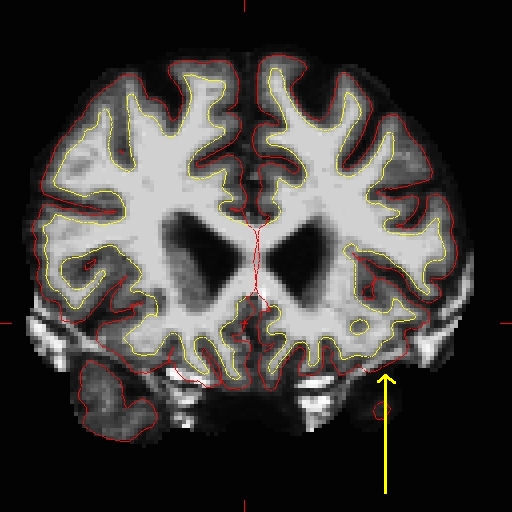
To fix this type of error you can simply edit away the offending voxels from the brainmask.mgz volume. To do this you will need to select the edit voxels tool and set the brush to a size and shape comfortable for you. A circle brush of radius 2 works well for this edit. In the tkmedit toolbar, go to Tools -> Configure Brush Info... Set Radius to 2, and Shape to "Circle". Close the configuration menu, and click the "Edit Voxels" button in tkmedit toolbar.
Find a place in the image where the dura is causing errors in the segmentation. Use the right mouse button to delete the voxels. It is not necessary to completely remove the dura to get an adequate pial surface, but it is good to do so until you are more familiar with manual editing. When you are finished removing the bright diagonal line in slice 157, it should look like this:
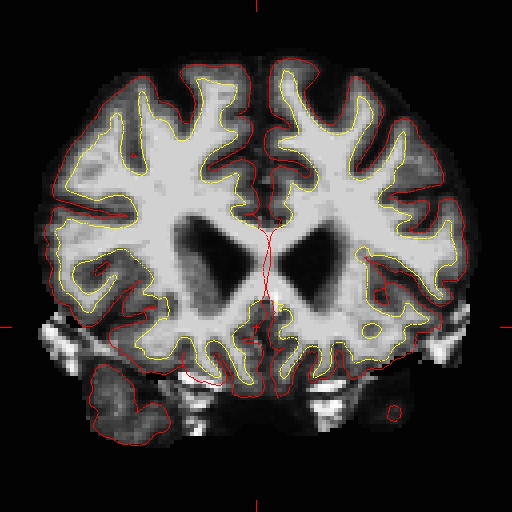
Continue on the other slices until the dura is removed.
Ctrl-z and Edit -> Undo Last Edit in tkmedit only allow you to go back one edit. If you remove too many voxels, you can use the clone tool to paint areas back in from the original T1 volume. Load T1 as aux volume. To paint voxels, go to Tools -> Configure Volume Brush... , in the tkmedit toolbar.
Set Mode to "Clone", and Clone Source to "Aux Volume". To change the size and shape of your brush, go to:
Tools -> Configure Brush Info...
Select a radius and shape of the brush. Click the "Edit Voxels" button in tkmedit toolbar and use the middle button on the mouse to paint in voxels from the auxiliary volume
At any time, you can save the changes you've made to the brainmask.mgz volume by selecting 'Save Volume' in tkmedit's 'File' menu, and clicking 'OK'
You can check your result by viewing the brainmask.mgz volume in the pial_edits_after directory.
Regenerating the Surface
When you are finished editing the voxels, you will need to regenerate the surfaces. Since the white matter hasn't been changed, you don't need to resegment the volume. You can regenerate the pial surface with:
recon-all -autorecon-pial -subjid pial_edits_before
Do not run this command if you are conducting the tutorial! This step will take a long time and there is no need to run it for the tutorial purposes.
Edits to correct pial surface extension into cerebellum
The brain.finalsurfs.manedit.mgz volume will allow for the correction of a particular type of problem involving pial surface misplacement whereby parts of the pial surface have extended into the cerebellum in certain areas. It is only in this case where the pial surface extends into cerebellum where the brain.finalsurfs.manedit.mgz volume should be edited. For all other non-cerebellum pial surface problems, brainmask.mgz should be edited. This cerebellum / pial surface problem can be fixed by removing those cerebellum voxels and other surrounding problematic voxels in the brain.finalsurfs.manedit.mgz volume such that upon running recon-all, the pial surface will be pulled in as desired, bordering only gray matter/ CSF boundary, and not jutting into the cerebellum. If only edits to this volume are made on a subject, it is sufficient to re-run recon-all from the point of these edits using the flag -autorecon3. Note that you must create brain.finalsurfs.manedit.mgz by copying it from brain.finalsurfs.mgz:
cd <subjid>/mri
cp brain.finalsurfs.mgz brain.finalsurfs.manedit.mgz
You do not need to do this for this tutorial. If you're interested, please refer to the brain.finalsurfs section on the Longitudinal Tutorial here.