
|
Size: 7916
Comment:
|
Size: 10372
Comment:
|
| Deletions are marked like this. | Additions are marked like this. |
| Line 11: | Line 11: |
| The purpose of this multimodal tutorial is to get you acquainted with the concepts needed to perform multi-modal integration in !FreeSurfer using fMRI and DTI analysis. You will not learn how to perform fMRI or DTI analysis here; that knowledge is already assumed. The fMRI makes use of data from the Functional Biomedical Informatics Research Network (fBIRN, www.nbirn.net). <<TableOfContents(2)>> | The purpose of this multimodal tutorial is to get you acquainted with the concepts needed to perform multi-modal integration in !FreeSurfer using fMRI and dMRI analysis. You will not learn how to perform fMRI or dMRI analysis here; that knowledge is already assumed. The fMRI makes use of data from the Functional Biomedical Informatics Research Network (fBIRN). <<TableOfContents(2)>> |
| Line 21: | Line 21: |
| ''To copy: Highlight the command in the box above, right click and select copy (or use keyboard shortcut Ctrl+c), then use the middle button of your mouse to click inside the terminal window (this will paste the command). Press enter to run the command.'' | ''To copy: Highlight the command in the box above, right click and select copy (or use keyboard shortcut Ctrl+c), then use the middle button of your mouse to click inside the terminal window to paste the command (or use keyboard shortcut Ctrl+Shift+v). Press enter to run the command.'' |
| Line 31: | Line 31: |
| export TUTORIAL_DATA=<path_to_your_tutorial_data> | export TUTORIAL_DATA=<path_to_your_tutorial_data>freeview -v $SUBJECTS_DIR/fbirn-anat-101.v6/mri/orig.mgz:visible=0 \ template.nii:reg=register.lta -f \ $SUBJECTS_DIR/fbirn-anat-101.v6/surf/lh.white \ $SUBJECTS_DIR/fbirn-anat-101.v6/surf/rh.white \ -viewport cor -transform-volume |
| Line 49: | Line 53: |
| 1. Familiarize you with the FreeView interface. | 1. Familiarize you with the !FreeView interface. |
| Line 57: | Line 61: |
| $SUBJECTS_DIR/fbirn-anat-101.v4/mri/orig.mgz:visible=0 -f \ $SUBJECTS_DIR/fbirn-anat-101.v4/surf/lh.white \ $SUBJECTS_DIR/fbirn-anat-101.v4/surf/rh.white \ |
$SUBJECTS_DIR/fbirn-anat-101.v6/mri/orig.mgz:visible=0 -f \ $SUBJECTS_DIR/fbirn-anat-101.v6/surf/lh.white \ $SUBJECTS_DIR/fbirn-anat-101.v6/surf/rh.white \ |
| Line 62: | Line 66: |
| Note: The -viewport flag allows us to specify the slice orientation displayed when we open !FreeView. In this case we are opening !FreeView with a coronal (cor) view. We also use the -tranform-volume flag. This will open the Transform Volume window with !FreeSurfer. Both of these features can be selected after !FreeView has already been opened (for example, we tell you how to open the Transform Volume window below), but including them in the our command will speed things up! | |
| Line 67: | Line 72: |
| 1. The yellow line is the white surface. | 1. The yellow line is the white matter surface. |
| Line 74: | Line 79: |
| When you are happy with your results, save the registration file ('Save Reg') and/or the resampled volume ('Save Volume As'). If you would like to start over, you can choose 'Restore to Original'. Note: !FreeView will save .lta format registration files. | When you are happy with your results, you can save the registration file and/or the resampled template volume. To save the registration file, click the 'Save Reg' button on the Transform Volume window. Save the registration file under the name "register_manual" so you don't confuse it with an automatic registration file. To save the resampled template volume, click the 'Save Volume As' button on the Transform Volume window. Save the volume under the name register_<date> so as not to overwrite the original template volume. Note: !FreeView will save registration files in .lta format and volumes in their native format (such as NIFTI in this case). |
| Line 80: | Line 85: |
| bbregister --mov template.nii --bold --s fbirn-anat-101.v4 --reg register.lta | bbregister --mov template.nii --bold --s fbirn-anat-101.v6 --lta register.lta |
| Line 85: | Line 90: |
| 1. --reg indicates that the output registration file is register.lta (Note: currently, register.dat will also be written into the output directory for backwards compatibility). | 1. --lta indicates that the output registration file is register.lta (Note: currently, register.dat will also be written into the output directory for backwards compatibility). |
| Line 94: | Line 99: |
| Click [[MultiModalTutorialV6.0/MultiModalRegistration/RegisterFileLta|here]] to see an example. | Click [[MultiModalTutorialV6.0/MultiModalRegistration/RegisterFileLta|here]] to see an example (and scroll to the bottom of that page to see a short description on the register.lta contents). |
| Line 101: | Line 106: |
| The mincost file consists of 4 values. The first value indicates the quality of the registration on a scale from 0 (perfectly registered) to 1 (not registered). | The mincost file consists of 4 values. The first value indicates the quality of the registration on a scale from 0 (perfectly registered) to 1 (not registered). Essentially, the first value is a measure of the contrast between cortical GM and WM but with a non-linear function applied so that closer to 0 is better. For more information, please read Greve and Fisch, 2009, Neuroimage, Accurate. As you can see, the quality of our registration is rated as 0.613129. Typically, any value below 0.5 suggests a good registration, but the only way to be certain is to visually check the registration on a program like !FreeView. Respectively, the other values are: mean of WM just below the surface, mean of GM just above the surface, and percent contrast. |
| Line 106: | Line 113: |
| freeview -v $SUBJECTS_DIR/fbirn-anat-101.v4/mri/orig.mgz:visible=0 \ | freeview -v $SUBJECTS_DIR/fbirn-anat-101.v6/mri/orig.mgz:visible=0 \ |
| Line 108: | Line 115: |
| $SUBJECTS_DIR/fbirn-anat-101.v4/surf/lh.white \ $SUBJECTS_DIR/fbirn-anat-101.v4/surf/rh.white \ |
$SUBJECTS_DIR/fbirn-anat-101.v6/surf/lh.white \ $SUBJECTS_DIR/fbirn-anat-101.v6/surf/rh.white \ |
| Line 112: | Line 119: |
| Select the template volume and hit Alt+c to switch between the template and orig, or change the opacity value on the top volume to observe the quality of the alignment. See how much better the registration is now? How does it compare to your manual registration? Note that you do not need to specify the subject name because that is in the registration file generated by bbregister. | Select the template volume and hit Alt+c to switch between the template and orig, or change the opacity value on the top volume to observe the quality of the alignment. How does this registration look compared to your manual registration above? Can you make it any better? |
| Line 116: | Line 123: |
| Notes: | ---- == Summary == By the end of this exercise, you should know how to: * Identify a bad registration * Use the Transform Volume window to manually adjust the registration * Use the automatic registration program bbregister |
| Line 118: | Line 130: |
| 1. The subject is not specified since it is in the register.dat. 1. --regheader is not used. |
---- == Study Question == *Which imaging plane(s) (axial/horizontal, sagittal, coronal) move on on the x axis when you drag the X (L-R) Translate bar? [[https://surfer.nmr.mgh.harvard.edu/fswiki/FsTutorial/StudyQuestions#Whichimagingplane.28s.29.28axial.2BAC8-horizontal.2Csagittal.2Ccoronal.29moveononthexaxiswhenyoudragtheX.28L-R.29Translatebar.3F|Answer]] *Which value in the register.dat.mincost file indicates the quality of the registration? What value should this be below? [[https://surfer.nmr.mgh.harvard.edu/fswiki/FsTutorial/StudyQuestions#Whichvalueintheregister.dat.mincostfileindicatesthequalityoftheregistration.3FWhatvalueshouldthisbebelow.3F|Answer]] ----- |
| Line 121: | Line 136: |
| How does this registration look compared to your manual registration above? Can you make it any better? |
Back to Tutorial Homepage | Back to Course Homepage | Back to Multimodal Tutorial List
Other Multimodal Tutorials: Individual fMRI Integration, Surface-based Group fMRI Analysis, Diffusion and DTI Integration
Registration
The purpose of this multimodal tutorial is to get you acquainted with the concepts needed to perform multi-modal integration in FreeSurfer using fMRI and dMRI analysis. You will not learn how to perform fMRI or dMRI analysis here; that knowledge is already assumed. The fMRI makes use of data from the Functional Biomedical Informatics Research Network (fBIRN).
Contents
1. Preparations
1.1. If You're at an Organized Course
If you are taking one of the formally organized courses, everything has been set up for you on the provided laptop. The only thing you will need to do is run the following commands in every new terminal window (aka shell) you open throughout this tutorial. Copy and paste the commands below to get started:
export SUBJECTS_DIR=$TUTORIAL_DATA/buckner_data/tutorial_subjs
cd $SUBJECTS_DIR/multimodal/fmri/fbirn-101
To copy: Highlight the command in the box above, right click and select copy (or use keyboard shortcut Ctrl+c), then use the middle button of your mouse to click inside the terminal window to paste the command (or use keyboard shortcut Ctrl+Shift+v). Press enter to run the command.
These two commands set the SUBJECTS_DIR variable to the directory where the data is stored and then navigates into the directory within the SUBJECTS_DIR that you will use for this part of the tutorial. You can now skip ahead to the tutorial (below the gray line).
1.2. If You're Not at an Organized Course
If you are NOT taking one of the formally organized courses, then to follow this exercise exactly be sure you've downloaded the tutorial data set before you begin. If you choose not to download the data set you can follow these instructions on your own data, but you will have to substitute your own specific paths and subject names. These are the commands that you need to run before getting started:
## bash
<source_freesurfer>
export TUTORIAL_DATA=<path_to_your_tutorial_data>freeview -v $SUBJECTS_DIR/fbirn-anat-101.v6/mri/orig.mgz:visible=0 \
    template.nii:reg=register.lta -f \
    $SUBJECTS_DIR/fbirn-anat-101.v6/surf/lh.white \
    $SUBJECTS_DIR/fbirn-anat-101.v6/surf/rh.white \
    -viewport cor -transform-volume
export SUBJECTS_DIR=$TUTORIAL_DATA/buckner_data/tutorial_subjs
cd $SUBJECTS_DIR/multimodal/fmri/fbirn-101

## tcsh
source $FREESURFER_HOME/SetUpFreeSurfer.csh
setenv TUTORIAL_DATA <path_to_your_tutorial_data>
setenv SUBJECTS_DIR $TUTORIAL_DATA/buckner_data/tutorial_subjs
cd $SUBJECTS_DIR/multimodal/fmri/fbirn-101
Information on how to source FreeSurfer is located here.
If you are not using the tutorial data you should set your SUBJECTS_DIR to the directory in which the recon(s) of the subject(s) you will use for this tutorial are located.
2. Basic Manual Registration
The purpose of this exercise is to:
Familiarize you with the FreeView interface.
- Show you how to make manual adjustments to the registration.
- Show you what a bad registration is and how hard it is to fix manually.
You can run FreeView using the following command:
freeview -v template.nii \
    $SUBJECTS_DIR/fbirn-anat-101.v6/mri/orig.mgz:visible=0 -f \
    $SUBJECTS_DIR/fbirn-anat-101.v6/surf/lh.white \
    $SUBJECTS_DIR/fbirn-anat-101.v6/surf/rh.white \
    -viewport cor -transform-volume
Note: The -viewport flag allows us to specify the slice orientation displayed when we open FreeView. In this case we are opening FreeView with a coronal (cor) view. We also use the -tranform-volume flag. This will open the Transform Volume window with FreeSurfer. Both of these features can be selected after FreeView has already been opened (for example, we tell you how to open the Transform Volume window below), but including them in the our command will speed things up! It should also bring up an interface that looks like this:
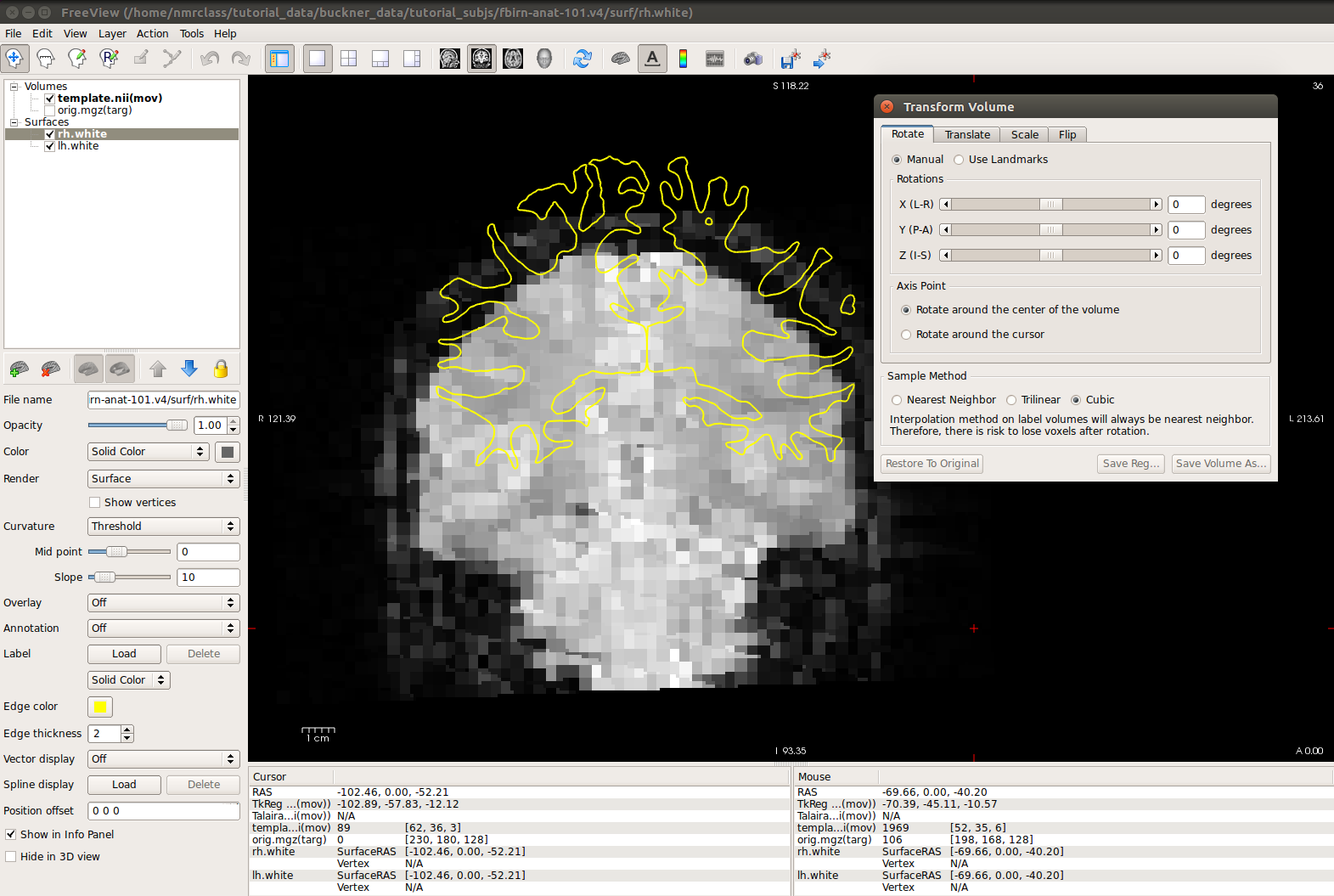
- The grayscale image is the functional data.
- The yellow line is the white matter surface.
- Gray matter and CSF are bright while white matter is dark.
Notice how the surfaces do not line up with the anatomy in the functional volume. To see how much the registration is off, you can switch between the orig.nii volume and the template.nii volume by clicking 'template.nii' in the upper left corner and pressing Alt-c. To do manual registration in FreeView, select the volume you want to adjust (in this case, choose template), and go to the 'Tools' menu and select 'Transform Volume' (this window should already be loaded). Select the 'Translate' tab and play around with the sliders until the surfaces are better aligned with the anatomy. You could play with the 'Rotation' sliders as well.
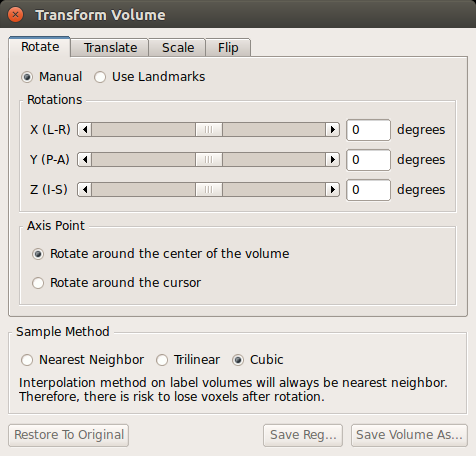
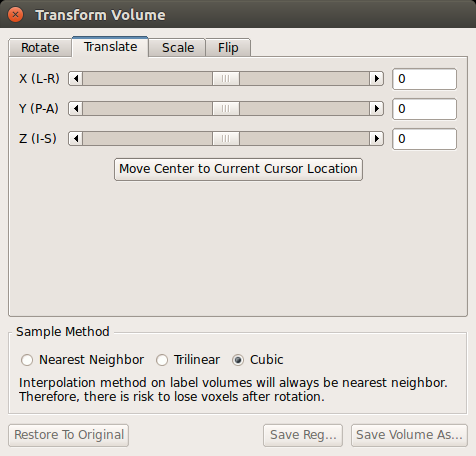
When you are happy with your results, you can save the registration file and/or the resampled template volume. To save the registration file, click the 'Save Reg' button on the Transform Volume window. Save the registration file under the name "register_manual" so you don't confuse it with an automatic registration file. To save the resampled template volume, click the 'Save Volume As' button on the Transform Volume window. Save the volume under the name register_<date> so as not to overwrite the original template volume. Note: FreeView will save registration files in .lta format and volumes in their native format (such as NIFTI in this case).
3. Automatic Registration
The purpose of this exercise is to show you how to use the automatic registration program (bbregister). To run, copy and paste this command into your shell:
bbregister --mov template.nii --bold --s fbirn-anat-101.v6 --lta register.lta
Notes:
- --bold indicates that the template has bold/T2 contrast (meaning that gray matter is brighter than white matter).
- --lta indicates that the output registration file is register.lta (Note: currently, register.dat will also be written into the output directory for backwards compatibility).
- This will take about 5 min (the same amount of time you spent manually, right?).
4. View Automatic Registration
Look at the register.lta text file created:
cat register.lta
Click here to see an example (and scroll to the bottom of that page to see a short description on the register.lta contents).
You can also look at the register.dat.mincost file:
cat register.dat.mincost
The mincost file consists of 4 values. The first value indicates the quality of the registration on a scale from 0 (perfectly registered) to 1 (not registered). Essentially, the first value is a measure of the contrast between cortical GM and WM but with a non-linear function applied so that closer to 0 is better. For more information, please read Greve and Fisch, 2009, Neuroimage, Accurate. As you can see, the quality of our registration is rated as 0.613129. Typically, any value below 0.5 suggests a good registration, but the only way to be certain is to visually check the registration on a program like FreeView. Respectively, the other values are: mean of WM just below the surface, mean of GM just above the surface, and percent contrast.
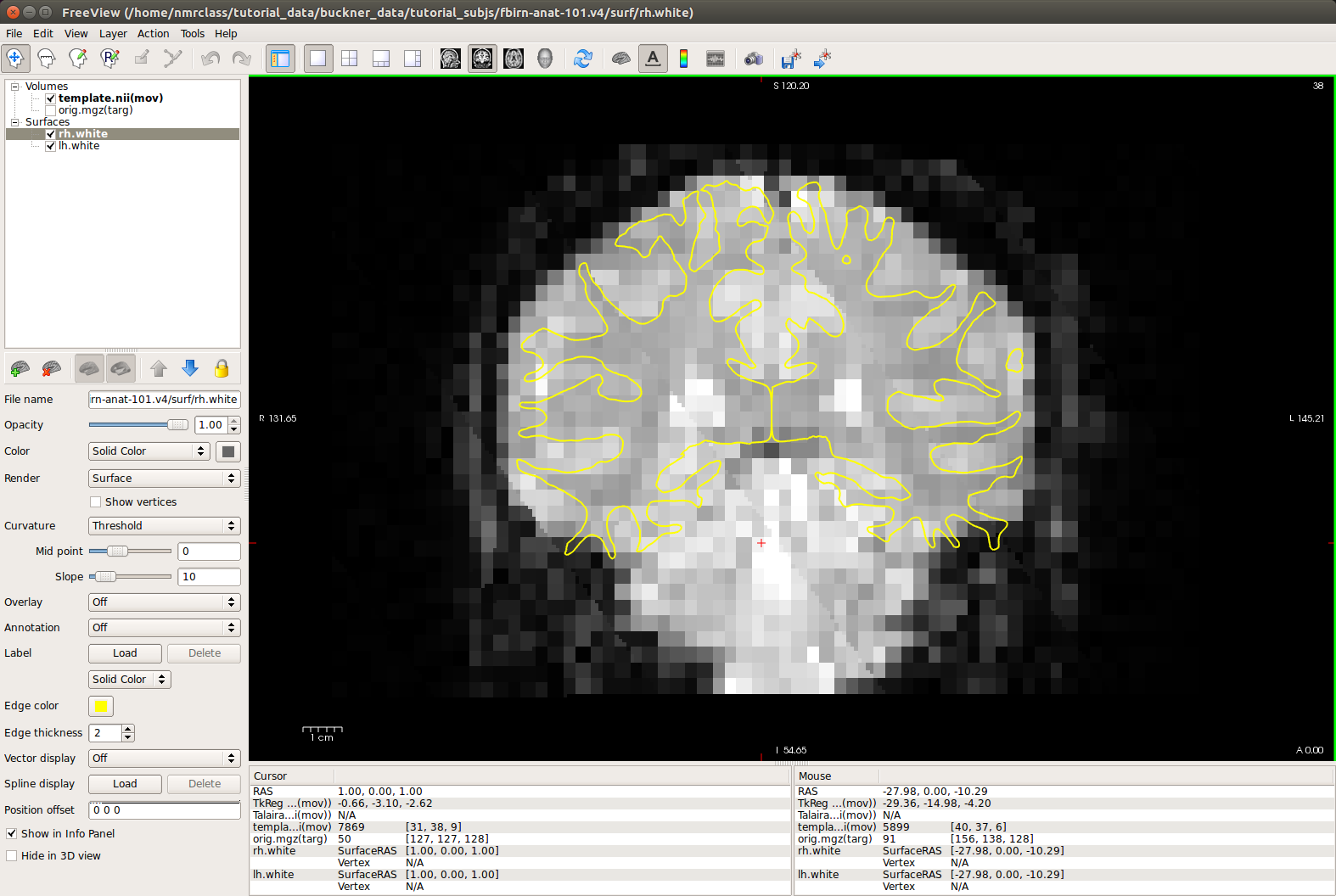
In order to load a functional volume with the anatomical volume specifying the recently created automatic registration:
freeview -v $SUBJECTS_DIR/fbirn-anat-101.v6/mri/orig.mgz:visible=0 \
    template.nii:reg=register.lta -f \
    $SUBJECTS_DIR/fbirn-anat-101.v6/surf/lh.white \
    $SUBJECTS_DIR/fbirn-anat-101.v6/surf/rh.white \
    -viewport cor -transform-volume
Select the template volume and hit Alt+c to switch between the template and orig, or change the opacity value on the top volume to observe the quality of the alignment. How does this registration look compared to your manual registration above? Can you make it any better?
5. Summary
By the end of this exercise, you should know how to:
- Identify a bad registration
- Use the Transform Volume window to manually adjust the registration
- Use the automatic registration program bbregister
6. Study Question
Which imaging plane(s) (axial/horizontal, sagittal, coronal) move on on the x axis when you drag the X (L-R) Translate bar? Answer
Which value in the register.dat.mincost file indicates the quality of the registration? What value should this be below? Answer
Other Multimodal Tutorials: Individual fMRI Integration, Surface-based Group fMRI Analysis, Diffusion and DTI Integration